
Getting Started with TableStudio
Spreadsheet-style workspace for structured tables, formulas, WBS, documents, charts, maps, geotechnical views, and print-ready workbook output.
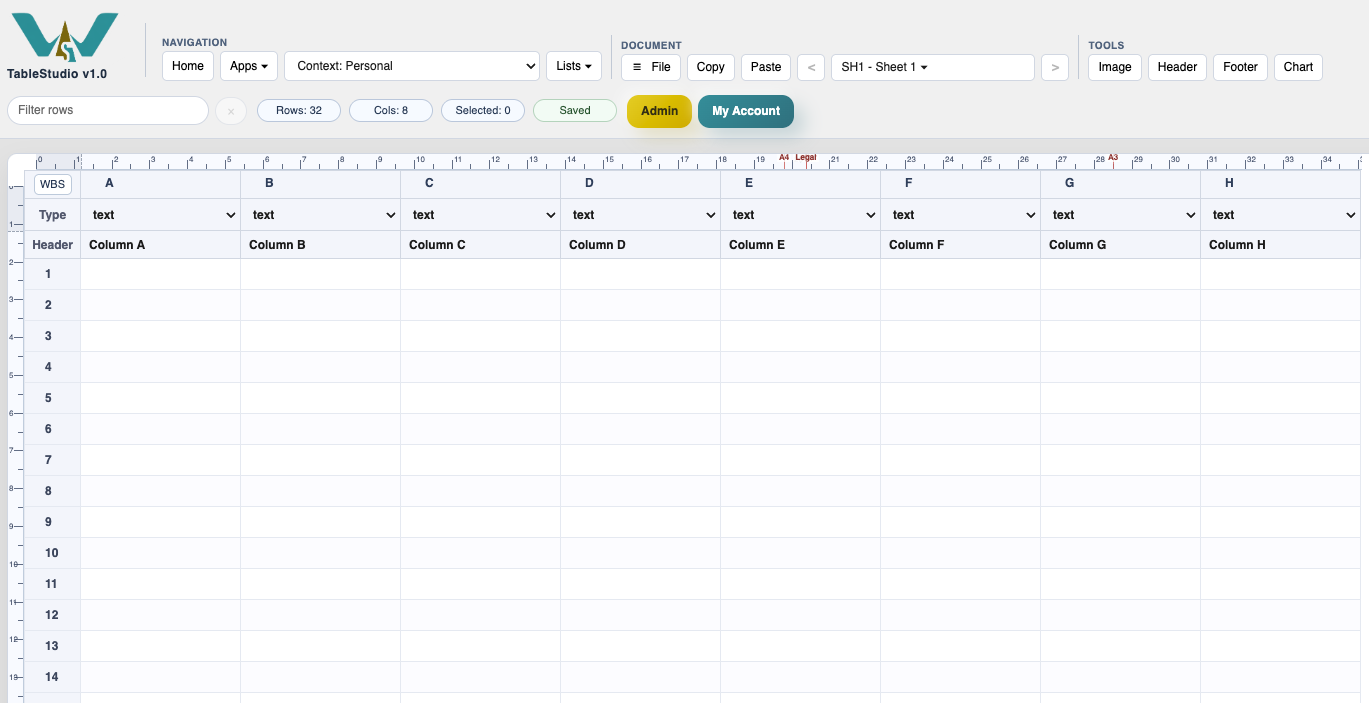
TableStudio is the structured-table workspace in WorkStudio. It feels like a spreadsheet, but it is designed for workbook files that must stay organized, reusable, auditable, and printable.
A TableStudio file can hold multiple sheets, formulas, WBS grouping, table objects, images, document links, conditional formatting, list and lookup columns, headers, footers, cover pages, charts, map/location formulas, and geotechnical charts.
The main workflow is simple: create or load a workbook, set column types, enter rows, use formulas where needed, attach supporting documents, then print or export to Excel/PDF.
Use File Settings for workbook-level behavior such as page setup, cover pages, currencies, WBS appearance, and document indicators.
Use the Type row to decide how each column behaves. For example, a column can be text, number, currency, date, checkbox, list, lookup, user, info, document, or gantt.
Use formulas when values should calculate. When you type =, TableStudio opens contextual formula help beside the active cell.
Use charts when the table should become a visual object that can be moved, resized, printed, and exported.
Related: TableStudio File Settings, TableStudio Column Types, Column Type: Checkbox, Cell Options, TableStudio Functions, Charts in TableStudio, Export Excel from TableStudio, Export PDF from TableStudio.
Open file actions
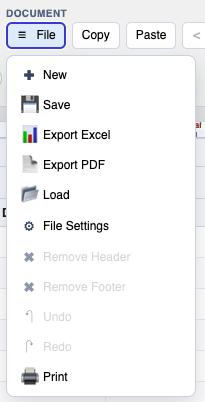
The File menu is where you load, save, print, export, and open file settings.
Load a workbook
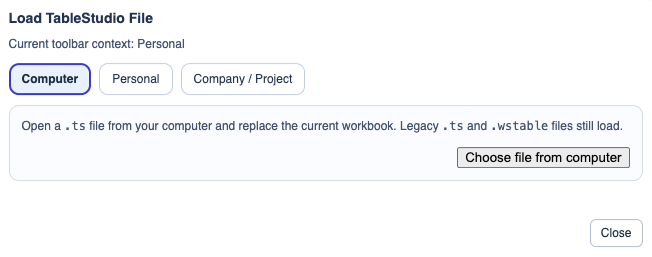
The load window supports opening workbooks from the computer or from WorkStudio storage.
Save a workbook
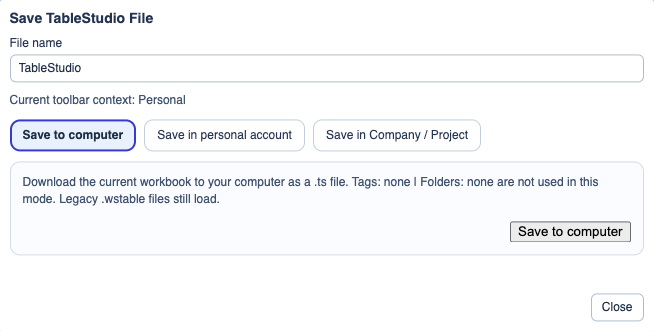
The save window separates local download from account and company/project storage.
Enable JavaScript to use reading progress and usefulness ratings.