
Column Type: Checkbox
Checklist cells with normal, attention, or superseded marks, conditional display, per-cell exceptions, and optional checked-row styling.
Use the checkbox column type when a row needs a clear checklist state instead of free text.
In the Type row, choose checkbox, then open column settings to control how the column behaves.
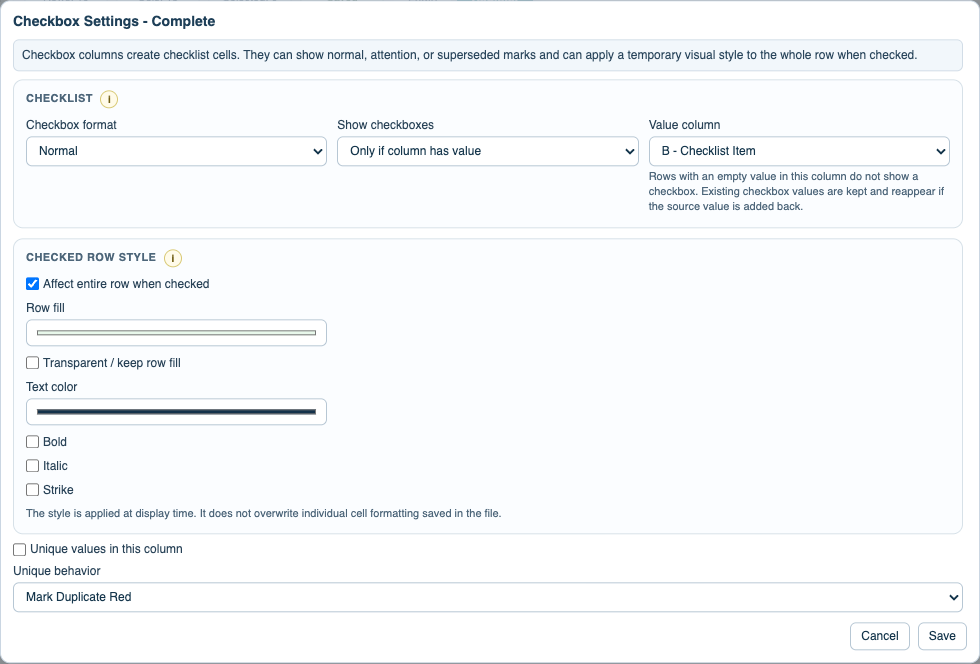
Checkbox format controls the mark shown when the cell is checked:
Normalfor a standard checked itemAttention (!)when the checked state should mean warning, pending attention, or special follow-upSuperseded (x)when the checked state should mean replaced or no longer active
Show checkboxes controls where boxes appear. Entire column shows a checkbox in every applicable row. Only if column has value shows the checkbox only while another selected column in the same row contains a value. When that source value is removed, the checkbox is hidden; when the value is added back, the checkbox returns.
A checked checkbox can affect the whole row. Enable Affect entire row when checked, then choose fill color, text color, bold, italic, or strike. Use Transparent / keep row fill when you want alternate row fill to remain visible while other row effects still apply.
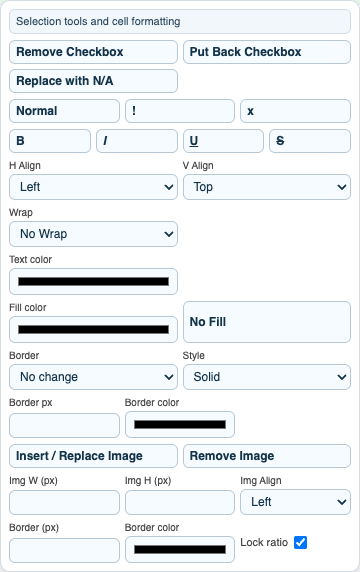
For one-off rows, right-click a checkbox cell. The context menu can remove the checkbox, put it back, replace it with N/A, or change only that cell to normal, !, or x. A removed checkbox becomes a normal editable cell. Removed checkbox cells and N/A cells are skipped by Sheet Info missing-document counts.
Checkbox columns work directly with Sheet Info modes such as missingDocs, ratioMissingDocs, and percentMissingDocs. These modes count unchecked applicable checkbox cells as missing and checked cells as complete.
Related: Checkbox Columns and Sheet Info Panels in TableStudio, Create a Checklist and Missing Documents Panel, TableStudio Column Types, TableStudio File Settings.
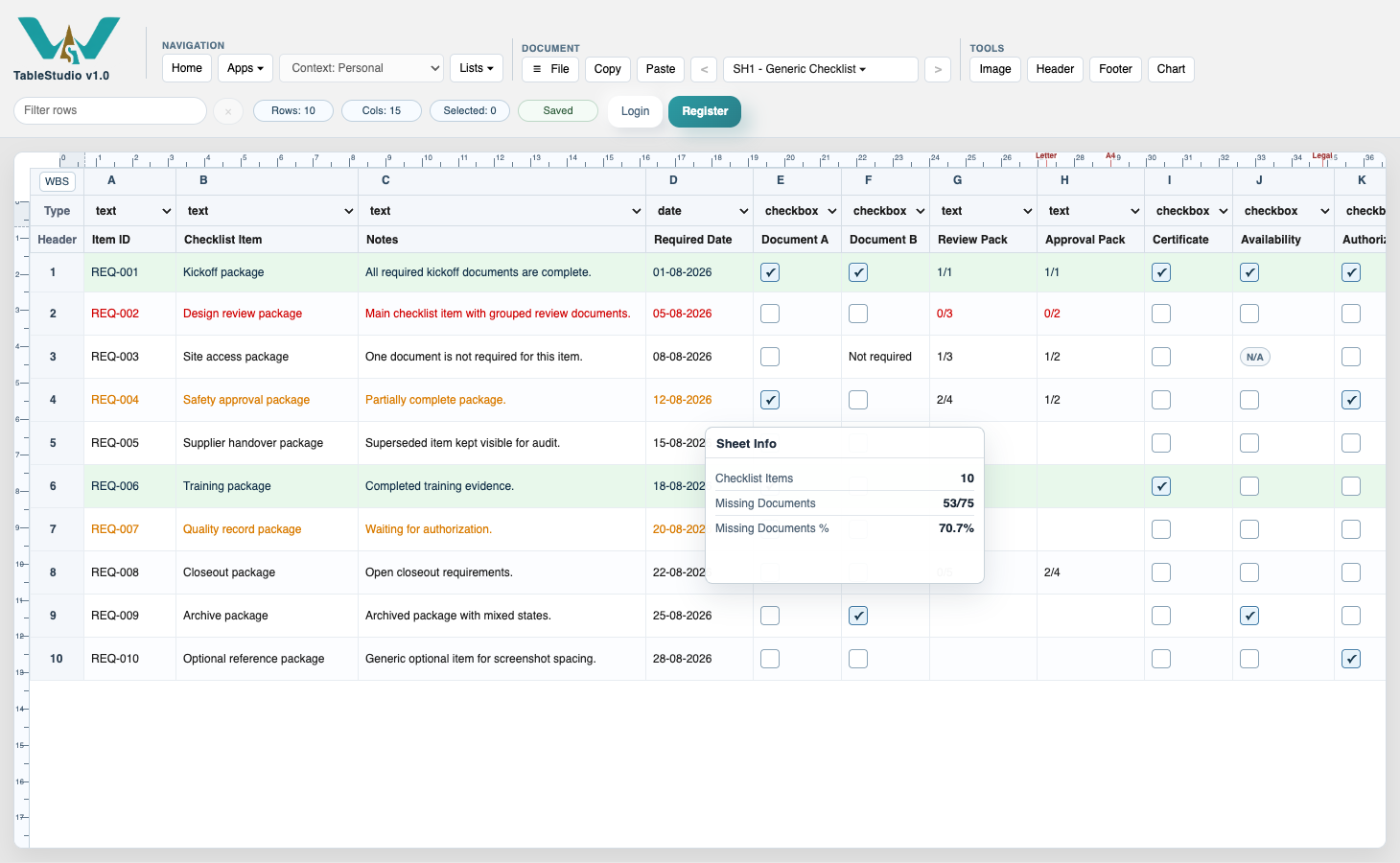
Checkbox column settings
Column settings control the checkbox mark, conditional display, and checked-row style.
Checkbox cell context menu
The cell menu can remove or restore a checkbox, set N/A, or change one cell to normal, attention, or superseded.
Enable JavaScript to use reading progress and usefulness ratings.