
Cell Options
Explains the cell context menu in TableStudio, including structural actions, formatting controls, image options, and the Read Only flag.
Right-click a selected cell to open the TableStudio cell menu.
That menu combines quick structural actions, formatting controls, and cell flags in one place.
The main action groups are:
- edit helpers such as
Copy,Paste, andEdit Formula - row and column structure actions such as
Insert Row Above,Insert Row Below,Insert Column Left,Insert Column Right,Delete Row, andDelete Column - merge actions such as
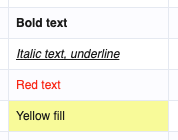
Merge Right,Merge Down, andUnmerge Cell - styling controls for bold, italic, underline, strike, font, size, horizontal align, vertical align, wrap, text color, fill color, and borders
- image controls for inserting or replacing an image, image size, alignment, border, and locked aspect ratio
Set Read Only marks the selected cells so they can be viewed, copied, and formatted, but not edited manually.
If the same command is used again on a read-only cell, it becomes Clear Read Only.
Some cells are already protected by the app and are not meant to be switched manually. For example, Gantt-mirrored Task ID cells and Duration cells derived from Productivity stay protected by workflow rules even if you open the cell menu there.
Some menu sections only matter when they are relevant. Example: image controls are meaningful only when the cell contains an image, and Open Table Object only appears for TOBJ cells.
Related: TableStudio Column Types, Column Type: List, TOBJ.
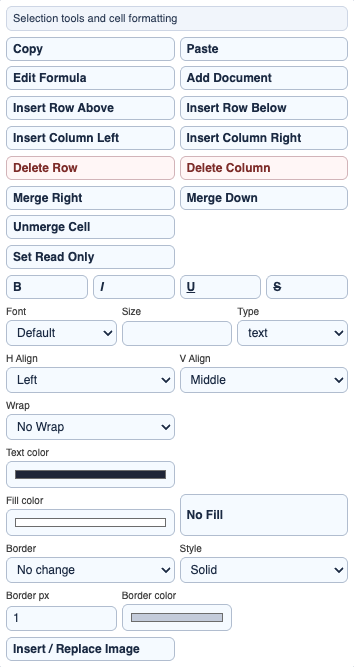
Cell formatting
Formatting controls apply to selected cells.
Enable JavaScript to use reading progress and usefulness ratings.