
Export Excel from TableStudio
Explains the Export Excel window, sheet selection, attached-file bundles, hidden and collapsed row handling, and what is preserved in the exported workbook.
Use File > Export Excel when a workbook should become an Excel deliverable.
The export window opens before the file is generated. It lets you choose:
- which workbook sheets to export (
All sheetsis the default) - whether attached files should be exported too
- whether hidden and collapsed columns should be exported
- whether collapsed rows should be exported
If Export attached files when present is off, TableStudio downloads one .xlsx workbook.
If that option is on and the selected sheets contain embedded local documents, TableStudio exports a .zip bundle instead. The bundle contains the .xlsx workbook plus an attachments/ folder. The workbook hyperlinks point to those extracted files beside the workbook. FileStudio-backed document cells export as direct hyperlinks.
If hidden or collapsed columns are excluded, TableStudio omits those columns from the workbook sheets. When workbook formulas would otherwise depend on omitted hidden columns, the export uses the already resolved values so the Excel file still opens correctly.
If collapsed rows are excluded, collapsed detail rows are omitted from the workbook sheets. Auto-sum rows are adjusted so their exported formulas continue to match the visible summary structure.
The Excel export also keeps workbook-specific structure where possible:
- workbook sheets export as Excel worksheets
- WBS rows export as Excel outline groups with summary rows above detail
- gantt bars export inside the original worksheet and gantt column
- dates export with Excel date formatting based on the TableStudio file settings where possible
TRANSLATE(...)exports the translated value, not the TableStudio formula
Use this export when the recipient needs an editable Excel workbook. If the workbook should become a packaged printable deliverable with cover pages and attached PDFs after each sheet, use Export PDF from TableStudio instead.
Related: Saving in TableStudio, Export PDF from TableStudio, Attach TableStudio Files to FileStudio.
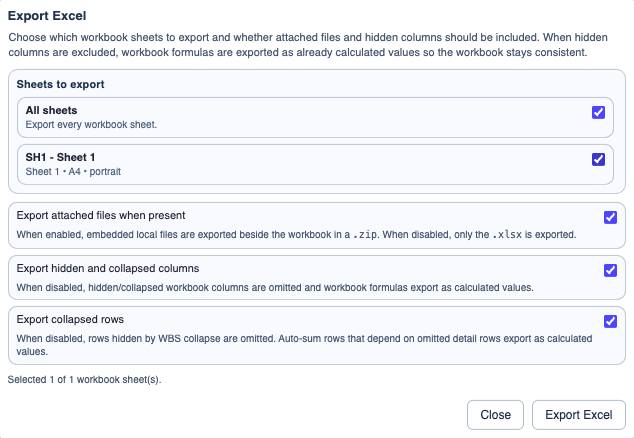
Excel export options
Choose exactly which sheets to export and whether the output should stay as one .xlsx file or become a .zip bundle with linked attachments.
Enable JavaScript to use reading progress and usefulness ratings.