
Invite a Contact, Message, and Share a File
A practical walkthrough for inviting a known user, accepting the request, sending messages, replying, and sharing a stored file or FileStudio record.
Use this tutorial when you want to start a direct collaboration with another WorkStudio user.
You need to know the other user's email address. WorkStudio does not expose a public people search from Contacts.
For file sharing, the item must already be stored in WorkStudio. Local computer files are not shared directly from Contacts.
Related: Contacts and Messages in WorkStudio, WorkStudio Context, Saving in WorkStudio, FileStudio.
Keep the distinction clear: a Person record is information in your Records collection; an accepted Contact is a WorkStudio user you can message. Use only the item types offered by the share picker for this tutorial.
Open Contacts
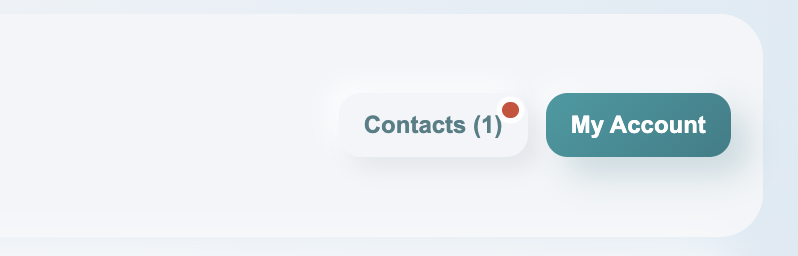
From the main page, choose Contacts. If there are unread messages or incoming requests, the button shows a marker/count so you know something needs attention.
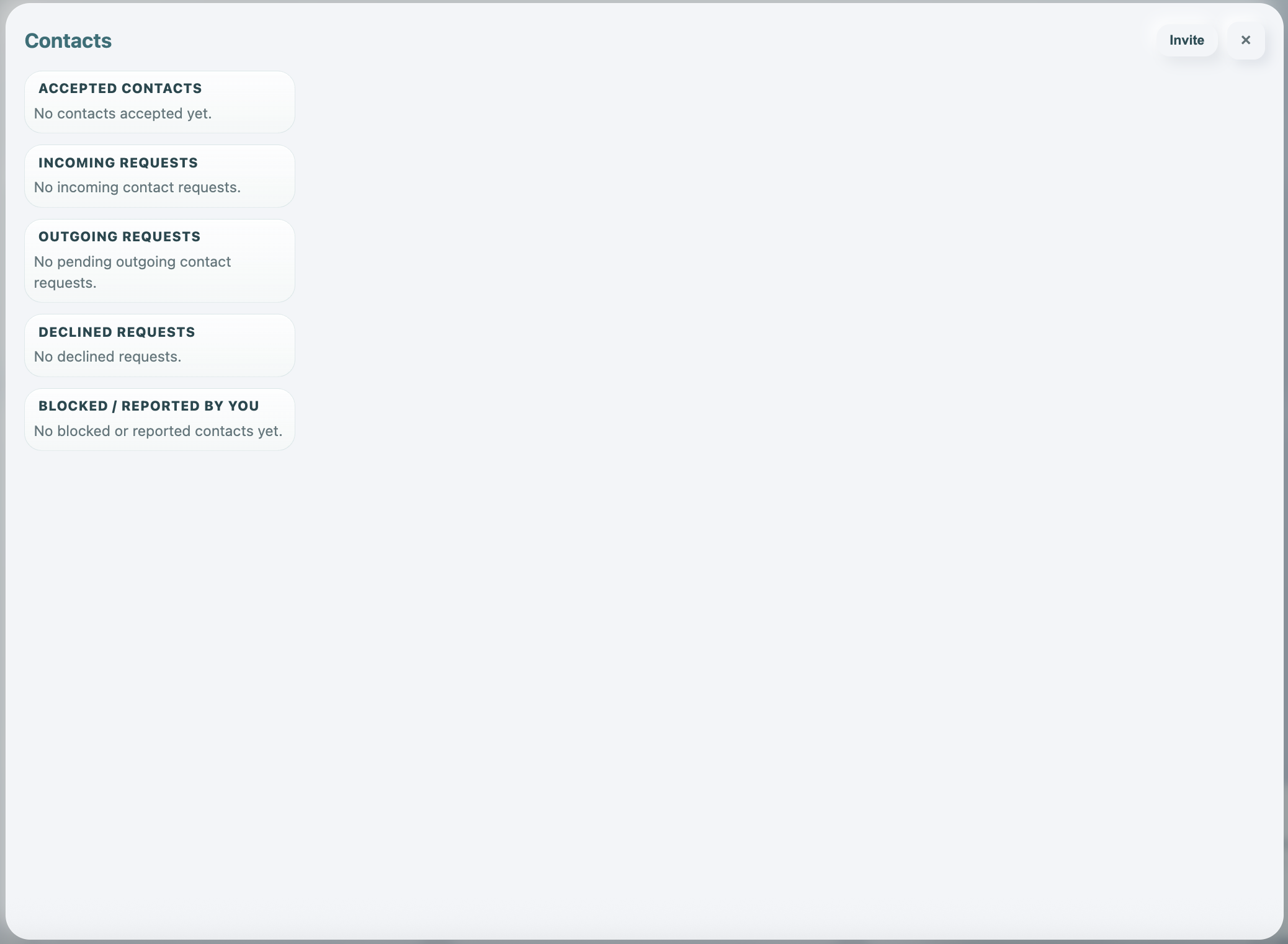
Review the Contacts sections
The left side groups your contact state: accepted contacts, incoming requests, outgoing requests, declined requests, and blocked or reported contacts. Start with Invite when you want to add someone new.
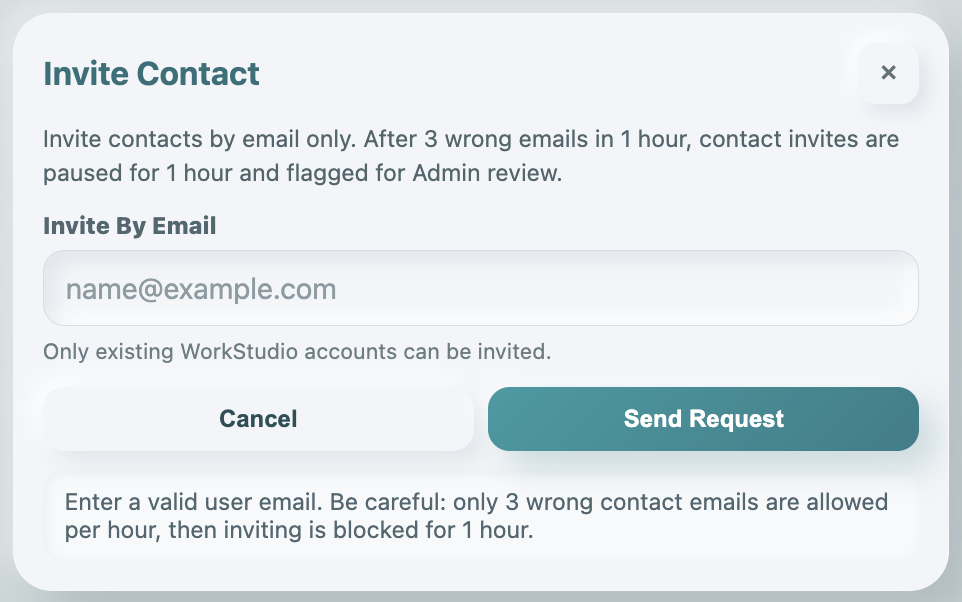
Invite by known email
Enter the person's WorkStudio account email and choose Send Request. If the email is not registered, the invite is not sent and repeated wrong emails can pause inviting for one hour.
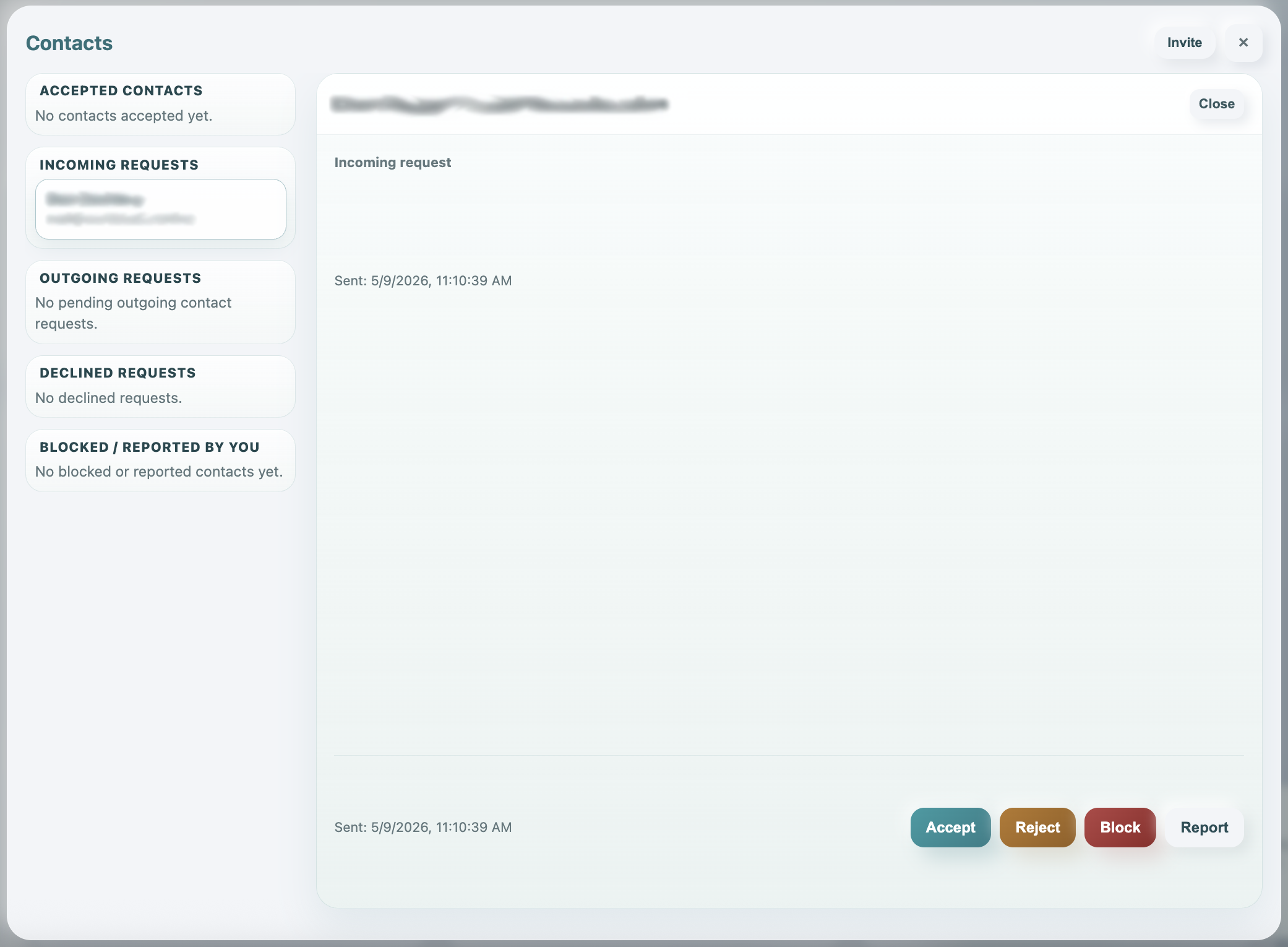
Recipient answers the request
The invited user sees the request under Incoming Requests. They can Accept, Reject, Block, or Report. Messaging becomes available only after acceptance.
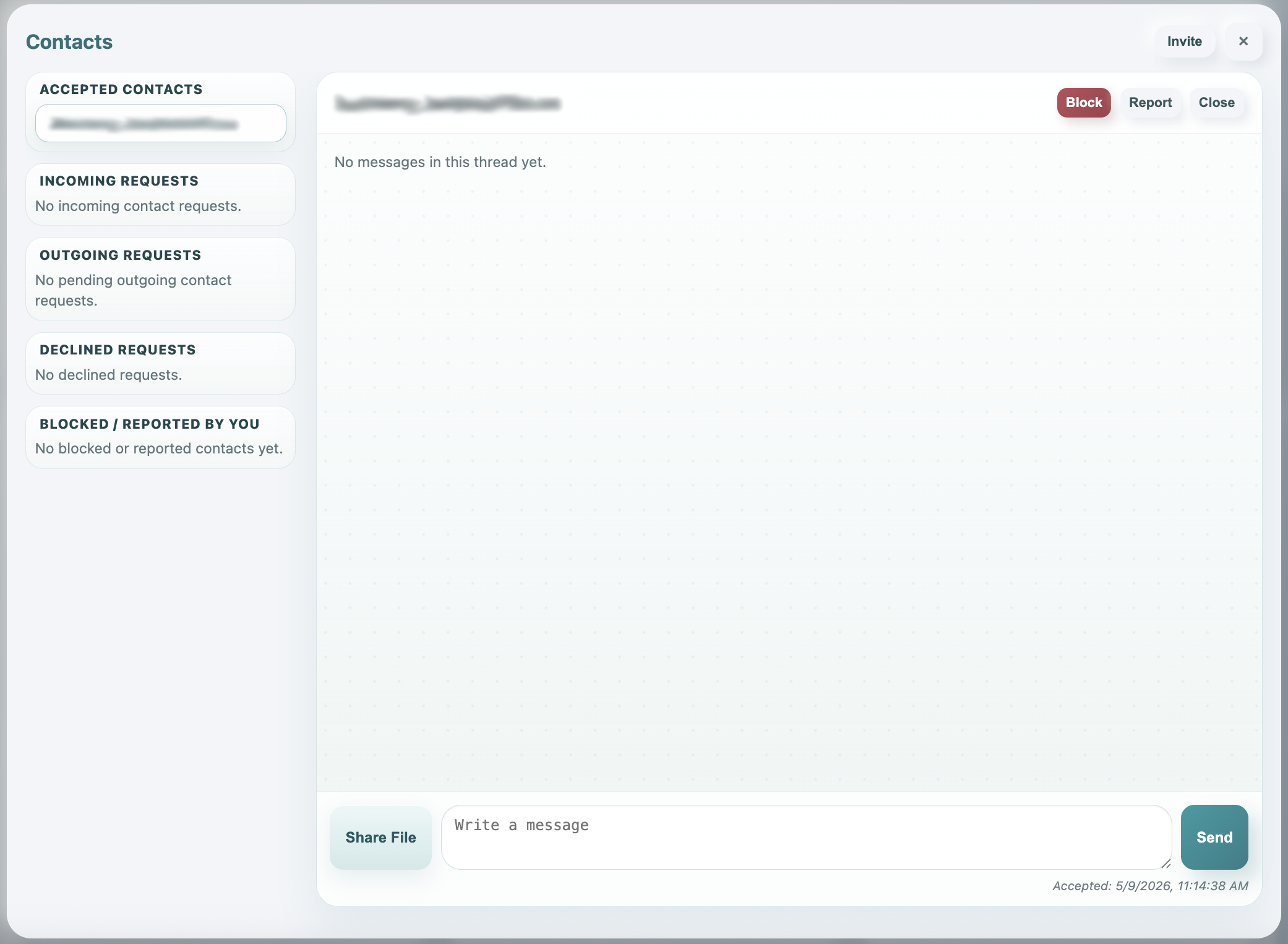
Open the accepted message thread
After acceptance, the contact appears under Accepted Contacts. Open the thread to send a direct message. The message composer stays at the bottom with Share File, the text area, and Send.
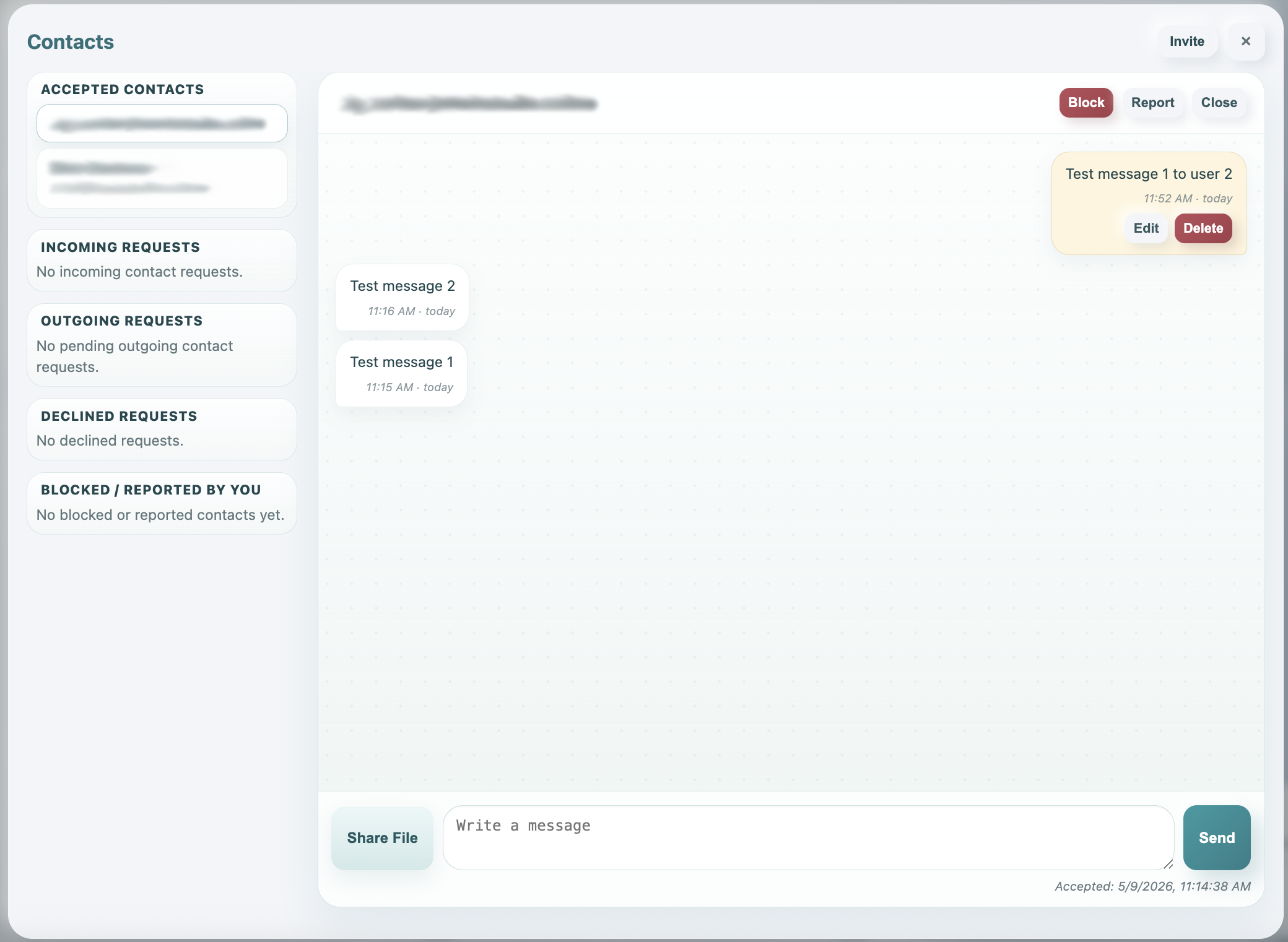
Send messages and read replies
Messages appear as bubbles in the thread. Newer messages are shown higher in the conversation. Outgoing messages that have not been viewed yet can still be edited or deleted.
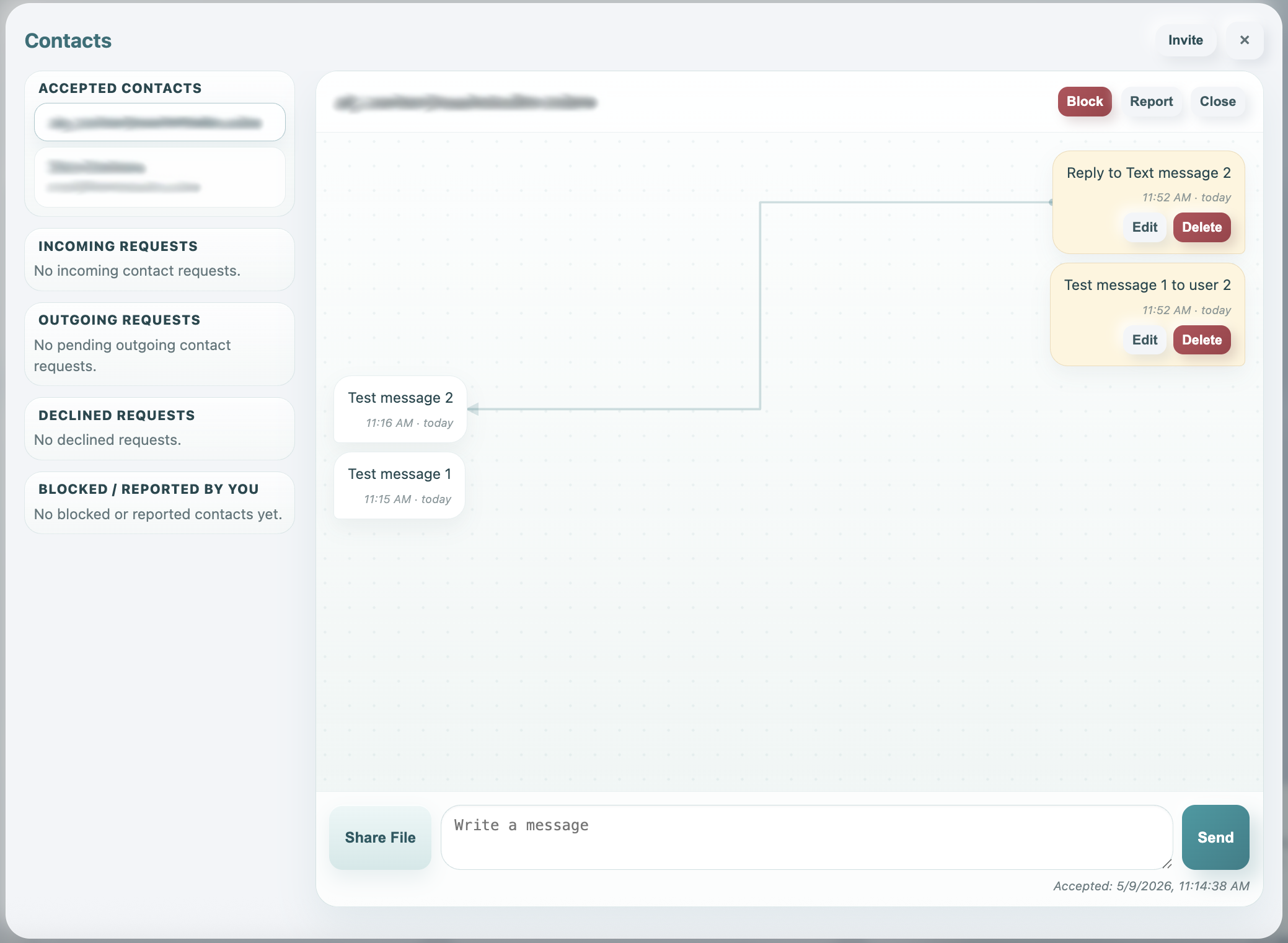
Use replies when context matters
Reply to a message when the answer should stay connected to a specific earlier bubble. Contacts draws a faint connector line so the relationship is easy to follow.
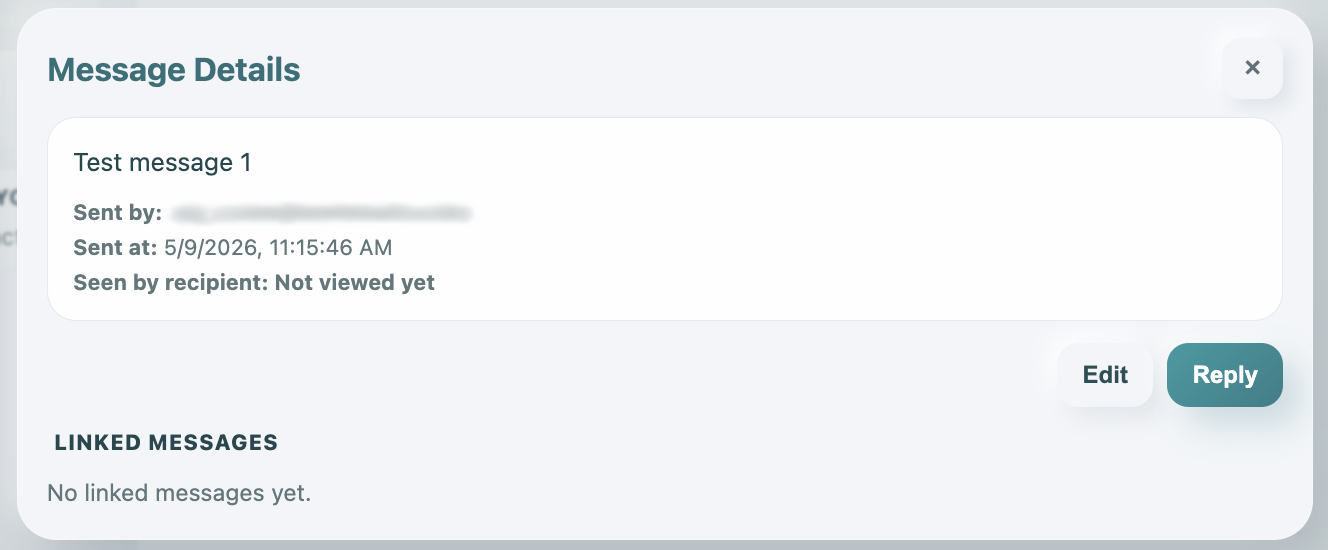
Open message details
Click any message bubble to open the details modal. This shows who sent it, when it was sent, whether it was viewed, and which messages are linked to it.
Choose a file or record to share
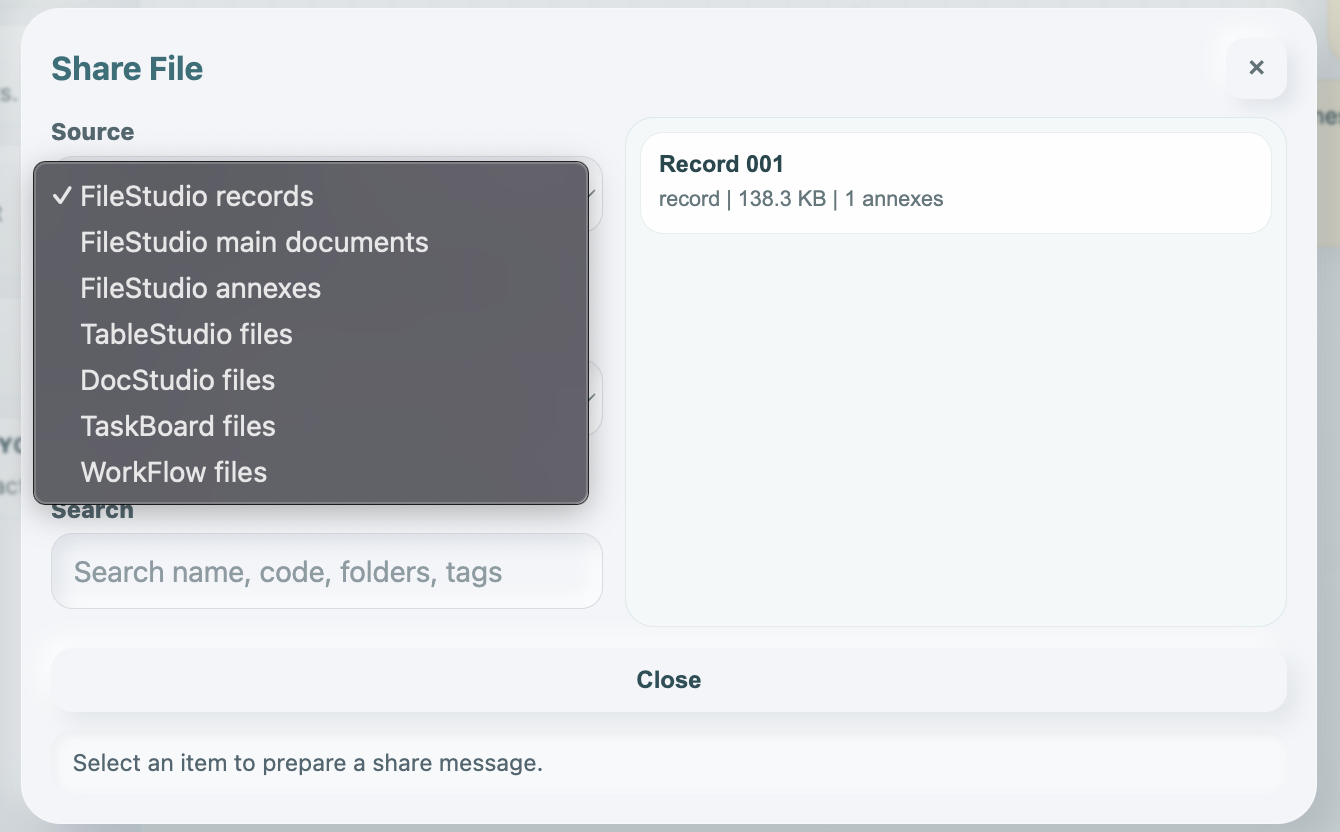
Choose Share File, then select the source. You can share FileStudio records, main documents, annexes, or stored files from apps such as TableStudio, DocStudio, TaskBoard, and WorkFlow.
Recipient accepts or rejects the share
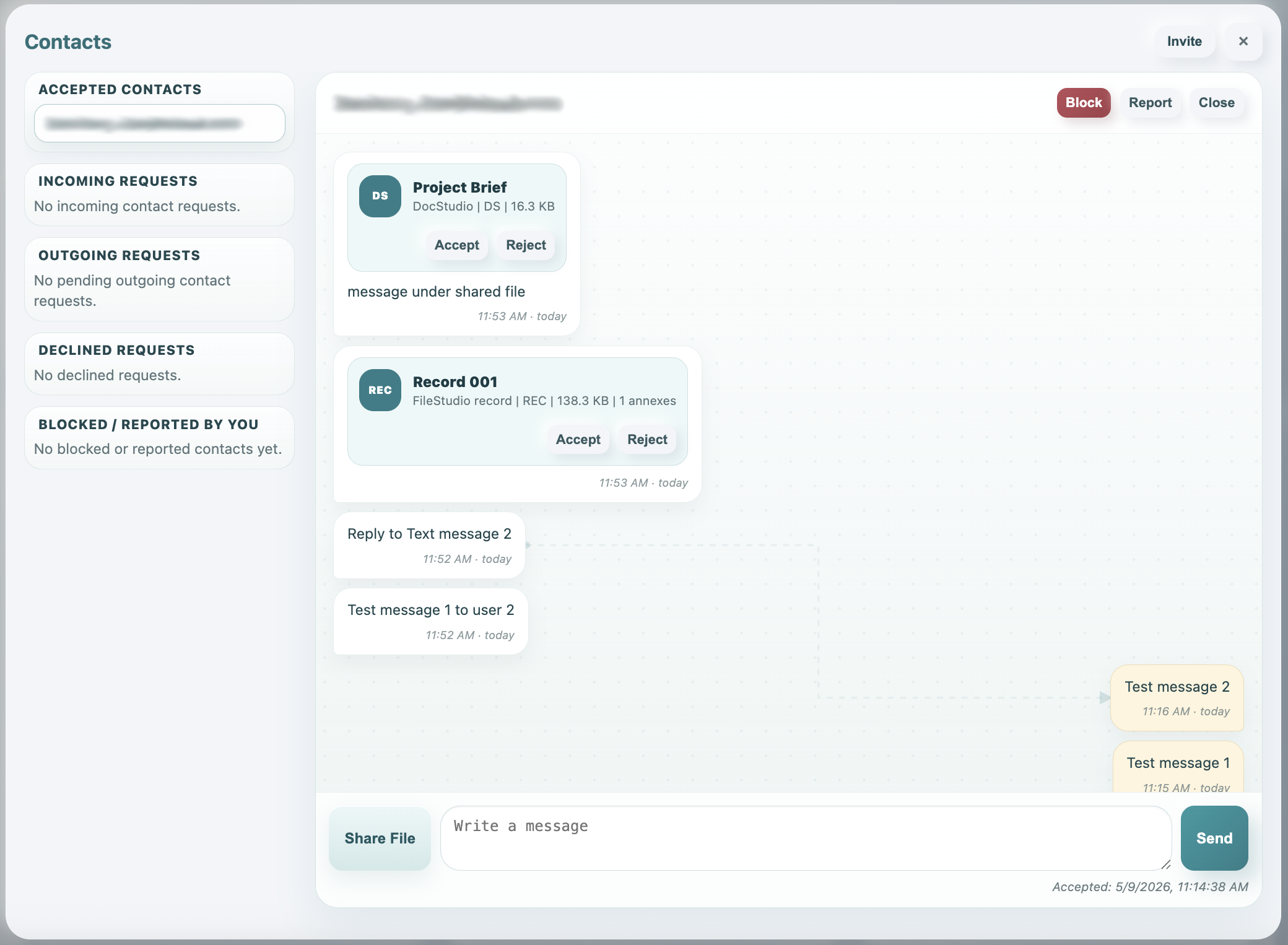
The recipient sees a file or record bubble with Accept and Reject. Accepting creates a copy in the recipient's Personal context. Rejecting closes the request without copying the file.
Confirm storage before accepting
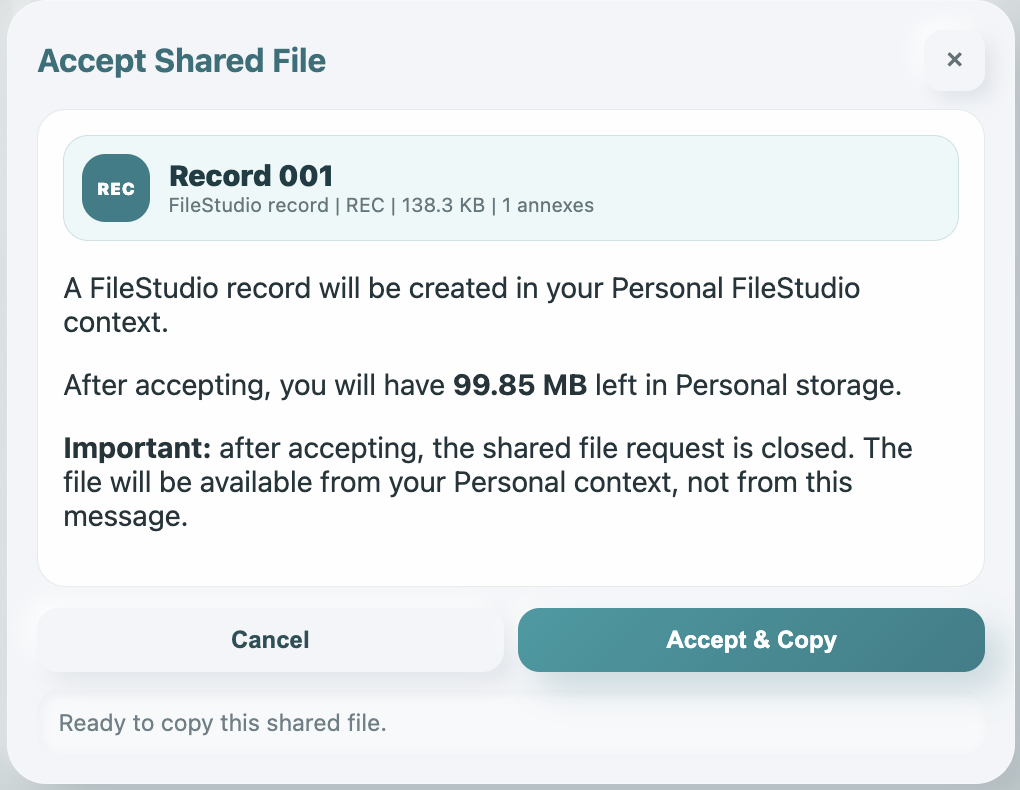
Before copying, WorkStudio shows the item size, the target Personal context, and the remaining storage after acceptance. Choose Accept & Copy only if the destination and storage impact are correct.
Review handled shares
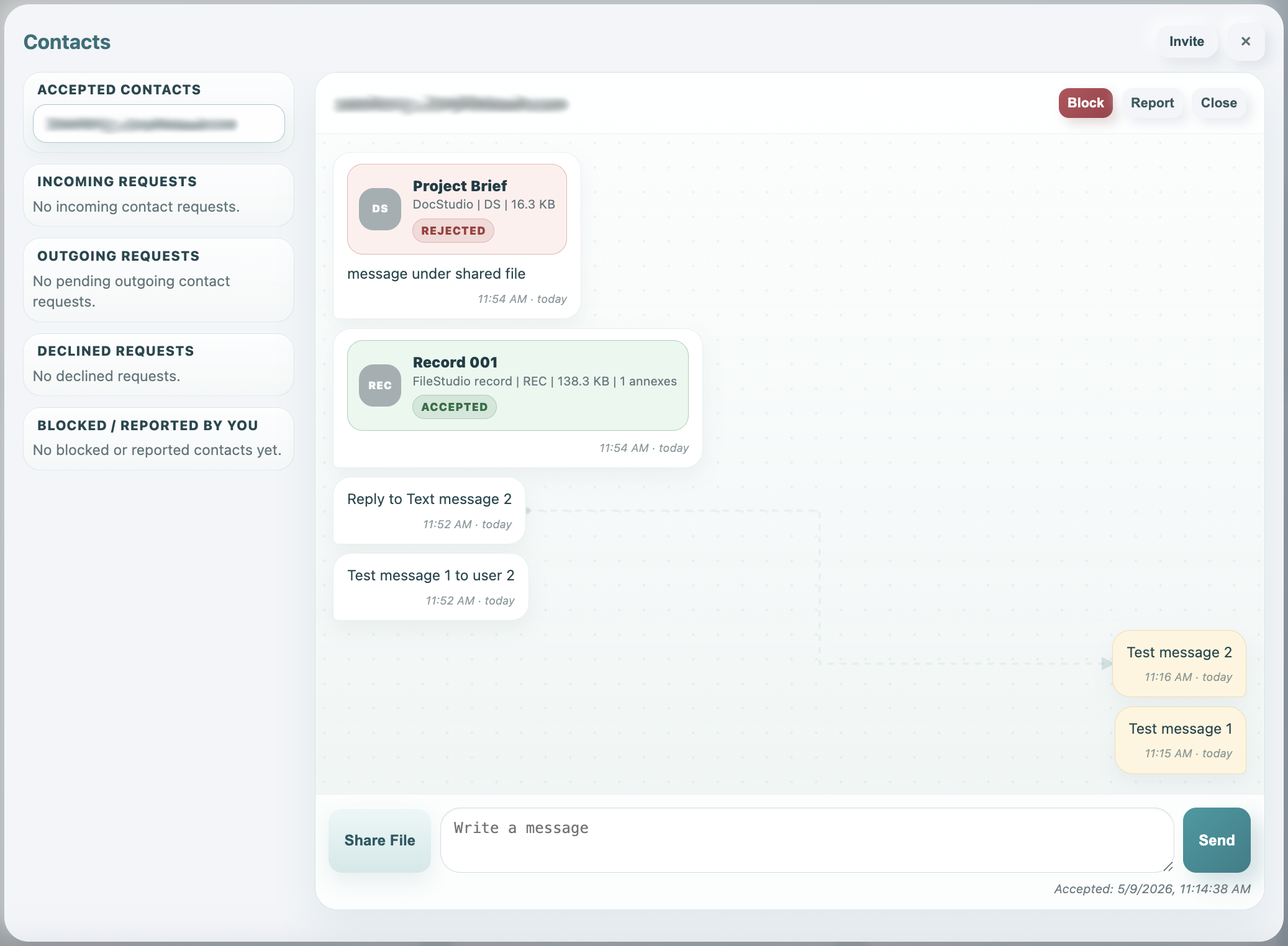
After a share is accepted or rejected, the bubble is marked with the final state. The icon becomes grey to show the share request is closed and the file is no longer available from the message itself.
Enable JavaScript to use reading progress and usefulness ratings.