
Contacts and Messages in WorkStudio
Invite known WorkStudio users, exchange direct messages, reply with linked message threads, and share stored files or FileStudio records safely.
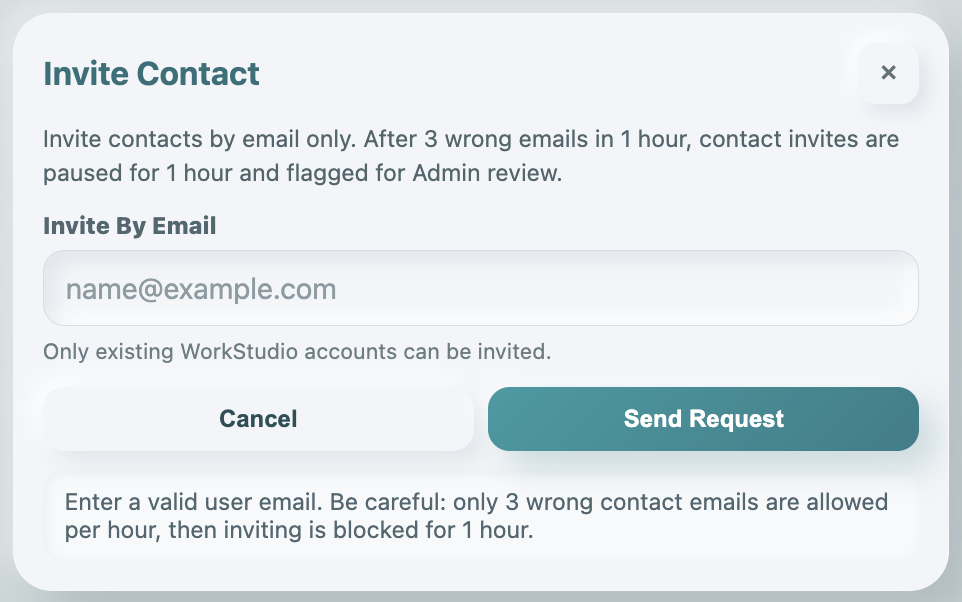
Contacts lets you work directly with another WorkStudio user without exposing a public user search. You invite a person by email, and the email must already belong to a WorkStudio account.
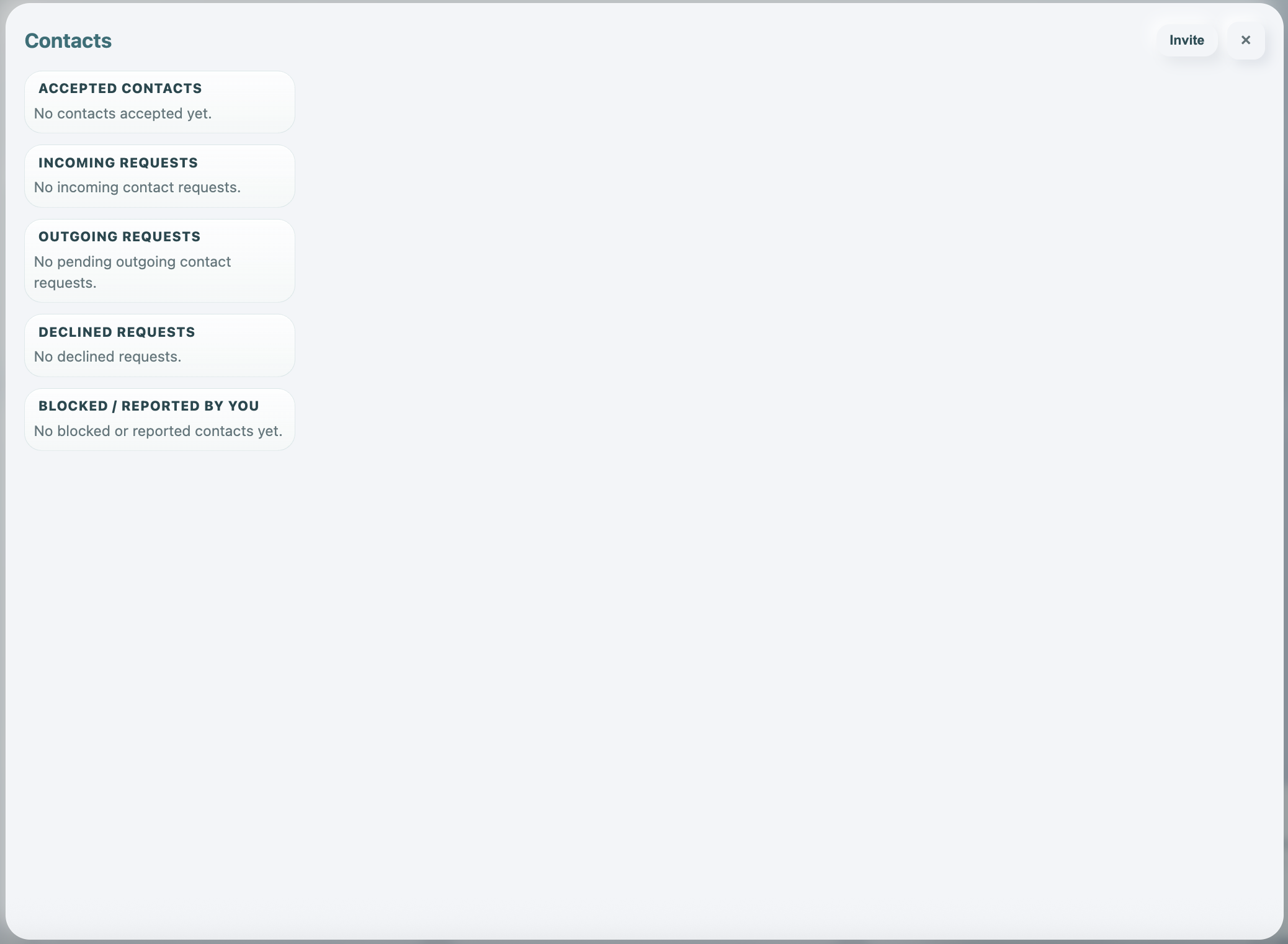
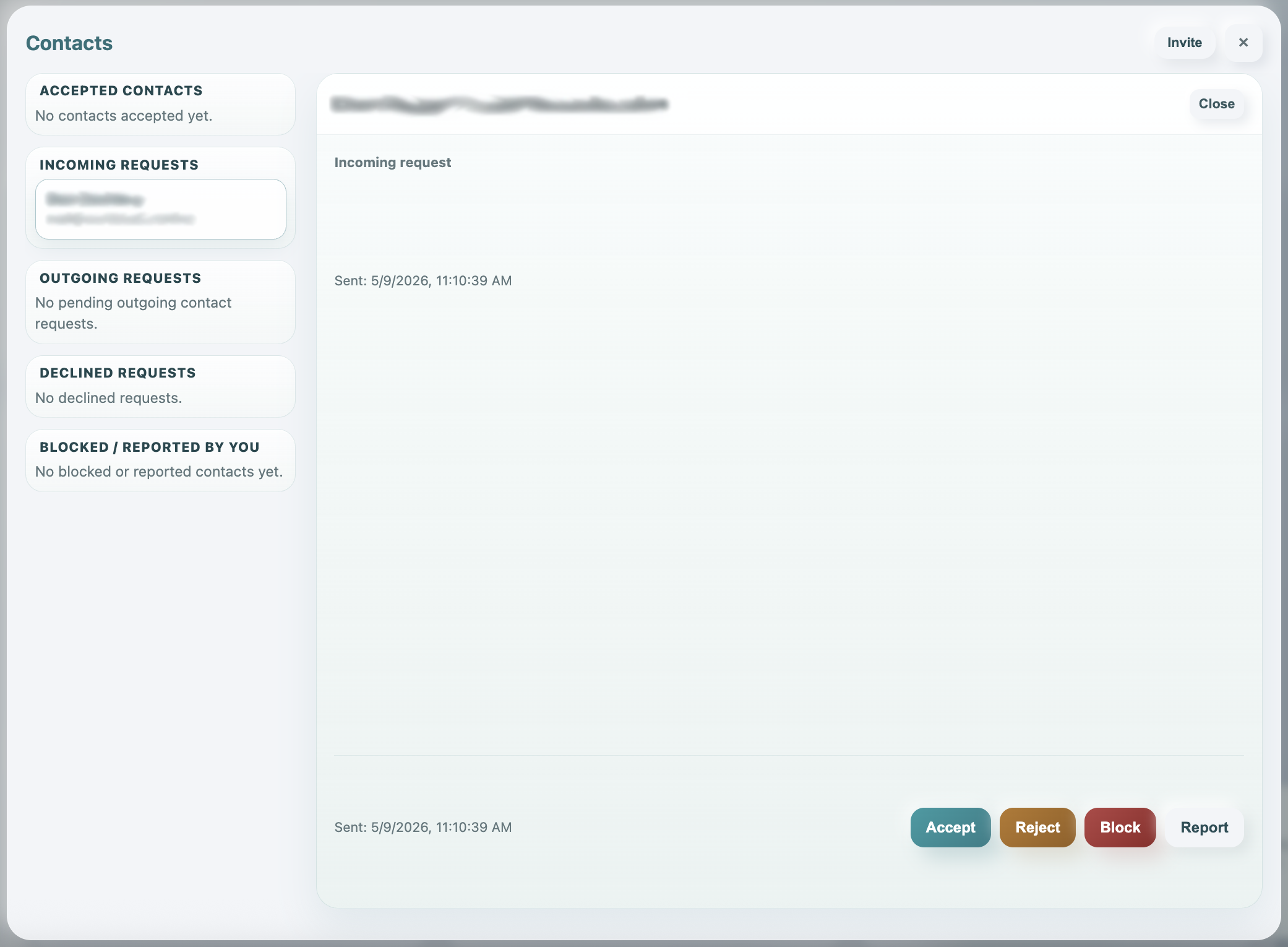
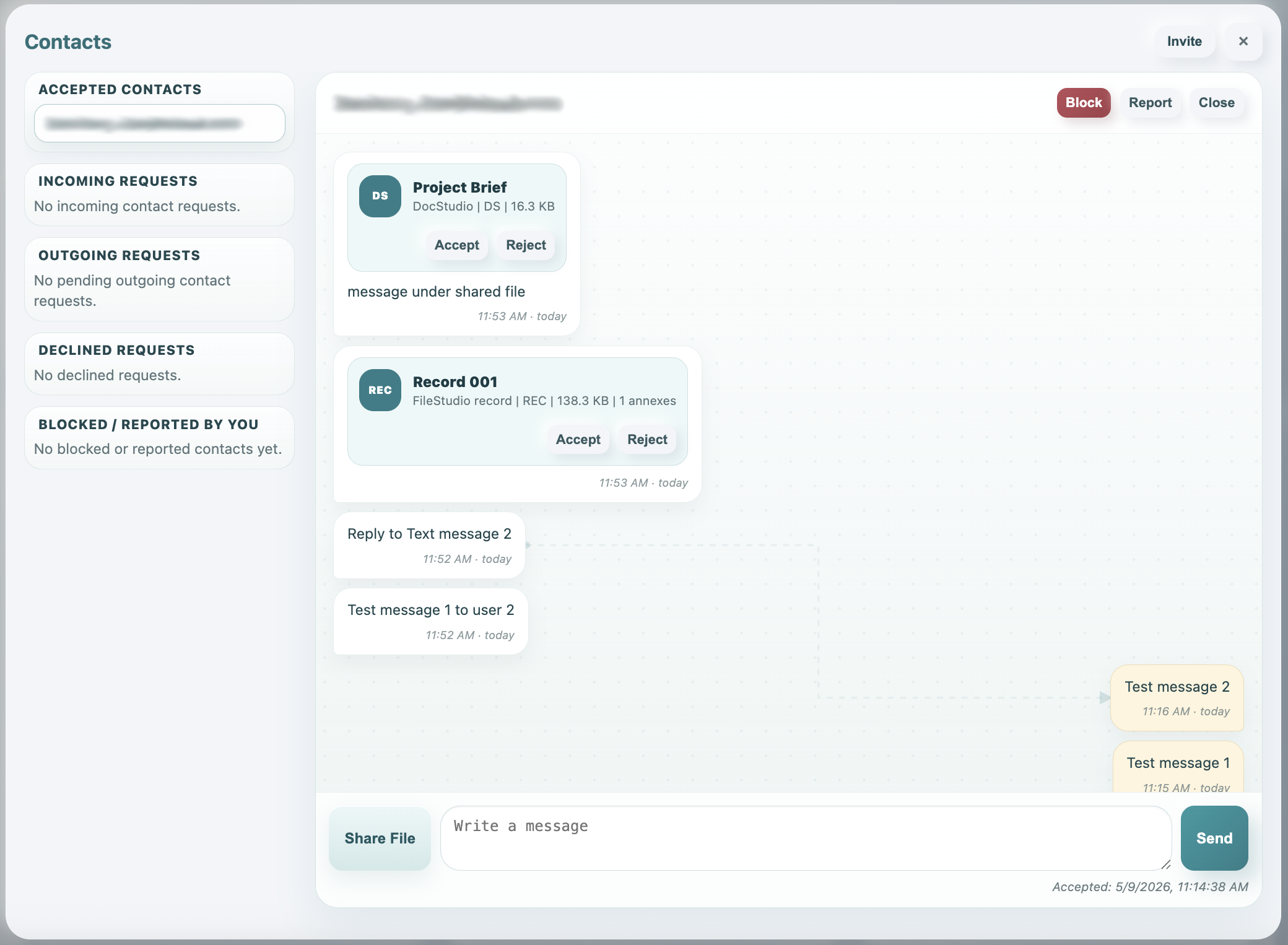
The Contacts window is split into sections: Accepted Contacts, Incoming Requests, Outgoing Requests, Declined Requests, and Blocked / Reported By You. This makes it clear whether you are waiting for someone, need to answer an invite, or already have an active contact.
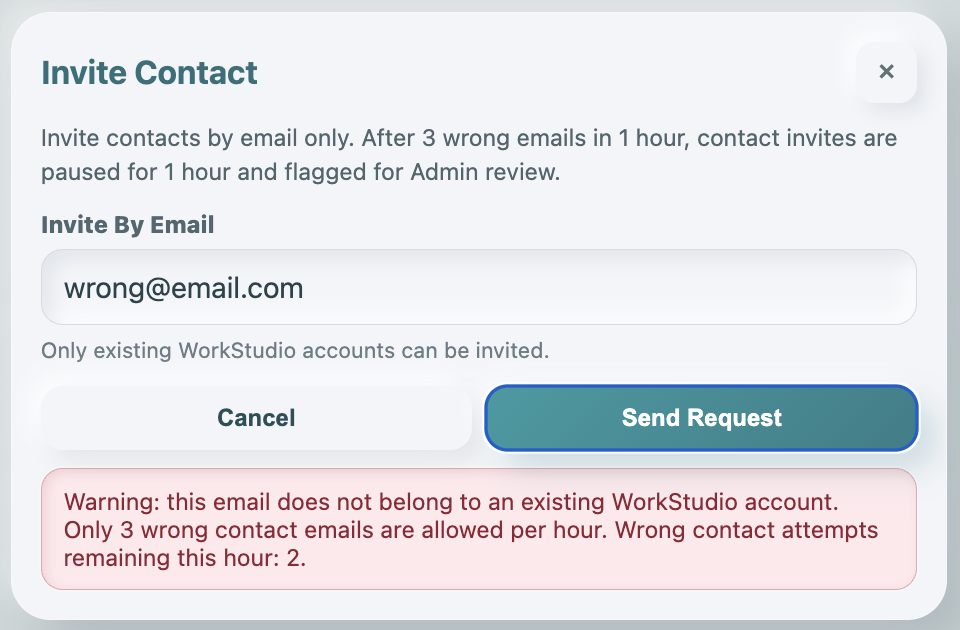
If you enter emails that are not on the platform, the invite flow warns you. After 3 wrong contact emails in 1 hour, contact invites are paused for 1 hour and the event is flagged for Admin review.
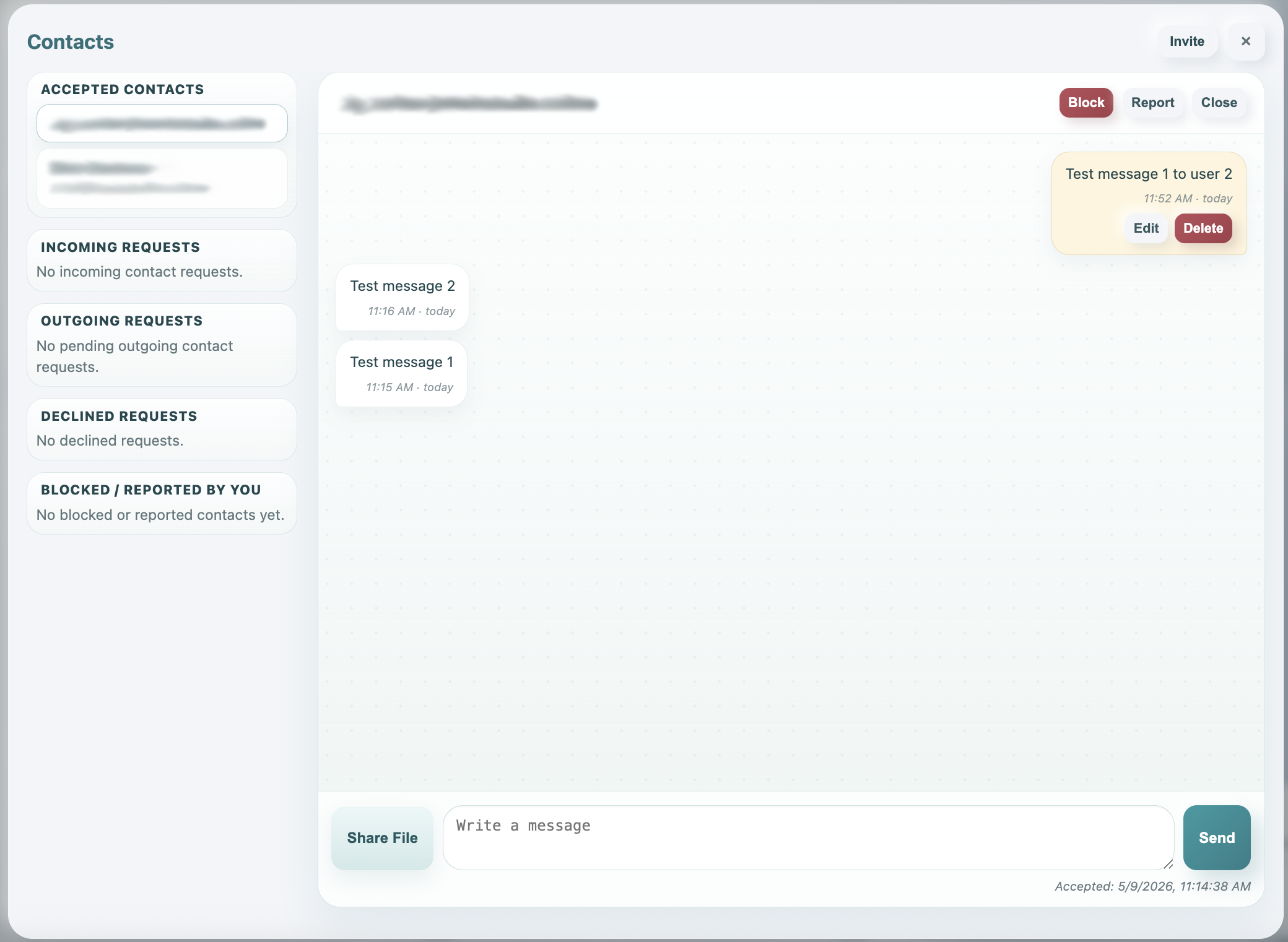
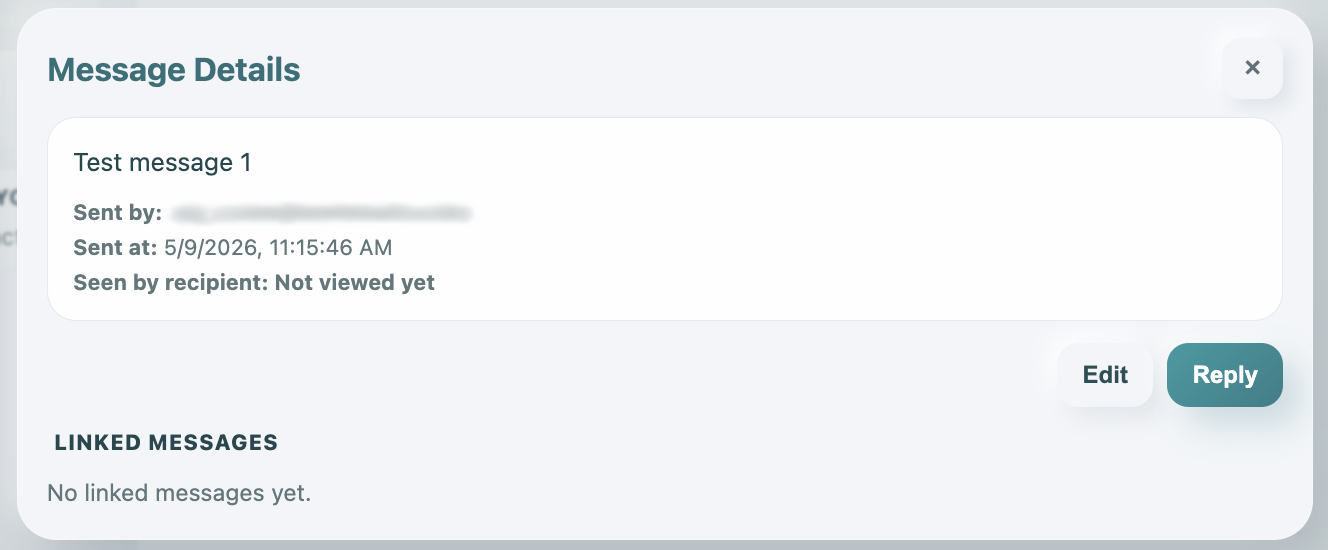
When a contact is accepted, the right side becomes a private one-to-one message thread. New messages appear at the top. Click a message bubble to see full details such as who sent it, when it was sent, whether it was viewed, and which messages are linked as replies.
Outgoing messages can be edited or deleted only until the recipient views them. After the recipient opens the thread and the message is marked viewed, the message is locked.
Replies are connected visually with faint dashed lines. Hovering a linked message makes the connection easier to follow, and opening the message detail modal shows the linked messages together.
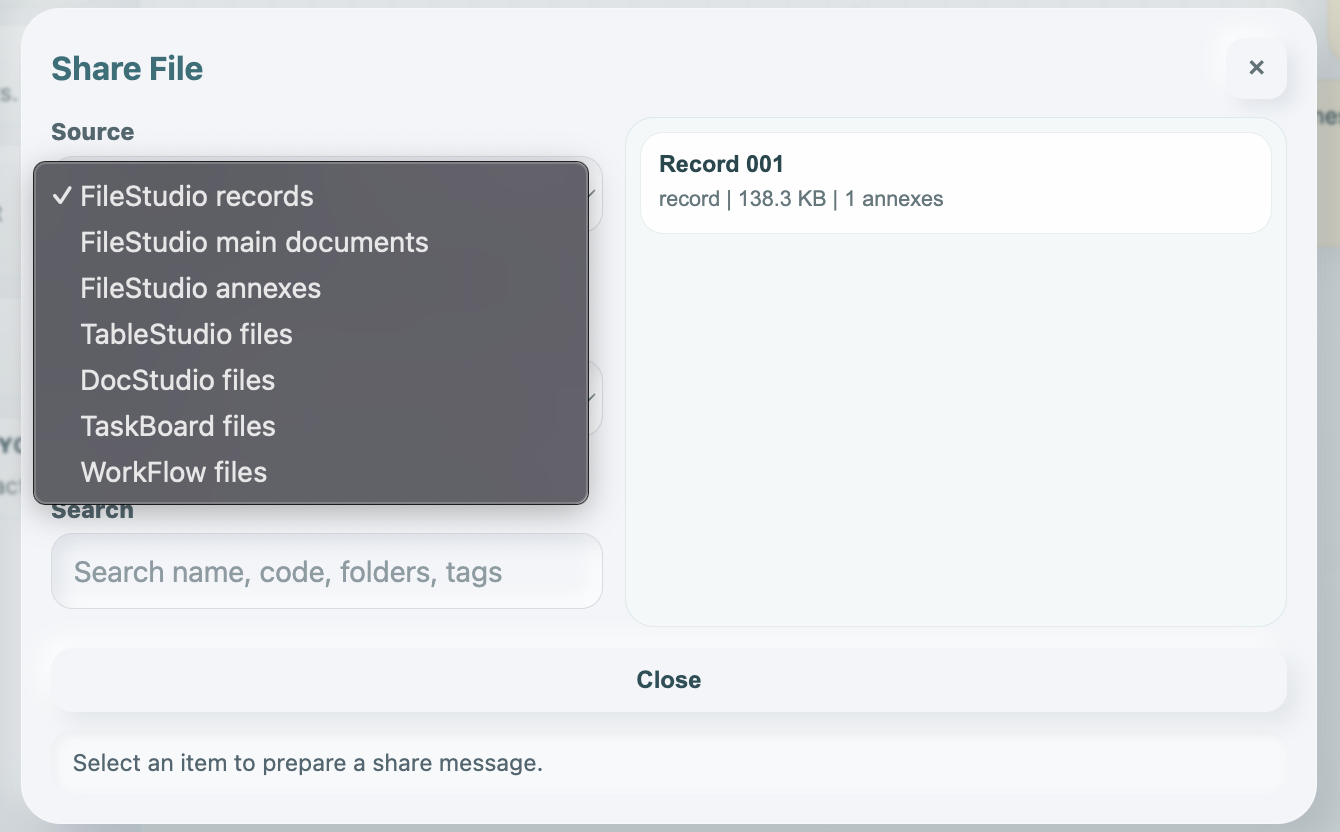
Use Share File when you want to send a stored WorkStudio item. The current share picker supports FileStudio records, FileStudio main documents, FileStudio annexes, TableStudio files, DocStudio files, TaskBoard files, and WorkFlow files. Files from your local computer are not shared directly; save them to a WorkStudio context first.
If the source is Company or Project storage, the share action is recorded and can be reviewed by Admin. The recipient is still the one who decides whether to accept or reject the share.
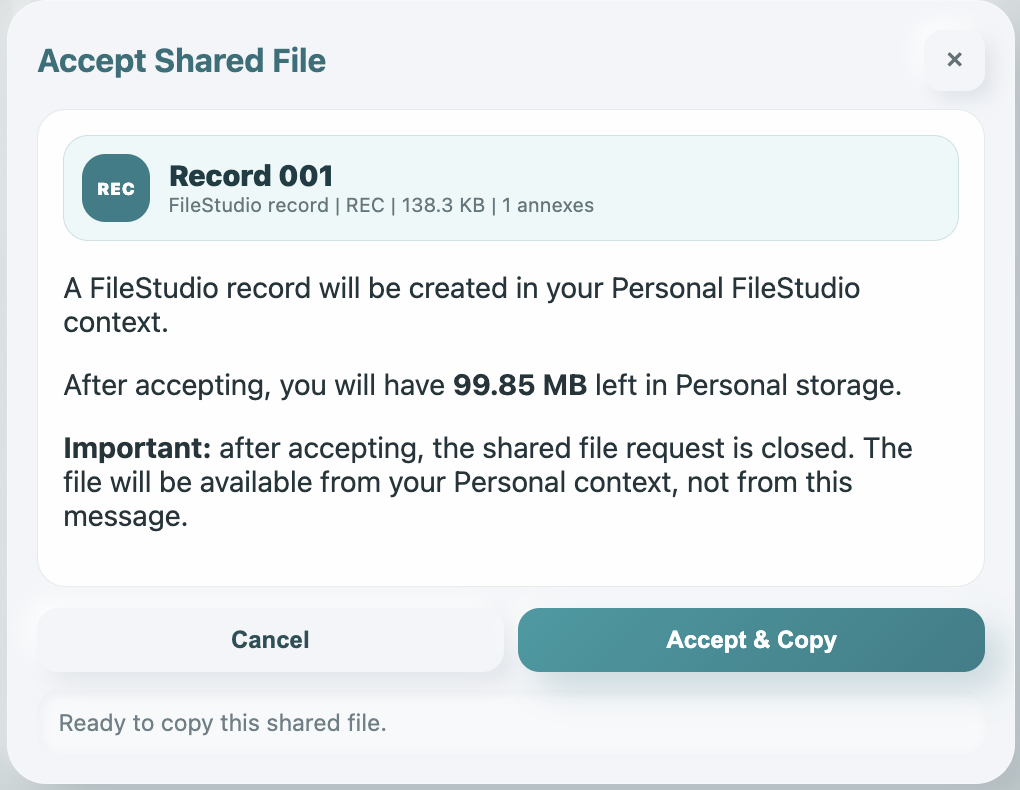
When the recipient accepts a shared app file, the file is copied into their Personal context for that app. When the recipient accepts a FileStudio record, WorkStudio creates a corresponding Personal FileStudio record and copies the relevant files. The accept modal shows the size and how much Personal storage will remain after the copy.
Rejecting a share closes the request. After a share is accepted or rejected, the message bubble stays as a record of the decision, but the shared file itself is no longer available from the message.
Related: Invite a Contact, Message, and Share a File, WorkStudio Account Types, WorkStudio Context, FileStudio, Saving in WorkStudio.
A Person or Company in Records describes information in your collection. It is not automatically a WorkStudio account or an accepted Contact. The Contacts share picker supports the item types listed above; do not assume it shares a Records collection or grants access simply because two records are related.
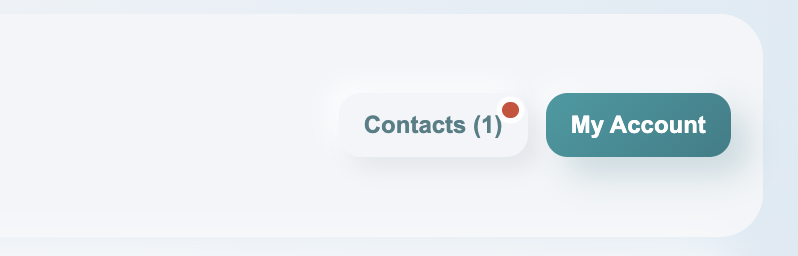
Open Contacts from the main page
The Contacts button also shows a marker/count when there are unread messages or incoming requests.
Start from the Contacts window
Contacts are organized by accepted contacts, incoming requests, outgoing requests, declined requests, and blocked or reported users.
Invite by email
Invite only people whose email address already belongs to a WorkStudio account.
Wrong email protection
After repeated wrong emails, contact invites are paused for one hour and flagged for Admin review.
Answer an incoming request
Incoming requests can be accepted, rejected, blocked, or reported.
Message an accepted contact
Accepted contacts use a direct message thread with message bubbles, reply lines, and a composer at the bottom.
Open message details
Click a bubble to see sent/viewed status and linked replies in a focused modal.
Choose what to share
Share stored app files, FileStudio records, main documents, or annexes from the picker.
Accept or reject shared files
The recipient sees a file or record bubble with Accept and Reject actions while the share is pending.
Review storage before accepting
The accept modal explains where the copy will be created and how much Personal storage remains afterward.
Enable JavaScript to use reading progress and usefulness ratings.