
Build a Structured TimeLine Schedule
Create a structured Gantt schedule with WBS phases, calendars, exceptions, links, milestones, display bands, and phase focus.
Use this walkthrough when you want to move beyond a simple list of tasks and build a structured TimeLine schedule.
The steps use the existing TimeLine screenshots as a practical checklist: start from the default file, define calendars and exceptions, add WBS phases, link tasks, add milestones, review display settings, and focus on one phase.
Related: Create a New TimeLine, Calendars, Calendar Exceptions, WBS and Summary Rows, Dependencies and Predecessors.
Start from a new TimeLine
Open a new TimeLine file. Confirm that the main schedule sheet has the planning columns on the left and the Gantt chart column on the right.
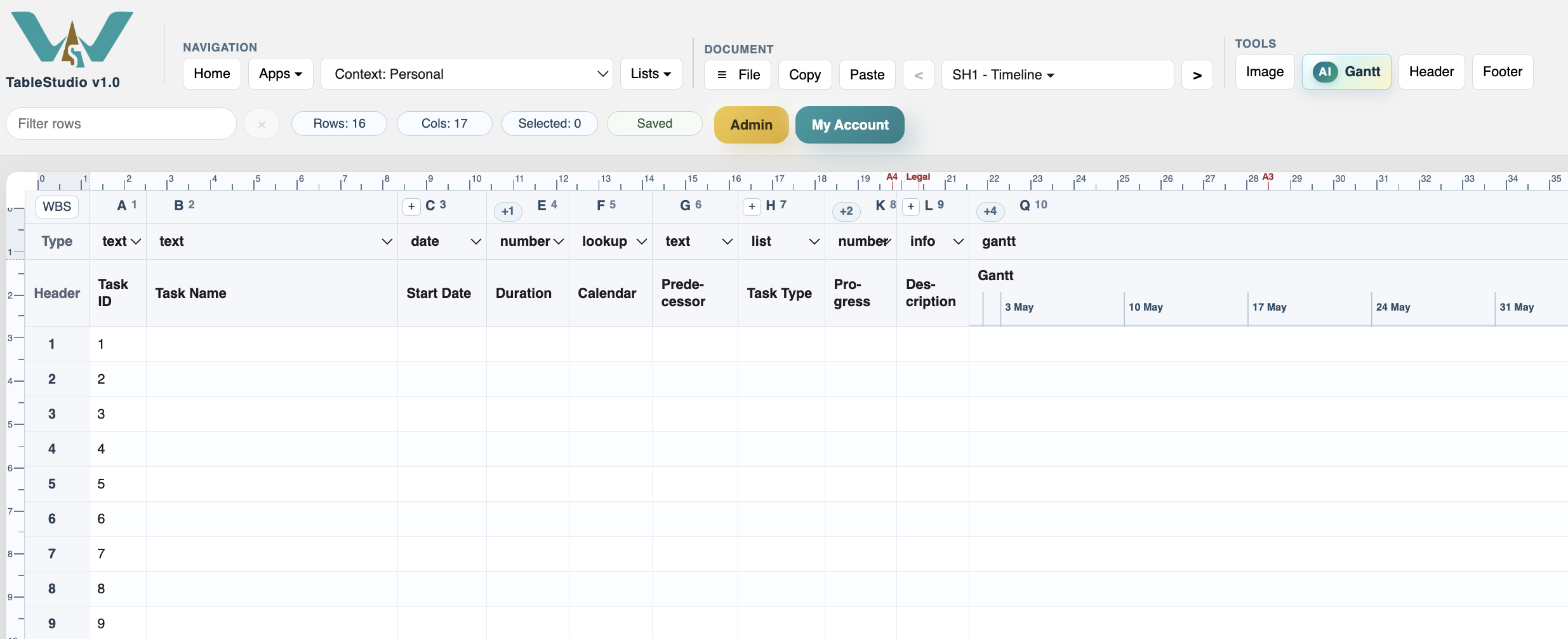
Open the full planning columns
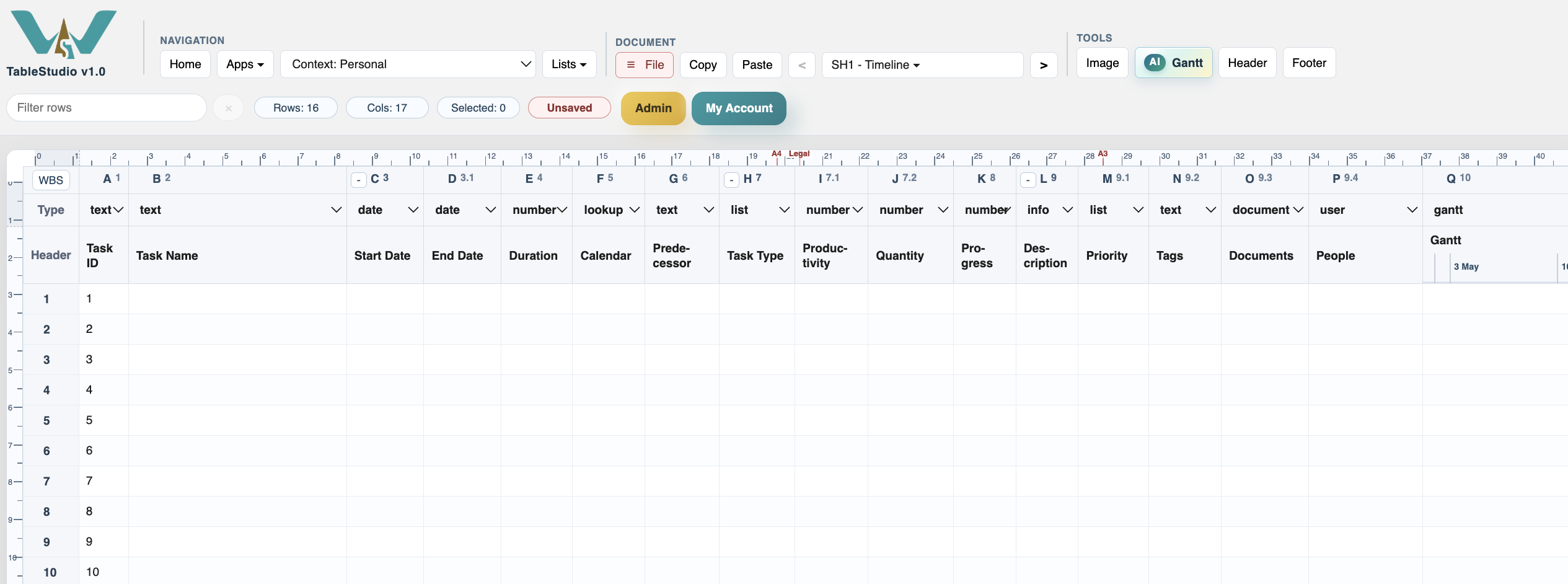
Open the grouped columns when you need fields such as End Date, Productivity, Quantity, Description, Priority, Documents, and People.
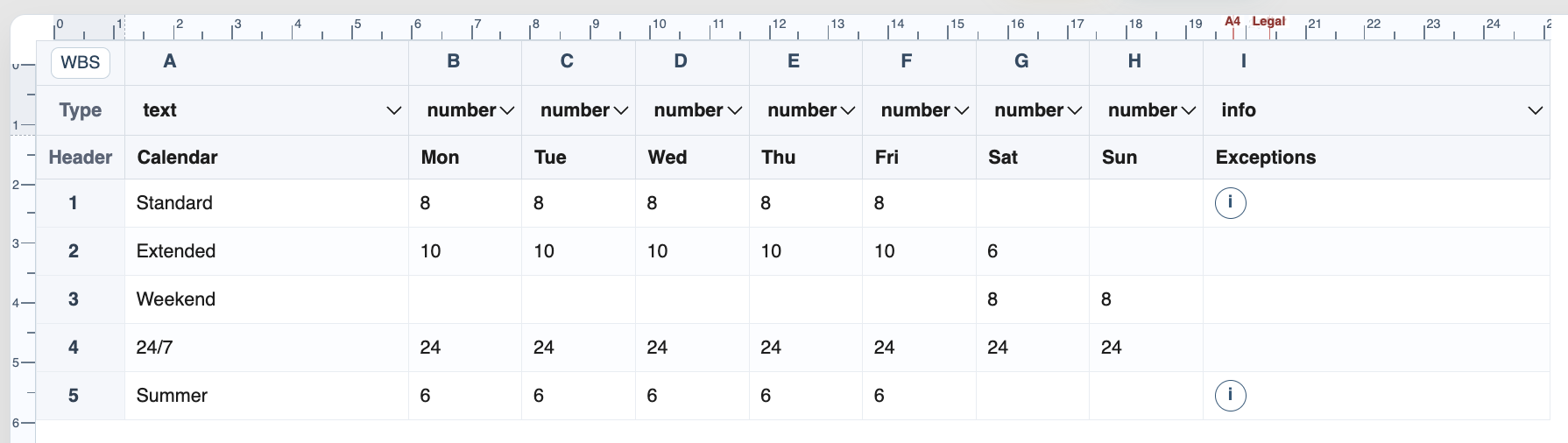
Review the calendar rules
Open the Calendars sheet. Check the weekday hour columns and make sure blank days represent non-working days for that calendar.
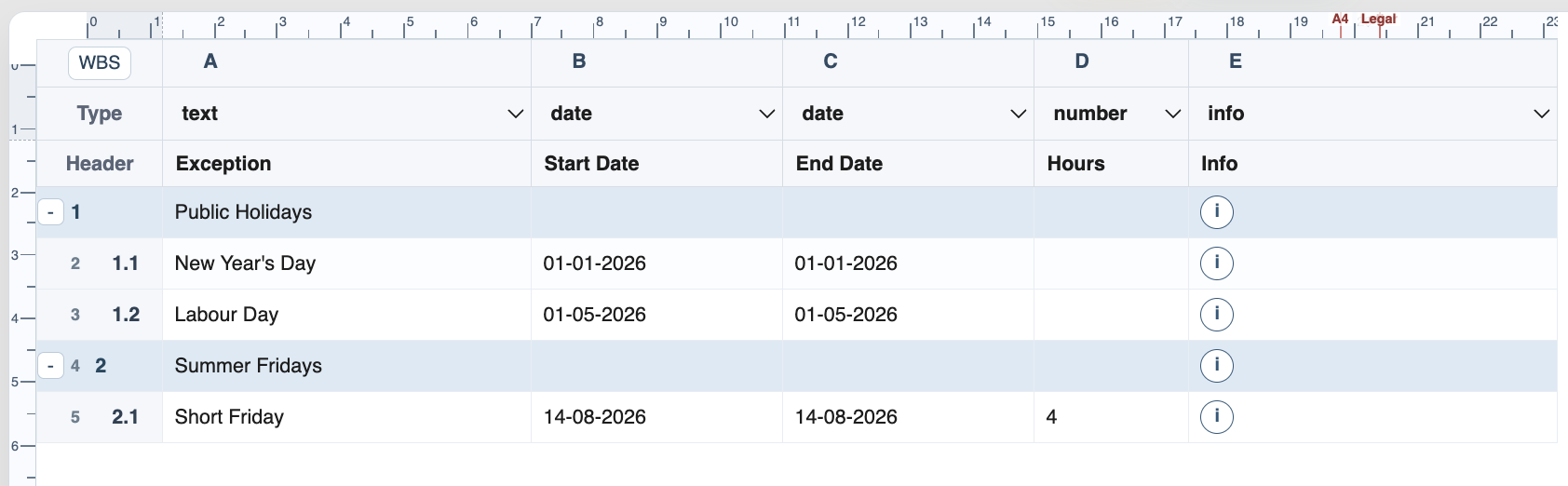
Review the exception groups
Open the Calendar Exceptions sheet. Add public holidays, short days, or date intervals and group them with WBS rows when useful.
Create WBS phases
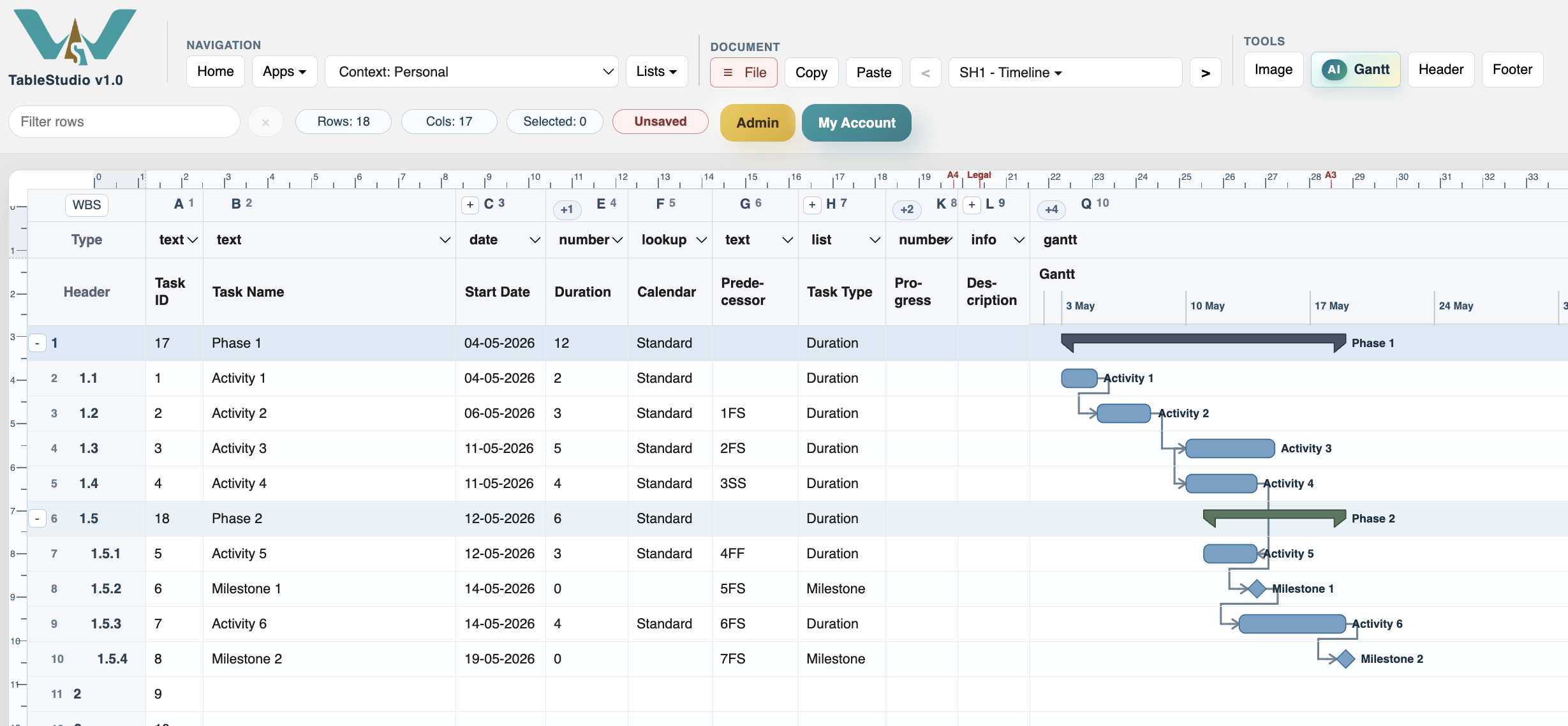
Create phase rows and child task rows. Summary bars are drawn for the phases and roll up from the child tasks below them.
Link the work
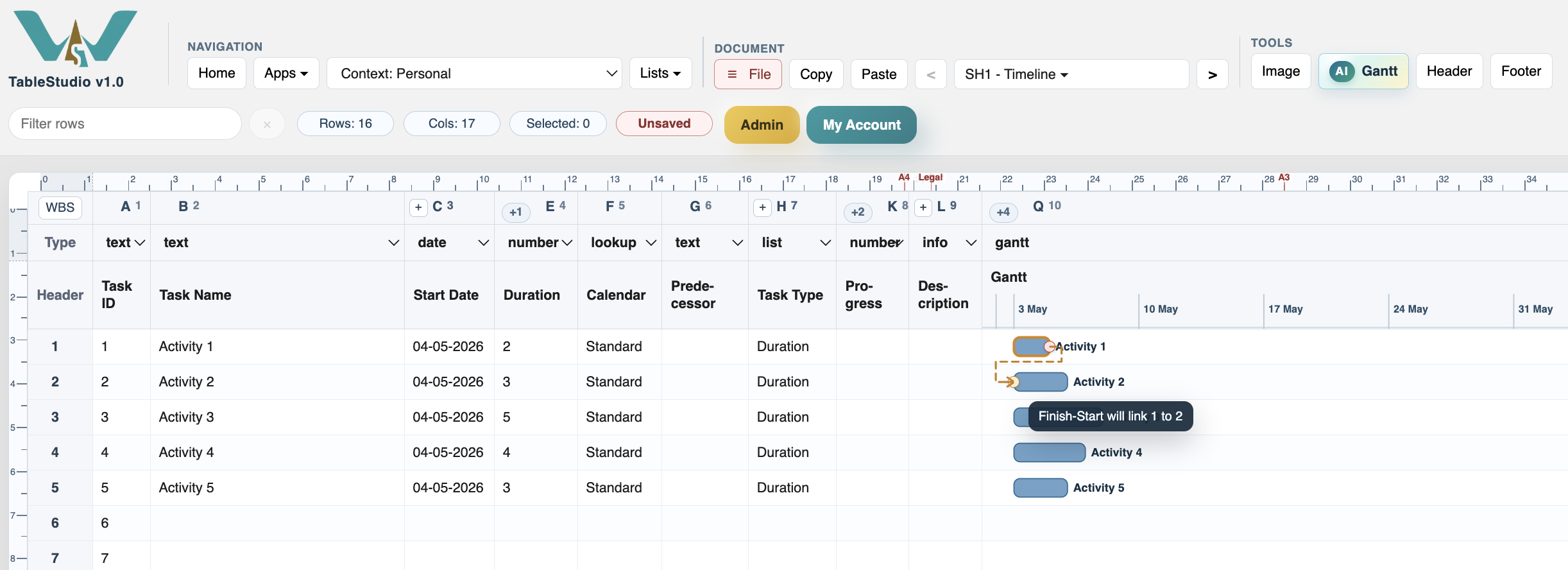
Use typed predecessors or mouse links. The Predecessor column stores values such as 1FS, 3SS, and 4FF.
Add milestone rows
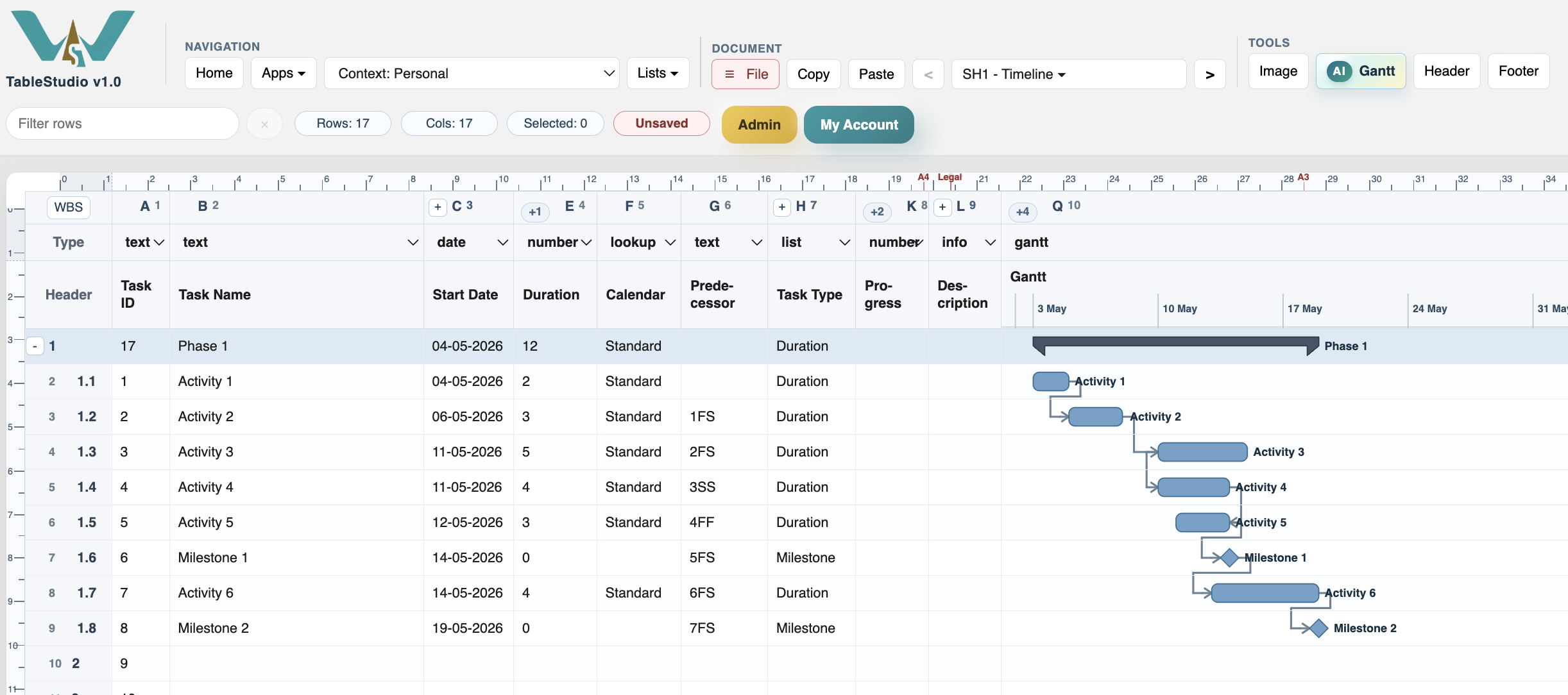
Use milestone rows for approvals, phase gates, handovers, or fixed events. Milestones should normally use duration 0 and appear as diamonds.
Review the chart display
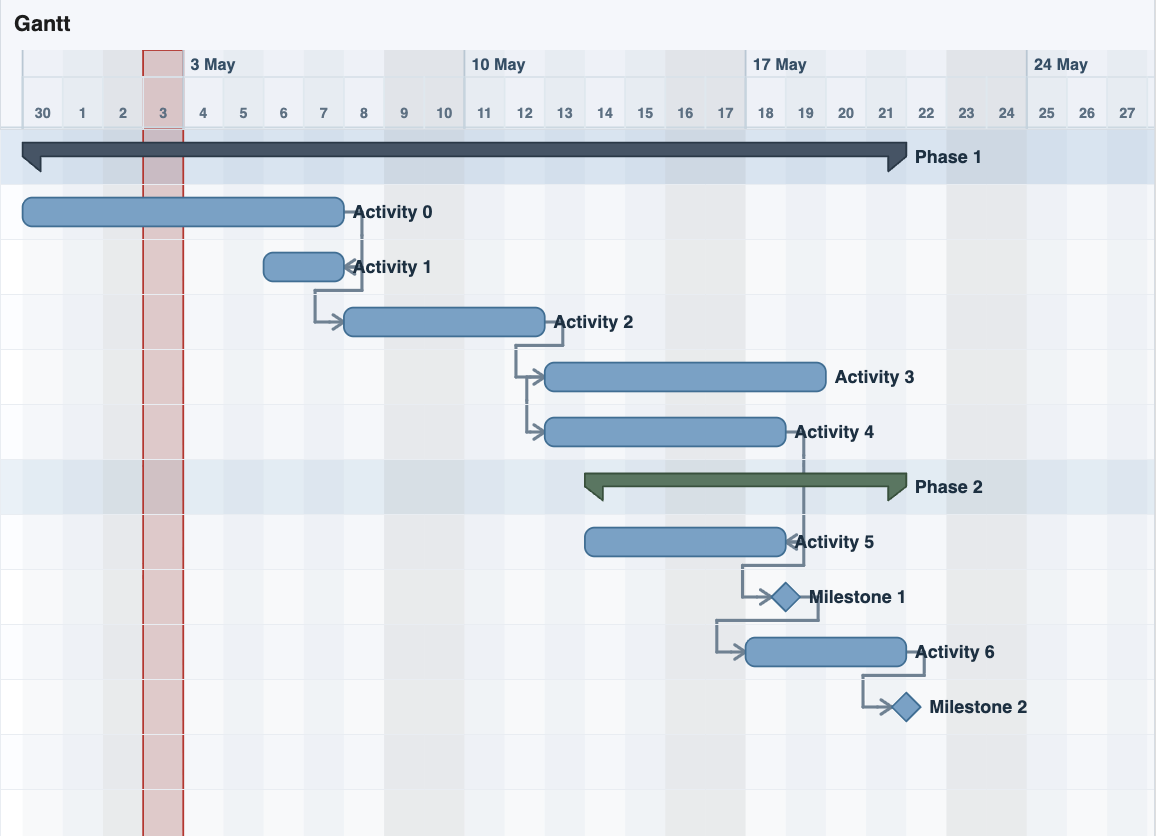
Turn on day bands, weekend display, or current-day display when they help review the schedule. Keep them off when they make dense charts too heavy.
Focus one phase when the schedule grows
Use Focus Phase from the context menu to work inside one WBS branch, then use Show Full Gantt to return to the complete schedule.
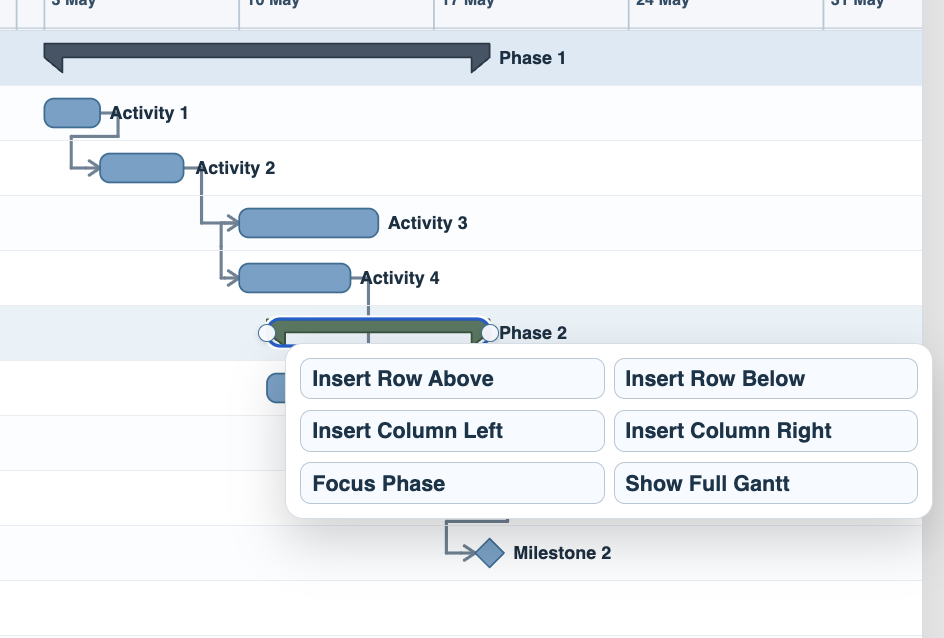
Check the focused phase
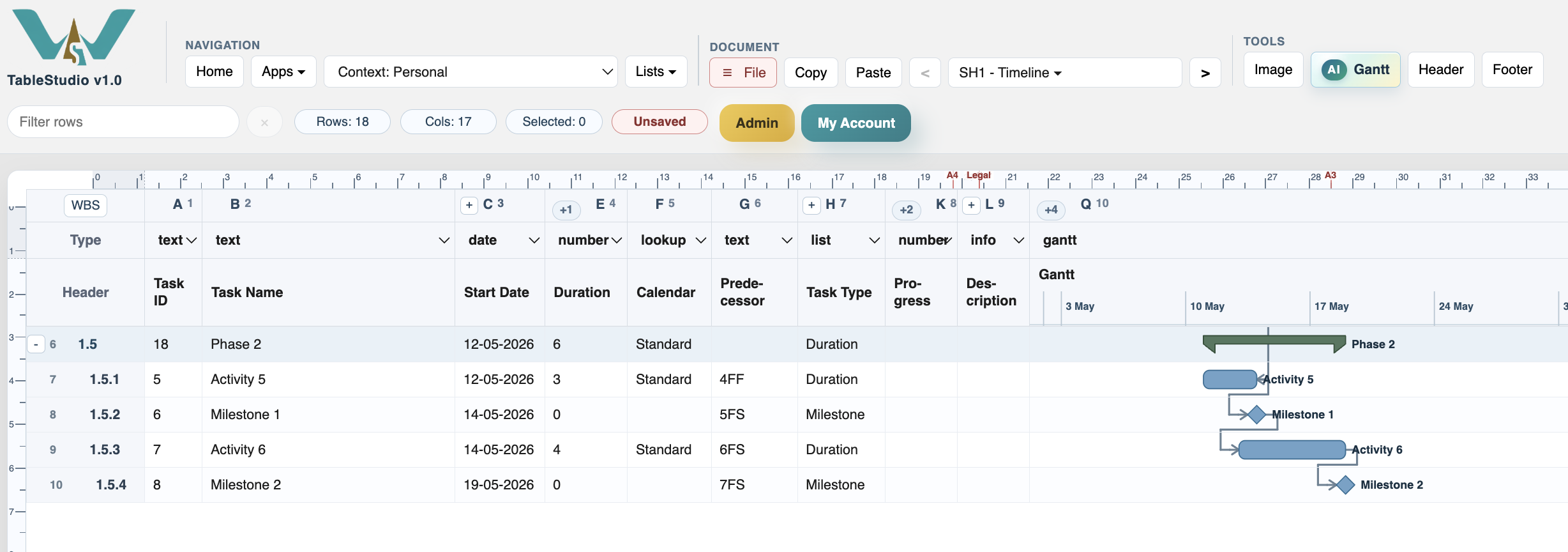
In focused view, review only the selected branch and add new rows inside that phase context.
Enable JavaScript to use reading progress and usefulness ratings.