
Calendars
Explains how the Calendars sheet defines working hours for each weekday and links exception groups to task calendars.
Calendars tell TimeLine which days are working and how many working hours are available on each weekday.
The Calendars sheet normally contains one row per calendar. The first column is the calendar name. The weekday columns Mon, Tue, Wed, Thu, Fri, Sat, and Sun store the working hours for that weekday.
A blank weekday means non-working. For example, a Standard calendar can use 8 hours from Monday to Friday and leave Saturday and Sunday blank. A 24/7 calendar can use 24 on every day.
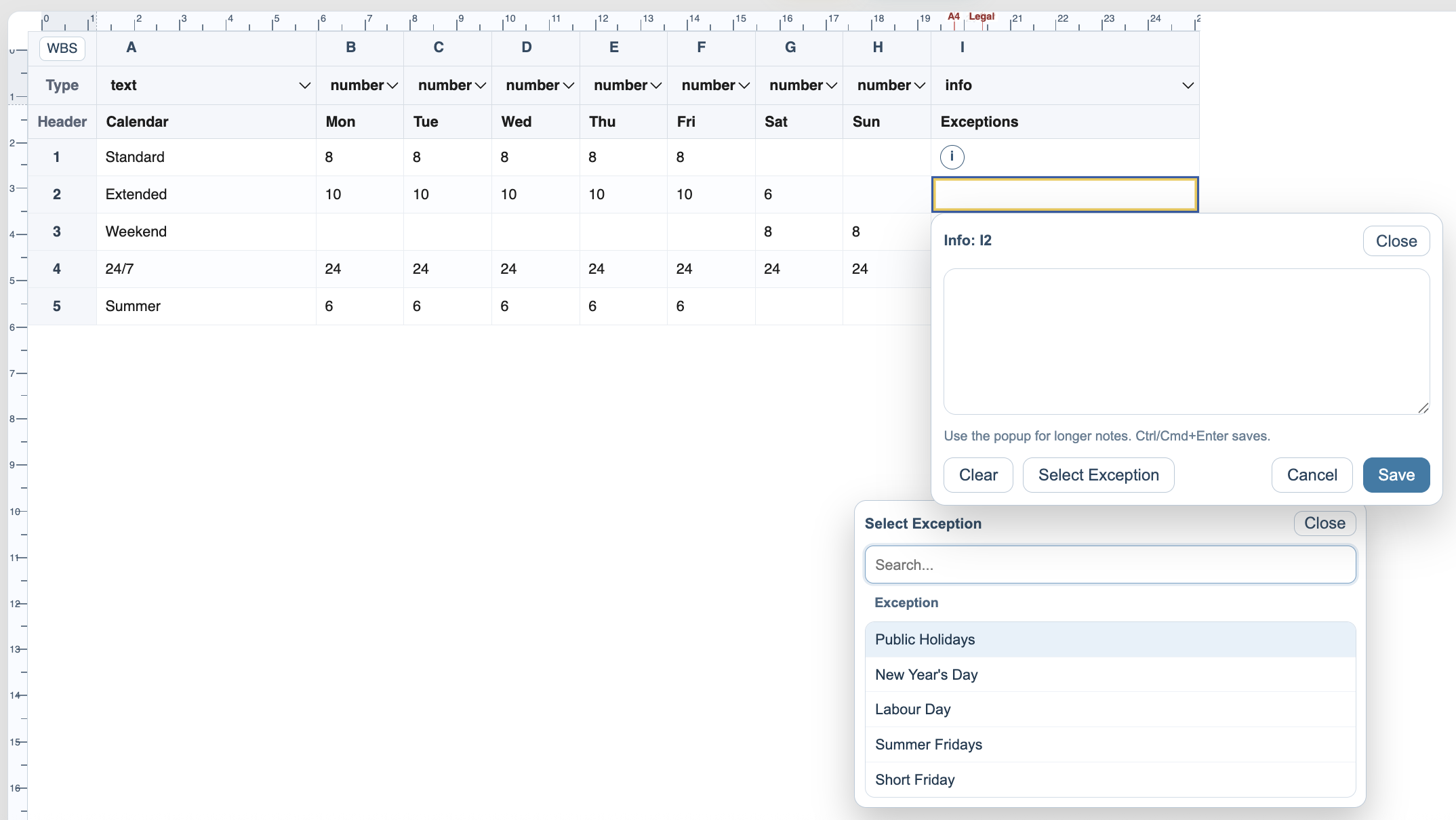
The Exceptions column links one or more exception names or exception groups from the Calendar Exceptions sheet. Several exception references can be entered on separate lines.
A task uses the calendar selected in its Calendar column. If no task calendar is selected, TimeLine falls back to the Gantt column default calendar, then to Standard when available.
Calendar names should be kept stable after tasks use them. If a task refers to a calendar name that no longer exists, the calculation engine falls back but the audit result can warn about the missing calendar.
Related: Calendar Exceptions, Calculation Engine, Gantt Column Settings.
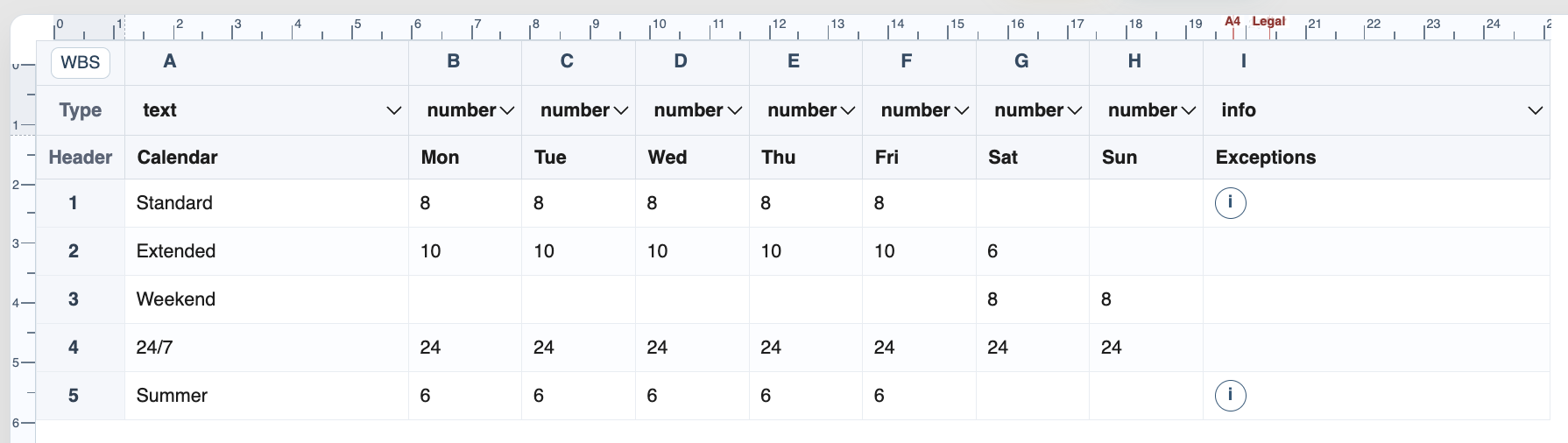
Select exceptions from the Calendars sheet
The Exceptions info cell can open a picker so exception groups or individual exceptions can be selected from the Calendar Exceptions sheet.
Enable JavaScript to use reading progress and usefulness ratings.