
Documents, Info Cells, and Images in TableStudio
Use document columns, cell document indicators, info editors, preview windows, and inserted images inside a workbook.
TableStudio can hold more than plain values.
Use a document column when rows should point to documents or records. The visible value can be a code, title, date, file name, document pill, or another supported document field.
When document indicators are enabled in File Settings, cells with attached documents show a small visual marker so users can see that supporting files exist without opening the cell.
Document preview windows stay open while you continue working in the table, and are closed from their own close button.
Use info cells when the cell needs a longer note or structured description without stretching the main grid too much.
Images can also be inserted into cells. When an external image already exists in the file, TableStudio reuses the stored image data and keeps the placement/style settings independent for each inserted copy.
Related: Column Type: Document, Column Type: Info, Cell Options, Export Excel from TableStudio, Export PDF from TableStudio.
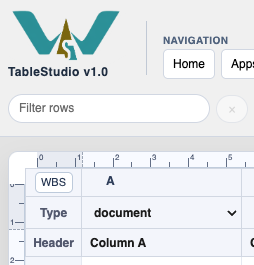
Document indicator in a cell
A visible marker shows that a cell has a document attached.
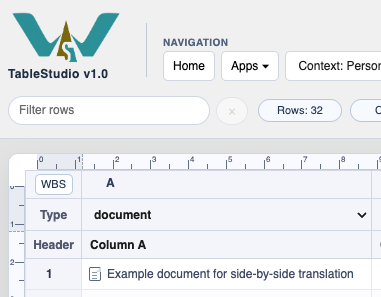
Choose or link a document
The document picker is used when a document cell needs a linked record or file.
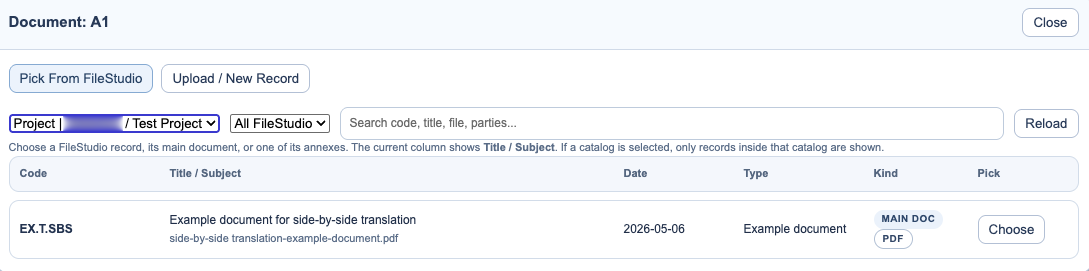
Preview a document
The preview window can stay open while the table remains usable.
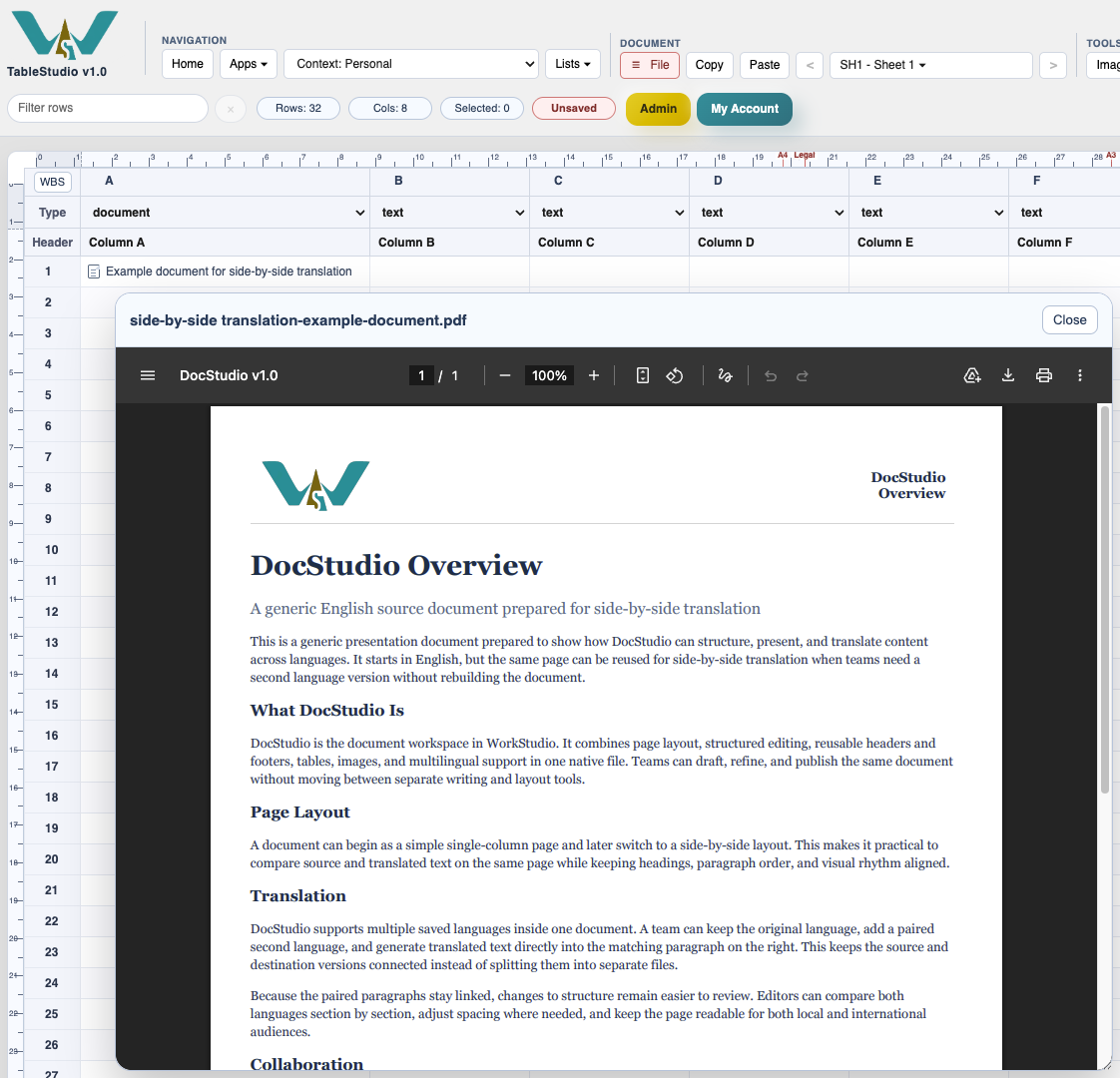
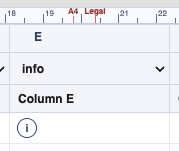
Info cell
Info cells keep long notes available without forcing every row to become large.
Info editor
Use the info editor for longer text.
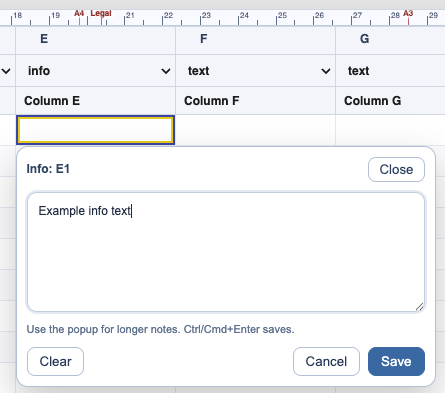
Image in a cell
Images can be inserted and managed inside the workbook.
Enable JavaScript to use reading progress and usefulness ratings.