
Generate a Holiday Request from a DocStudio Template
Open the built-in holiday request template, choose the language, fill the values, and finish the document.
Use this walkthrough when you want to generate one holiday request from the built-in DocStudio template.
The steps below follow the normal template path from the startup window to the finished document.
If you want the background first, open DocStudio Templates, Holiday Request Template, or Create a DocStudio Template.
Related: Use a Template in DocStudio, Saving in DocStudio, WorkStudio Context.
Open the template flow
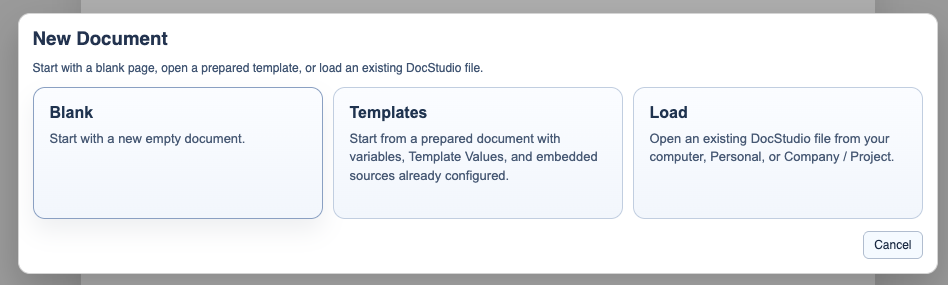
Start in the DocStudio New Document window and choose Templates.
Choose the language
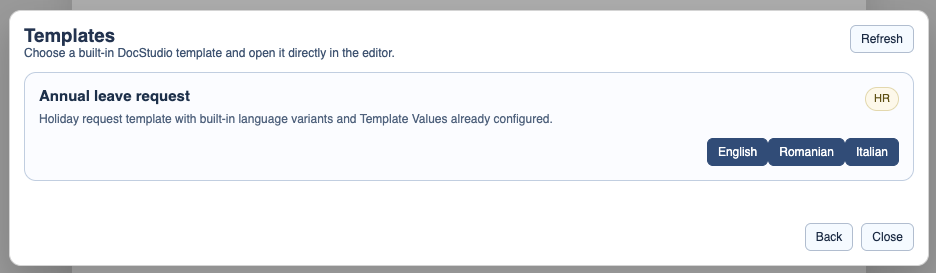
In the template browser, open Annual leave request and click the language button you want.
Fill Template Values
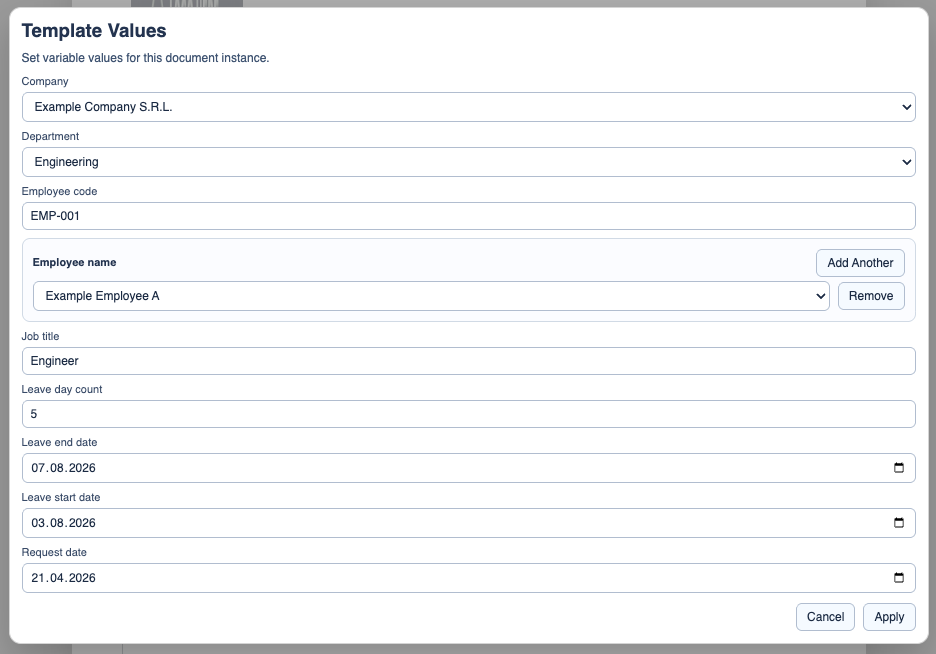
Complete the fields in Template Values, including the company, employee, job title, leave days, and dates, then click Apply.
Review the generated document
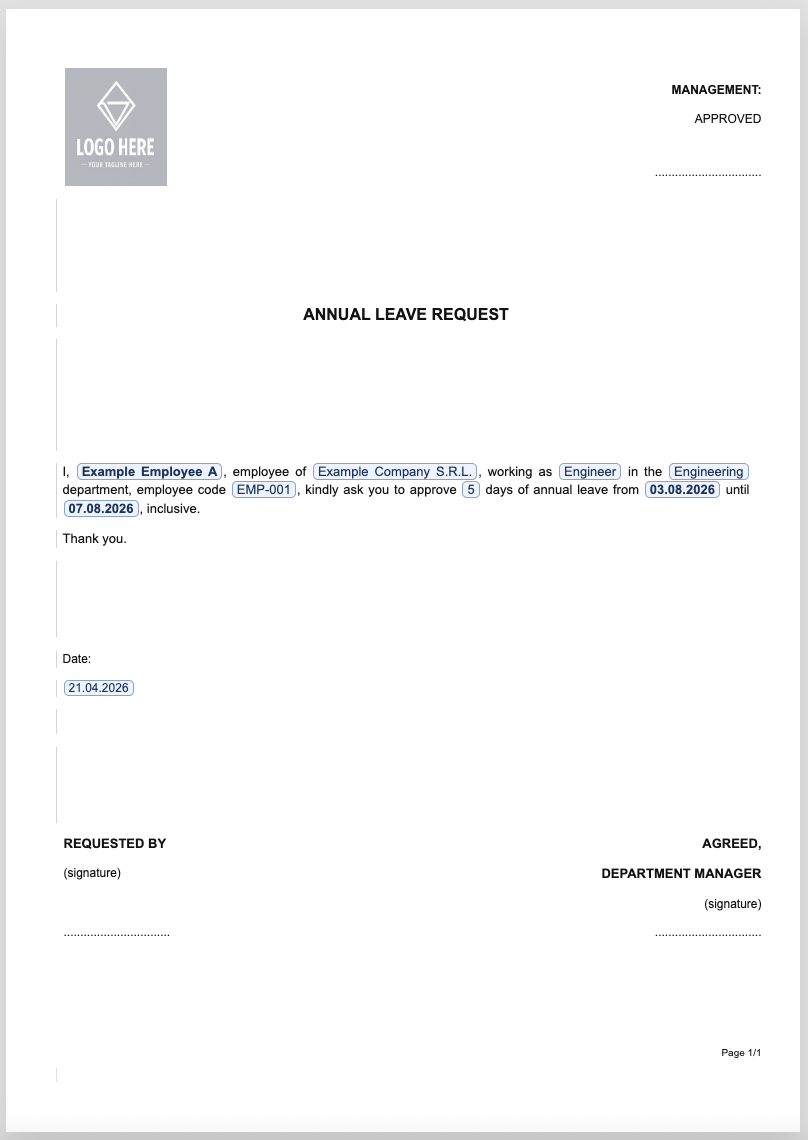
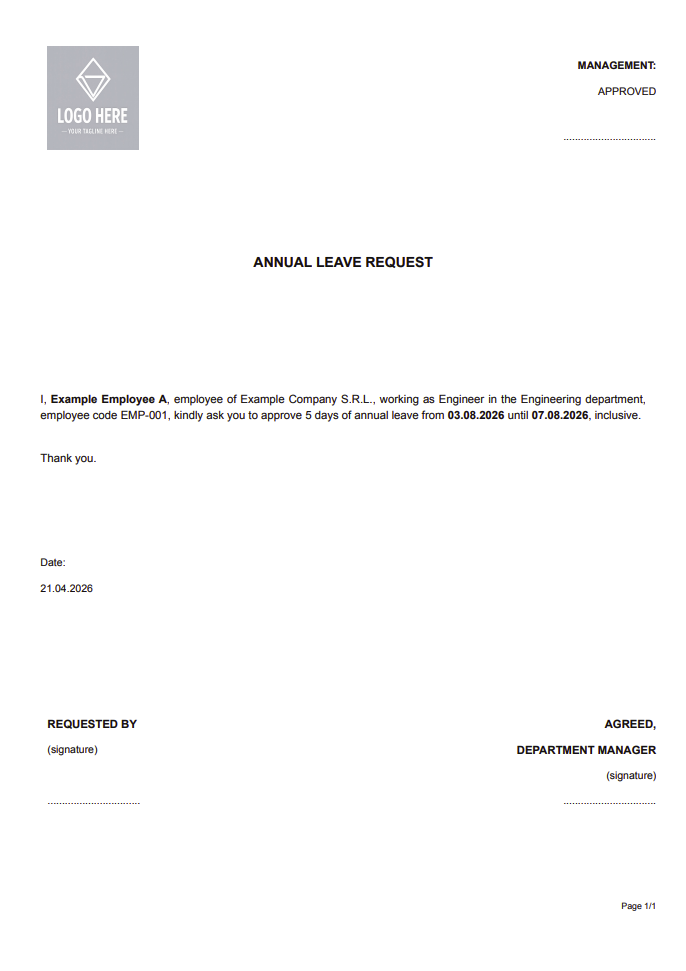
DocStudio opens the finished request in the editor. Review the paragraph, dates, and signature areas, then adjust anything you need.
Save or print the result
When the request is ready, save it as a normal .ds or print the final page.
Enable JavaScript to use reading progress and usefulness ratings.