
Create a DocStudio Template
Build a reusable DocStudio template with variables, dropdowns, embedded tables, and source-driven values.
Use this tutorial when you want to turn a normal document into a reusable DocStudio template.
The steps below follow the usual setup path: prepare the document, define the variables, open Create Template, connect the right input type to each variable, add an embedded source when several fields should come from one row, then test the result with Template Values.
A good way to think about the template screen is this:
Manual textmeans the person using the template will type the value.
Manual dropdownmeans the person using the template will choose from a short fixed list that you define inside the template.
Source dropdownmeans the person using the template will choose one row from a source table.
Source valuemeans extra variables are filled automatically from that same selected row.
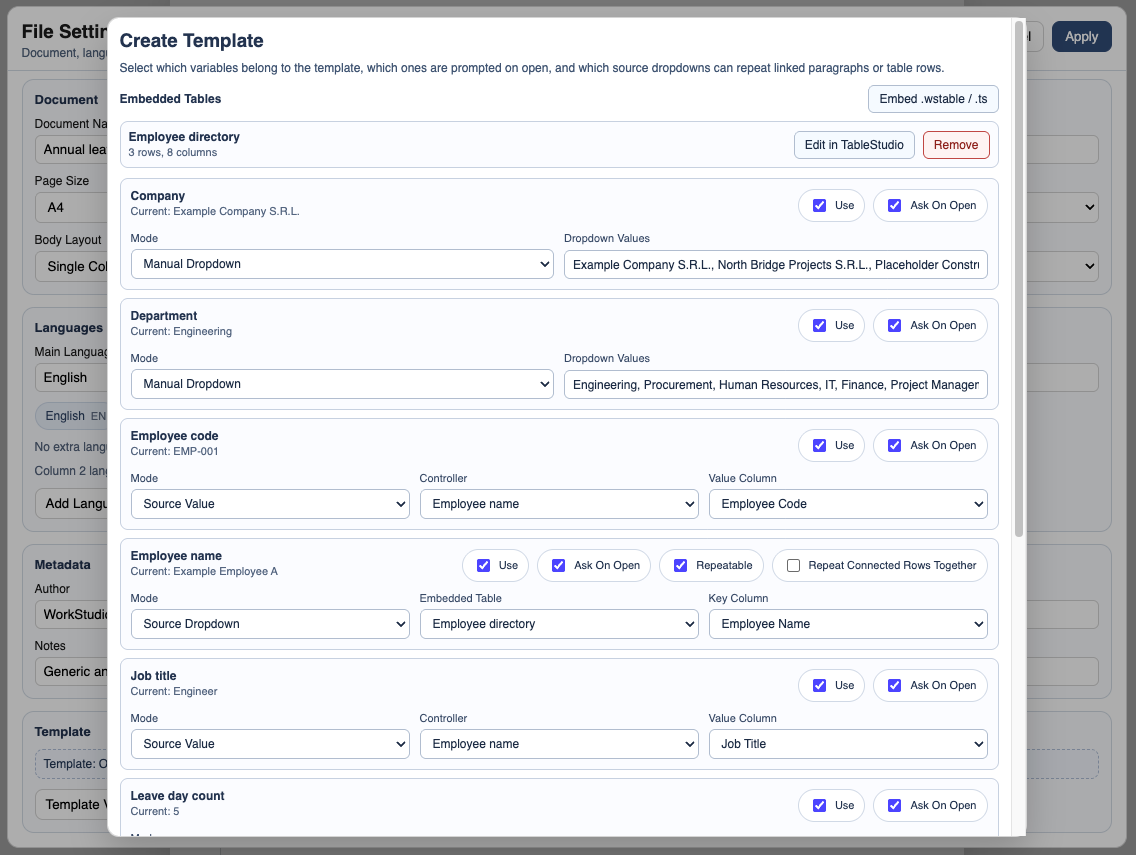
If one employee choice should fill the employee name, code, job title, and department together, create one Source dropdown variable and connect the other related variables as Source value fields that read from the same row.
Related: DocStudio Templates, Create a Template in DocStudio, Use a Template in DocStudio.
Define the variables first
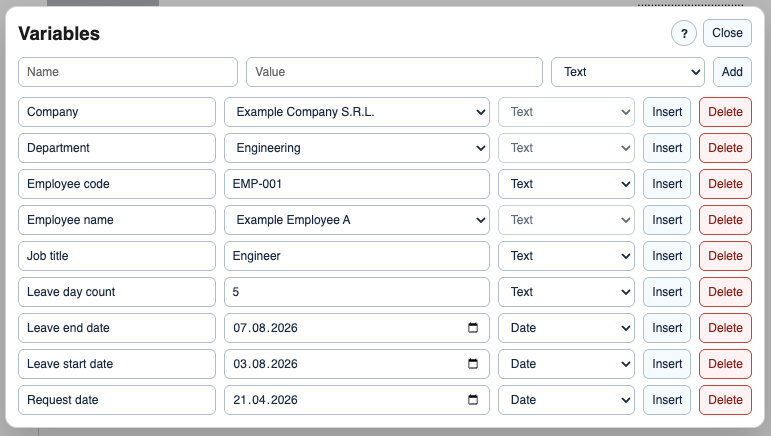
Open Variables and create the fields that should change from one document instance to the next. This is the required starting point. The Create Template screen can only map variables that already exist, so define them before you continue. Add one variable for each editable field, date, dropdown target, or linked value you want to control from Template Values.
Open File Settings
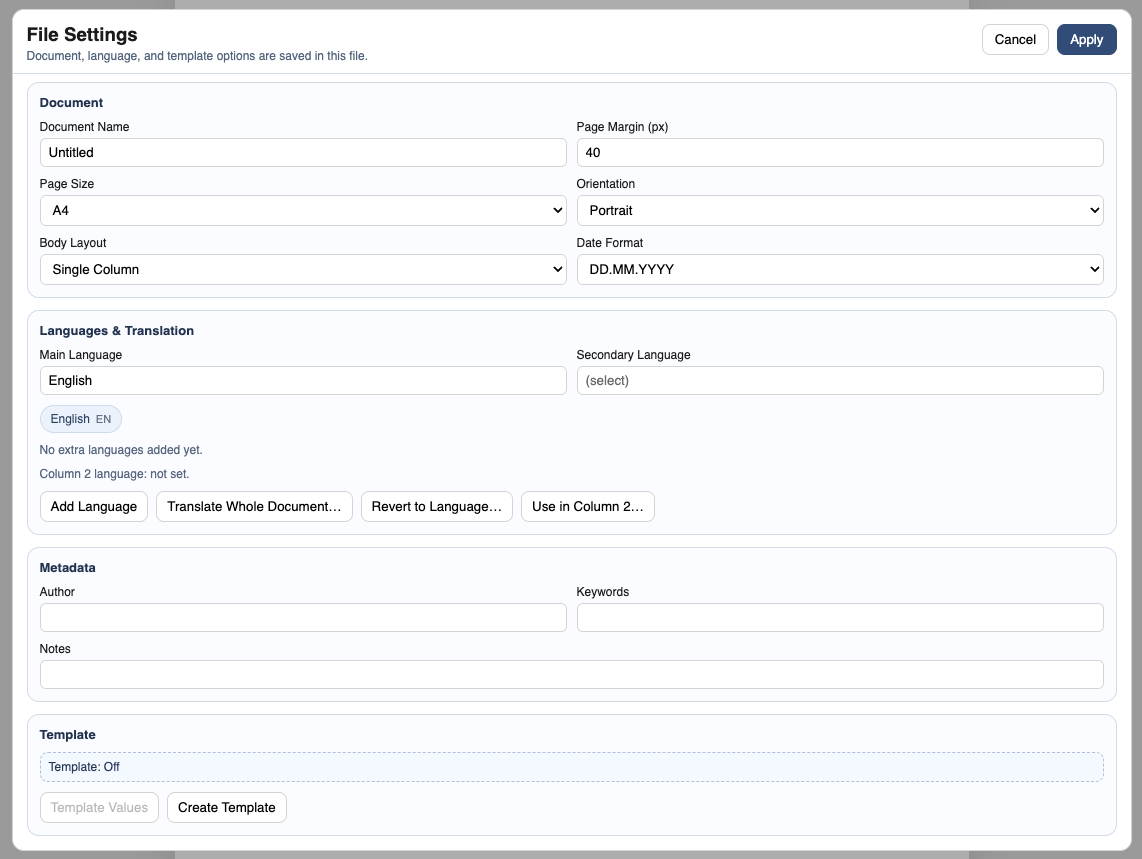
Go to File > File Settings and move to the Template section where template setup starts. This is where you turn a normal .ds into a reusable template and connect the variables to the right kind of input.
Start Create Template
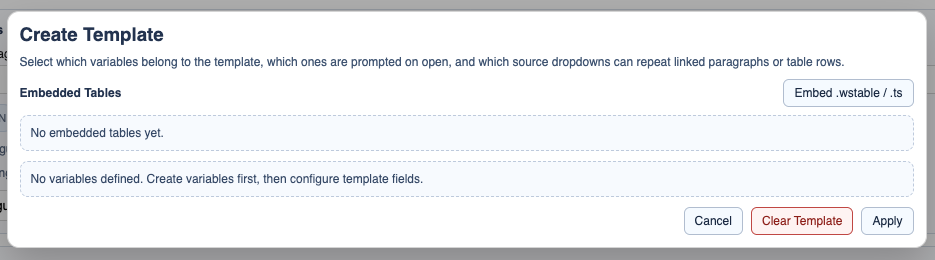
Choose Create Template, then review the variable list and decide which fields should be Manual text, Manual dropdown, Source dropdown, or Source value. If this screen opens and you do not yet have the variables or embedded source you need, go back and define them first. Manual dropdown is for a short fixed list you write into the template. Source dropdown is for selecting one row from a source table. Source value is for extra linked fields that should be filled automatically from the same selected row.
Attach the source table when needed
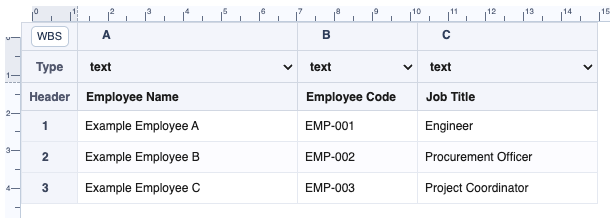
If several fields should come from one source choice, add or attach the embedded table first. Then choose the Key column and Value column for the dropdown mapping. The Key column is the unique identifier for the row. The Value column is the text shown or written for the main selected field. After that, connect the other related variables as Source value fields so one dropdown choice can fill several linked values such as employee code, role, department, or company.
Finish the template mappings
Complete the remaining mappings, then save and test the template with Template Values. Check that every dropdown shows the right choices, that each Source dropdown fills all the linked Source value fields you expect, and that repeatable values are only used where repeated output is intended. Testing at this stage is important because it confirms the template logic before other users start creating documents from it.
Enable JavaScript to use reading progress and usefulness ratings.