
Create a Template in DocStudio
Shows how to turn a document into a reusable template with variables, Template Values, source dropdowns, and embedded sources.
A template is a normal .ds prepared so the next user fills values instead of rebuilding the page.
Start with the document itself. Build the page layout, add the main paragraphs, add signature areas, and place the placeholder logo or other fixed content first.
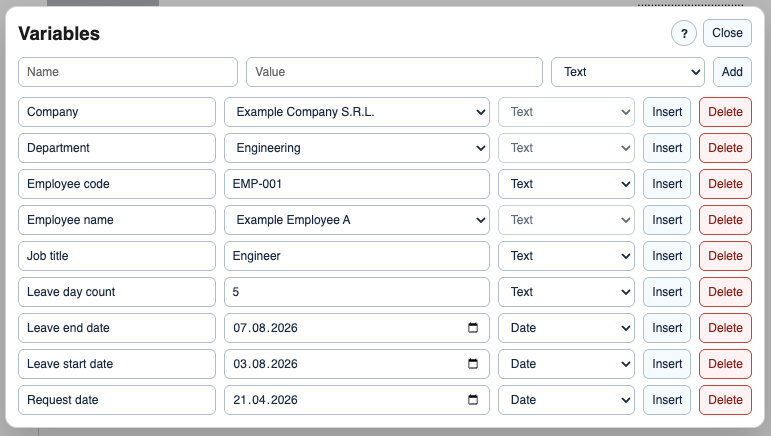
Then open Variables and create the values that should change from one document instance to the next.
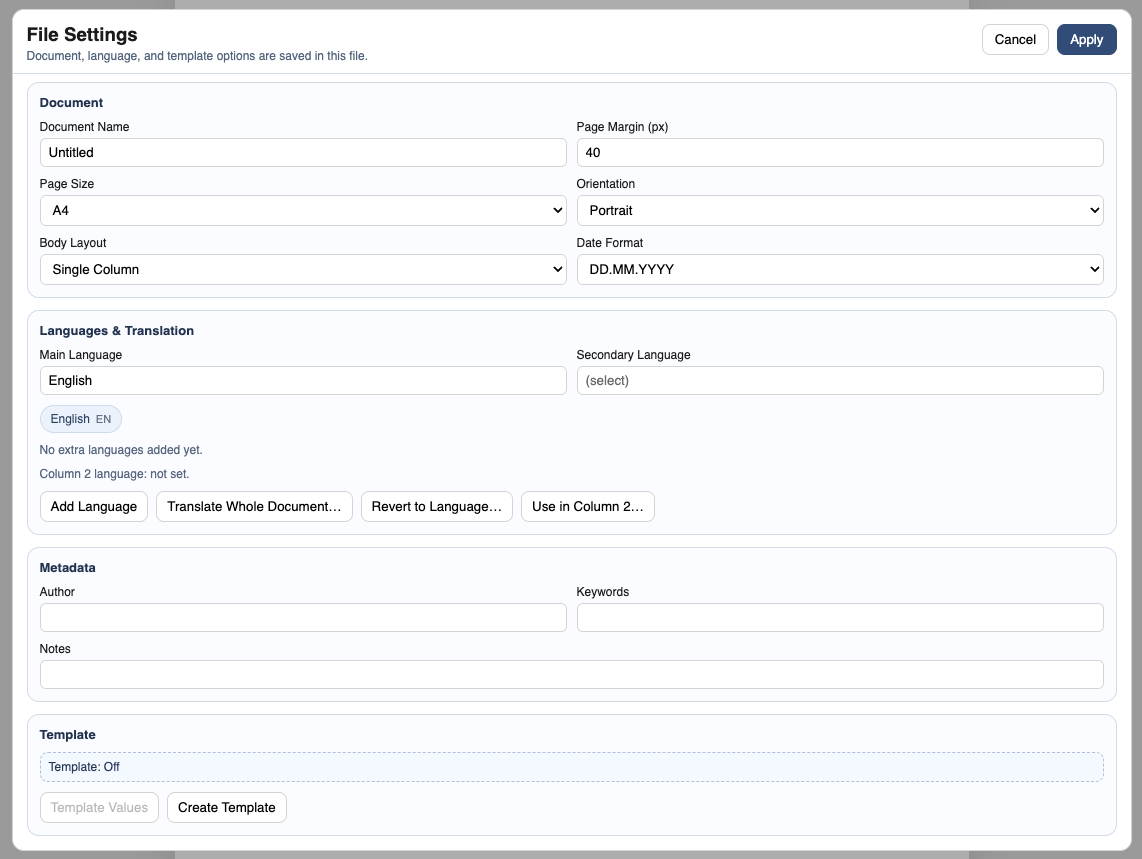
After that, open File > File Settings and choose Create Template.
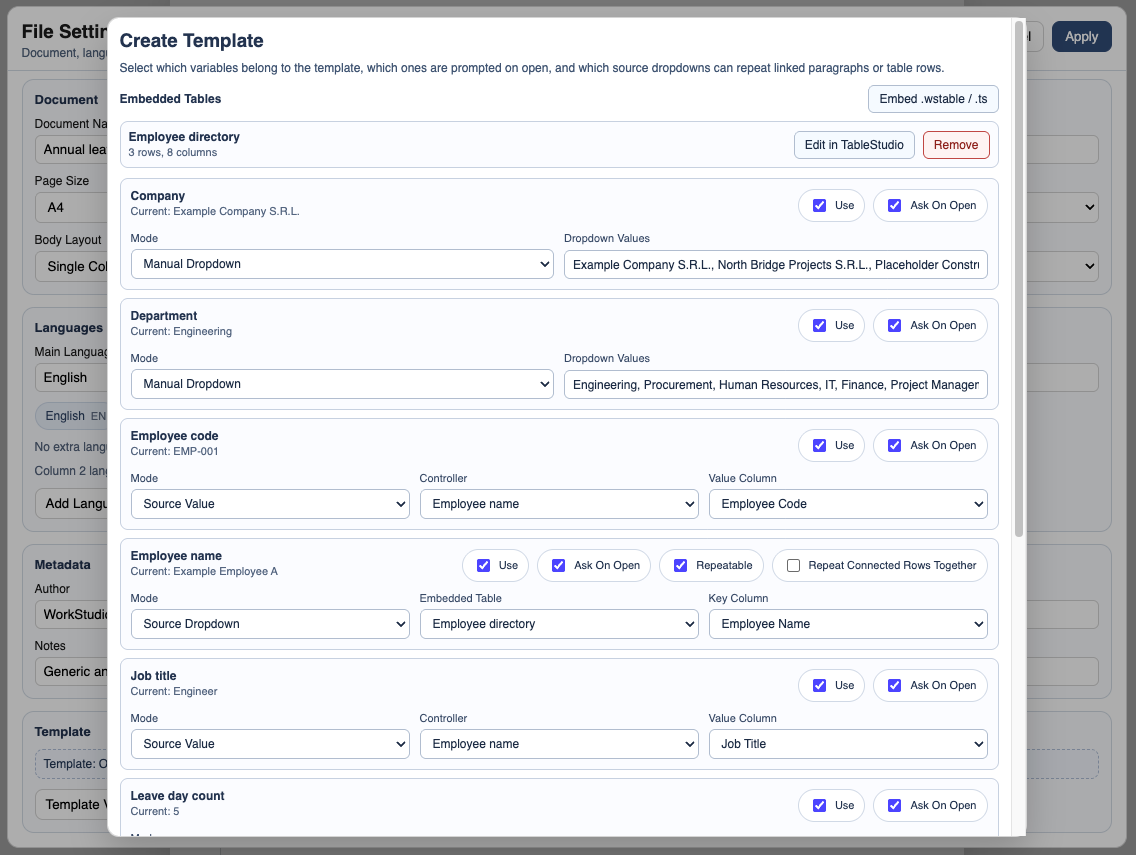
In the template setup, connect each variable to the right input type.
Use these modes depending on the field:
Manual textfor free typing.
Manual dropdownwhen the user should choose from a short fixed list.
Source dropdownwhen the value should come from a source table.
Source valuewhen one source choice should fill more than one field.
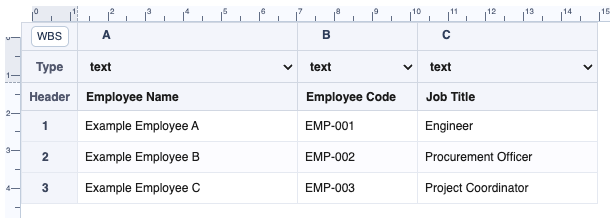
- Embedded source data when the template needs a built-in list that travels with the document.
Before you share the template, test it. Open Template Values, fill the fields, and confirm the generated document reads correctly.
If you want to see the user workflow, continue with Use a Template in DocStudio.
If you want a concrete example, open Holiday Request Template.
For a screen-by-screen setup, open Create a DocStudio Template.
Start with variables
Variables define the parts of the document that will change from one template instance to the next.
Open Create Template from File Settings
Template setup starts from File Settings, where template options live with the rest of the document metadata.
Connect variables to template inputs
Map each variable to the right input type so the person using the template gets the right control.
Use an embedded employee source when needed
An embedded source lets one template carry its own data list without depending on a separate document every time.
Enable JavaScript to use reading progress and usefulness ratings.