
My Account in WorkStudio
A simple guide to the My Account page: current plan, storage, profile fields, AI usage, approvals, password change, and 2-step authentication.
Use My Account to manage your own WorkStudio account.
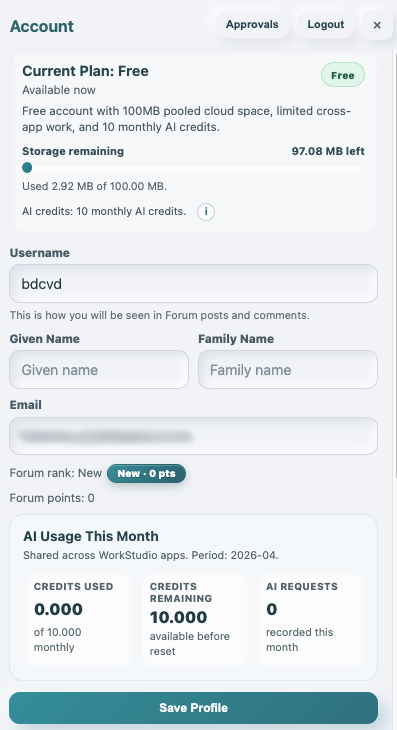
The top of the page shows your current plan, remaining storage, editable profile details, Feedback participation, monthly AI usage, password controls, and 2-step authentication settings.
Approvals shows legal acceptances and workspace/project invitations. An accepted legal copy is shown as one link. New paired Terms and Privacy copies can switch between their stored English and Romanian versions; the current DPA acceptance opens its single stored English snapshot, and older records remain in the language evidence actually retained. If a Company Owner/Admin role was configured to require the DPA, accepting the invitation is not enough: Company access stays inactive until that user personally accepts the DPA in Approvals and confirms authority to bind the customer.
Data Export prepares a ZIP in the background, so My Account can be closed while a larger archive is built. WorkStudio keeps showing progress. When ready, a download window appears and a protected link is sent to the requesting account's email. The link can be used only by that requester, expires after 24 hours, and the private ZIP is then removed.
Before preparation is accepted, WorkStudio asks you to confirm the exact scope and explains which UTC-month allowance will be consumed. Each account may prepare one non-failed Personal export per UTC calendar month. Each Company/workspace has one shared workspace export per UTC calendar month across everyone authorized to request it, and each project has its own separate shared monthly export. For a shared scope, the warning makes clear that this is the only workspace or project export available to all eligible Owners for that month. A preparation that reaches failed status releases that allowance and may be retried.
Different exact scopes can be queued, prepared, and remain ready at the same time. A Company/workspace ZIP contains the workspace only and excludes its projects. Select each project separately to prepare its own ZIP; if a Company has several projects, each project has its own monthly allowance and download. Personal export is available to the account holder; shared Company/project export is Owner-only.
User documents use useful names and extensions, while raw storage catalogs, lock files, secrets, platform-security records, and moderation internals are excluded. The account holder's own Feedback and historical Forum activity and contact conversation content are supplied in readable formats.
Close / Delete Account first checks project responsibilities. Closure is blocked while the account still holds an accepted project Owner/Admin role. Assign and confirm a replacement where needed, then remove or downgrade the closing account's manager role. If no blocker remains, closure disables login immediately and retains the live Personal data plus a private closure archive for 30 calendar days, after which they are scheduled for permanent deletion. There is no promised post-closure restoration or retrieval route, so use Data Export before closing. Shared Company/project content remains controlled by the relevant Owner. Limited records may be retained longer where law, dispute handling, security, or another documented exception requires it. Copies already present in backups expire under the separate 15-day backup cycle and must not be restored past the applicable deletion deadline.
If you only need the security walkthrough, open 2-Step Authentication in WorkStudio.
Related: Invitation Messages and Approvals, WorkStudio Account Types, Saving in WorkStudio, 2-Step Authentication in WorkStudio.
For the information you keep in Records, check your account storage and access here, then use the Records app to edit the collection itself. A Person record in a collection is different from your WorkStudio login profile. See Open Records in the Right Context.
Plan, profile, and monthly AI usage
The top of My Account combines your current plan, storage remaining, profile fields, Feedback participation, and the monthly AI usage summary.
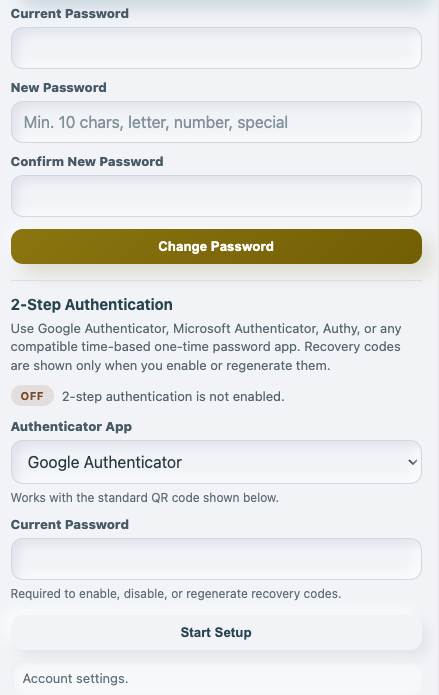
Password and 2-step authentication settings
The lower part of My Account is where you change your password and manage 2-step authentication setup.
Enable JavaScript to use reading progress and usefulness ratings.