
Invitation Messages and Approvals
What invited users see, what data is shared, and how approvals can later be reviewed or canceled.
When someone invites you to a company or project, WorkStudio shows an invitation modal after login and an Invites button in My Account while invitations are pending.
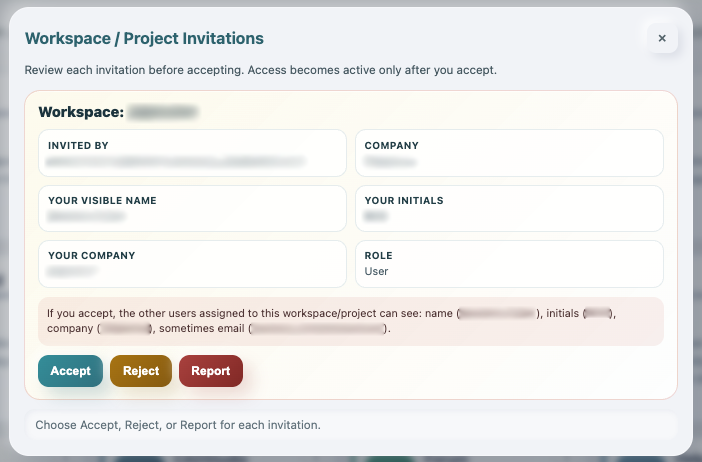
The invitation explains who invited you, the company/project context, your role, and the profile data that can become visible to other assigned users.
You can choose:
Acceptto accept the invitationRejectto decline the inviteReportto flag an unexpected or inappropriate invite for review
Ordinarily, accepted access becomes available in the app Context selector. One exception applies to a Company Owner/Admin role where the platform owner requested DPA acceptance: the invitation and the DPA are separate approvals. After accepting the invitation, that Company role remains inactive until the invited user opens My Account > Approvals, reads the DPA, confirms authority to bind the customer, and accepts it. This mandatory Company gate does not apply to Personal, Team / Family, or Coordination accounts.
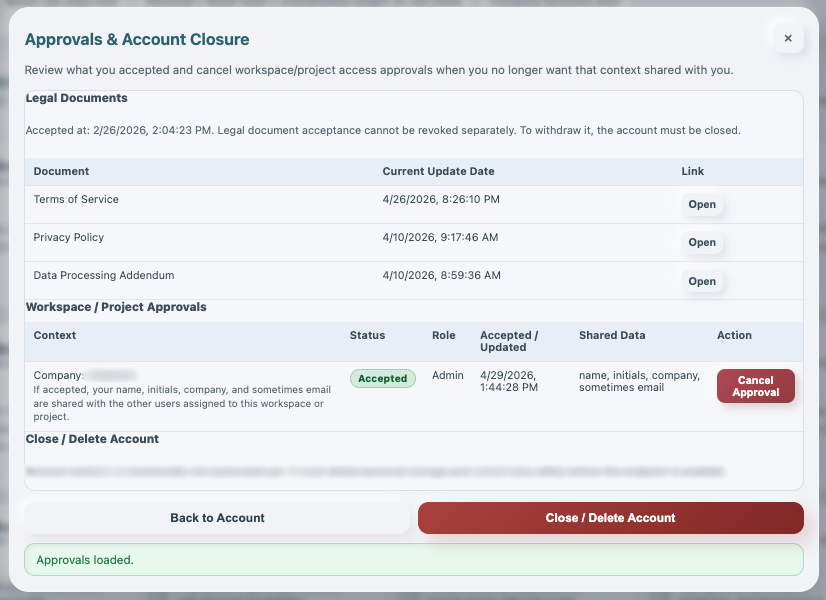
Other assigned users can see the member profile data described in the invite, such as name, initials, company, and sometimes email when the feature requires it. You can later use Approvals to review legal acceptance and accepted workspace/project invitations. Workspace/project approvals can be canceled; canceling removes access and changes the Admin-visible status to Canceled.
If you close your account, login stops immediately. Live Personal data and a private closure archive are retained for 30 calendar days and then scheduled for deletion. Shared Company/project content remains controlled by the relevant Owner. Closure is blocked while you still hold an accepted project Owner/Admin role; a replacement must be accepted where needed and your manager role must then be removed or downgraded.
Related: Manage Access and Invite Users, My Account in WorkStudio, WorkStudio Account Types, WorkStudio Context.
After accepting the required access, check the selected context before opening Records. An invitation grants the assigned membership; connecting Person or Company records does not replace that invitation or approval.
Review a workspace or project invitation
The invitation modal shows who invited you, what context is shared, and the Accept, Reject, and Report options.
Open approvals from My Account
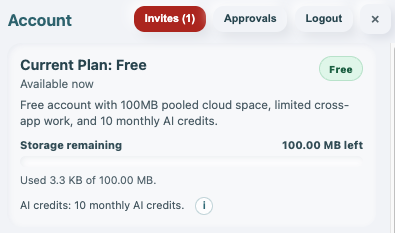
The Account header keeps Invites and Approvals close to Logout so users can review sharing decisions quickly.
Review accepted approvals
The Approvals modal lists legal document acceptance and workspace/project approvals that can be canceled later.
Enable JavaScript to use reading progress and usefulness ratings.