
Create Links with the Mouse in TimeLine
Use the chart handles to create finish-to-start links directly in TimeLine.
Use this tutorial when you want to create task links directly from the Gantt chart instead of typing predecessor text.
The steps below show how to reveal the handles, create the first mouse link, and continue the rest of the sequence.
If you want the same starter schedule with typed predecessor values, open Create a Simple 5-Task Gantt in TimeLine.
Related: TimeLine, Saving in TableStudio, WorkStudio Context.
Prepare the five tasks
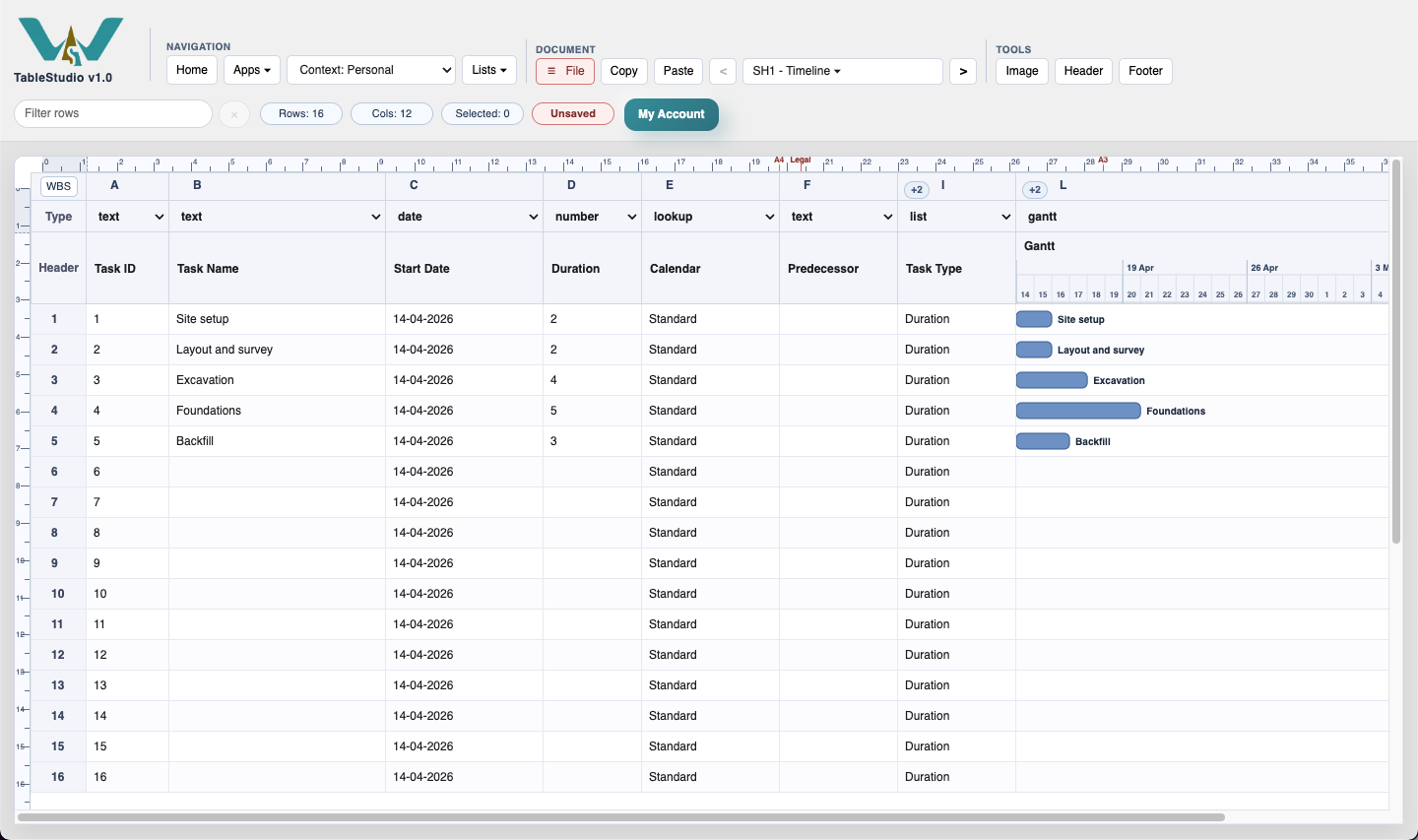
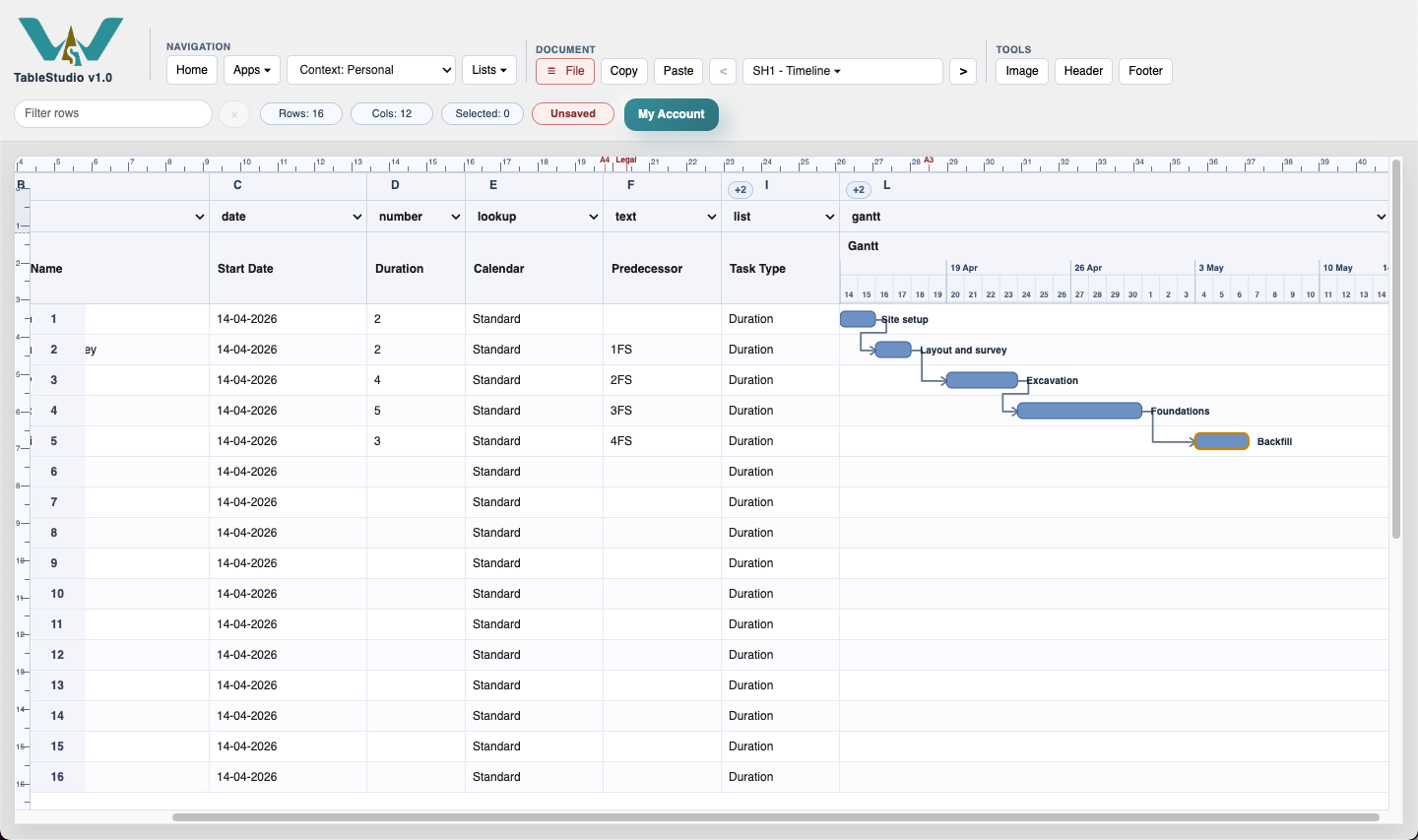
Enter the activity names and durations first: Activity 1 2, Activity 2 2, Activity 3 4, Activity 4 5, Activity 5 3.
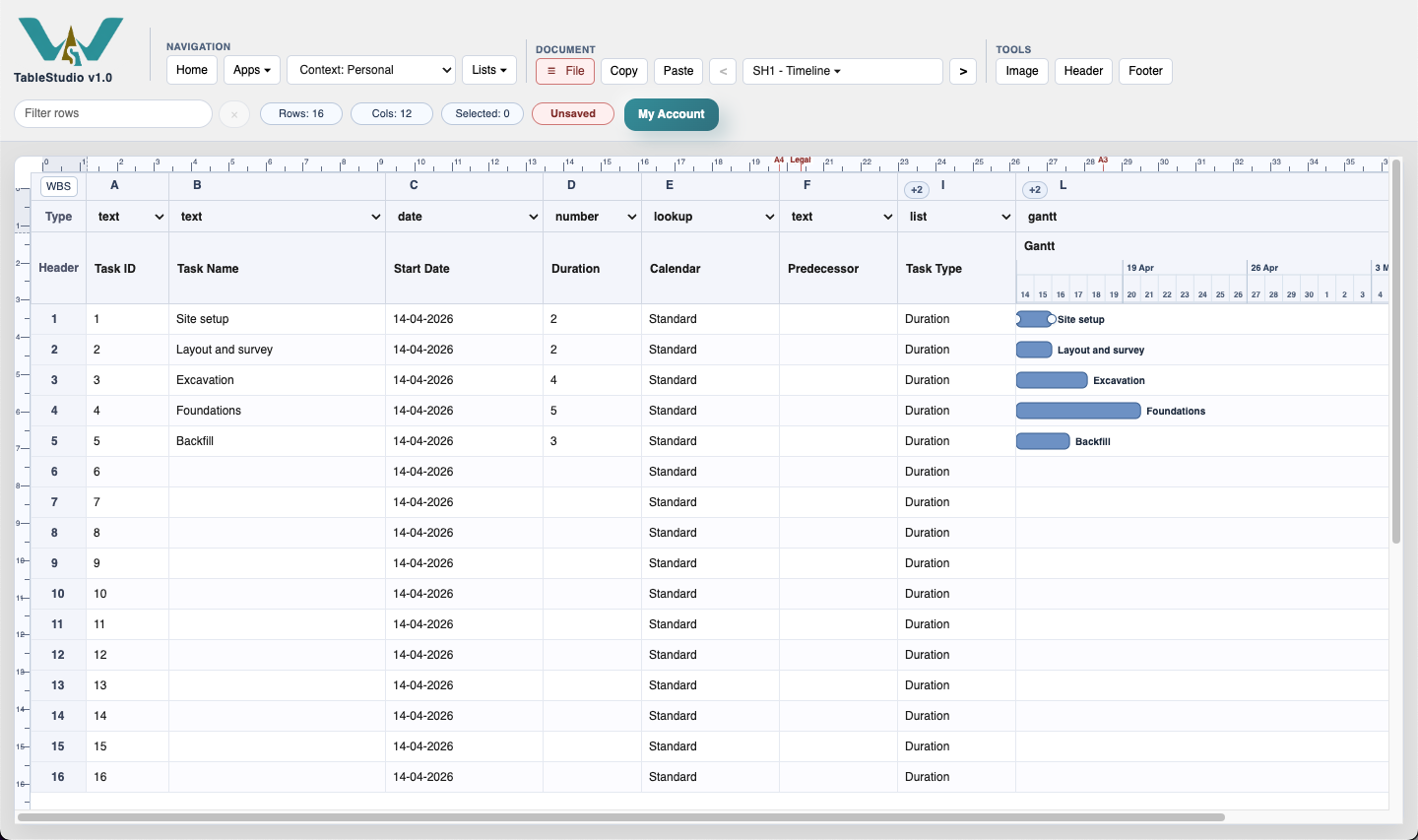
Show the link handles
Hover a task bar to reveal the start and finish handles. Use the finish handle on Activity 1 to begin the first finish-to-start link.
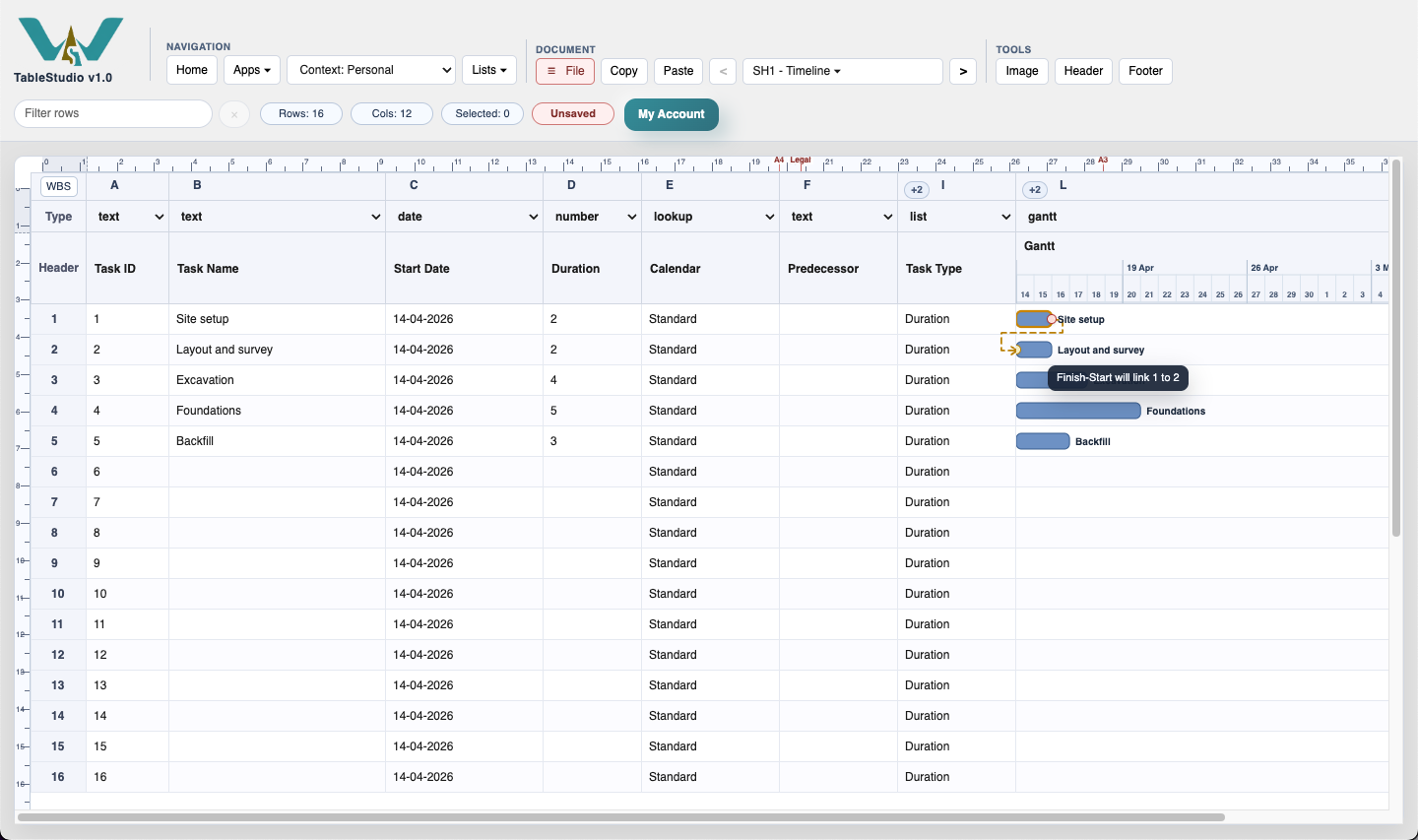
Preview the dashed link
Click and hold the finish handle on Activity 1, then move over Activity 2 to preview the dashed finish-to-start line before you commit the link.
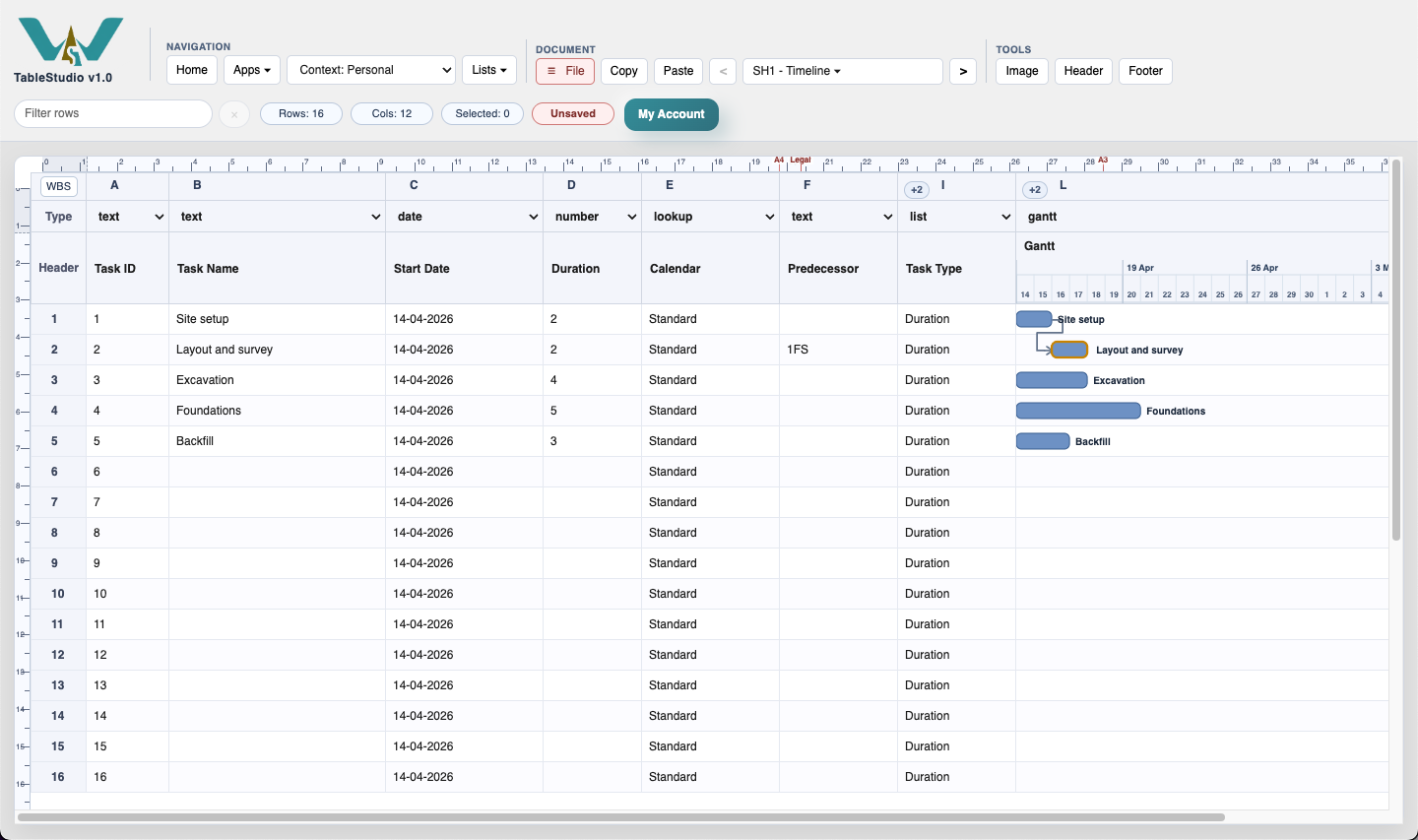
Create the first mouse link
Click the finish handle on Activity 1, then click Activity 2. TimeLine writes 1FS into the Predecessor column and draws the chart link.
Continue the sequence
Continue with the mouse for the remaining activities. Depending on the relationship you need, TimeLine lets you create FS, SS, and FF links directly from the chart.
Enable JavaScript to use reading progress and usefulness ratings.