
Plan a Small Project in TaskBoard
Create a simple board, then review the same work in list, calendar, gantt, and post-it views.
Use this walkthrough when you want to understand how one TaskBoard can be read in several ways.
The goal is simple: build a small task board, then switch views to check detail, dates, sequence, and grouped work.
This tutorial is a good starting point before deeper articles about saving, recurring tasks, and assignments are added.
Related: TaskBoard, TaskBoard Views, List View, Calendar View, Gantt View, Post-it View.
Open TaskBoard and create the first tasks
Open TaskBoard, start a new board, and add a few parent tasks plus a few child tasks under them. Keep the board small so it is easy to review in every view.
Review the board in List View
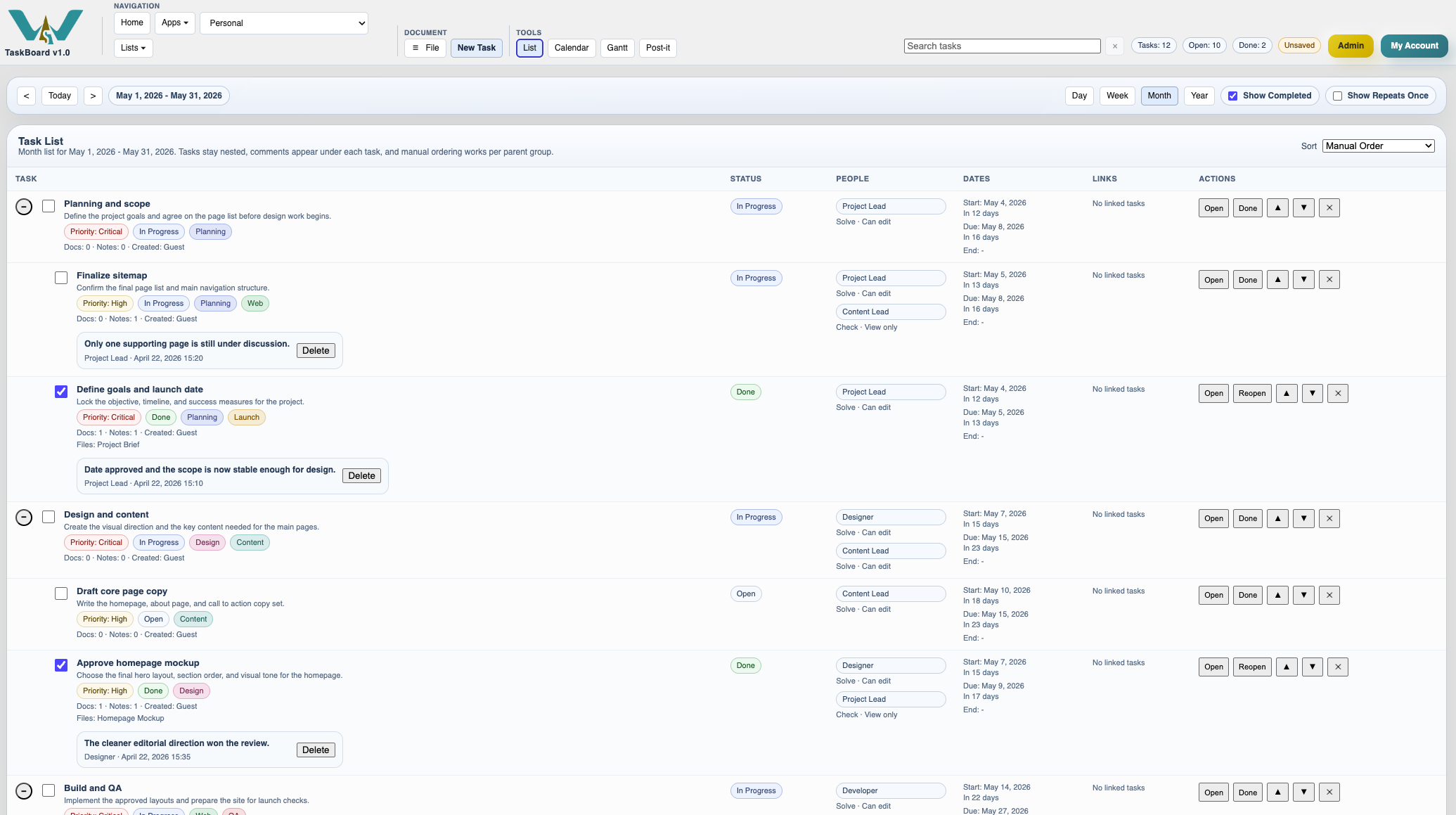
Start in List view so you can read the tasks closely. This is the best place to check hierarchy, comments, people, dates, and quick row actions.
Check the dates in Calendar View
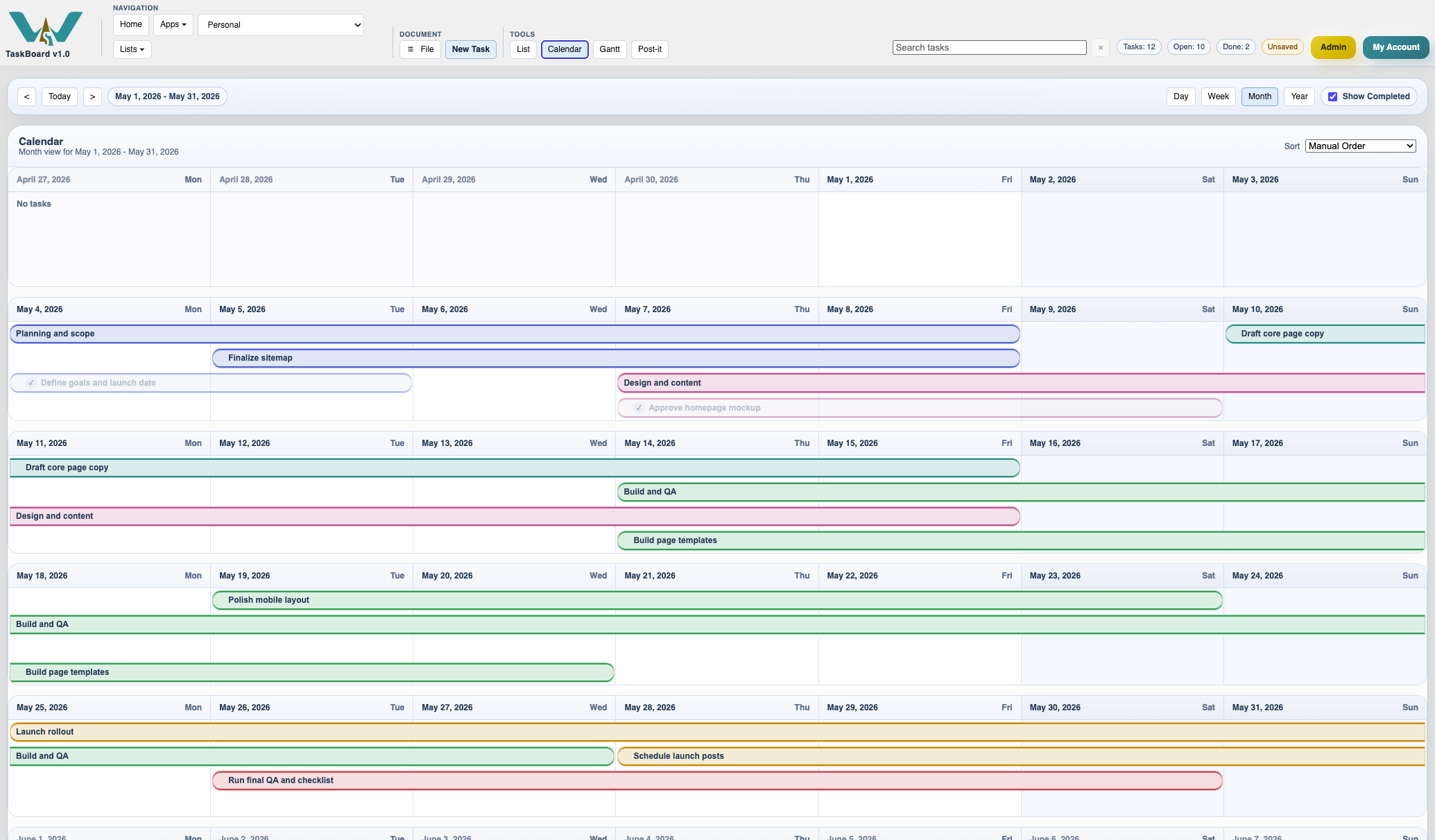
Switch to Calendar to see where the same tasks sit in time. Use Month for a broad view, then Week when you want to inspect the active period more closely.
Check sequence and overlap in Gantt View
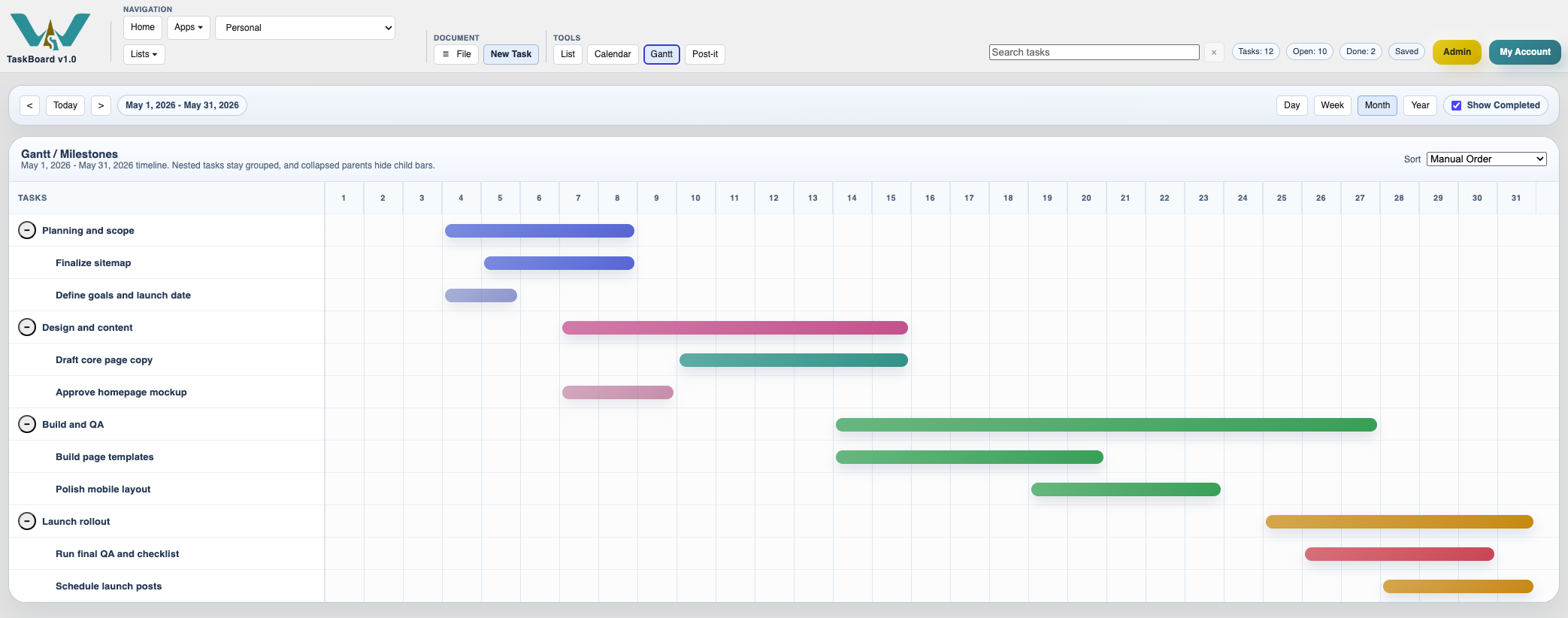
Open Gantt when you want to see rough duration, overlap, and timing. This helps you confirm whether the work sits in the order you expected.
Review grouped work in Post-it View
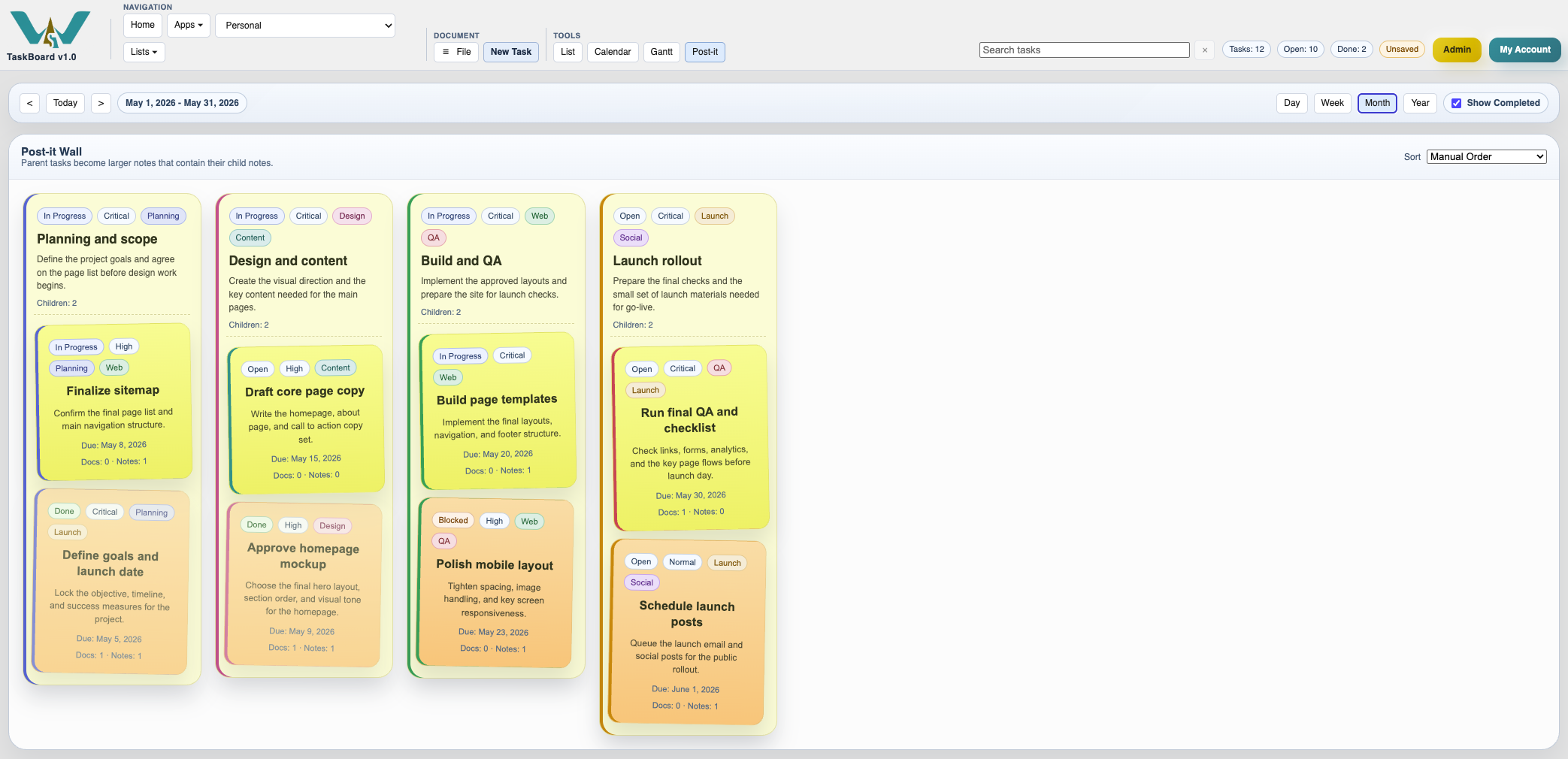
Switch to Post-it when you want a lighter workshop view. Parent tasks become larger notes and child tasks stay grouped inside them.
Enable JavaScript to use reading progress and usefulness ratings.