
One Company Project, Connected Information
Follow a fictional office refresh through its people, supplier, supporting file, preparation note and review date.
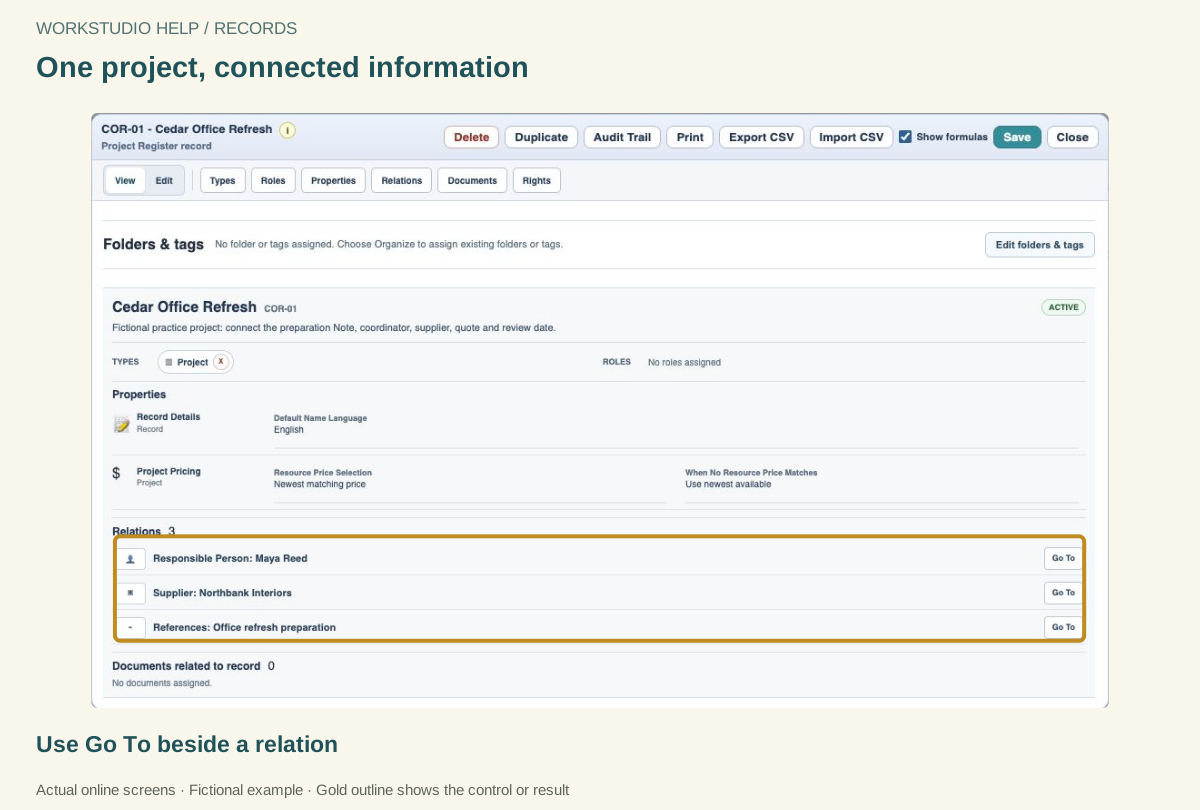
A project folder may tell you where a document is stored. It does not always tell you who supplied it, who is responsible for the work or which decision it supports. Relations in Records let you keep those connections beside the information.
The example: Cedar Office Refresh
We will use one small, fictional project. All example records stay in the same practice collection so their connections are easy to inspect.
- Project: Cedar Office Refresh, code
COR-01. - Person: Maya Reed, the example project coordinator.
- Company: Northbank Interiors, the example supplier.
- Note: Office refresh preparation, with the work needed before the review.
- Supporting document: a fictional supplier quote with a clear reference,
EXAMPLE-Q-001. - Countdown: Review the office refresh plan, dated 22 October 2026.
- Calendar: Office refresh calendar, showing that same review event. The preparation Note references the Countdown record.
This is a business-use example. You can practise it in Personal context. Creating a Project record does not create a shared Project context or invite anyone. Shared working areas and their permissions are managed separately.
Give each fact a sensible home
Store Maya's details on her Person record and the supplier's details on its Company record. Connect those records to the Project instead of retyping their details in every project description.
Keep the preparation checklist in the Note. Attach the quote beside the record it supports. An attached file and a separate Document record are different choices: use an attachment for simple evidence; create a separate record when the document itself needs properties and relationships.
A connection describes meaning. It does not automatically copy all of the other record's content, create a task assignment, send a message or grant someone access.
Build the links deliberately
Open the Project and use Relations to connect existing records. Search before creating another Person or Company, then choose a relationship that describes the connection. Review the result from both ends where the relationship offers a reverse link.
The Project’s Relations list gives you a compact overview. Use Go To beside a relation to open its target. The supplier also shows the reverse Supplies link back to the Project.
Keep dates connected to the work
A review is a dated event; the Note contains the preparation. In this example, we create a Countdown, enable Show in Calendar, and choose Office refresh calendar. A References relation from the Note lets us open the review record. This relation does not insert the event into the Note text.
To insert a live dated row in a Note, use the planning workflow linked below. Calendar and Countdown can show one source event in different ways.
Use one source event for one commitment. Typing a second, unrelated deadline may look similar today but can drift when the date changes. See One item across Notes, Calendar and Countdown for the planning model.
A short review before saving
- Open the Project and check its name and code.
- Follow the Person and Company links; confirm they open the intended records.
- Open the quote and check its reference.
- Read the Note and check the dated review.
- Save the Catalog to the intended context and verify the save result.
Reuse this pattern
The same approach can describe a client matter, an equipment service, an event or an internal improvement project. Change the record Types and properties to fit the work. Keep information once where practical, and use connections to explain how it belongs together.
Follow Build a Connected Company Project for the illustrated walkthrough and film. For estimates, continue with Build a Complete Priced Company Project. For a document package, use Add Documents to a Container / Package.
All people, companies, dates, documents and project details in this example are fictional. Any resemblance to real people or organizations is coincidental.
Enable JavaScript to use reading progress and usefulness ratings.