
One item across Notes, Calendar and Countdown
Understand how one event can appear in several views without manually entering it again.
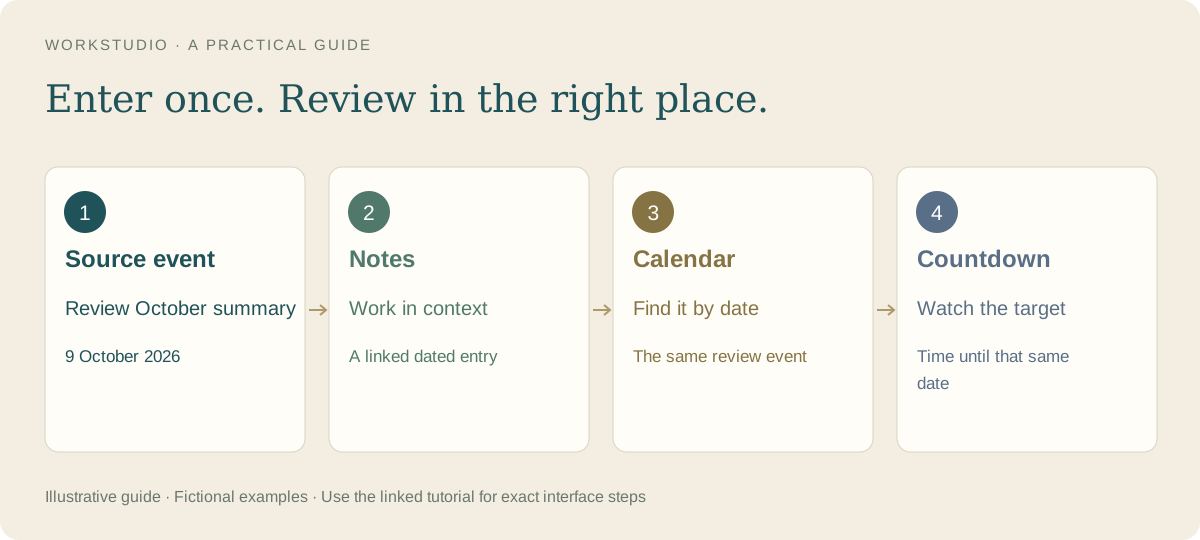
In our fictional example, Review the October summary is one event on 9 October 2026. It appears in Calendar, in the preparation Note and as a Countdown. These views help answer different questions about the same commitment.
Keep a clear source
We created the event in Company reporting calendar. In its details we enabled Calendar, Notes and Countdown, then chose Monthly report preparation as the destination Note. The Note displays the dated review alongside its preparation checklist.
You can also start from a dated Note item. A row without a separate date can inherit its section date, so check the resulting date after moving it between sections.
Link or copy?
- Linked views: use them when the title and date describe the same commitment.
- A separate event: use it for another commitment, such as the reporting deadline after the review.
- A copied task: treat it as separate work that can acquire a different date or status.
Save at both levels
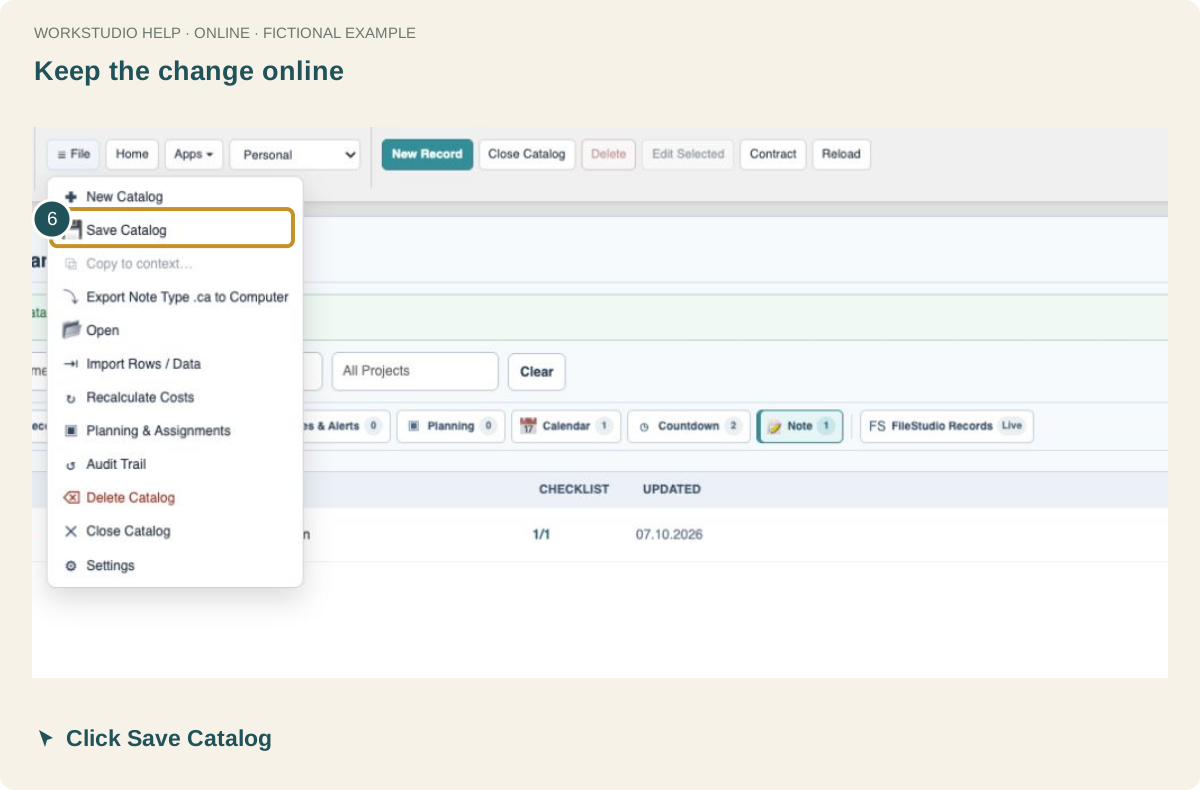
Save event applies the event edit to the open Catalog. File → Save Catalog stores the Catalog online. Wait for the confirmation before switching devices.
Visibility, access and alerts
- Calendar, Notes and Countdown switches choose where the event appears.
- Those switches do not grant another account permission to read it.
- A Countdown shows time remaining; notifications have their own settings.
- Choosing a person reference does not share the record with that person’s account.
For recurring work, read Repeating tasks and completion.
In the example Catalog
Fictional example used to explain the workflow.
Enable JavaScript to use reading progress and usefulness ratings.