
Recurring tasks: a series and its occurrences
Understand recurring dates, completion, importance and the scope of an edit.
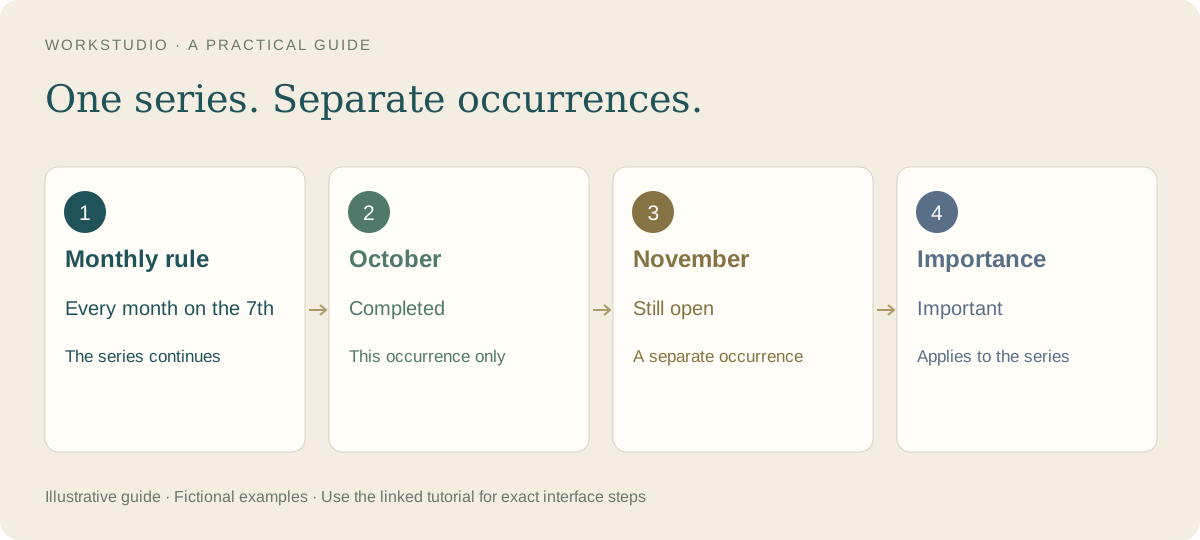
Completing October’s report should not complete November’s report. A repeating task has dated occurrences, and completion applies to the occurrence you are viewing.
Check the displayed date
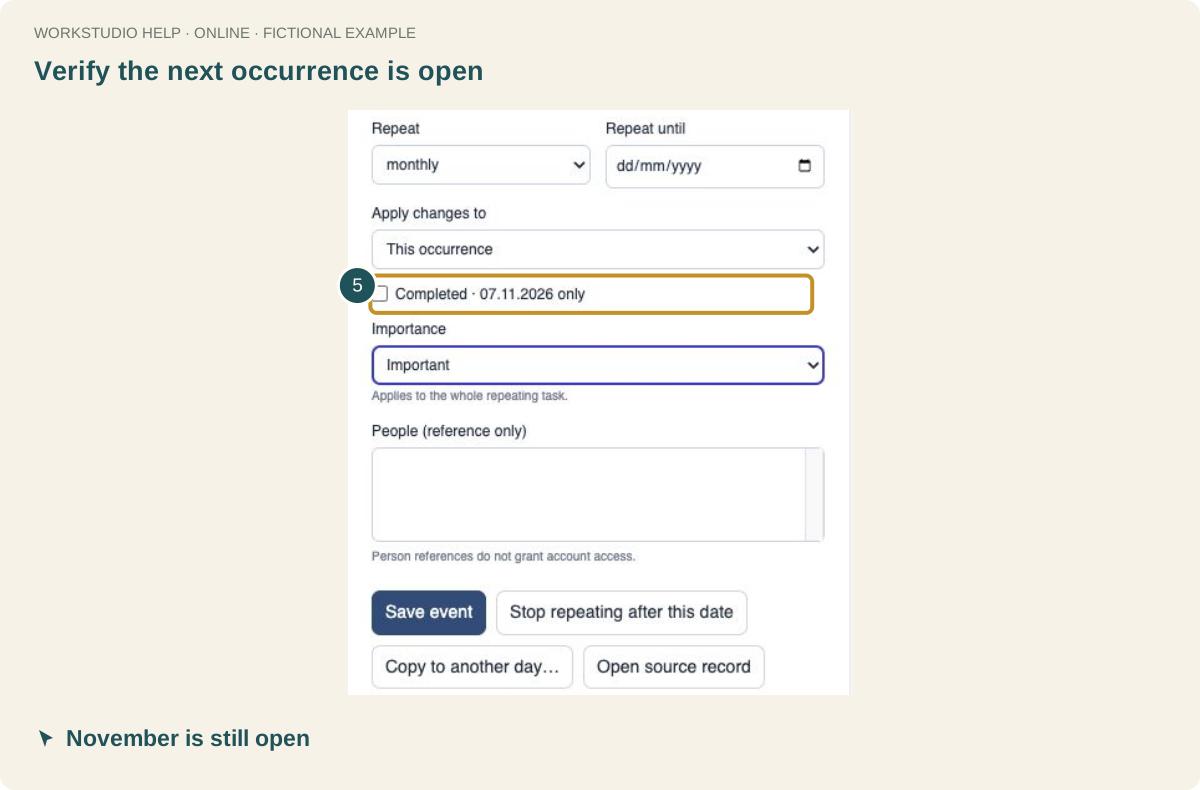
Before checking a recurring item, inspect the occurrence date. In event details, the completion label identifies the date that will be completed. Save the change and inspect a later occurrence to confirm it is still open.
Completion is not the same as editing the series
- Complete an occurrence: records that one dated task as done.
- This occurrence: changes the selected occurrence’s scheduling details.
- This and following occurrences: changes the future part of the schedule.
- Entire series: applies the edit across the series. Read any warning about existing exceptions before saving.
- Stop repeating after this date: ends future repetition. Use it when the recurring work has genuinely finished.
Importance belongs to the repeating task as a whole. Marking it Critical therefore affects the series; it is not a private priority for just one date.
Choose reliable monthly dates
A monthly rule for the 31st skips months without that day. A yearly 29 February rule skips years without that date. If your work must happen every month, choose a date that exists in every month or deliberately manage exceptions.
Reminders need their own settings
A repeating Calendar schedule describes when an item occurs. Do not assume that it creates a repeating email reminder. Review the event’s alert settings, recipients and delivery options separately.
Try this with the monthly company reporting walkthrough.
In the example Catalog
Fictional example used to explain the workflow.
Enable JavaScript to use reading progress and usefulness ratings.