
Show one event in Notes, Calendar and Countdown
Follow the marked screenshots, or watch the online walkthrough at your own pace.
Where: WorkStudio online → Records. Use a saved example Catalog; our screenshots show Help examples - Planning.
The gold outline marks the control or result to look at. Read the instruction, make the change, then continue. Dates are fictional and will differ from your own.
Show one event in Notes, Calendar and Countdown
Guided screen walkthrough using real online screens and click highlights. Screens are held for reading; this is not a continuous recording. All names, dates and tasks are fictional examples. Any resemblance to real people or events is coincidental.
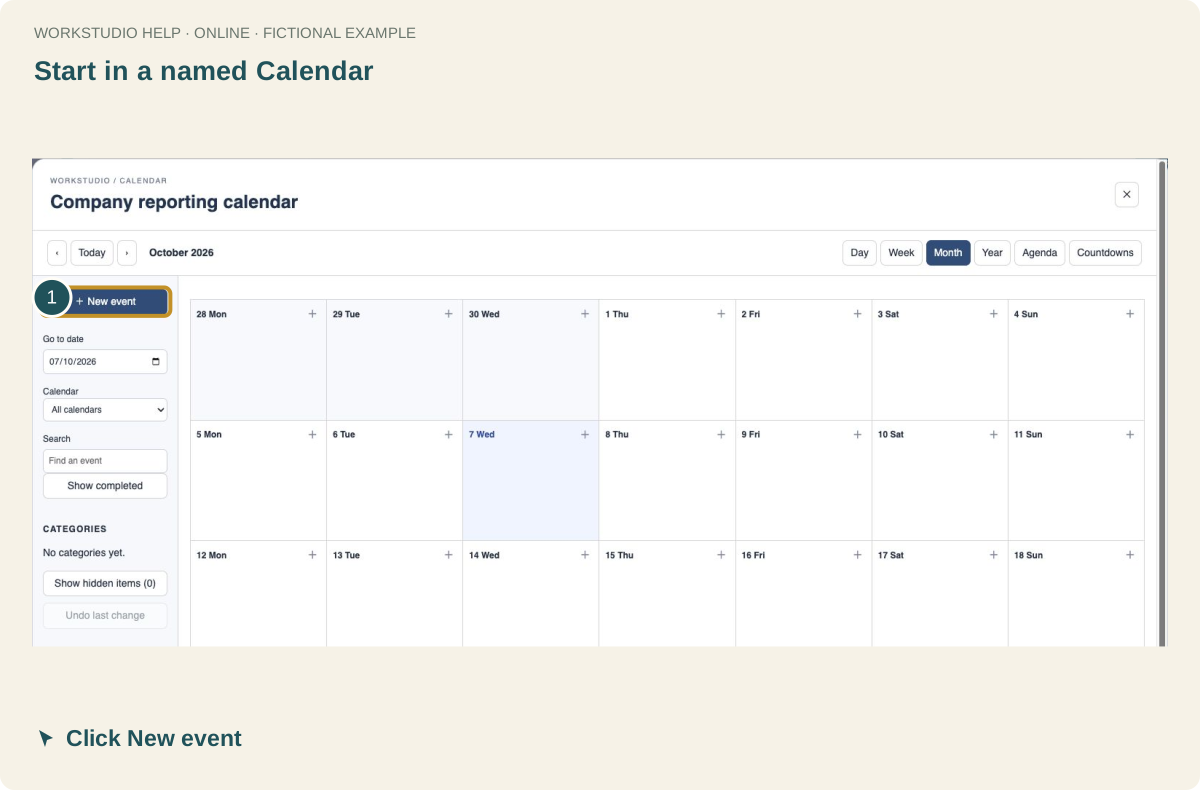
Start in a named Calendar
Open Company reporting calendar. Click New event to create the source date once.
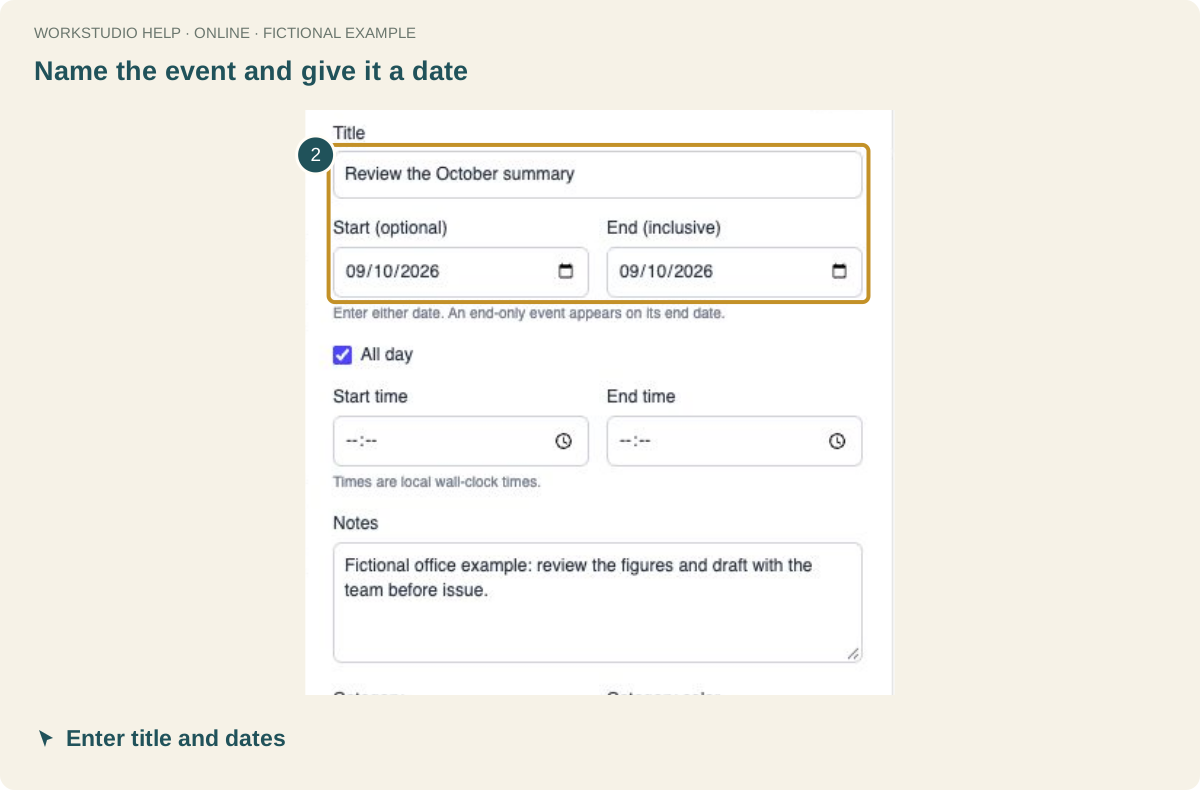
Name the event and give it a date
Enter Review the October summary and 9 October 2026. Keep All day selected for this example.
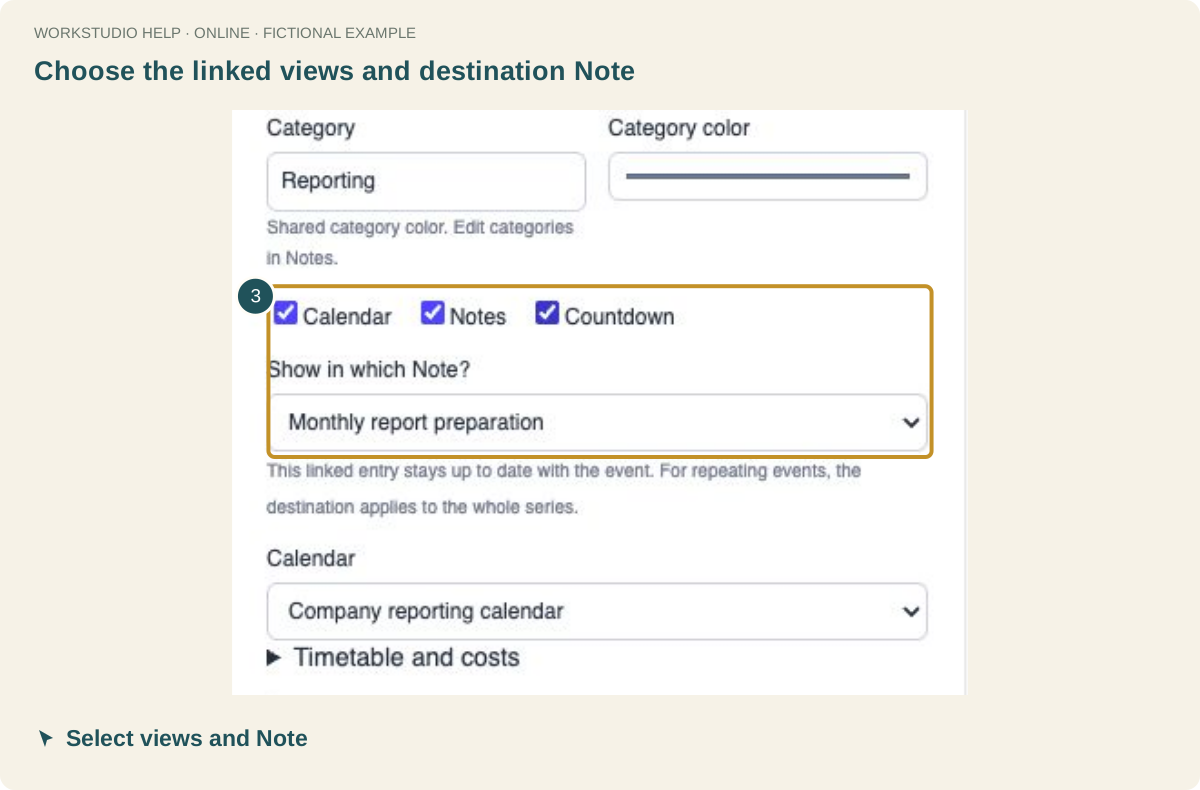
Choose the linked views and destination Note
Select Calendar, Notes and Countdown. In Show in which Note?, choose Monthly report preparation. Then scroll down and click Save event.
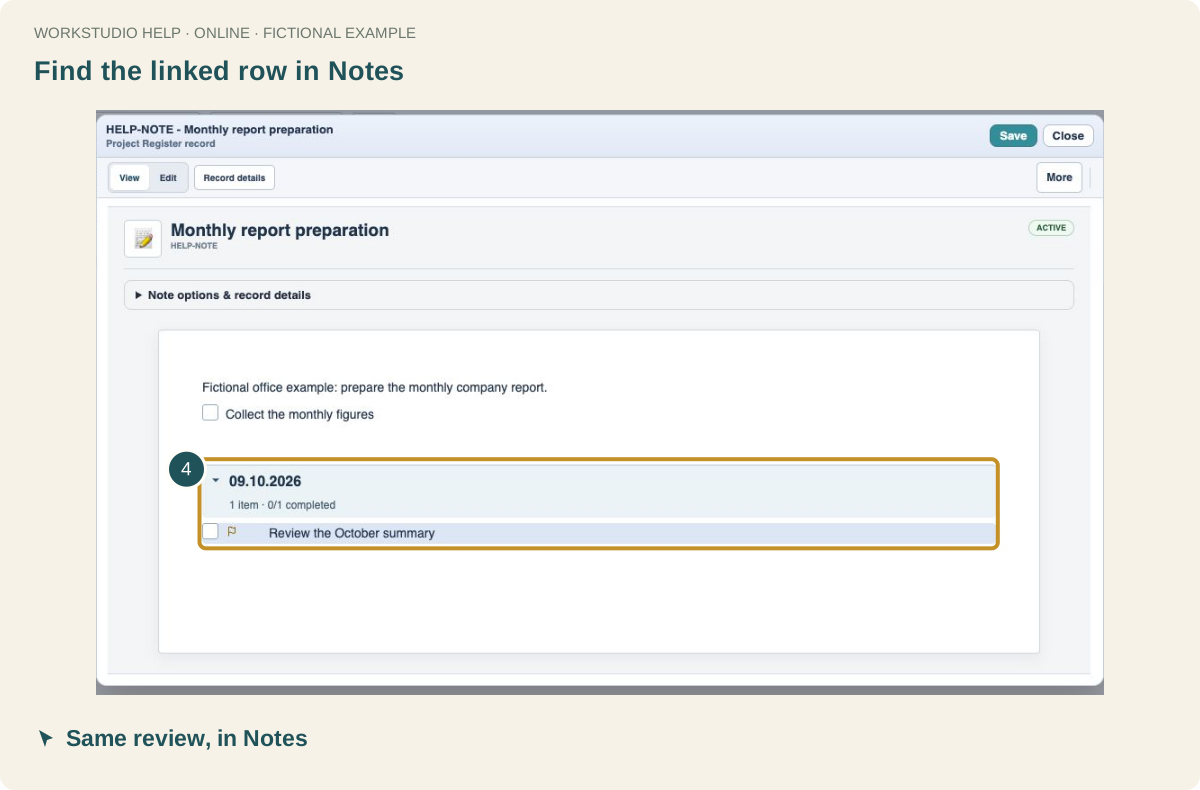
Find the linked row in Notes
Open Monthly report preparation. The review appears in its dated section; there is no need to type a second copy.
Check the remaining time
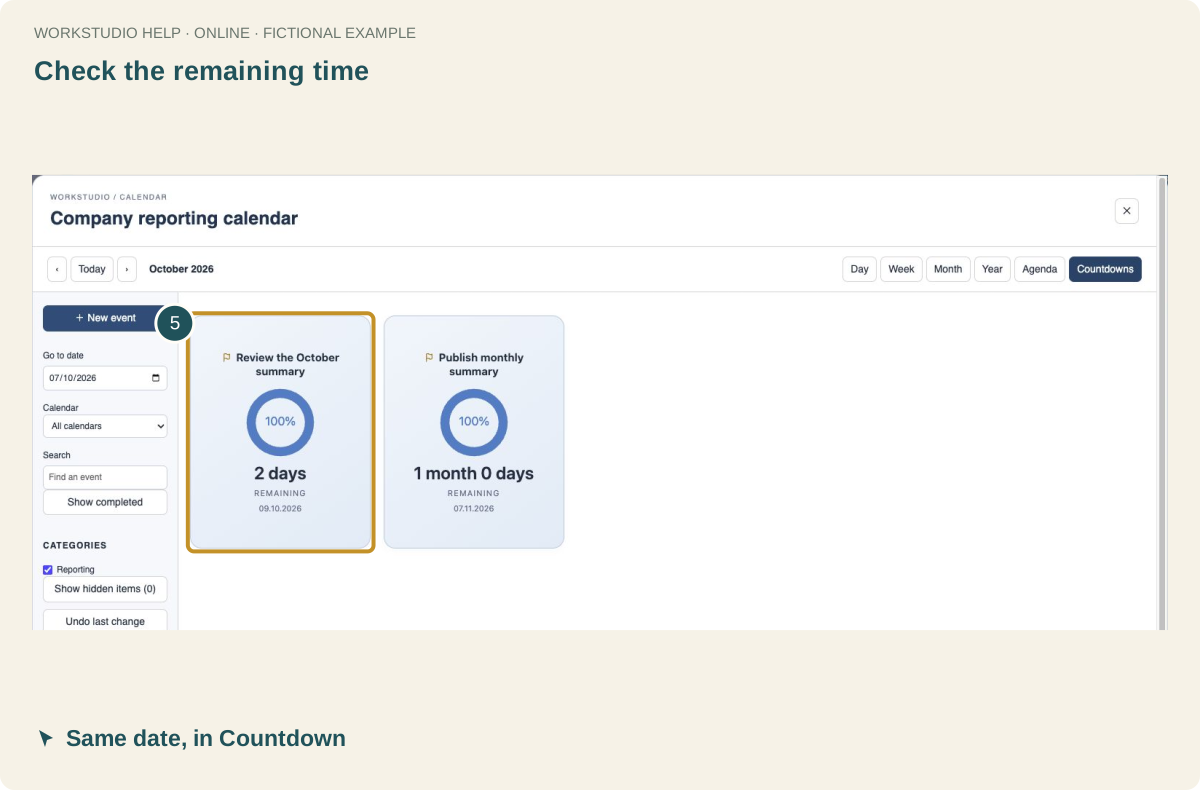
Open Calendar → Countdowns. The review card uses the same 9 October date. Its displayed remaining time changes as that date approaches.
Keep the change online
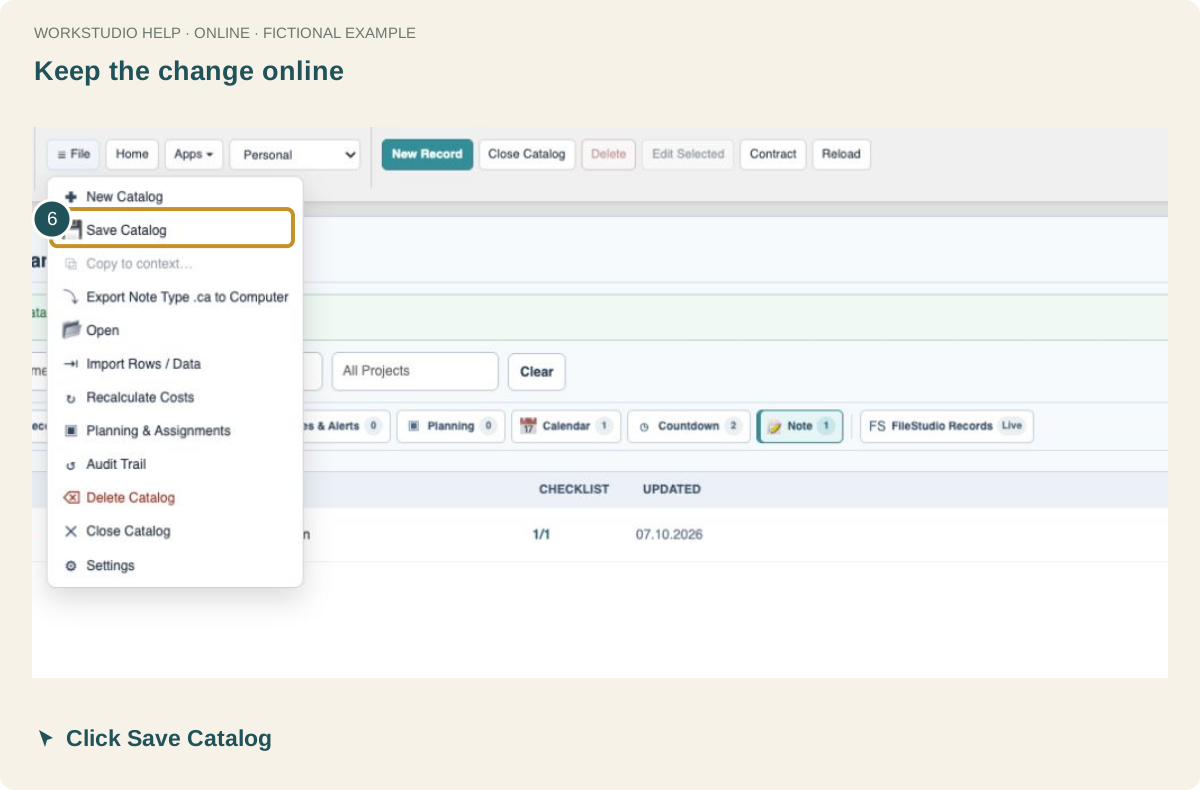
Close the record and choose File → Save Catalog. Wait for the saved-to-server confirmation before switching devices.
Enable JavaScript to use reading progress and usefulness ratings.