
Use Countdowns for renewals
See the time left for a renewal and its cost without losing its dated task or calendar entry.
These guides use fictional practice data and generic EUR amounts. Costs, tasks & dates is the second learning series; start with Costs & budgets if you are new to cost elements. The screenshots show the October 2026 interface. Adapt example dates and planning periods if practicing later. Recording bills and payments does not transfer money.
Start with A monthly phone bill: expected, billed, paid and checked or Review unfinished work.
Next: Review unfinished work at a glance.
Read the illustrated film transcript.
Create a repeating Countdown
Choose New Countdown, enter its first target date, then choose Repeat and Every (number of periods). For example, Monthly with Every 3 repeats every three months. Repeat until is optional. Save Countdown, then Save Catalog. A linked Cost element has its own billing frequency; choosing an event repeat does not change the price or billing frequency.
Add a renewal to Calendar and Countdowns
A silent, paced screen presentation using real Catalog captures and fictional EUR examples. Outlines and Click / Type / Look here arrows identify the action. The decorative title artwork is AI-generated. Open the full guide for the illustrated transcript.
Make a deadline visible
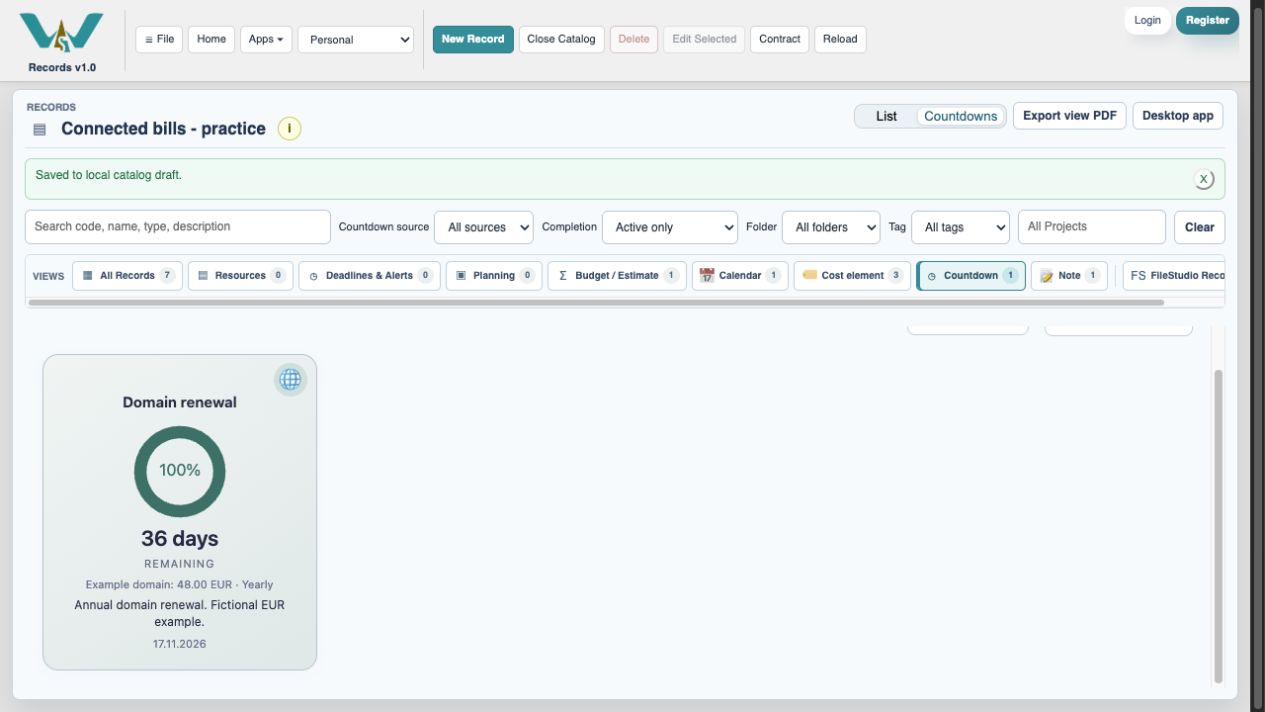
The Domain renewal tile shows its deadline, remaining time and the attached Example domain cost: EUR 48 yearly. To opt in from Notes, open the dated row’s context menu and choose Add to Countdowns…. Calendar events also have a Countdown visibility option. Completion and display filters can hide a finished occurrence.
Set the target and appearance
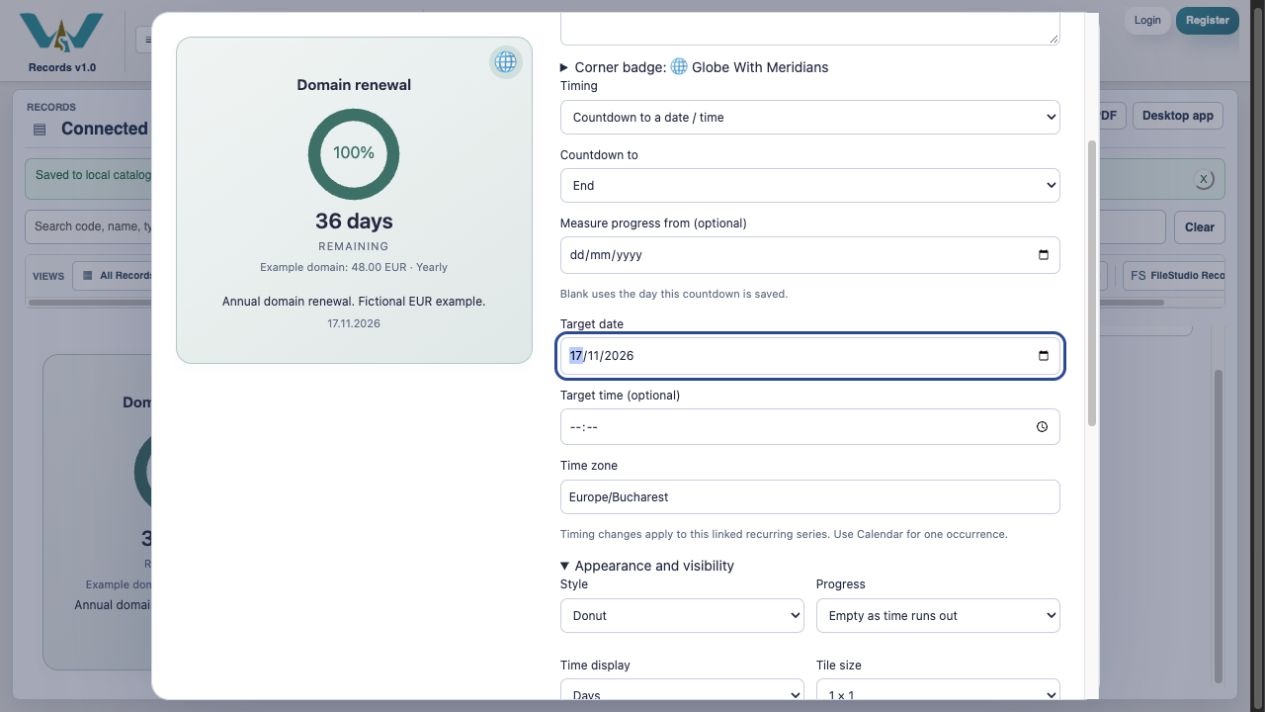
Choose Countdown to a date / time, End and a Target date. Measure progress from is optional; the current interface uses the day the countdown is saved when blank. Choose a style and time display that suit the renewal. The price remains in the cost record, not in the decorative title.
Connect the existing records
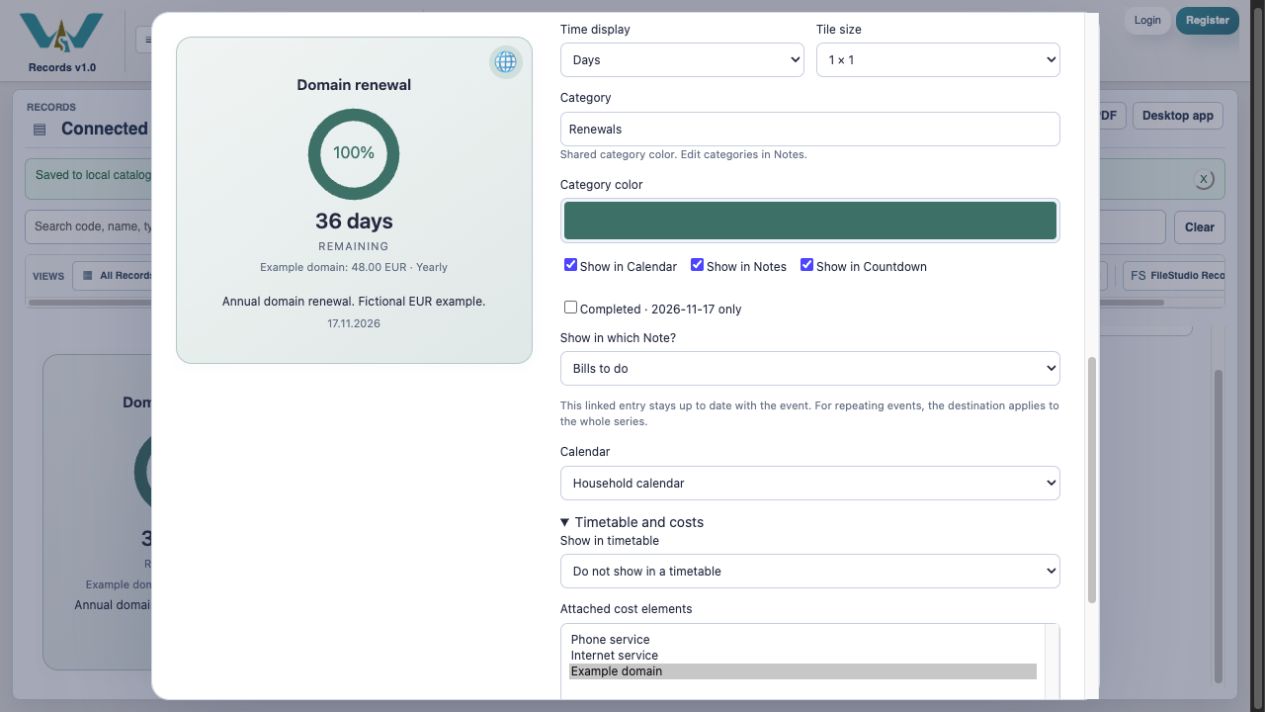
Select Bills to do under Show in which Note? and Household calendar under Calendar. In Timetable and costs, select Example domain. Keep Update attached cost deadlines checked to apply this Countdown date to the reusable cost and every Budget / Estimate containing it. Clear it for independent cost dates. Save Countdown, then Save Catalog. Already changed a Countdown before this option existed? Open and save it again with this option checked. For a new cost, Billing starts on defaults to the Countdown deadline; review it in the cost editor. The Note receives the linked row at the deadline; this does not turn the Countdown record into a Note record.
Complete one renewal, preserve the next
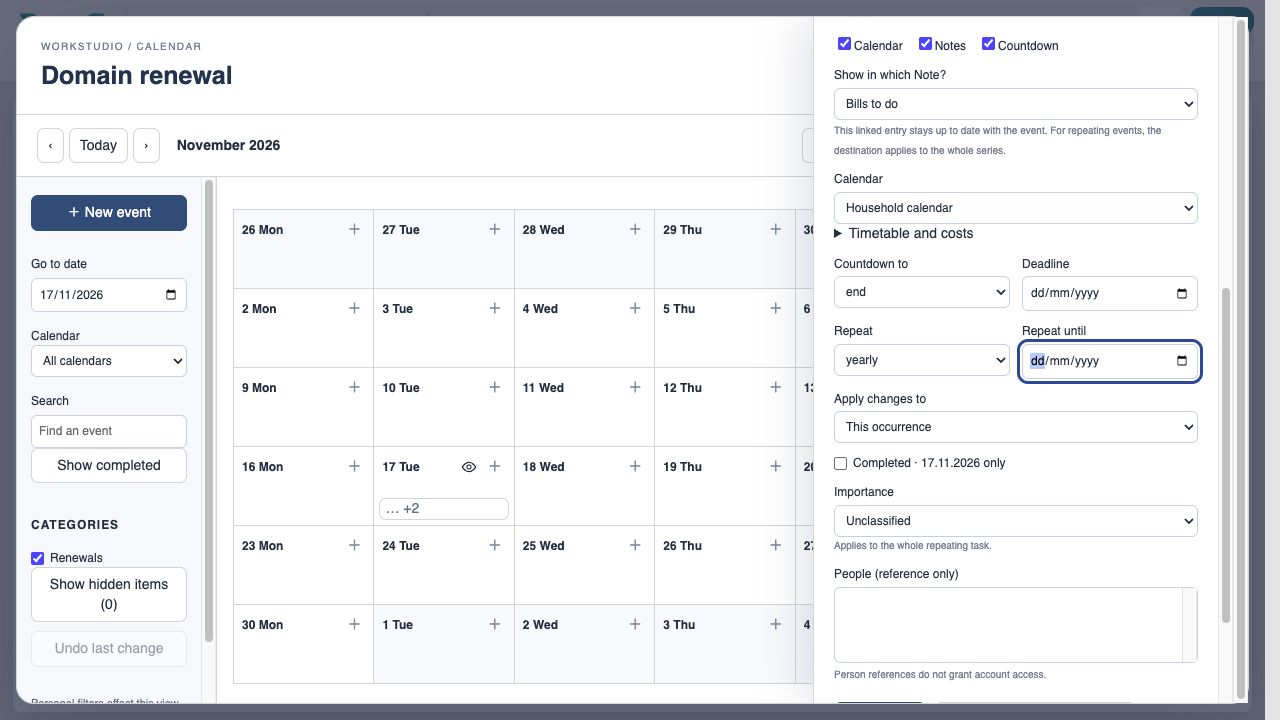
The yearly event has occurrence-specific completion. Recording a settled payment for the linked cost and matching date can check its editable linked Notes task. Inspect the following occurrence rather than marking an entire repeating series complete. Desktop Countdown settings come from the saved online Catalog; refresh the app after saving.
Enable JavaScript to use reading progress and usefulness ratings.