
A monthly phone bill: expected, billed, paid and checked
Follow the prepared monthly phone task from a EUR 20 expectation to a EUR 24 invoice, two payments and one checked October occurrence. The practice file includes the linked records so you can concentrate on the full payment journey.
These guides use fictional practice data and generic EUR amounts. Costs, tasks & dates is the second learning series; start with Costs & budgets if you are new to cost elements. The screenshots show the October 2026 interface. Adapt example dates and planning periods if practicing later. Recording bills and payments does not transfer money.
Before you start
Download connected-complete.ca below. It contains prelinked records so you can focus on this workflow. Then use File → Open → Computer → Choose .ca file. Work in the separate practice Catalog; save any existing work first.
Code is optional. Use it only if a short reference helps you; you can leave it blank. Number formats can vary with settings.
Online saving requires your usual signed-in account and edit access. Keep computer-only practice by exporting the complete Catalog.
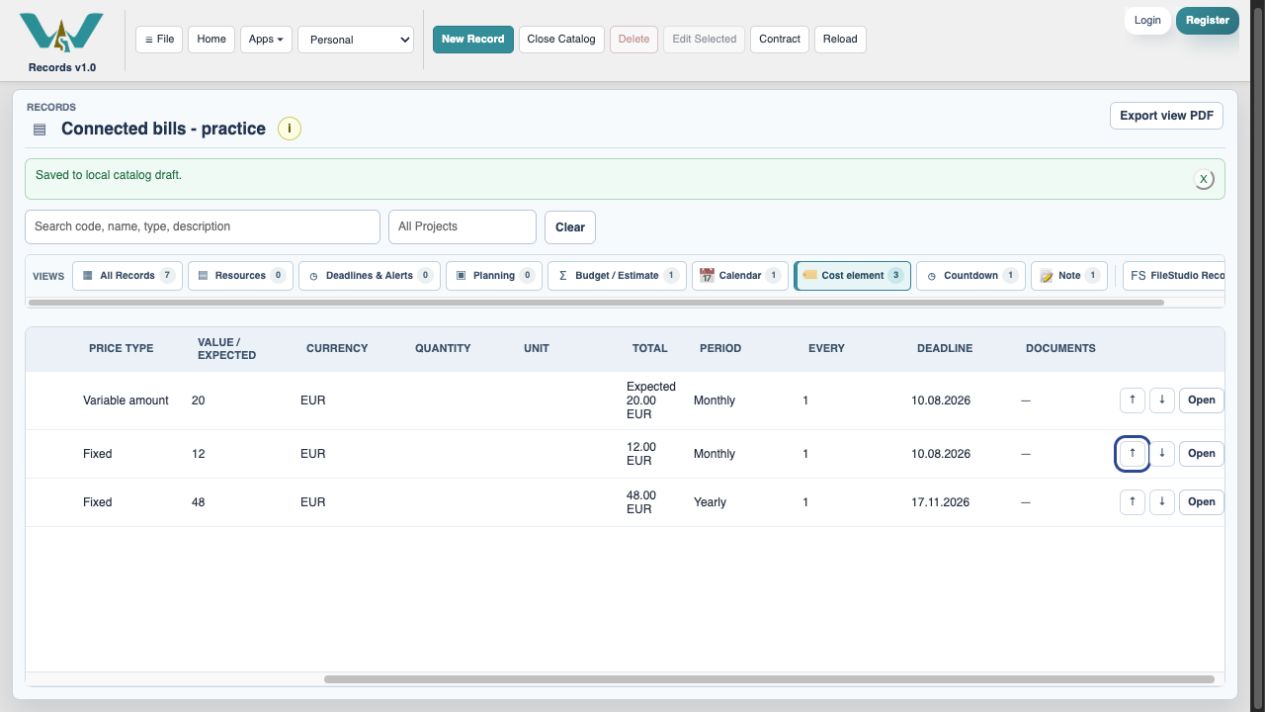
Open Phone service
Choose Cost element, then Open beside Phone service. The prepared cost is a reusable record; the optional new-cost form is covered in the attachment article.
Check the optional code
Choose Edit. Keep the name Phone service. Leave Code blank: it is optional. This reference field is not needed to connect the cost to a task.
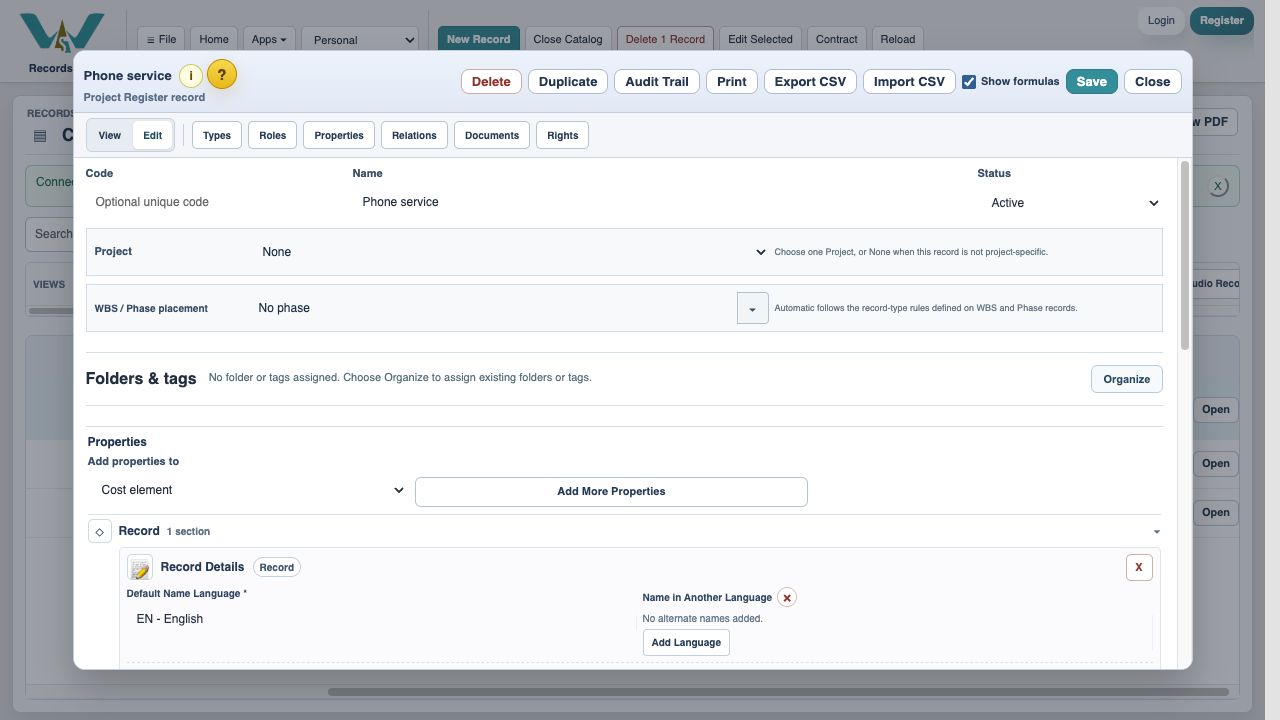
Set the planning amount
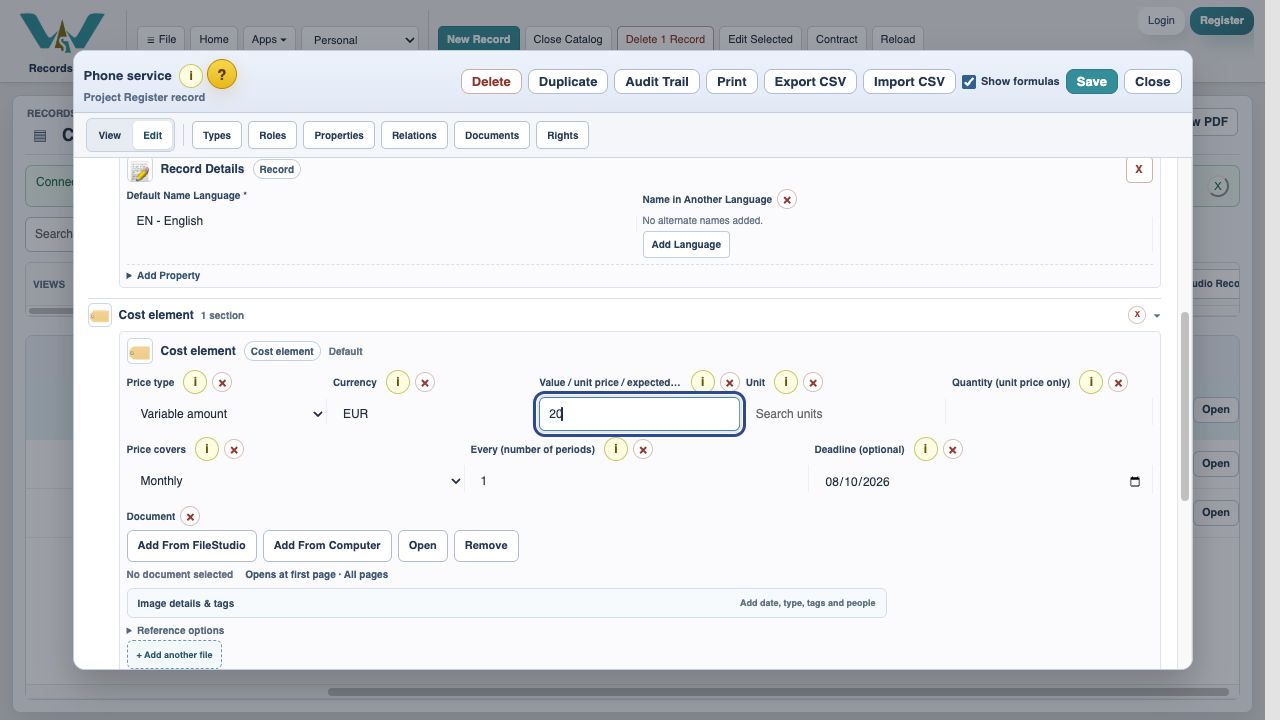
In Cost element choose Variable amount, EUR and expected value 20. This remains your planning figure even when an invoice differs.
Check its billing date
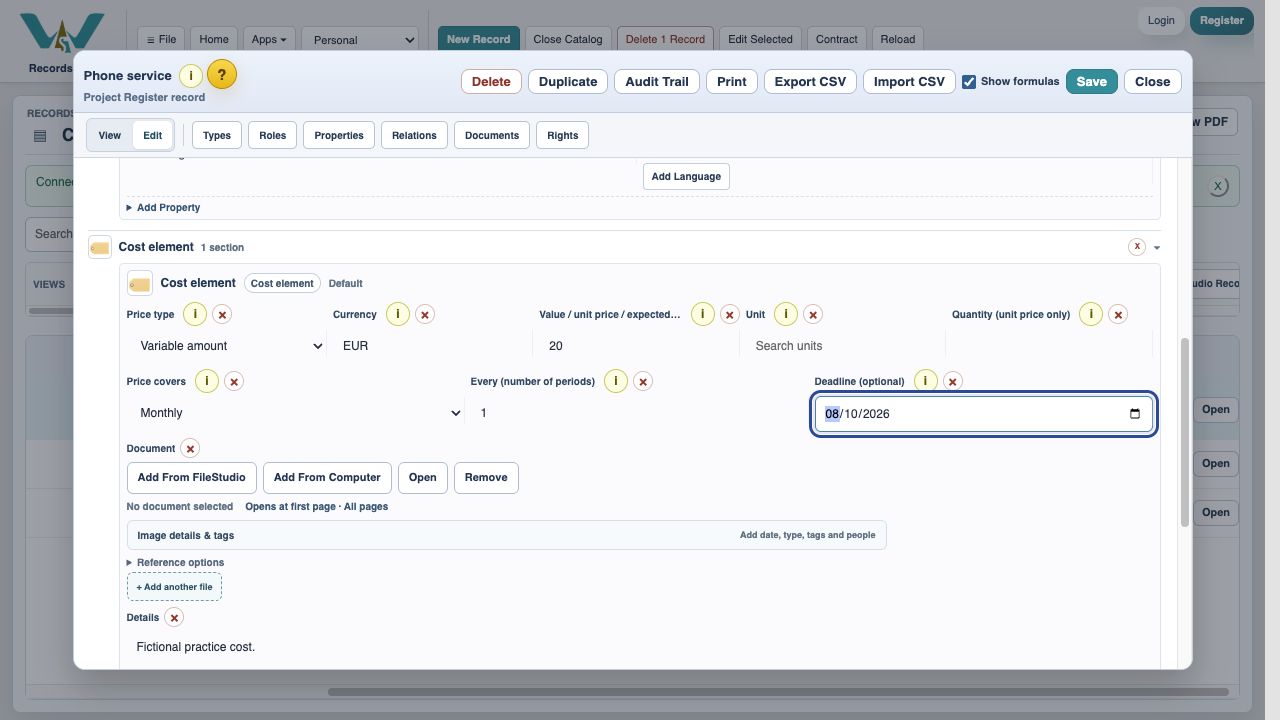
Choose Monthly, Every 1 and deadline 08.10.2026. Save the cost record. The bill schedule and the dated task must refer to the same occurrence.
Open the payment task
Choose Note → Bills to do, then Edit. The prepared Pay phone bill row is under October bills dated 08.10.2026.
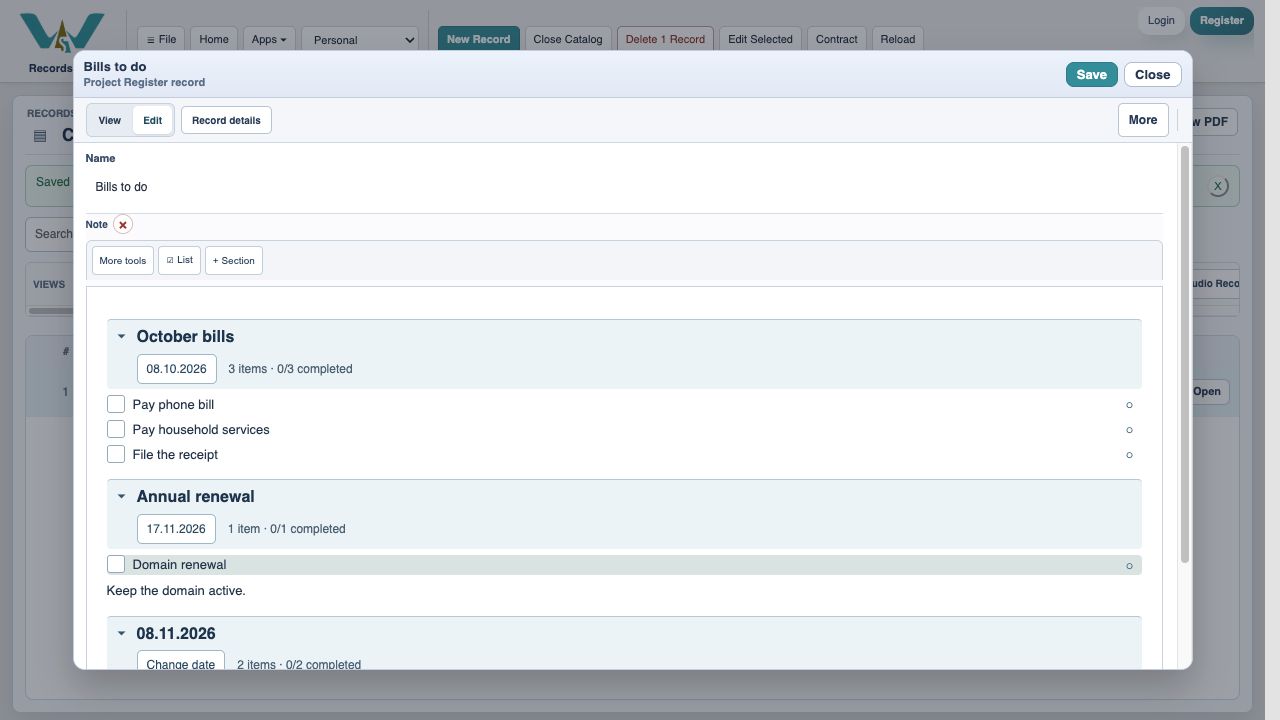
Open the row’s cost links
Right-click or open the row context menu and choose Attach / create cost elements….
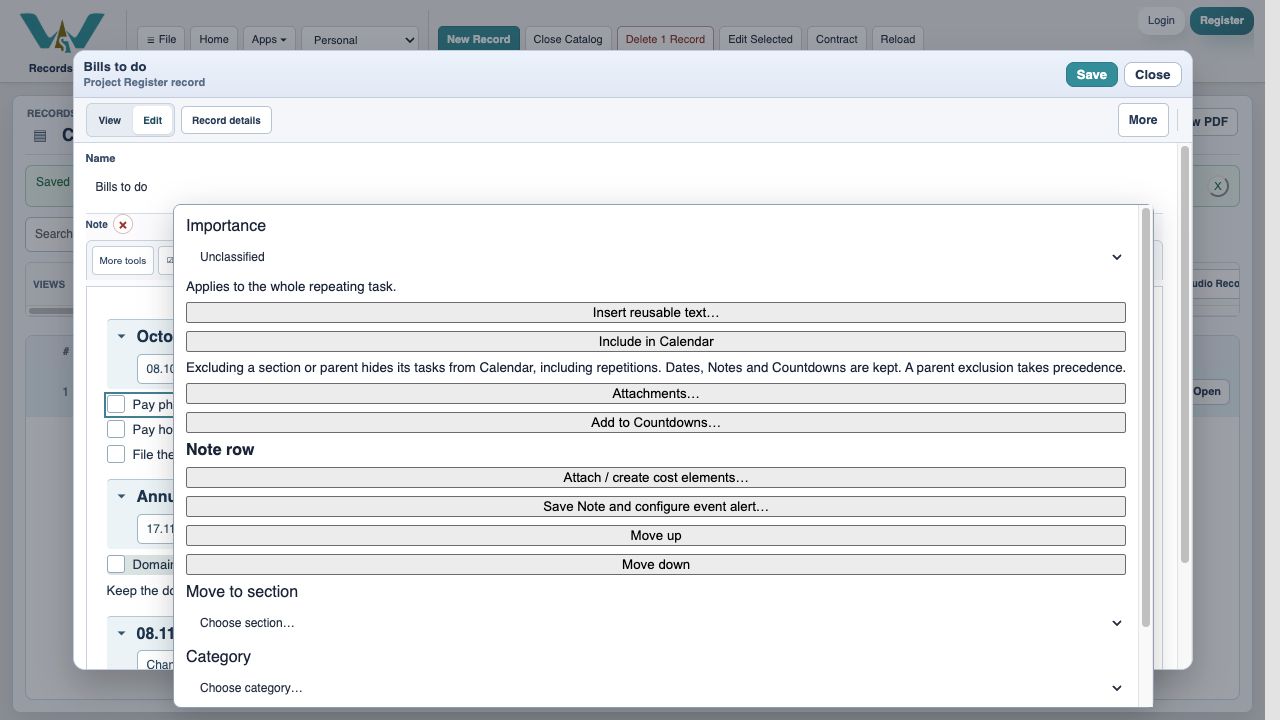
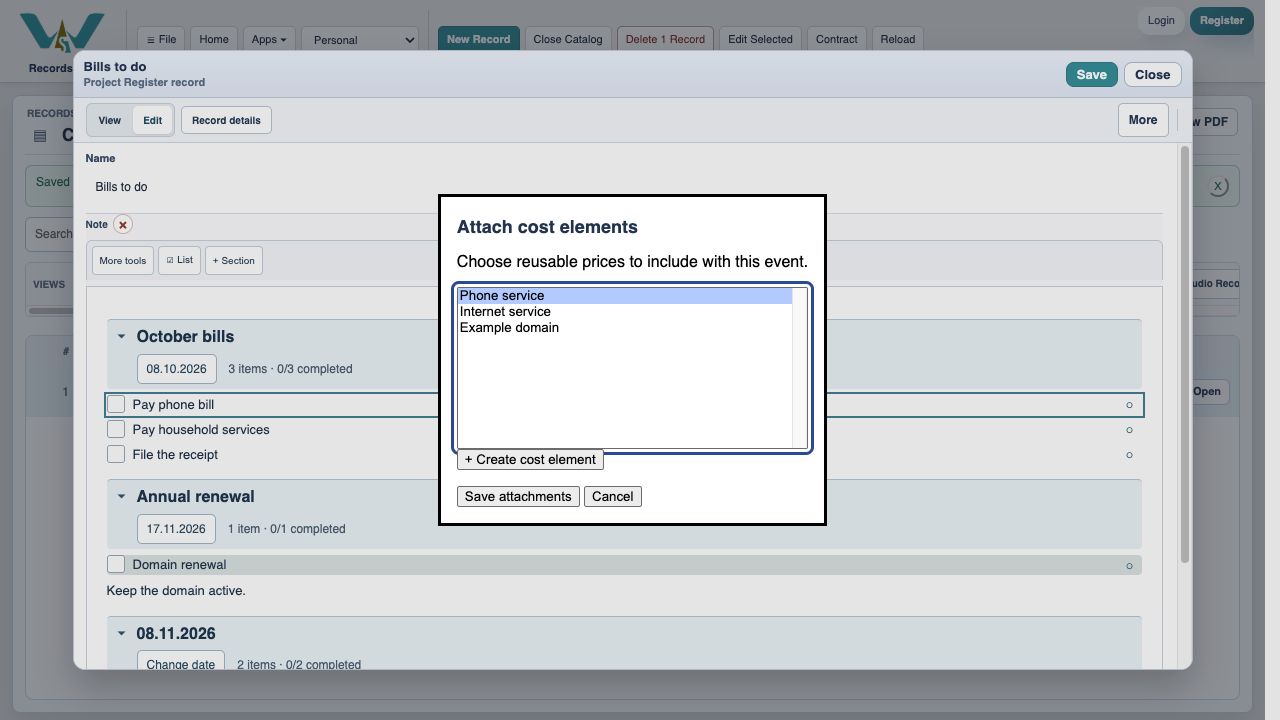
Attach Phone service
Select Phone service, choose Save attachments, then Save the Note. For a new cost, + Create cost element offers Name, optional Code, EUR, pricing, billing and deadline.
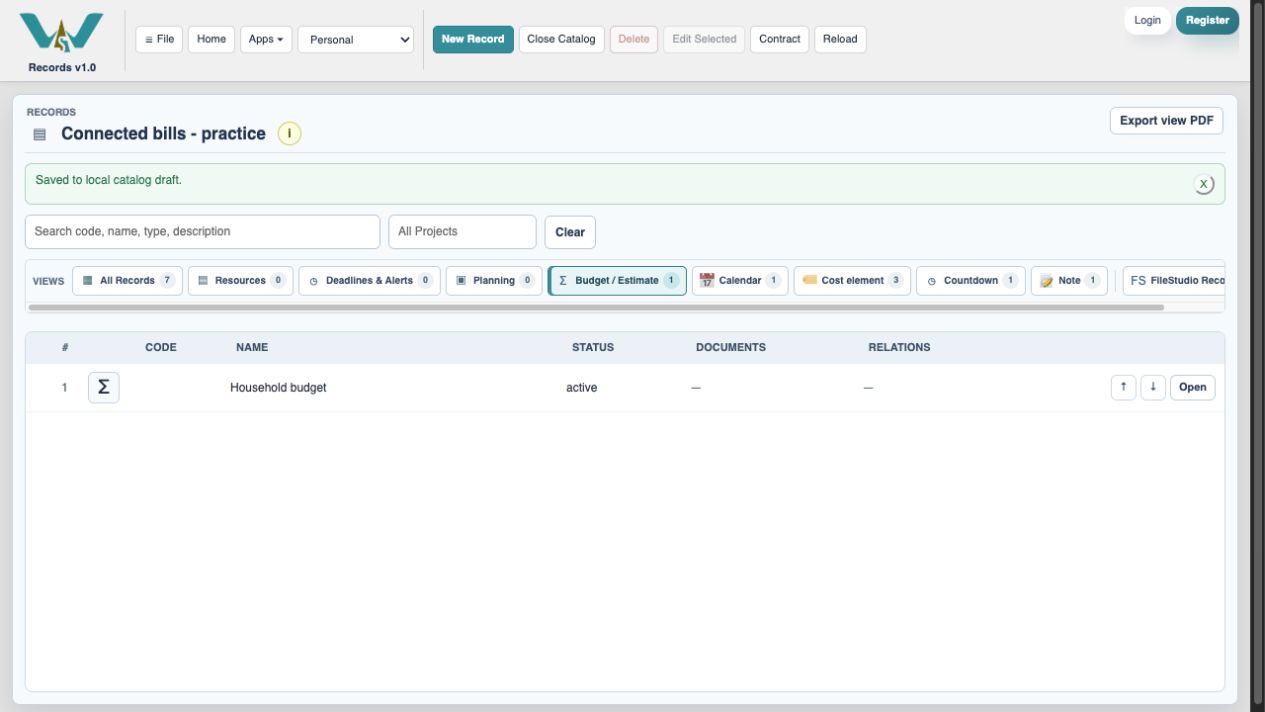
Open the prepared budget
Choose Budget / Estimate → Household budget. It already includes Phone service, Internet service and Example domain; reusing the same cost avoids duplicate histories.
Choose This month
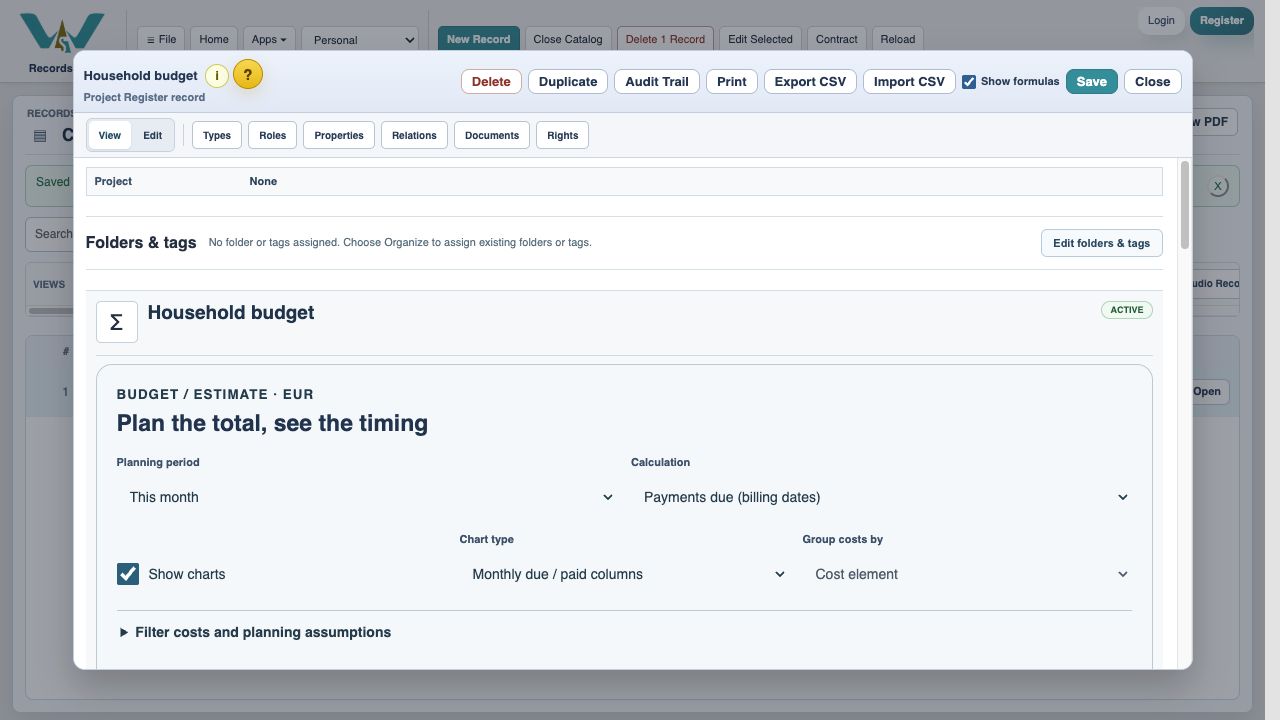
Set Planning period to This month and keep Payments due (billing dates). The period begins on the first day of the month. The example screenshots use October 2026.
Open the October phone bill
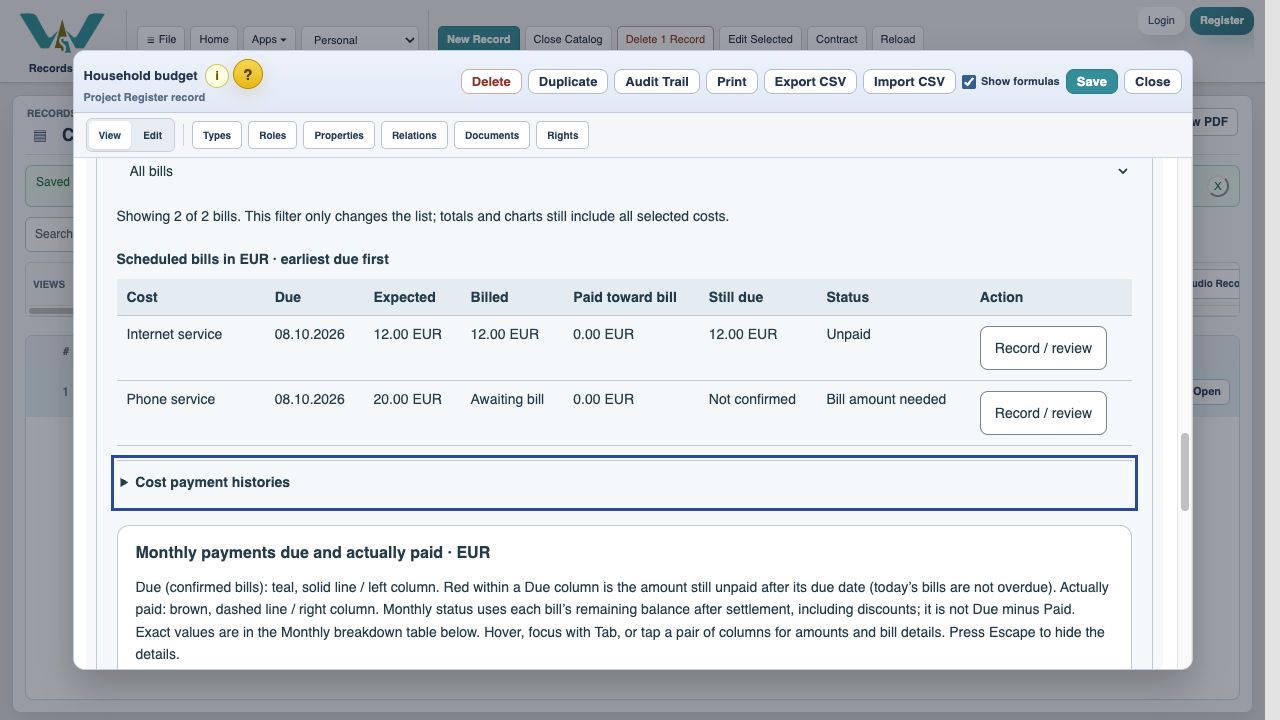
Expand Bills and payment status and choose Record / review for Phone service due 08.10.2026.
Enter the invoice amount
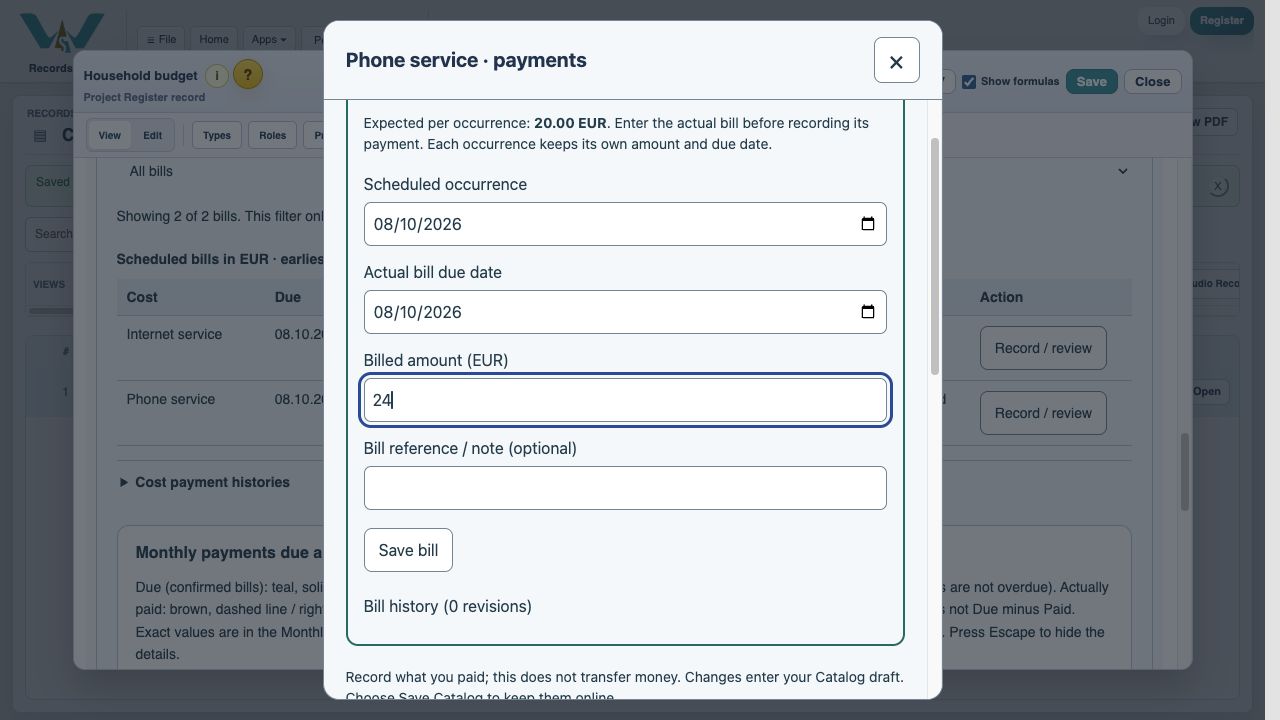
In Variable bill, keep Scheduled occurrence and Actual bill due date at 08.10.2026. Enter 24 in Billed amount (EUR).
Save the invoice
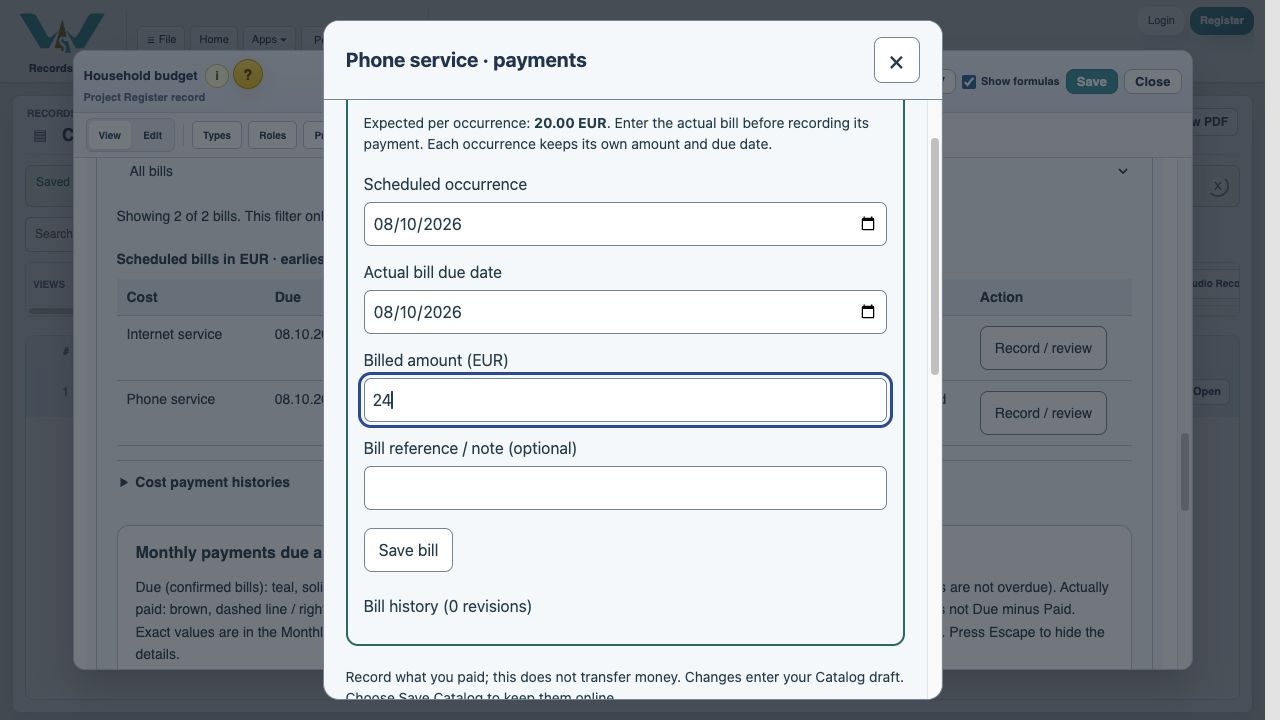
Choose Save bill. This confirms the October amount without replacing the EUR 20 expectation for future bills.
Enter a partial payment
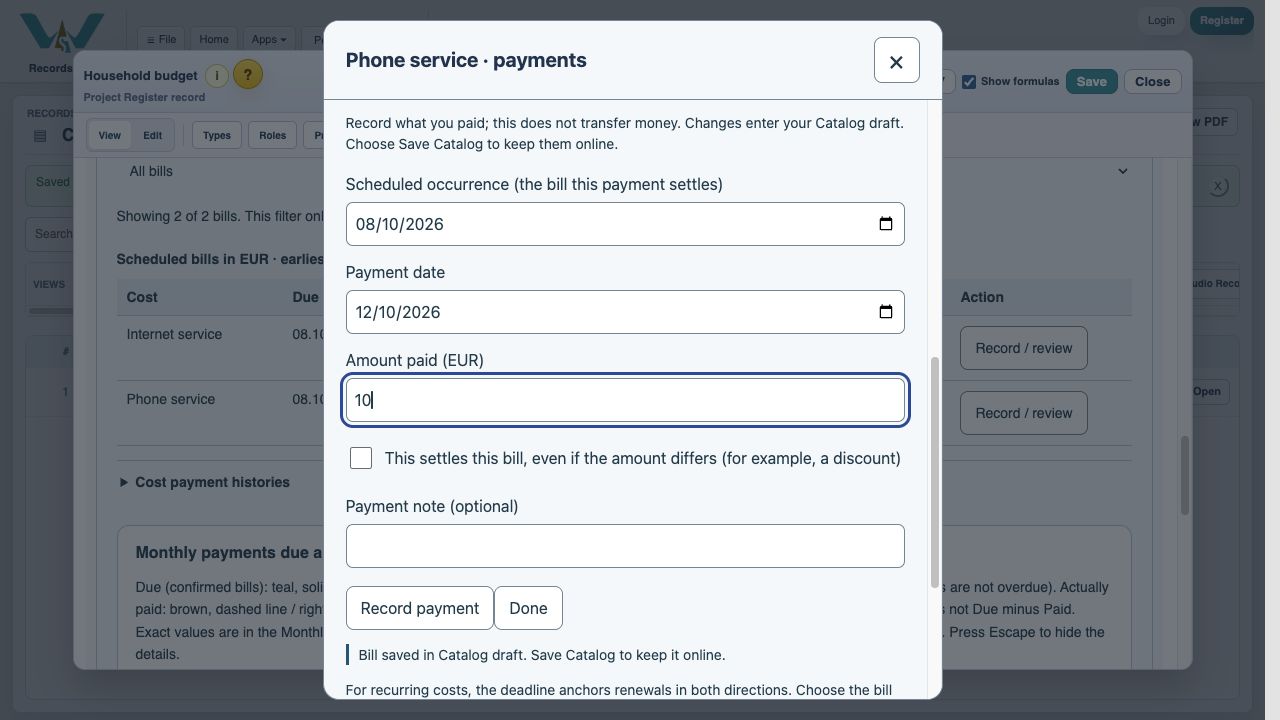
Use the actual payment date. Enter 10 in Amount paid (EUR). Leave This settles this bill unchecked.
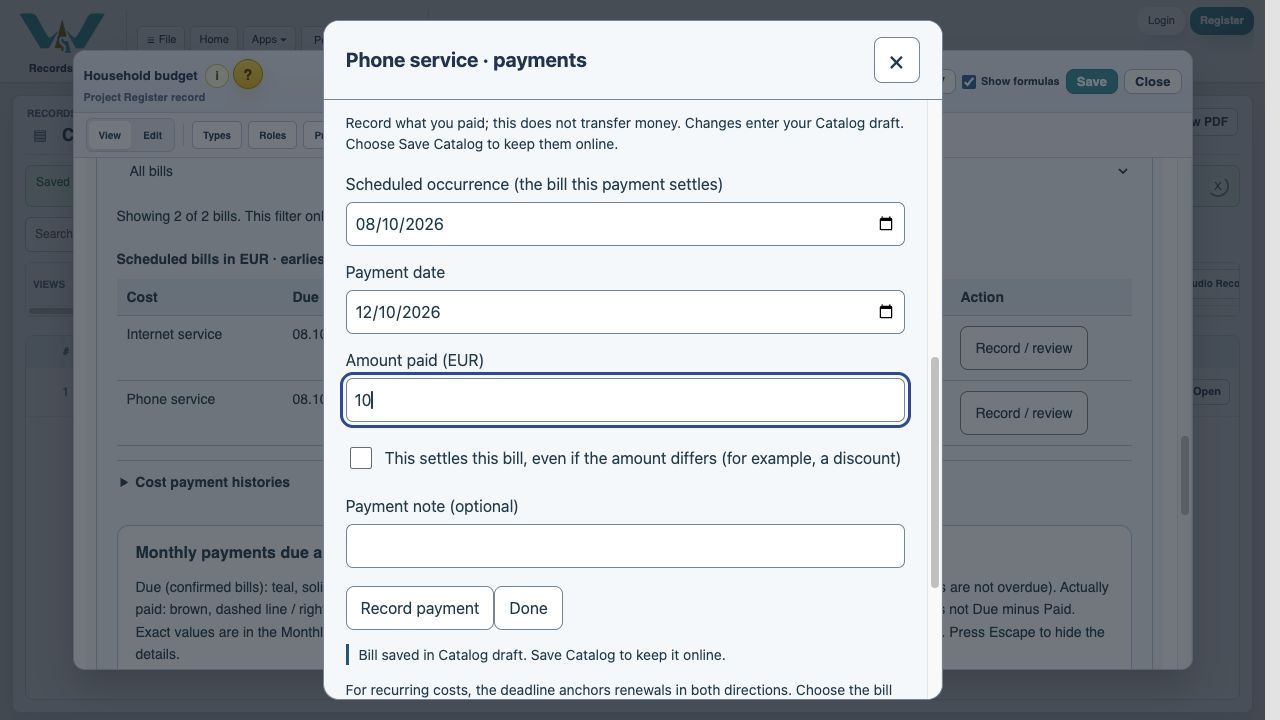
Record the EUR 10 payment
Choose Record payment, then Done. The bill has EUR 14 remaining. Recording this entry does not send money.
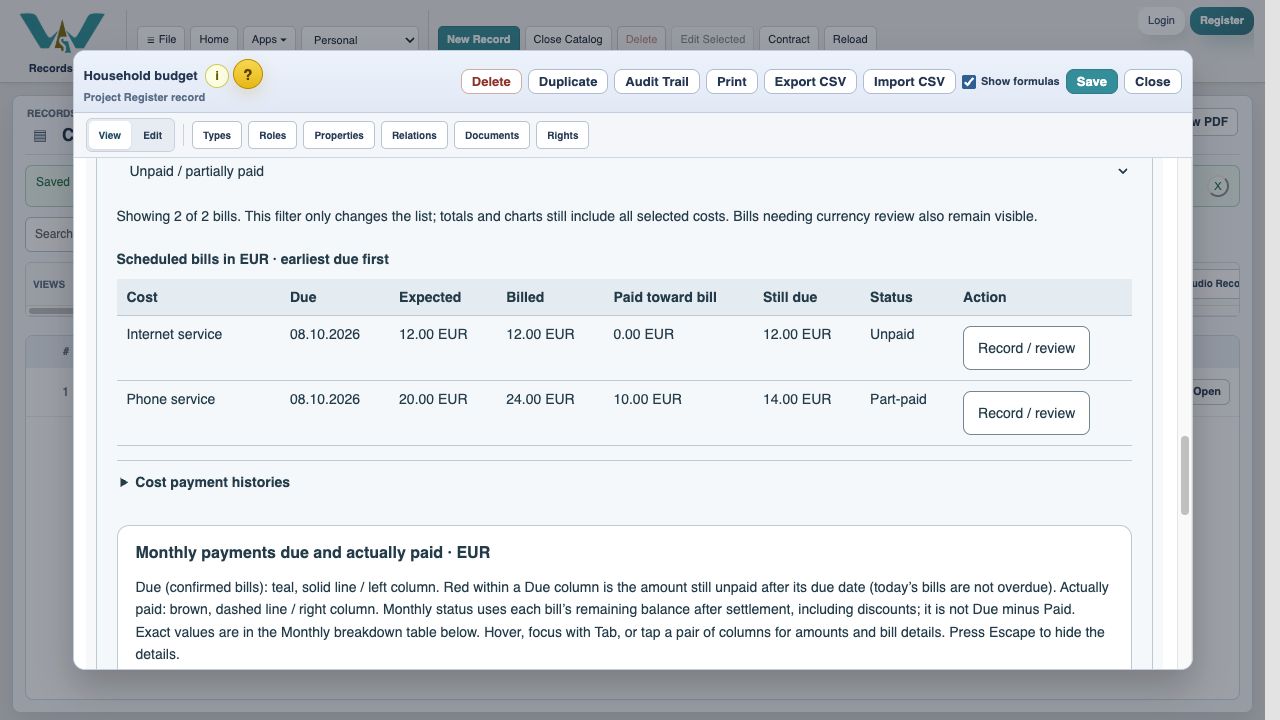
Verify it remains outstanding
Choose Unpaid / partially paid in Show bills. Phone service shows Partially paid and EUR 14 still due.
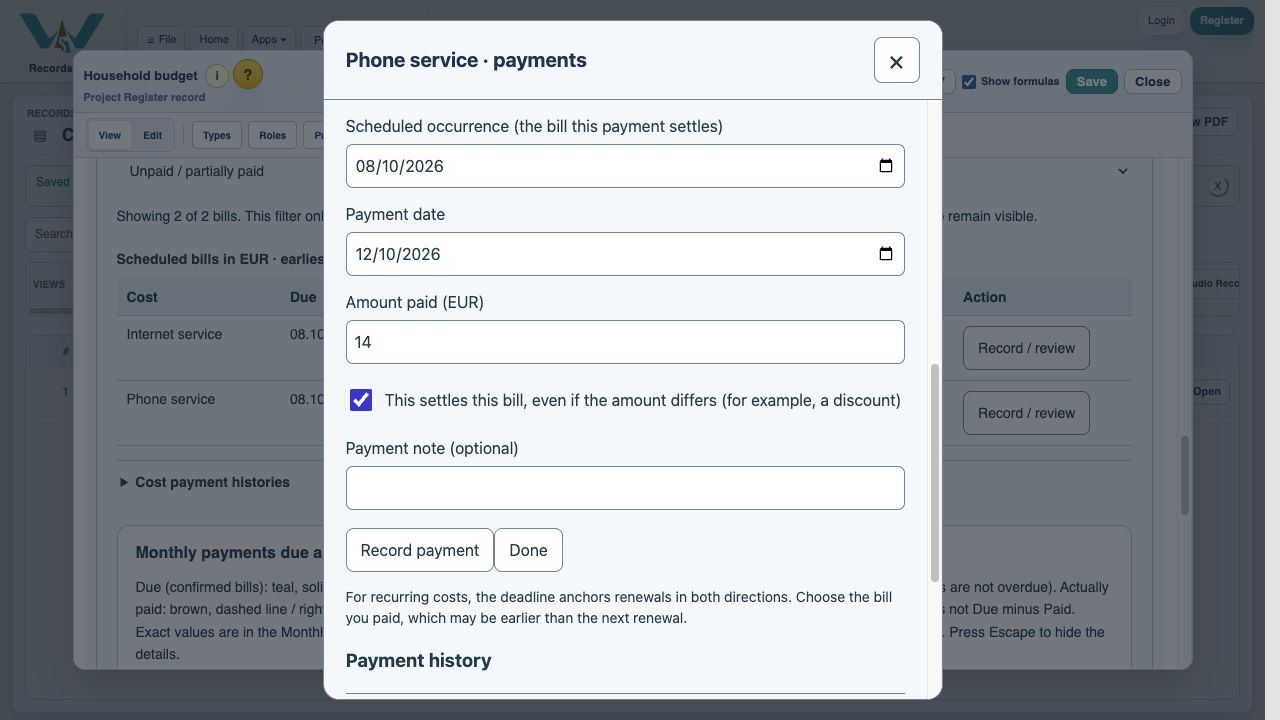
Settle the remaining EUR 14
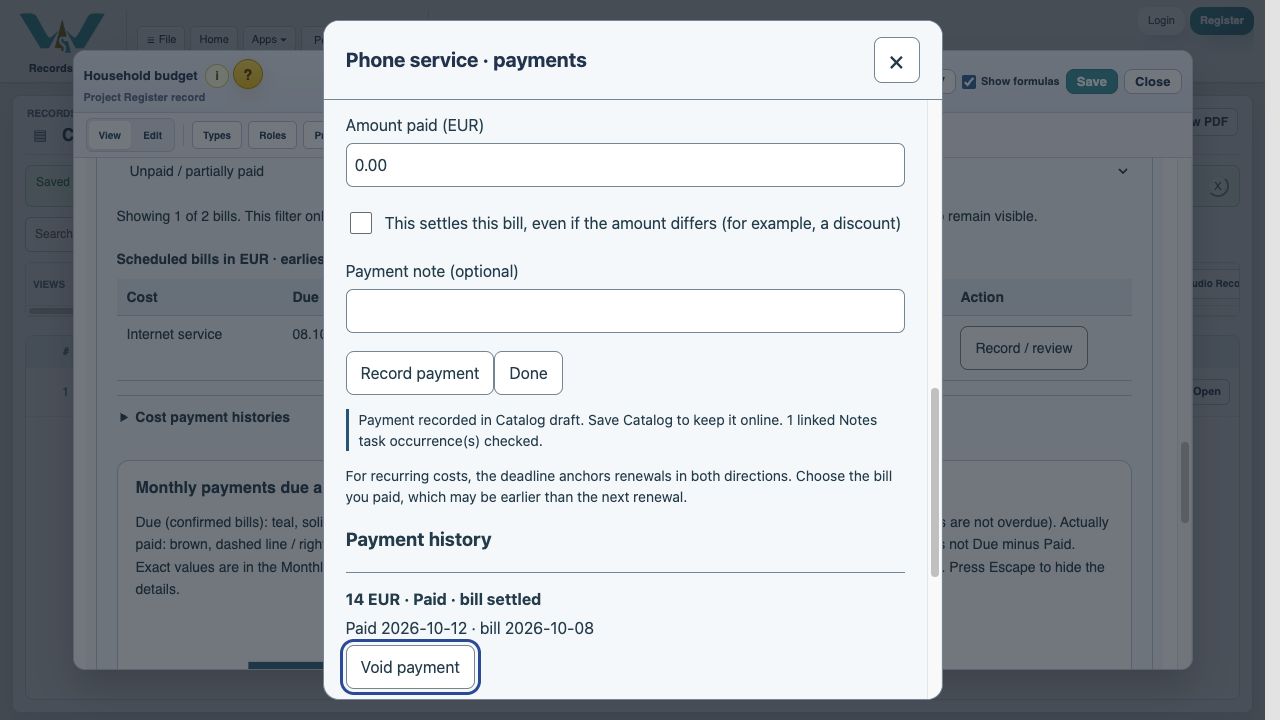
Reopen Phone service Record / review, enter 14, and select This settles this bill. Choose Record payment once.
Read the completion result
The result reports one linked Notes task occurrence checked. Payment history shows EUR 10 plus EUR 14, settling the EUR 24 invoice.
Check the Note
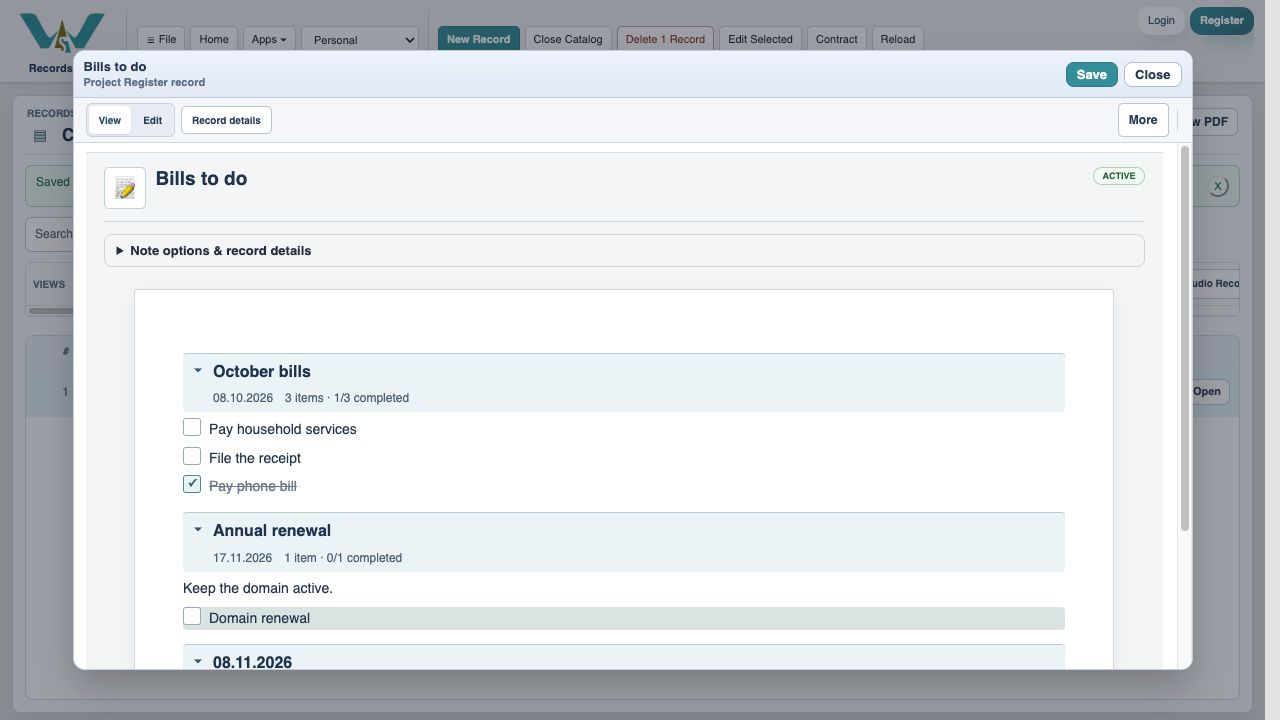
Choose Done, close the budget and open Bills to do. October’s Pay phone bill is checked. The combined household-services task remains open because Internet service is unpaid.
Keep your changes
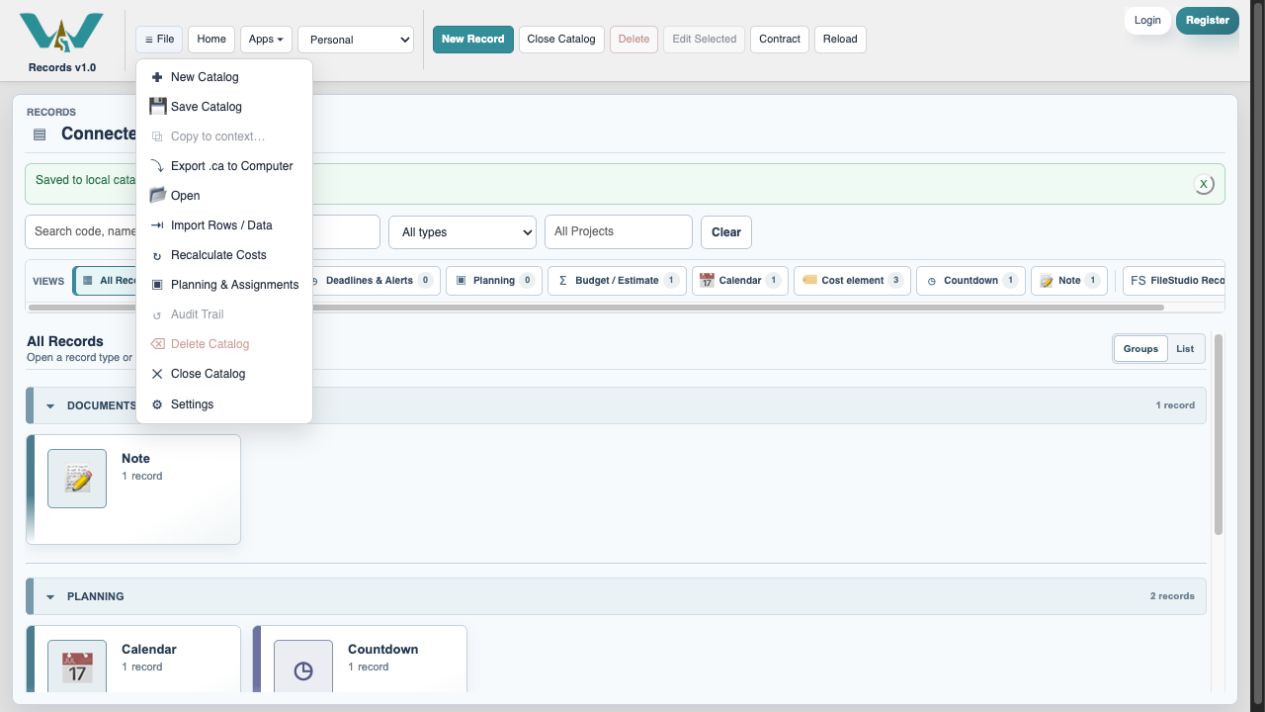
For an online Catalog choose File → Save Catalog. For this computer-only practice select All Records, then File → Export .ca to Computer. Keep the exported file; record Save alone is only a draft.
Enable JavaScript to use reading progress and usefulness ratings.