
Selecting and Exporting FileStudio Records
Select one record, a continuous range, or separate records and prepare a structured ZIP with an estimate, background notification, and automatic server cleanup.
FileStudio can export several document records from the Register in one structured ZIP.
Selection follows familiar desktop controls:
- click a row to select only that record
- hold
Shiftand click another row to select the continuous range - hold
Commandon macOS orCtrlon Windows and Linux to add or remove individual rows - hold
ShiftwithCommandorCtrlto add another continuous range
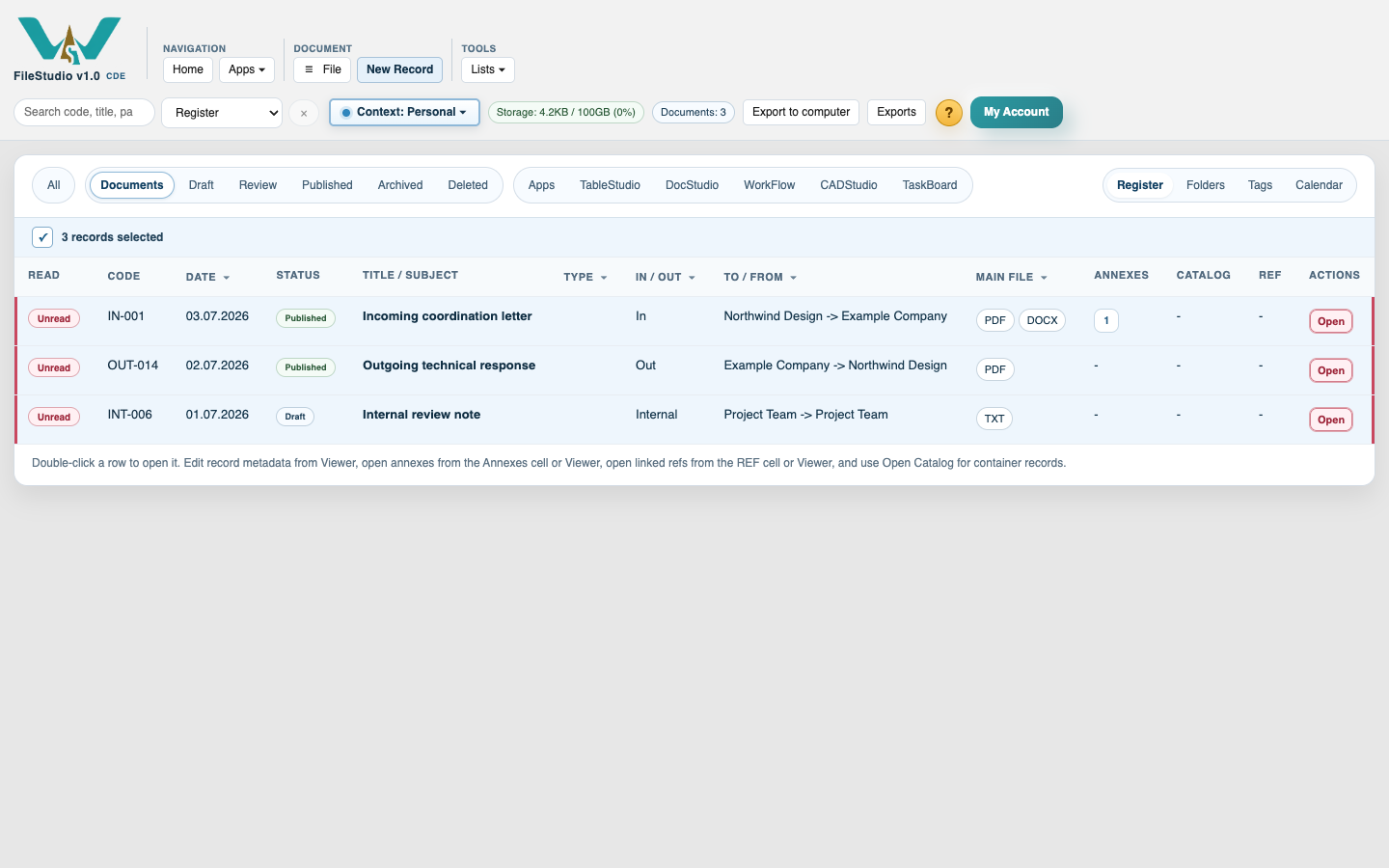
The selection bar shows how many records are selected. The persistent Export to computer button in the top toolbar becomes available when at least one selected document record can be exported. You can also right-click a selected row and choose Export to computer....
FileStudio exports document records that you can read. App-file rows and records in Deleted are not included. Read rights are checked again while the ZIP is prepared and before it can be downloaded.
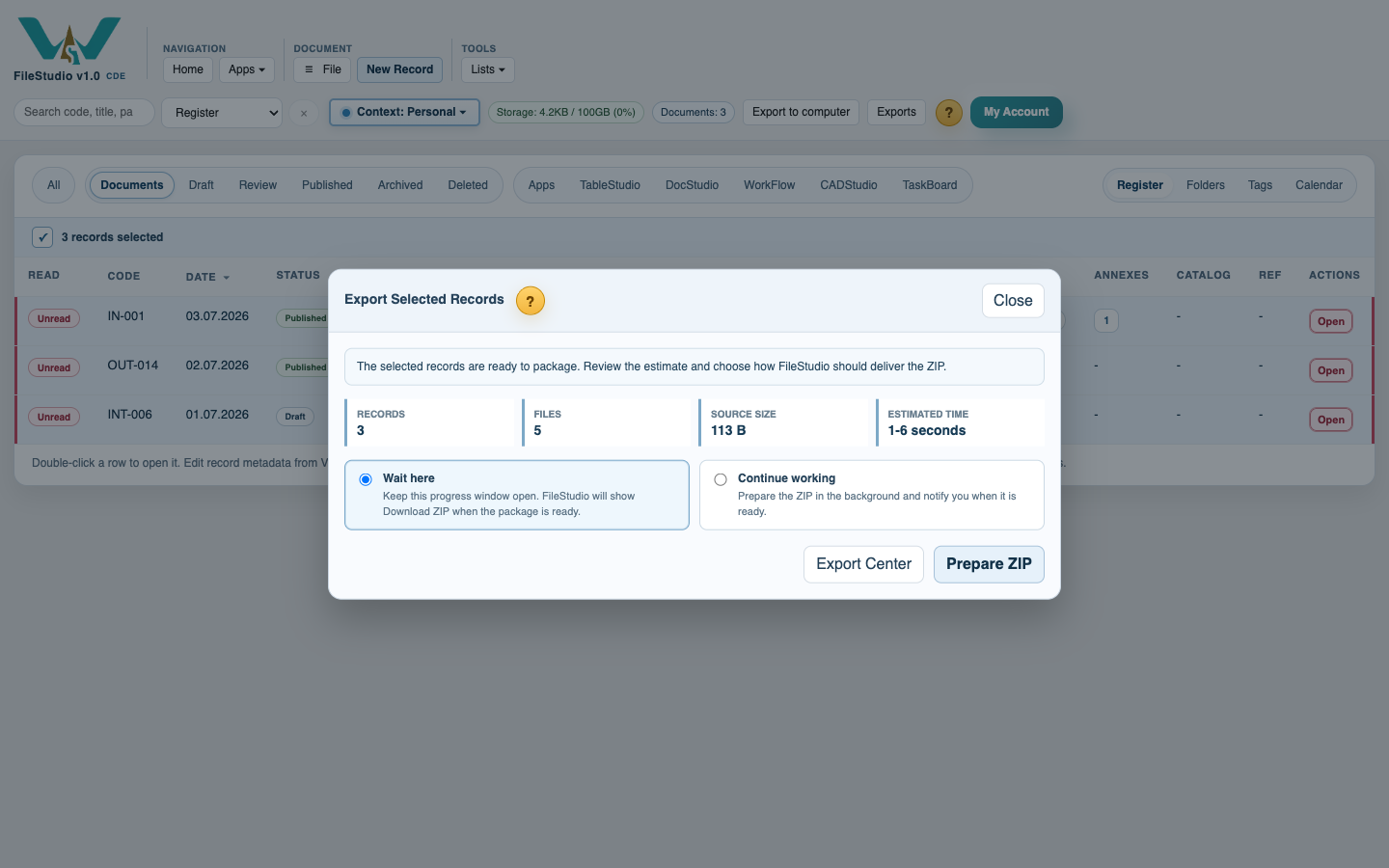
Before preparation starts, FileStudio shows the number of records, number of files, total source size, an estimated preparation time, any records or files that cannot be included, and the current context's monthly allowance. One job can contain at most 250 records. Across each UTC calendar month, accepted multi-record ZIP jobs in the exact Personal, Company, or project context may assess up to 100% of that context's applicable plan storage. The assessment counts uncompressed record metadata and selected readable source files. Accepted jobs remain charged even if they later fail, expire, are downloaded, or are removed; a request rejected before acceptance is not charged. Records ZIP in the REF export window uses this same assessed Export Center path and allowance.
This initial allowance governs server-prepared multi-record ZIP jobs. A direct single-record or annex-section download, and the graph or indexed-PDF output assembled in the browser, do not create one of these temporary server ZIPs and are outside this initial preparation allowance. Repeated or partial download bandwidth remains a separate monitored launch action.
Choose Wait here to keep the progress window open. When preparation finishes, click the displayed Download ZIP link so the browser receives a direct user-requested download. Choose Continue working to prepare it in the background. Background jobs can create a FileStudio notice. They can also send a ready email when the account has a valid email address and outgoing email is configured on the WorkStudio server. If email is unavailable, FileStudio disables that option and explains why.
For a multi-record export, the ZIP is organized by direction under IN, OUT, and INTERNAL. Records without a recognized direction use UNSPECIFIED.
Each record has its own code - title folder. Main and main editable files are placed directly in that folder. Annex files are placed under Annexes/, preserving annex section folders when present. The ZIP also contains manifest.csv with the exported record and file details.
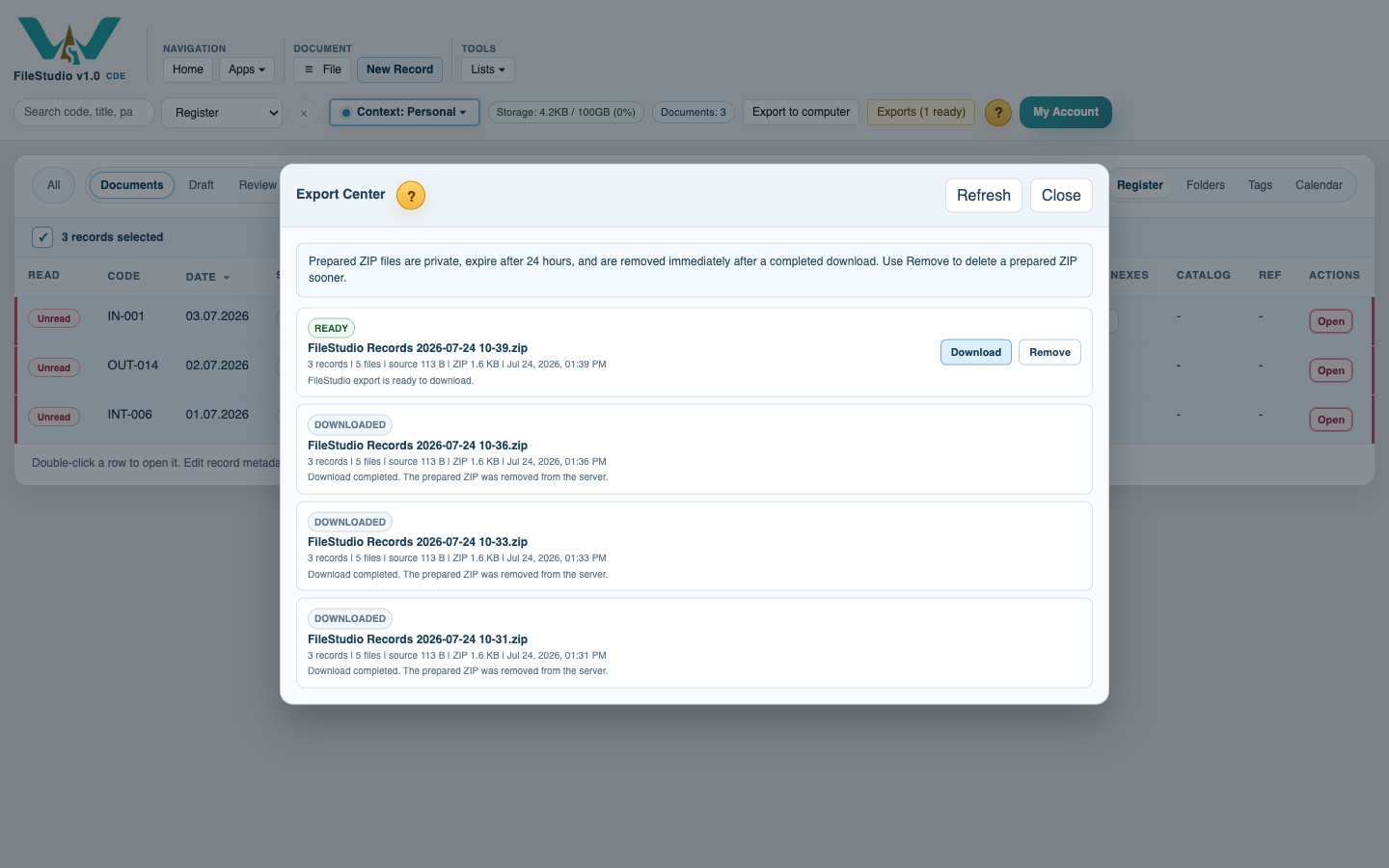
Prepared ZIPs are private to the requesting account. A prepared ZIP expires after 24 hours, is removed from the server immediately after one completed download, and can be deleted sooner with Remove in Export Center. Ready notices close when the job is downloaded, removed, expired, or otherwise no longer ready. Export Center also shows queued, processing, ready, downloaded, expired, failed, and removed jobs, together with the ready-email result for each export.
Related: Select and Export Several FileStudio Records, Main Files, Final Files, and Annexes, Annexes in FileStudio, WorkStudio Context.
Select a range or separate records
The selection bar shows the current set while Export to computer stays available in the top toolbar.
Review the export assessment
Check record count, file count, source size, and preparation estimate before choosing whether to wait or continue working.
Manage prepared downloads
Export Center shows status and size and lets you download or remove a prepared ZIP.
Enable JavaScript to use reading progress and usefulness ratings.