
Select and Export Several FileStudio Records
Select a range or separate FileStudio records, review the package estimate, prepare the ZIP, and remove prepared files when finished.
Select the records
Click the first record. Use Shift for a continuous range, or Command on macOS and Ctrl on Windows or Linux to add or remove separate records.
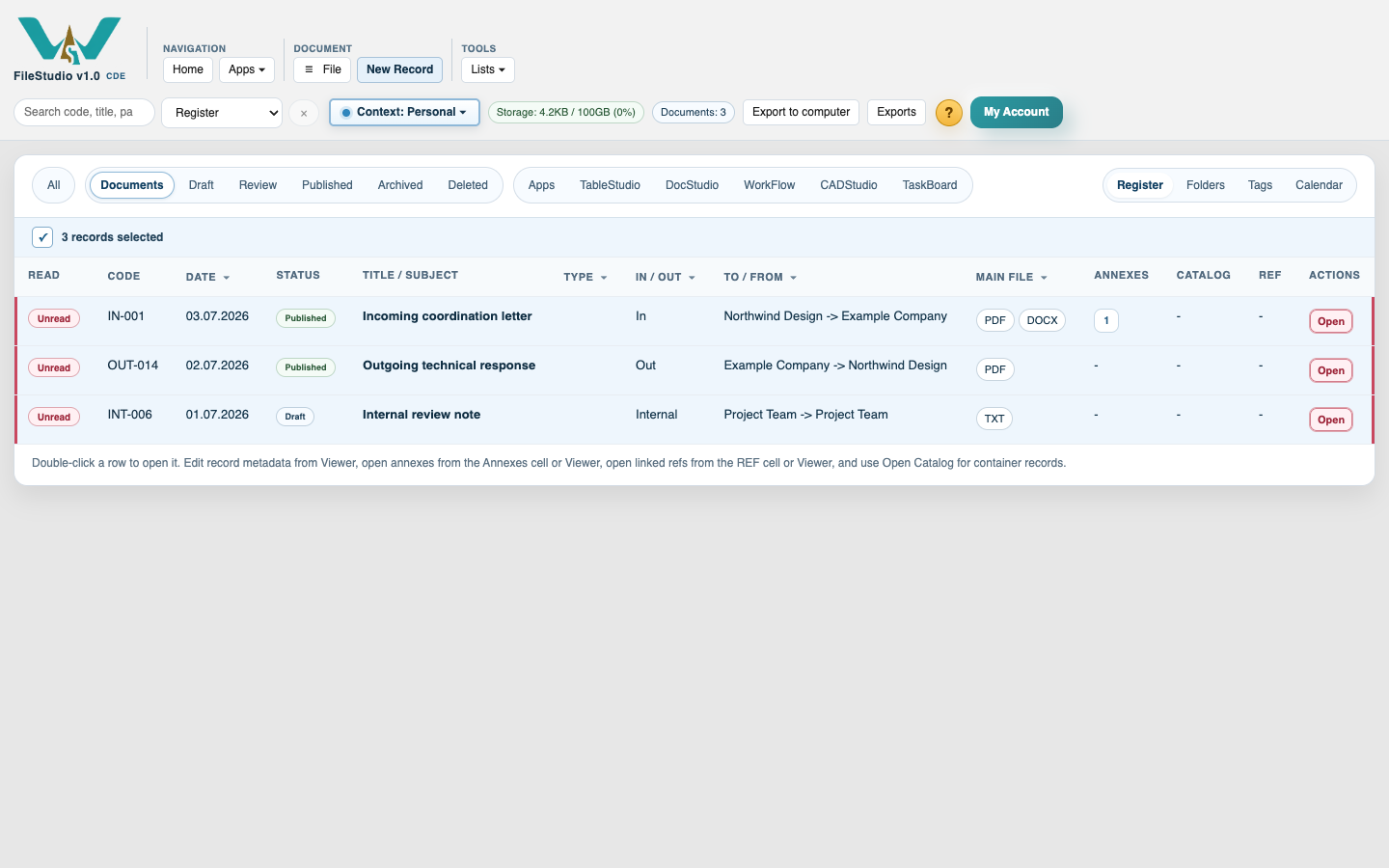
Open the export assessment
Use Export to computer in the persistent top toolbar, or right-click a selected record and choose the export command. Review the records, files, source size, estimated time, and warnings.
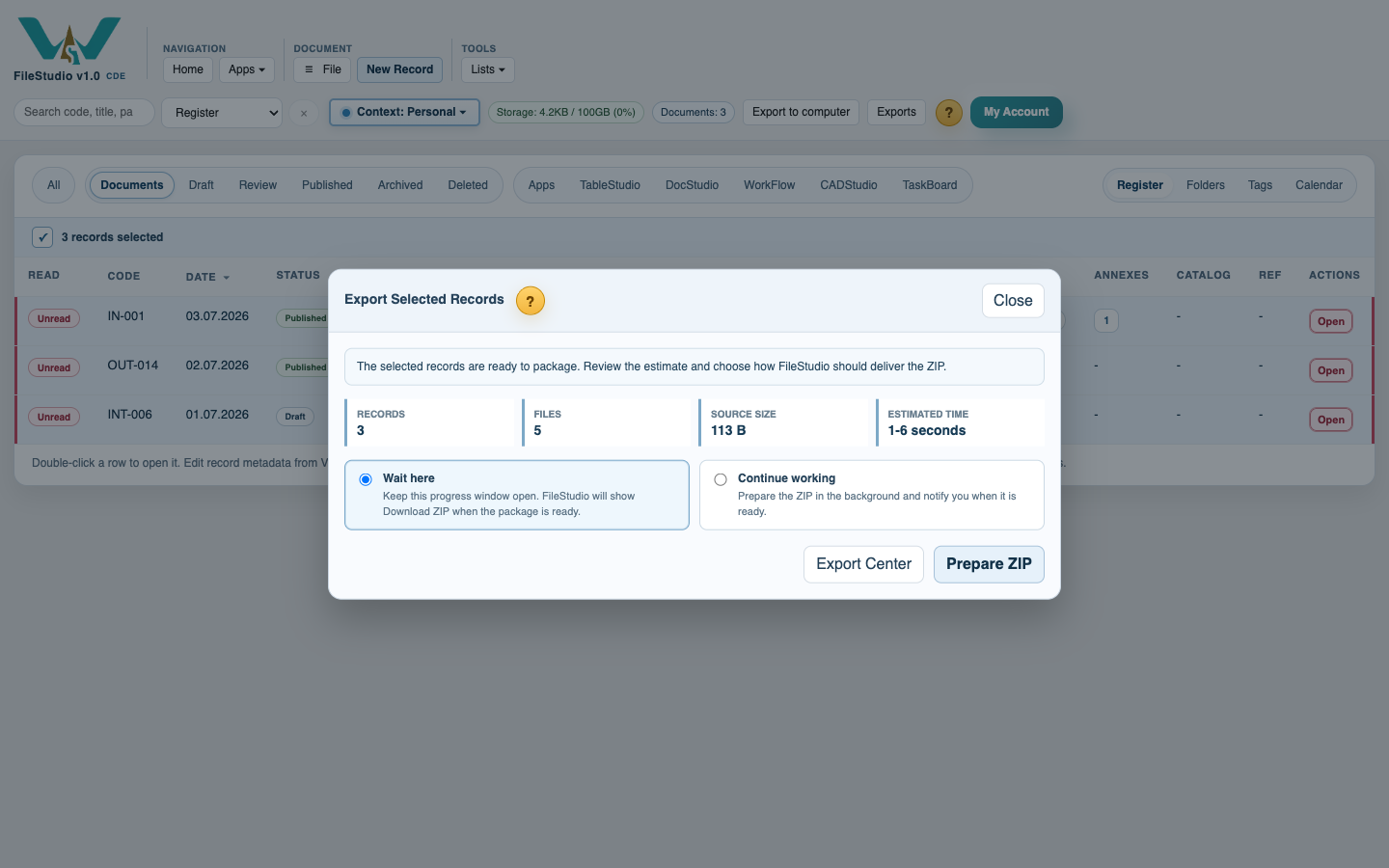
Choose how to receive the ZIP
Choose Wait here to keep progress visible, then click Download ZIP when ready. Choose Continue working to prepare it in the background. Background preparation can notify you in FileStudio and, when outgoing email is configured, by email.
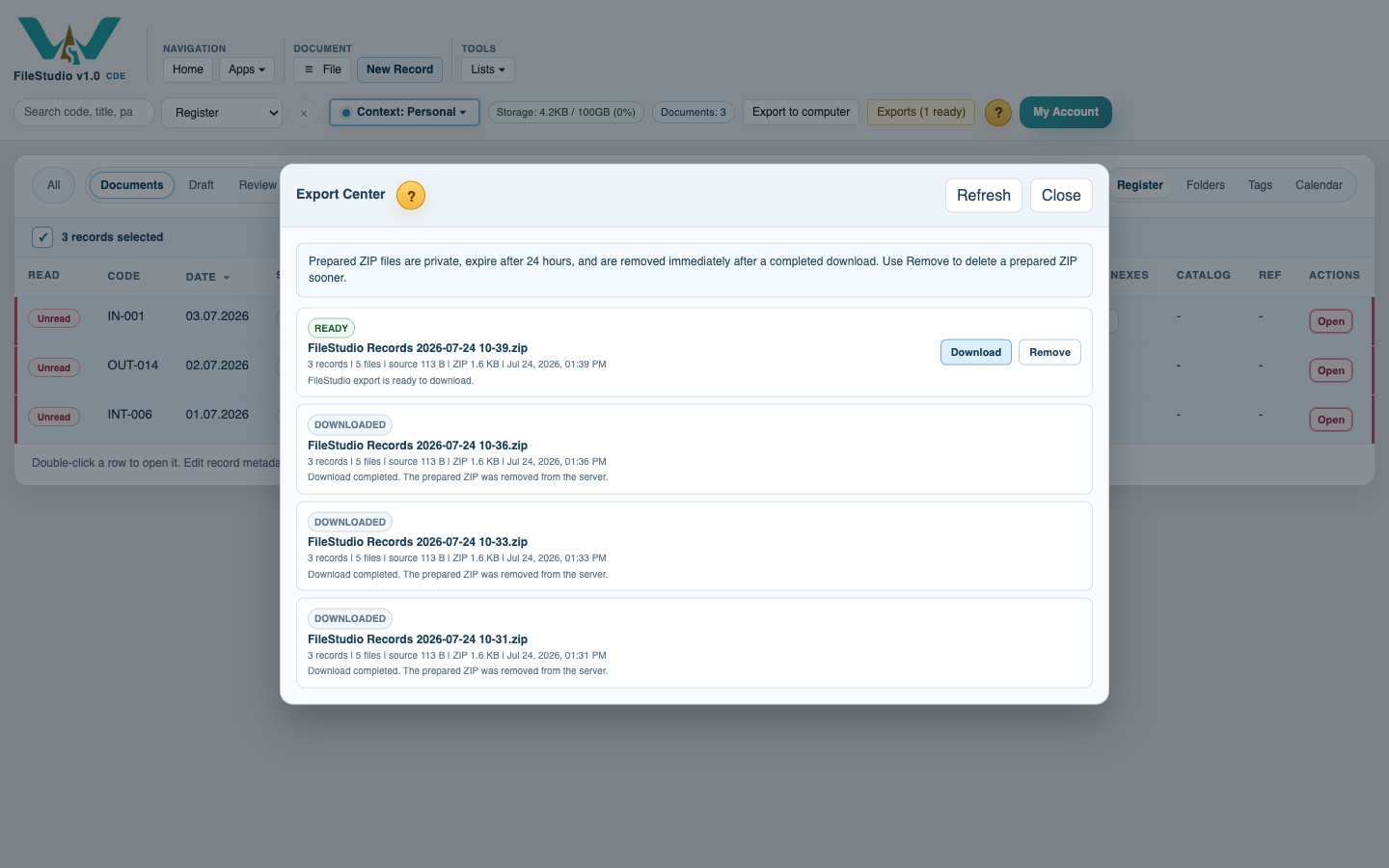
Download or remove the prepared ZIP
Open Export Center to download a ready ZIP, review the email delivery result, or remove the ZIP early. A completed download removes the server copy and clears the ready notices automatically; an unused prepared ZIP expires after 24 hours.
Use the exported folders
For several records, open the IN, OUT, and INTERNAL folders. Each code - title folder contains the main and editable files, an Annexes folder when needed, and the ZIP root includes manifest.csv.
Enable JavaScript to use reading progress and usefulness ratings.