
Planning & Assignments in FileStudio
Explains the shared planning calendar and list, record links, priorities, READ-column indicators, selection, status outcomes, and TaskBoard handoff.
Planning & Assignments keeps Alerts and Deadlines connected to FileStudio records while using the shared Project Register planning data. Open it from the File menu, from a record's planning clock, or from an assigned planning notification.
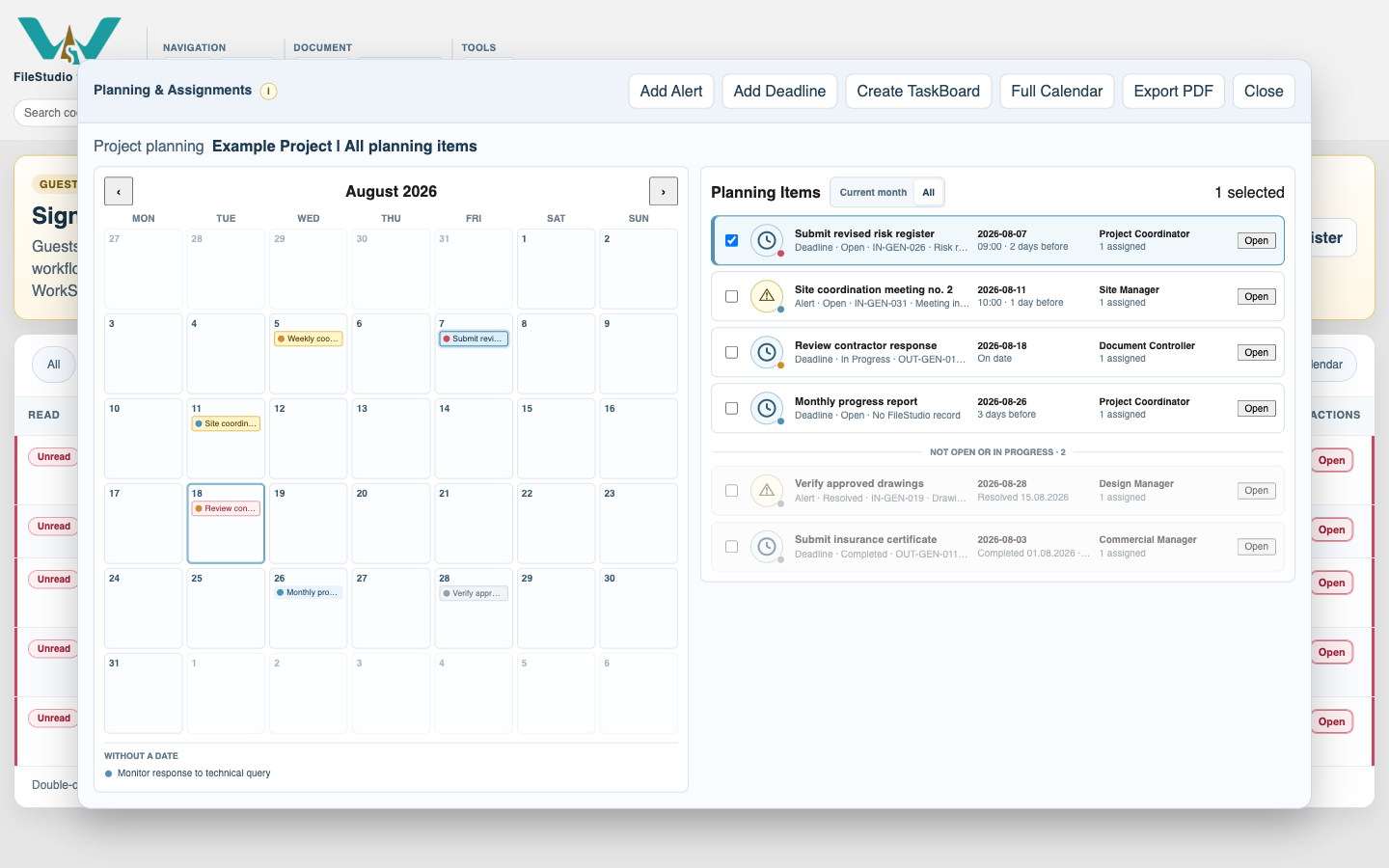
The left side is the calendar for the visible month. The right side is Planning Items. Use Current month when the list should follow the calendar month, or All to include every dated and undated planning item. Changing month updates the Current month list.
Calendar colors indicate urgency: completed or resolved items are grey, dates within the next five days are yellow, and today or overdue dates are red. A small dot shows priority. Alerts without a date stay below the calendar under Without a date.
Selecting a calendar item or list row marks the same item in both places. Clicking another calendar day or outside the calendar/list clears that selection. Opening a record's planning clock moves the calendar to the relevant item's month and selects the same item in the calendar and list. When several items share that date, the requested item remains among the visible calendar entries.
Planning rows show the item type, status, source record, date or completion result, owner, and assigned-user count. Open an item to review or edit it. If it has a FileStudio source, Open Record Files opens the document and annex package without closing Planning & Assignments. A completed Deadline or resolved Alert can link one or more completion records; every linked record has its own Open action and opens without closing Planning & Assignments.
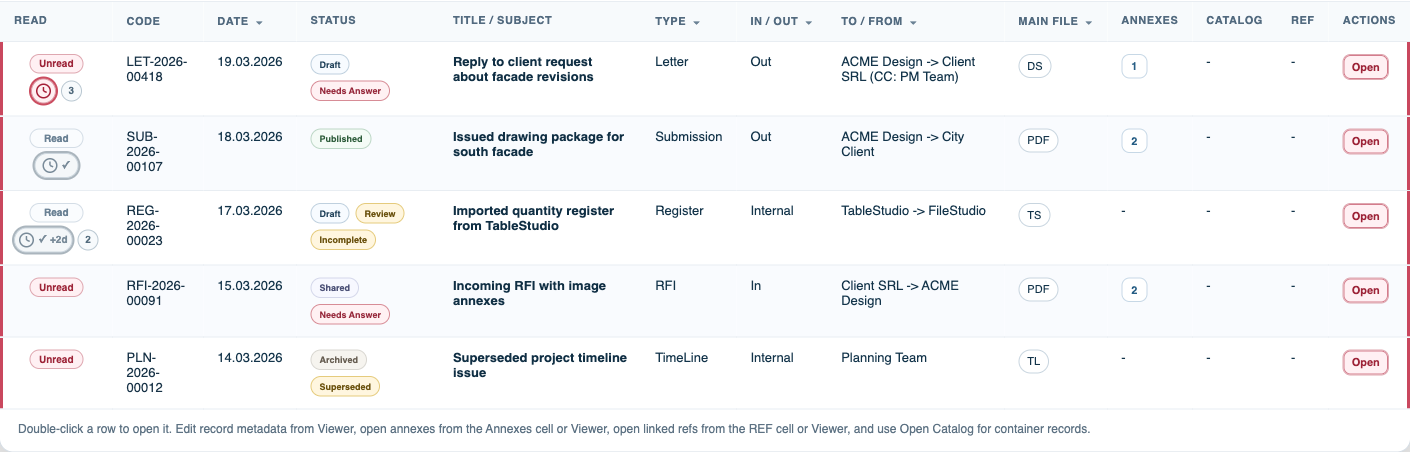
The READ column uses a separate planning indicator beside Read or Unread. Its outer ring follows priority while an active item is open. Completed deadlines and resolved alerts turn grey. A grey check means the linked planning work was completed or resolved. +2d means two days late; -2d means two days early. When more than one Alert or Deadline is linked to the record, a separate number circle appears to the right.
Use the checkboxes in Planning Items when you want to create a TaskBoard from selected planning records. Full Calendar temporarily gives the calendar the full modal. Export PDF opens the complete export options described in Exporting Planning & Assignments to PDF.
Tutorial: Create and Manage Alerts and Deadlines.
Related: Alerts, Deadlines, and Repeating Series, AI Planning Suggestions, FileStudio Record Fields.
Calendar and planning list
The calendar and list remain synchronized. Priority dots, urgency colors, a selected item, undated alerts, and inactive items are visible together.
Planning results in the READ column
Active items retain priority color; completed or resolved items use grey, with a check, early or late result, and a separate count when several items are linked.
Enable JavaScript to use reading progress and usefulness ratings.