
Alerts, Deadlines, and Repeating Series
Explains Alert versus Deadline, optional times, reminders, ownership, completion records, result dates, recurrence, and editing or deleting a full repeating series.
Use an Alert when something must stay visible but may not have a fixed due date. Use a Deadline when a date is required and performance against that date matters. Both can have an optional time, priority, owner, assigned users, in-app reminder, and email reminder.
Create an item from a FileStudio record when the source already exists. Use File > New Alert for Future Record or New Deadline for Future Record when the future response or deliverable does not exist yet. Leave FileStudio Record empty and link the real record later. FileStudio-created Alerts and Deadlines are stored without an arbitrary WBS phase.
Reminder choices include on date, 1, 2, 3, 5, 7, 14, or 30 days before. Send reminder now saves the current item and immediately emails the owner and assigned users when outgoing email is configured. Scheduled email reminders require the platform cron runner. In-app reminders do not require an email address.
Deadline statuses include Open, In Progress, Completed, Missed, and Cancelled. Alert statuses include Open, In Progress, and Resolved, plus terminal states when configured by the planning catalog. FileStudio does not fill today's completion date automatically. Enter the actual completion or resolution date, or search for a Completion Record and choose Add. Repeat the search-and-Add step to link every FileStudio record that completed or resolved the item. This is useful when one request is answered by several separately registered documents. If the completion date is empty, the first added completion record proposes its record date. Every added record remains separately removable and openable. Missed or cancelled items can keep an optional explanation.
Completion results compare the completion date with the due date. The register and Planning Items can show on deadline, days early, or days late. Completed and resolved priority dots become grey.
For repeating work, choose Daily, Weekly, Monthly, or Yearly, then set the interval and either a repeat count or expiry date. FileStudio saves the generated occurrences as one repeating series with a stable series identity.
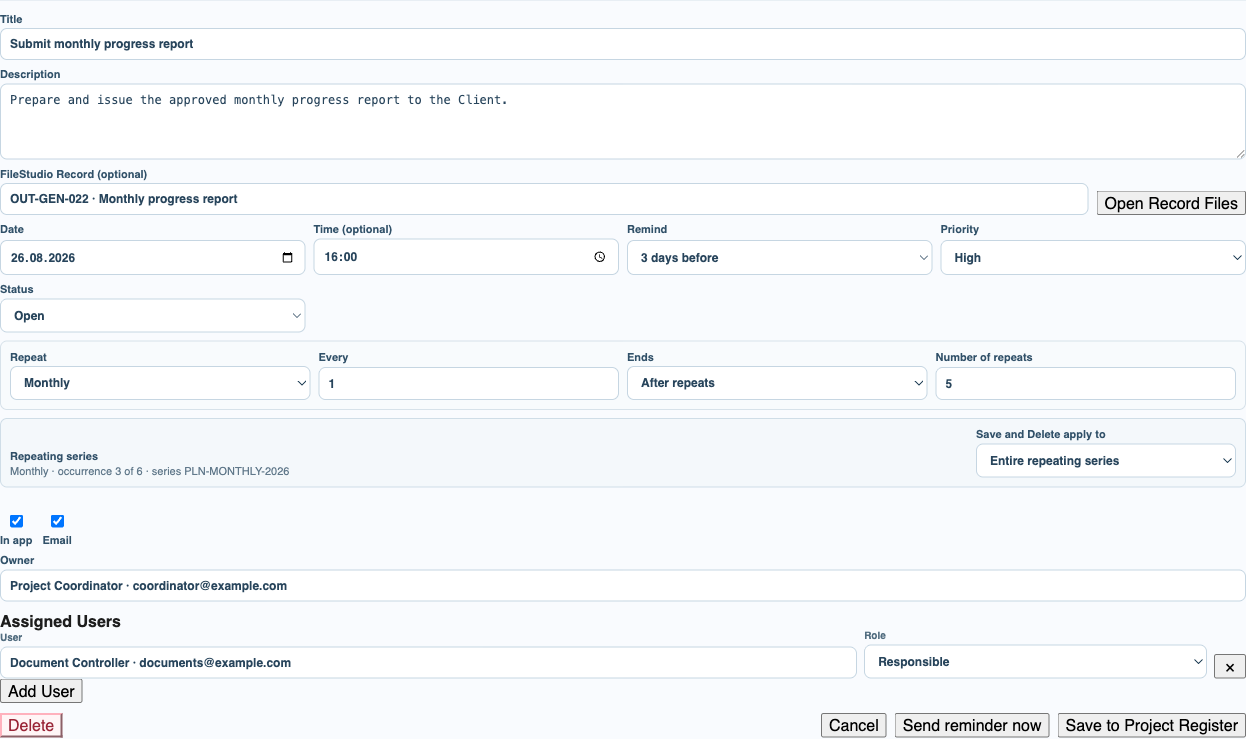
When you reopen one occurrence, Save and Delete apply to offers This occurrence or Entire repeating series. This occurrence changes or removes only that date. Entire repeating series rebuilds or deletes all series occurrences together. If you move the selected occurrence date while editing the series, the other occurrences shift by the same amount. You can also change the frequency, interval, end rule, or turn the series into one non-repeating item.
Deleting an occurrence does not silently delete the series. Deleting the entire series requires the series scope and a confirmation that states how many occurrences will be removed.
Tutorial: Create and Manage Alerts and Deadlines.
Related: Planning & Assignments in FileStudio, AI Planning Suggestions.
Editing a repeating deadline
The recurrence controls define the schedule, while the series scope makes it explicit whether Save and Delete affect one occurrence or the whole series.
Enable JavaScript to use reading progress and usefulness ratings.