
AI Planning Suggestions
Explains when FileStudio proposes an Alert or Deadline from a main document or annex summary, how dates are calculated, and how a reply can update an existing item.
FileStudio can propose planning work while AI Autofill, OCR, or an AI Summary reads a main document or annex. A proposal is a review step, not an automatic planning record.
The planning detector is intentionally narrow. It proposes an item only when the document states an explicit deadline with a calculable date or a clearly scheduled event with a stated date. General instructions, contact details, future communication rules, and requests without a time limit should not create planning suggestions.
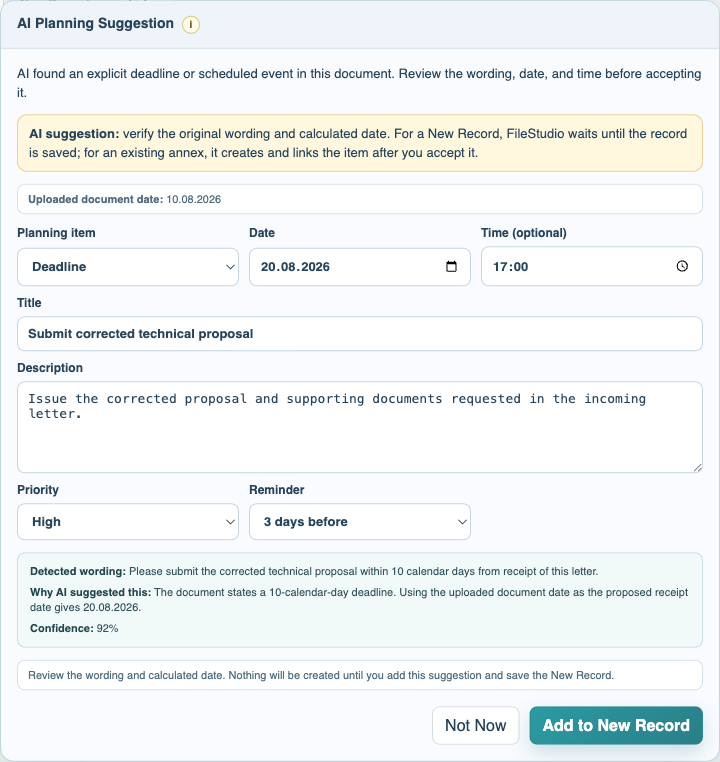
The AI Planning Suggestion shows the uploaded document date, Alert or Deadline type, proposed date, optional time, title, description, priority, reminder, exact detected wording, reason, and confidence. You can switch between Alert and Deadline and correct every field before accepting.
When wording says a number of calendar days from receipt but the actual receipt date is unknown, FileStudio may use the uploaded document date as the proposed receipt date. The explanation identifies that assumption. Verify it against the real receipt date before accepting.
For a newly uploaded main document, Add to New Record keeps the suggestion pending while New Record remains open. The planning item is created and linked only after the FileStudio record saves successfully. Closing or cancelling New Record does not leave an orphan planning item.
For an existing annex, accepting the suggestion can create and link the planning item immediately after the annex analysis is stored. Several explicit deadlines or scheduled events are shown one at a time so each can be accepted, corrected, or skipped.
AI can also recognize that a new record appears to answer an existing Alert or Deadline. The separate update suggestion shows the matched item, current status, due date, detected wording, and proposed completion or resolution status. The update is applied only after you approve it and save the new record.
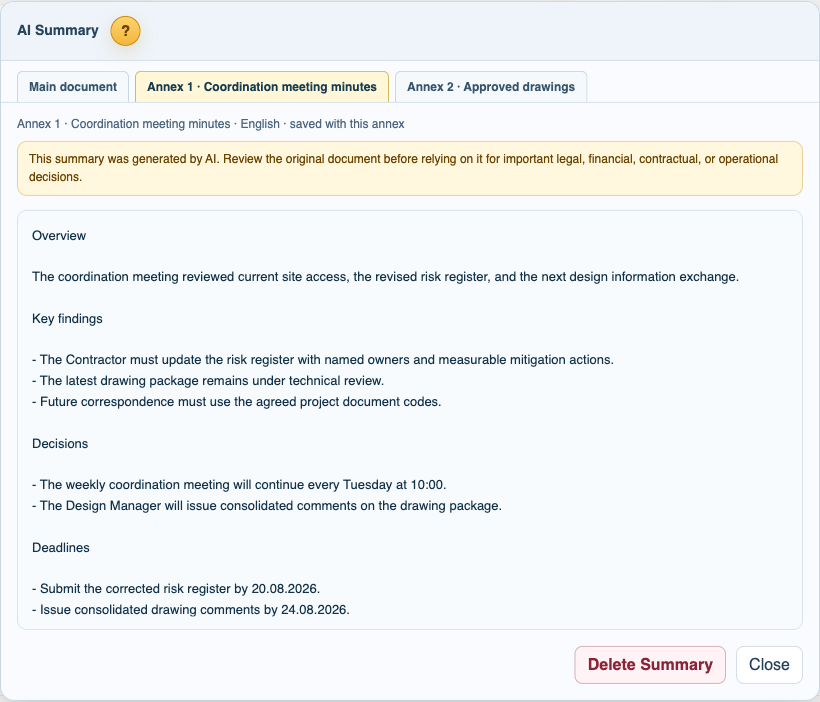
Summaries for the main file and annexes are stored separately but shown together as tabs. A deadline found in any summarized tab can produce its own planning suggestion. Use the original file, not only the summary, to verify important wording and dates.
Tutorial: Create an Annex Summary and Review AI Planning Suggestions.
Related: AI Summary in FileStudio, AI Autofill and OCR Uploads in FileStudio, Planning & Assignments in FileStudio.
Review an AI planning suggestion
The original wording and date assumption remain visible beside editable planning fields. Nothing is created until the user accepts the suggestion.
Main and annex summaries
One Summary window keeps the main summary and every saved annex summary in separate tabs, with Decision, Key findings, and Deadlines when present.
Enable JavaScript to use reading progress and usefulness ratings.