
AI Autofill and OCR Uploads in FileStudio
Explains the AI upload choice, page selection, OCR, progress stages, credits, summaries, and filled New Record review flow.
When you drag a document into the FileStudio register, FileStudio can try saved Document Profiles or use AI Autofill + OCR.
Saved Profiles use no AI credits and work best for known text-readable formats. FileStudio preselects the best detected profile. You can keep that choice, search the Saved Profile list and choose another profile, or leave the field empty to auto-detect.
AI Autofill + OCR is for scanned PDFs, inconsistent documents, or documents where profile rules are not enough. It can render selected pages, OCR scanned pages, send them to AI, and fill the New Record form for review.
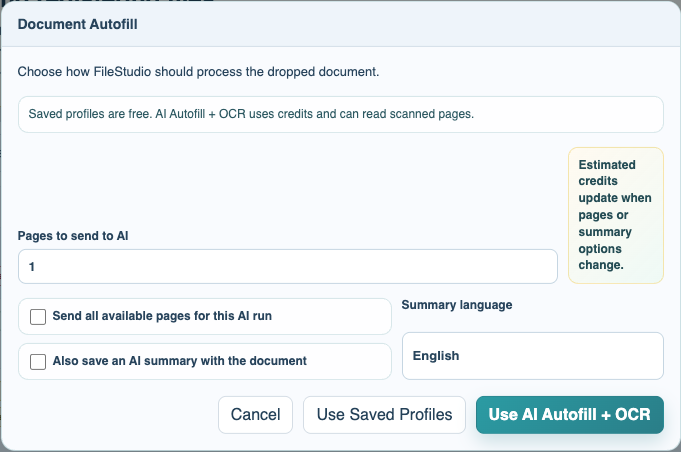
The AI choice modal shows what will happen and estimates credits. FileStudio starts with page 1 so you control how much of the document is sent and how many credits may be used. AI can detect fields, required actions, and deadlines only on the pages selected for that run. For a multi-page letter whose conclusion or deadline is near the end, select Send all available pages or enter a page count that includes that page. The page-scope notice states exactly which pages AI will and will not inspect.
Sending more pages increases the estimate. If you request an AI summary, FileStudio may automatically choose all pages because summaries usually need the whole document. Summary length can be Adaptive, Short, Medium, or Long. Adaptive requests progressively more detail for longer or information-dense documents; longer options increase the credit estimate.
FileStudio proposes planning items only for an explicit deadline with a calculable date or a clearly scheduled event with a stated date. A general request without a time limit does not create an Alert. If the selected pages contain several independent deadlines or scheduled events, FileStudio opens each AI Planning Suggestion in sequence. You can add, skip, or correct every item before continuing.
FileStudio also checks the returned OCR/extracted text and summary for an explicit calendar-day period from receipt. If the AI describes that deadline but omits the structured planning suggestion, FileStudio can recover it as a Deadline and calculate a proposed date. When the document does not state the actual receipt date, the current FileStudio date is used as the proposed receipt date and the suggestion explains that assumption. Verify or correct it before accepting.
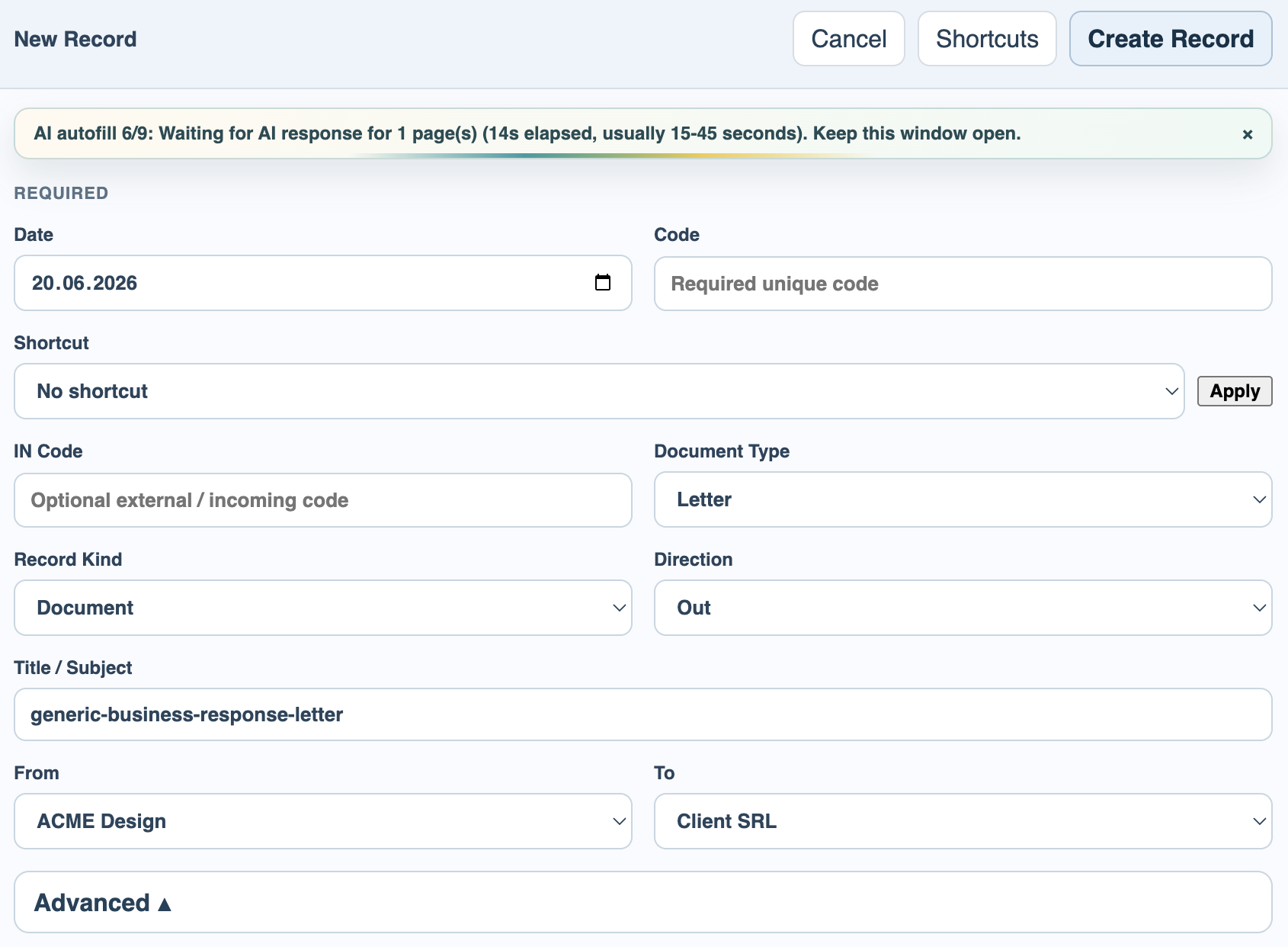
The progress panel is intentionally granular. It shows stages such as preparing the file, rendering pages, OCR/page extraction, sending to AI, waiting for the response, filling fields, updating profile suggestions, and finishing. While FileStudio waits for AI, it counts elapsed seconds and asks you to keep the window open.
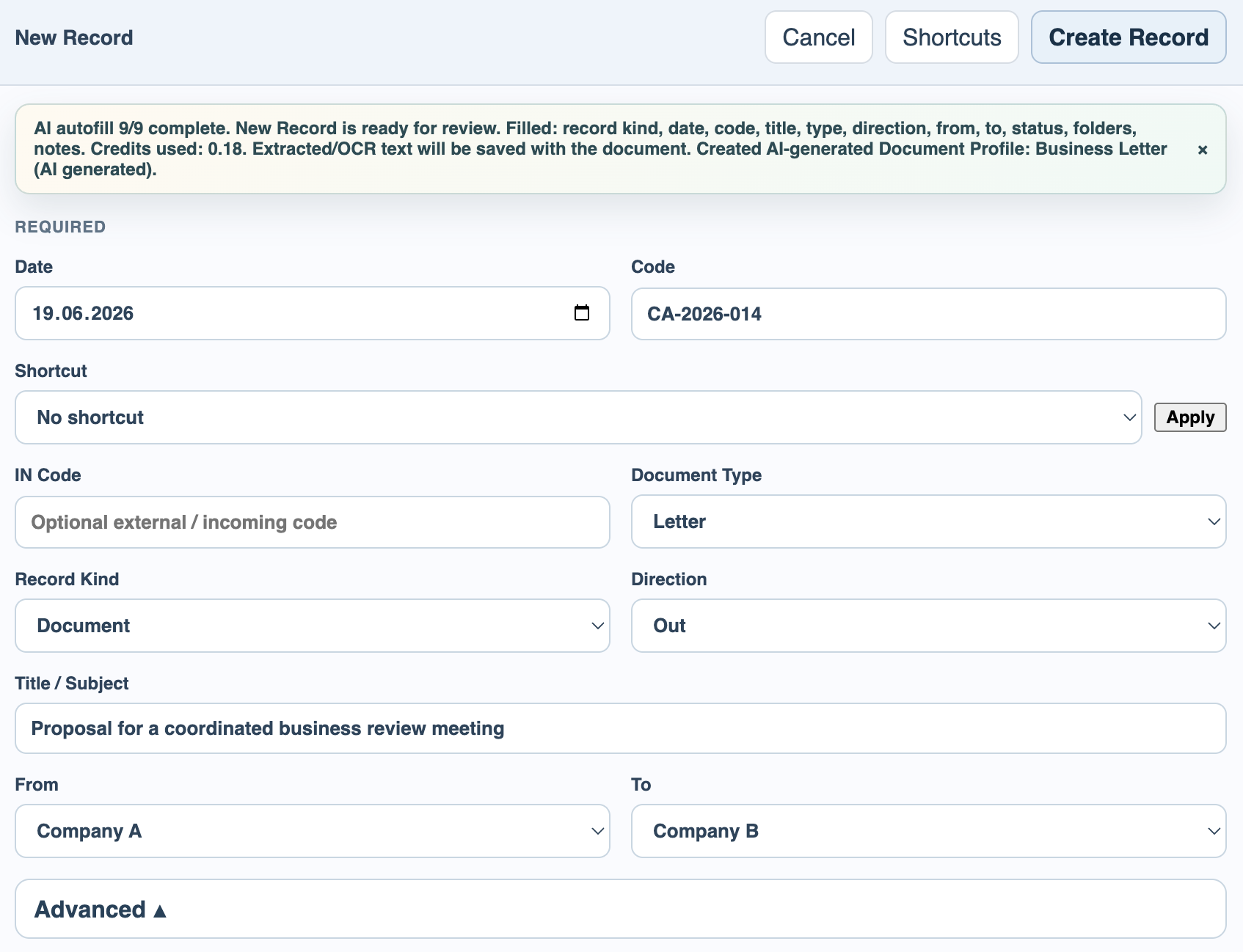
AI results do not save the record automatically. FileStudio opens New Record with the proposed values filled in. The user reviews the values and then saves. Accepted planning suggestions are created and linked only after the New Record saves successfully.
Record Kind is always Document for AI-created registrations. Status can be filled from AI rules, and signed PDFs can be proposed as Published when the instructions say so.
If OCR text is produced, FileStudio saves it as Extracted Text on the document. If an AI summary was requested, FileStudio saves a Summary as well.
AI-generated summaries, OCR text, and calculated deadlines should be reviewed against the original document before relying on them for important legal, financial, contractual, or operational decisions.
Related: FileStudio File Settings, Document Profiles in FileStudio, Extracted Text and Document Search, AI Summary in FileStudio.
Choose AI Autofill + OCR
The dropped-document choice explains saved profiles versus AI, page count, summary option, and estimated credits.
Granular progress
The AI workflow reports progress through nine stages while pages are prepared, sent, read, and applied.
Review before saving
FileStudio fills New Record with AI suggestions, then leaves the user in control before saving.
Enable JavaScript to use reading progress and usefulness ratings.