
Extracted Text and Document Search
Explains stored extracted text, OCR text, the viewer button, delete behavior, and search scopes for register fields versus document contents.
FileStudio can store extracted text beside the uploaded document artifact.
For PDFs or text-readable documents, extracted text can come from the file itself. If the document already has readable embedded or selectable text, use Extract Readable Text. This does not use AI credits, and no AI disclaimer is needed.
For scanned documents or images, use Use AI OCR. FileStudio shows the page and credit choices before processing. When text comes from AI OCR, the Extracted Text modal shows a caution message because OCR output must be checked against the original document.
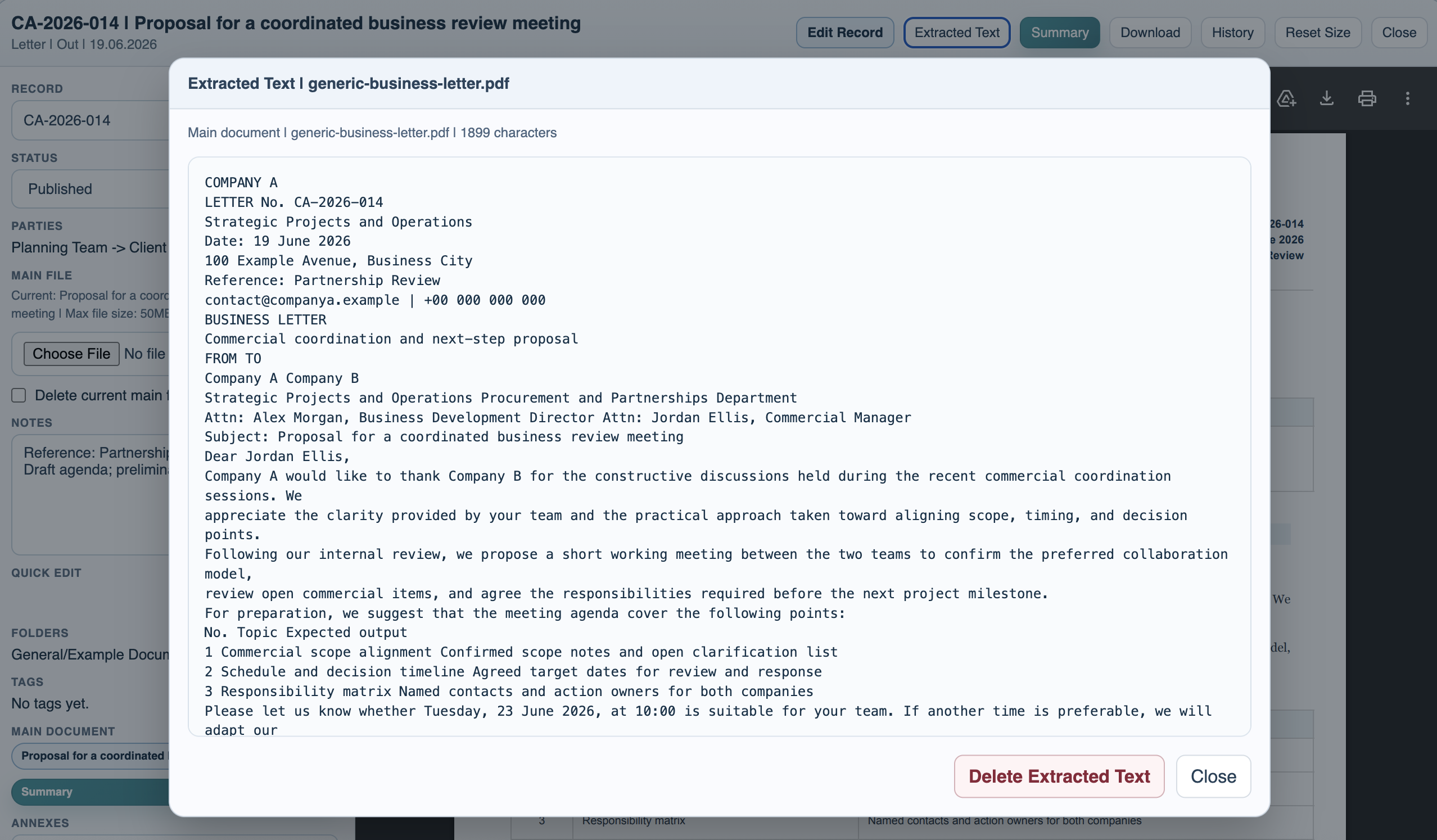
Open a main document or annex in the viewer and use Extracted Text to read the stored text. The modal can be closed or the stored text can be deleted. Deleting extracted text does not delete the uploaded file. The Extracted Text button remains available for a supported stored file; reopen it and choose Extract Readable Text or Use AI OCR to regenerate the text. Immediately after deletion, FileStudio keeps these recovery choices open.
Normal extraction cannot read a scanned page that has no embedded text. If Extract Readable Text reports that no reliable text was found, use AI OCR.
Stored extracted text is currently limited to 500,000 characters per main document or annex. This bounded limit allows much larger readable documents while preventing unlimited inline text from making FileStudio register loads excessively large. The modal warns when this storage limit is reached because later text may be omitted. AI processing can inspect at most 50 pages in one run, and AI input and output limits can make OCR text shorter than a very large source document. The original uploaded file remains complete.
Search has scopes: Register searches record fields such as code, title, parties, folders, tags, notes, and annex names. Documents searches stored extracted text and summaries. Both searches the register and stored document text together.
Use document search when the words you need are inside a PDF or scanned letter but not in the record title or notes.
Related: AI Autofill and OCR Uploads in FileStudio, AI Summary in FileStudio, FileStudio Record Fields.
Viewer buttons
The viewer keeps Extracted Text available for supported stored files so readable text or AI OCR can be generated again after deletion. Summary appears when a saved summary exists.
Enable JavaScript to use reading progress and usefulness ratings.