
FileStudio File Settings
Explains personal FileStudio settings, register columns, REF graph display, AI instructions, incoming IN-code numbering, confirmation email text, and download filename templates.
File Settings controls how FileStudio behaves for your account in the current FileStudio context.
Several settings here are user-only. They change how FileStudio looks or behaves for you, but they do not change how other users see the same register.
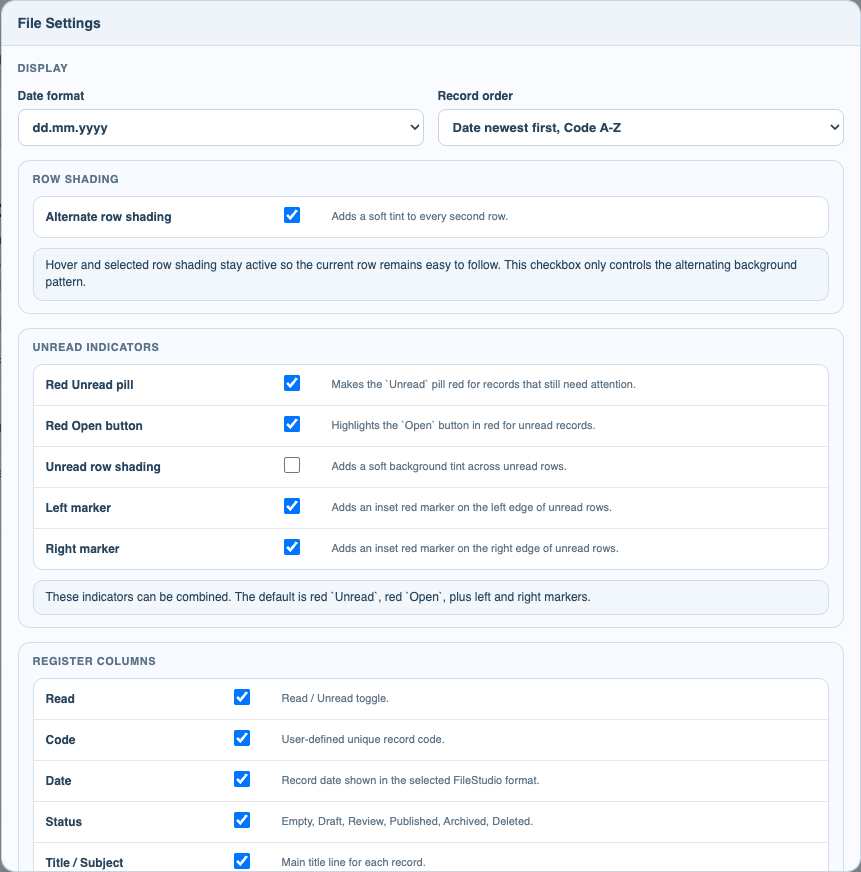
User-only settings include date format, record order, REF graph display, row shading, unread indicators, visible register columns, AI Autofill instructions, confirmation email text, and download filename templates.
REF graph display changes how linked conversations are drawn when you open or export the REF chart. You can choose Side timeline cards, Event circles, or Response spine. This affects your view and exported files from your session; it does not change records or links.
Register Columns lets you choose which columns are visible in your register. Turning a column off does not delete its data. It only hides that column in your view. IN Code is available as an optional column and is off by default.
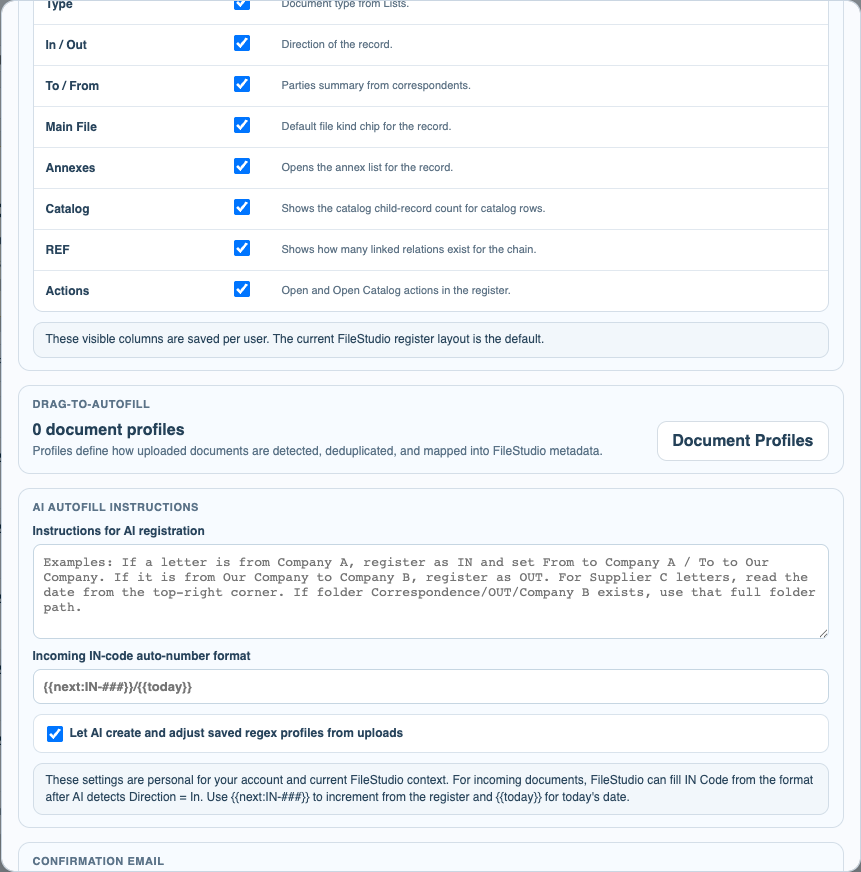
AI Autofill Instructions are personal instructions used when you choose AI Autofill + OCR for a dropped document. Use them for rules such as direction, folder choice, status, where to read dates, or how to treat documents from known organizations.
Incoming IN-code auto-number format is used when FileStudio should fill IN Code automatically. It works for manual New Record creation, Document Profiles, and AI Autofill. Use # characters for the numeric sequence. ### means zero-padded numbers such as 001, 002, 003. {{next:IN-###}} scans registered documents and returns the next available value. {{today}} inserts today's date.
Confirmation Email stores the default text used by Copy Email Text. It helps create response emails confirming receipt of an incoming document. FileStudio replaces values such as {{registrationNumber}}, {{inCode}}, {{title}}, {{date}}, {{from}}, {{to}}, and {{fileName}} before copying the text.
Download Filenames controls the names FileStudio suggests when downloading incoming or outgoing documents. These filename templates are also personal.
Document Profiles are opened from File Settings, but profiles themselves describe recurring document formats used by drag-to-autofill. Treat them as workflow rules, not only display preferences.
Related: FileStudio, REF Chart and Exports in FileStudio, AI Autofill and OCR Uploads in FileStudio, Document Profiles in FileStudio, IN Code Stamping and Confirmation Email.
Register column visibility
Register Columns is a personal view setting. Optional columns such as IN Code can be enabled without changing any stored record data.
AI instructions and IN-code format
AI instructions guide your AI Autofill runs. The incoming IN-code format can use {{next:IN-###}} and {{today}}.
Enable JavaScript to use reading progress and usefulness ratings.