
Create an Annex Summary and Review AI Planning Suggestions
Create AI OCR and Summary for an annex, review saved summary tabs, and accept or skip explicit deadline and scheduled-event suggestions.
Upload the annex normally
Open Annexes and upload or drop the file. Annex upload itself does not ask for AI and consumes no AI credits.
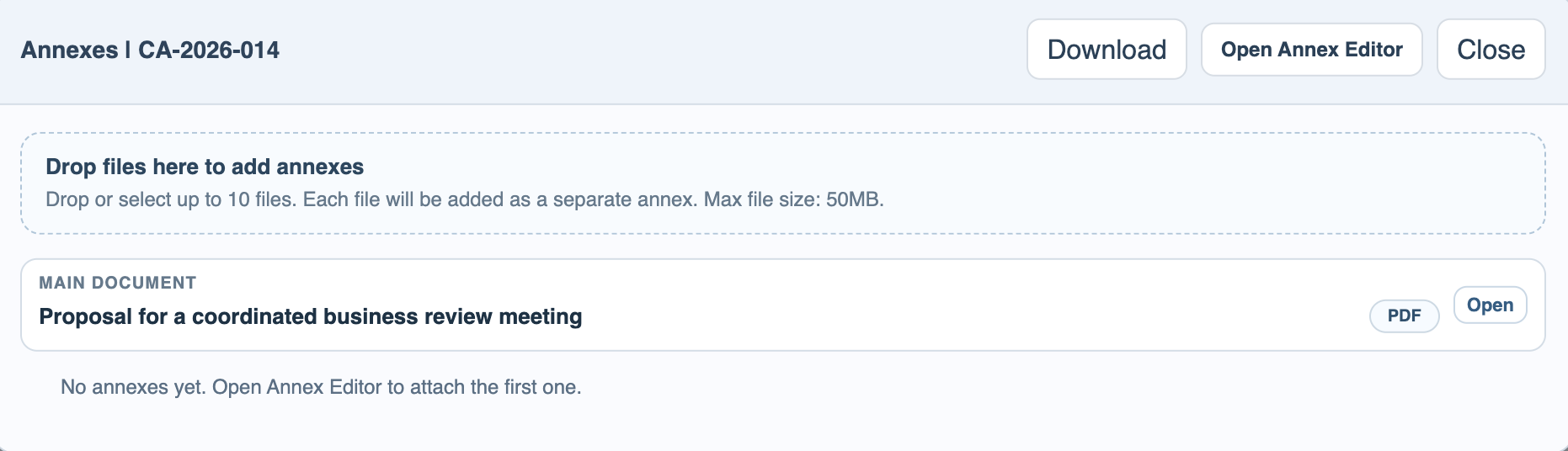
Choose Create AI Summary
Use Create AI Summary on the saved annex. Choose the pages, summary language, and length. Scanned pages use AI OCR; readable embedded text can be processed more quickly.
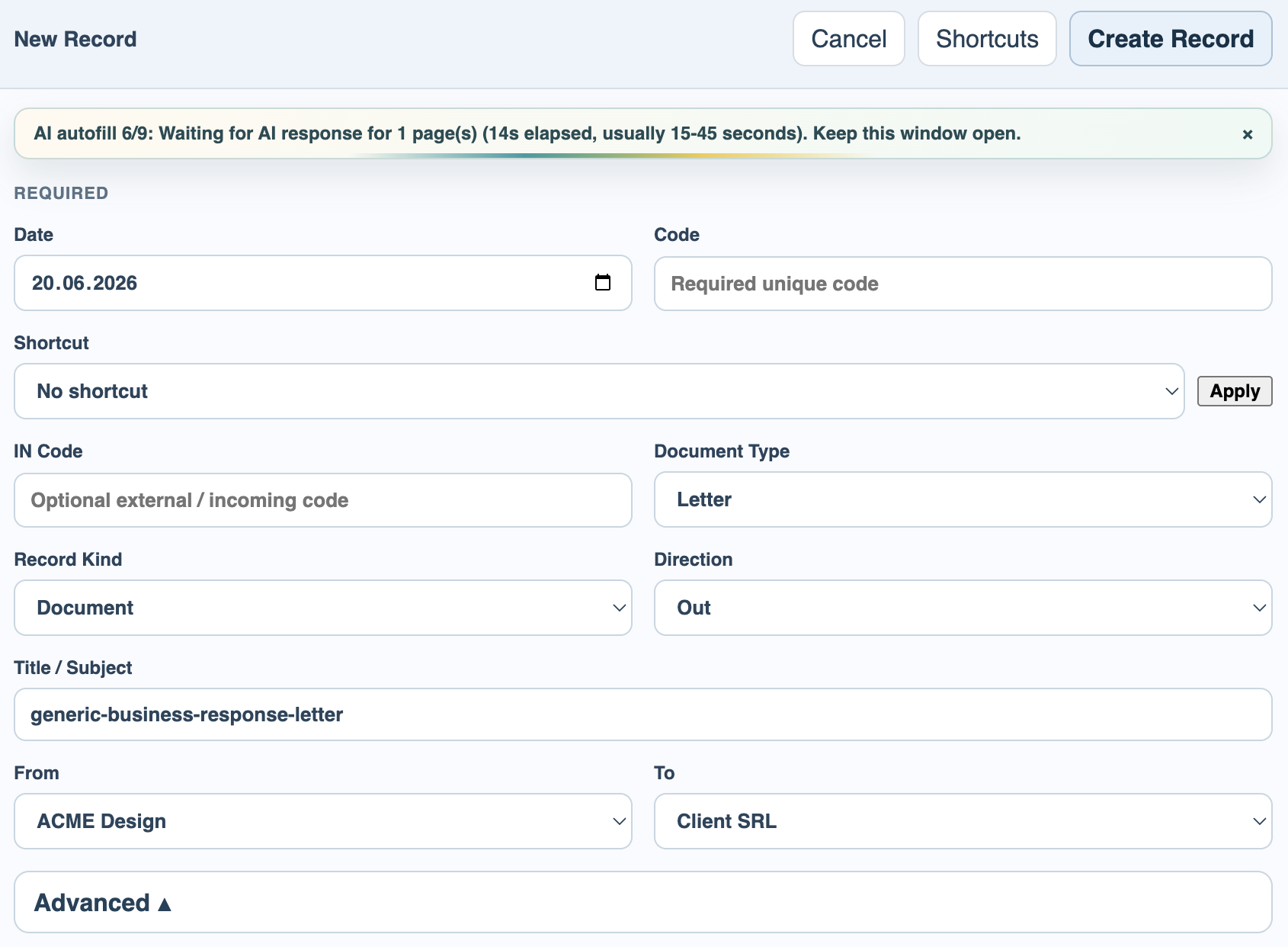
Keep the window open during processing
Follow the progress stage and elapsed seconds. FileStudio saves annex OCR text and the annex summary only after the server confirms completion.
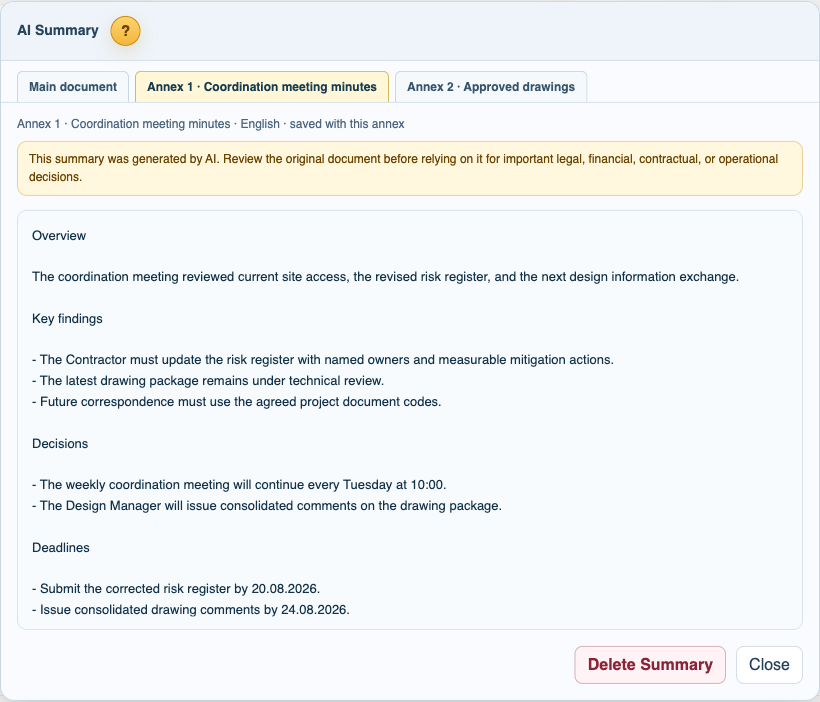
Review the saved summary tabs
Open Summary from the record or annex. The main file and every summarized annex have separate tabs. Review the AI caution and compare important Decisions, Key findings, and Deadlines with the original file.
Review every planning suggestion
For each explicit deadline or dated event, verify the detected wording, calculated date, optional time, Alert or Deadline type, priority, and reminder. Accept it, correct it, or choose Not Now.
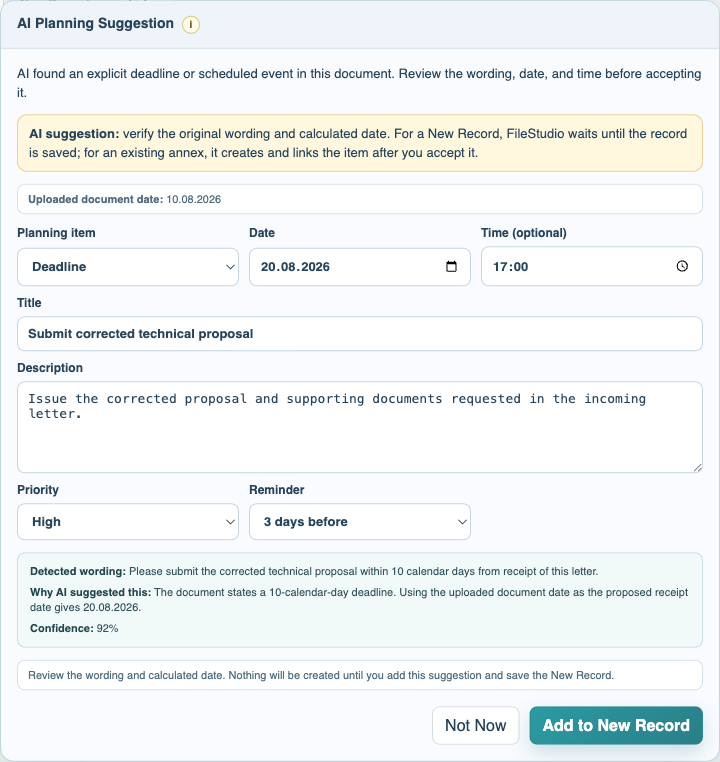
Save or update the linked record
For a New Record, the accepted suggestion remains pending until the record saves. If the new document appears to answer an existing item, review the separate update suggestion before FileStudio completes or resolves it.
Enable JavaScript to use reading progress and usefulness ratings.