
Summarize a Scanned PDF in DocStudio
Attach a scanned PDF, run OCR, generate a summary, extract actions, and insert the results into the `.ds` document.
Use this tutorial when a PDF is scanned or image-based and DocStudio cannot read text directly.
The walkthrough starts with + Document, then runs OCR, creates a summary, creates action items, and inserts the saved results back into the document.
Related: Attach Documents to a DocStudio File, Use OCR for Scanned PDFs, Summarize Attached Documents with AI, Extract Actions and Tasks from Documents.
Insert the scanned PDF
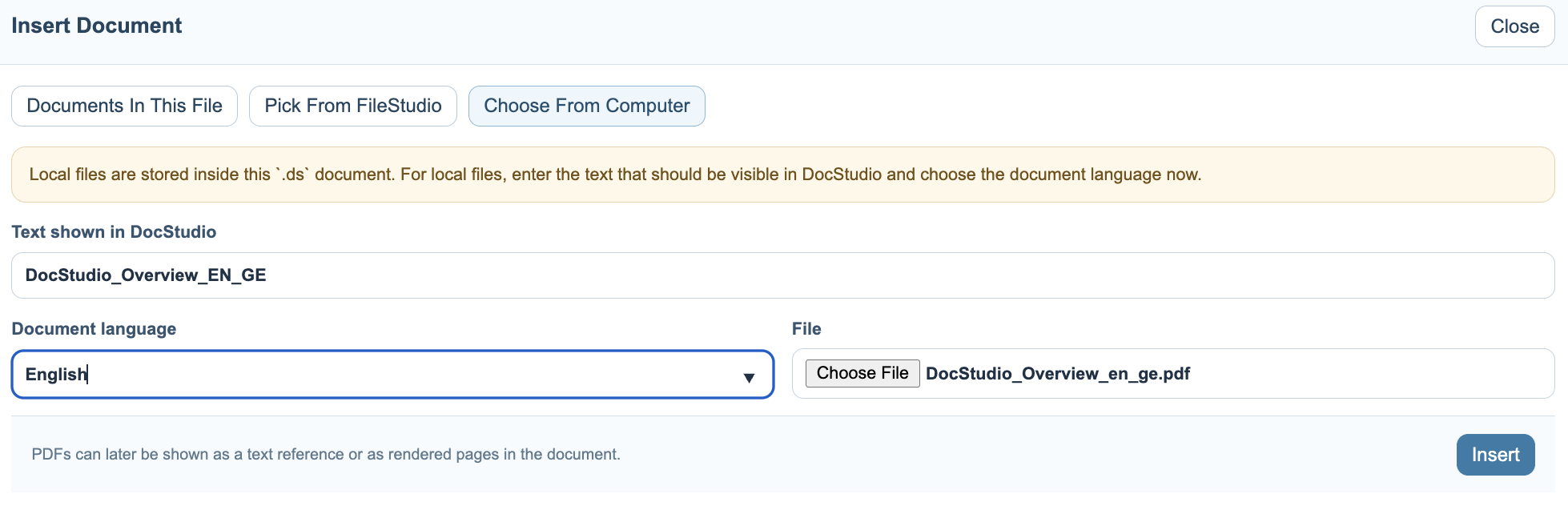
Open + Document, choose the source, enter the text that should be visible in DocStudio, select the document language, and insert the PDF.
Keep the document visible as a reference
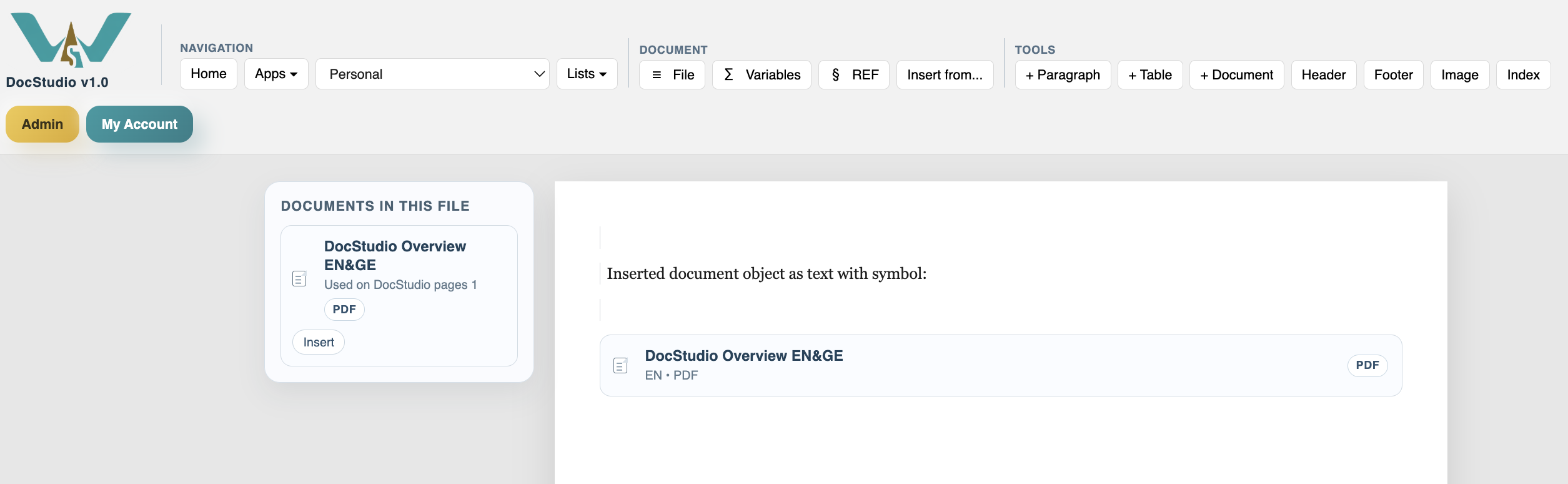
The inserted document appears in the page as a compact reference. It is also available in Documents In This File so the same source can be reused later.
Open AI Summary
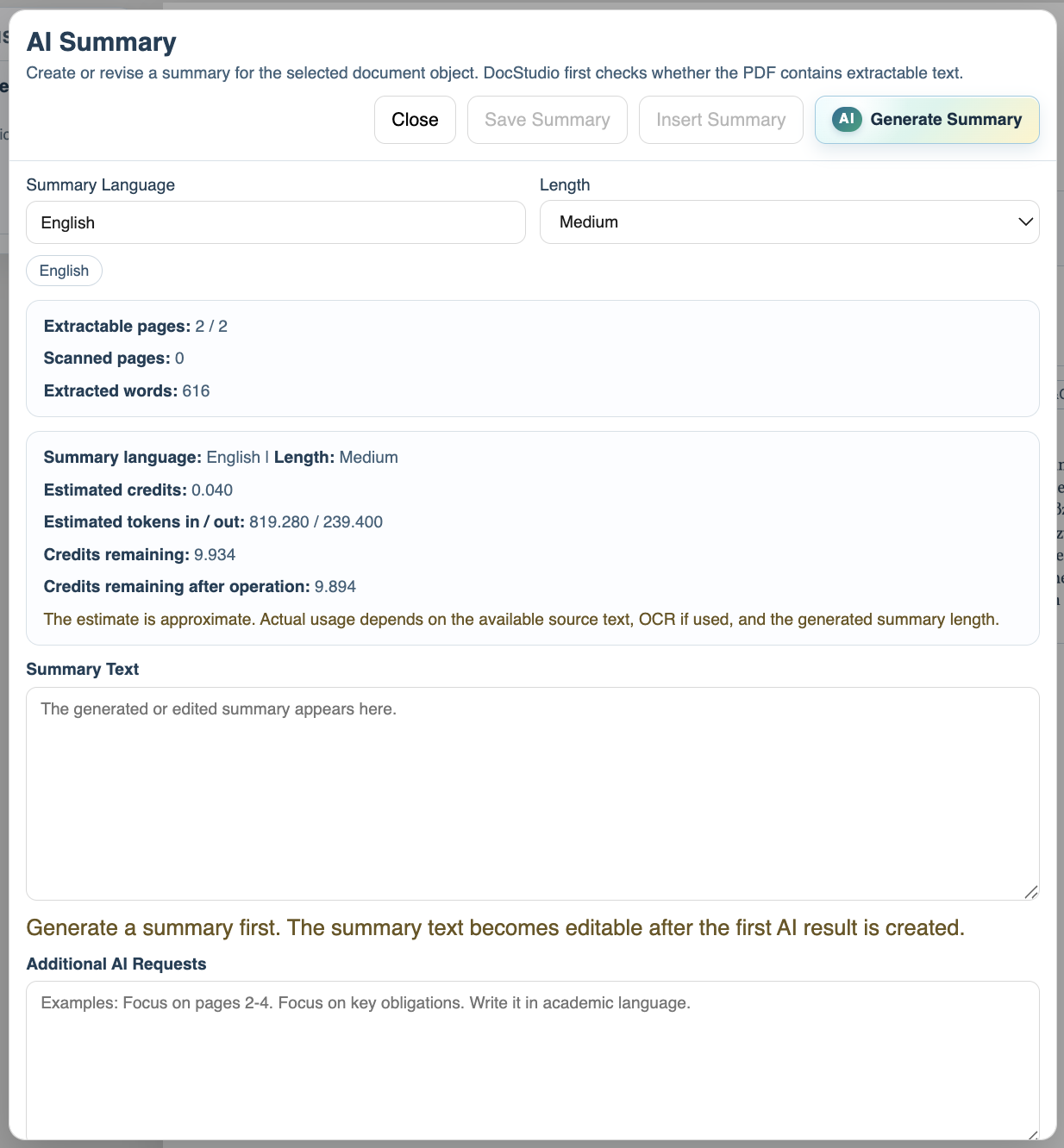
Right-click the document object or open Object Settings, then choose AI Summary. DocStudio checks whether the PDF contains extractable text.
Run OCR when text is not extractable
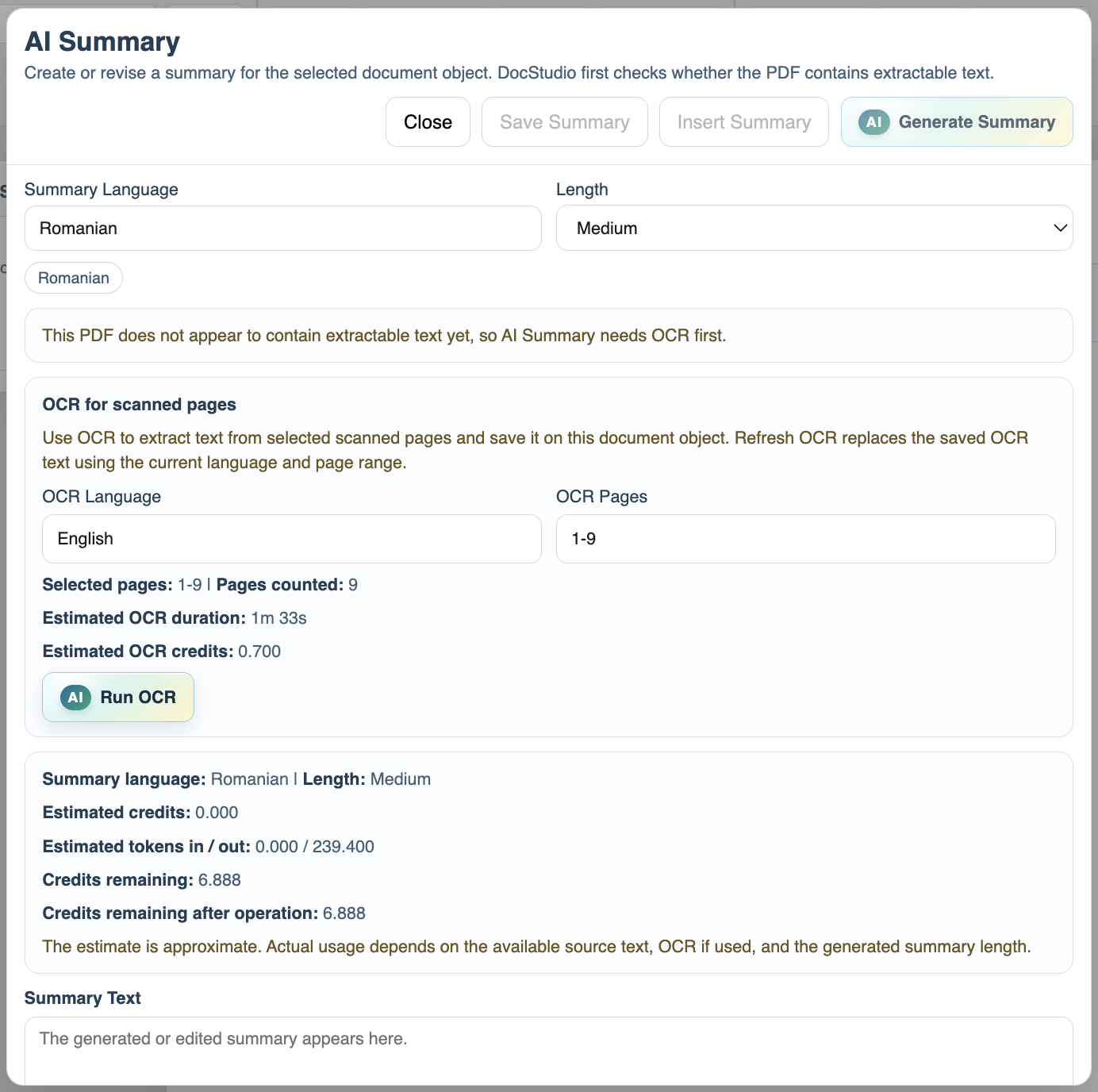
If the PDF is scanned, choose the OCR language and page range, check the estimate, and run OCR. The OCR text is saved on the document object.
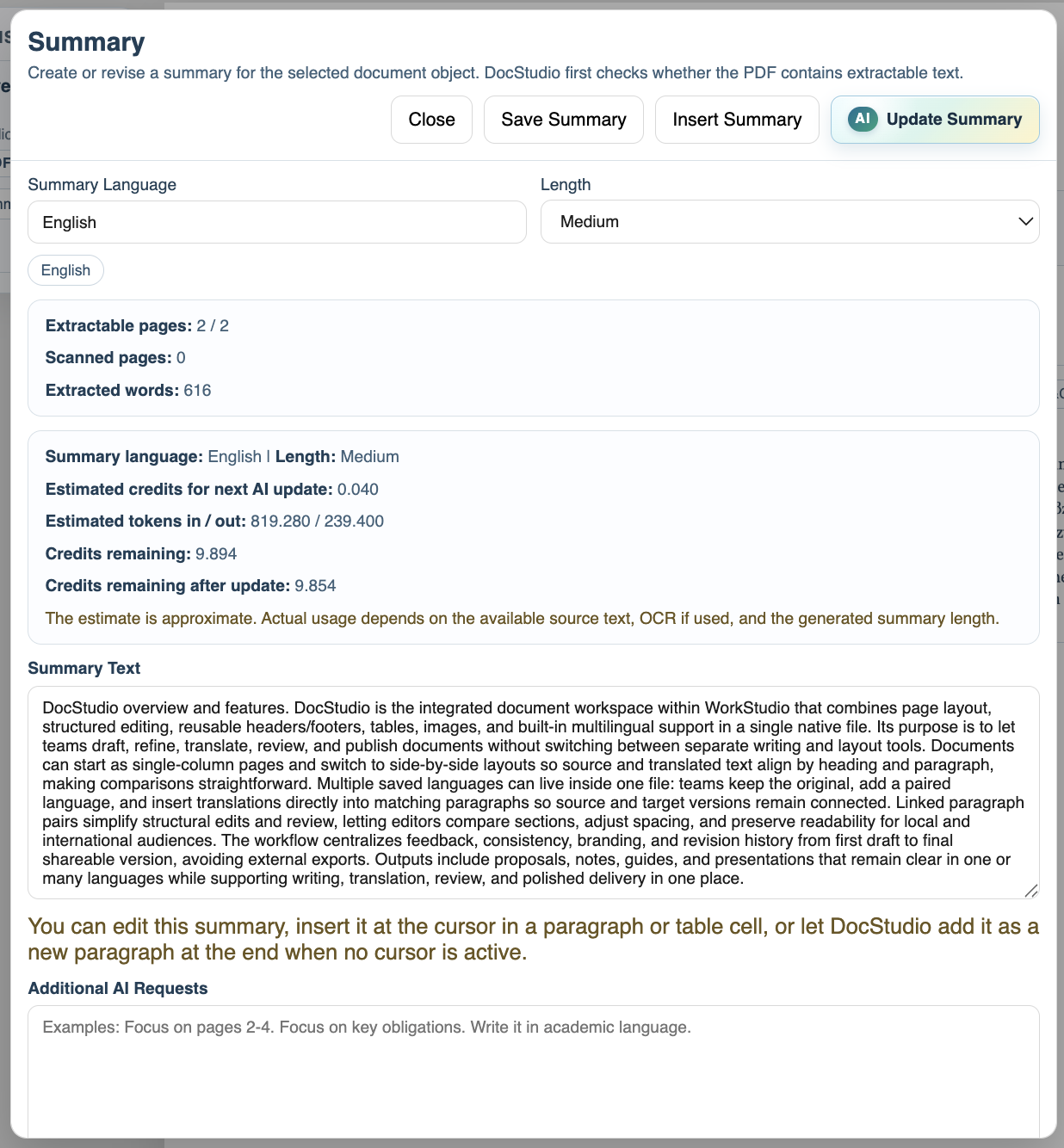
Generate and review the summary
After OCR is saved, generate the summary. Review the result, edit if needed, and save it on the document object.
Extract actions and tasks
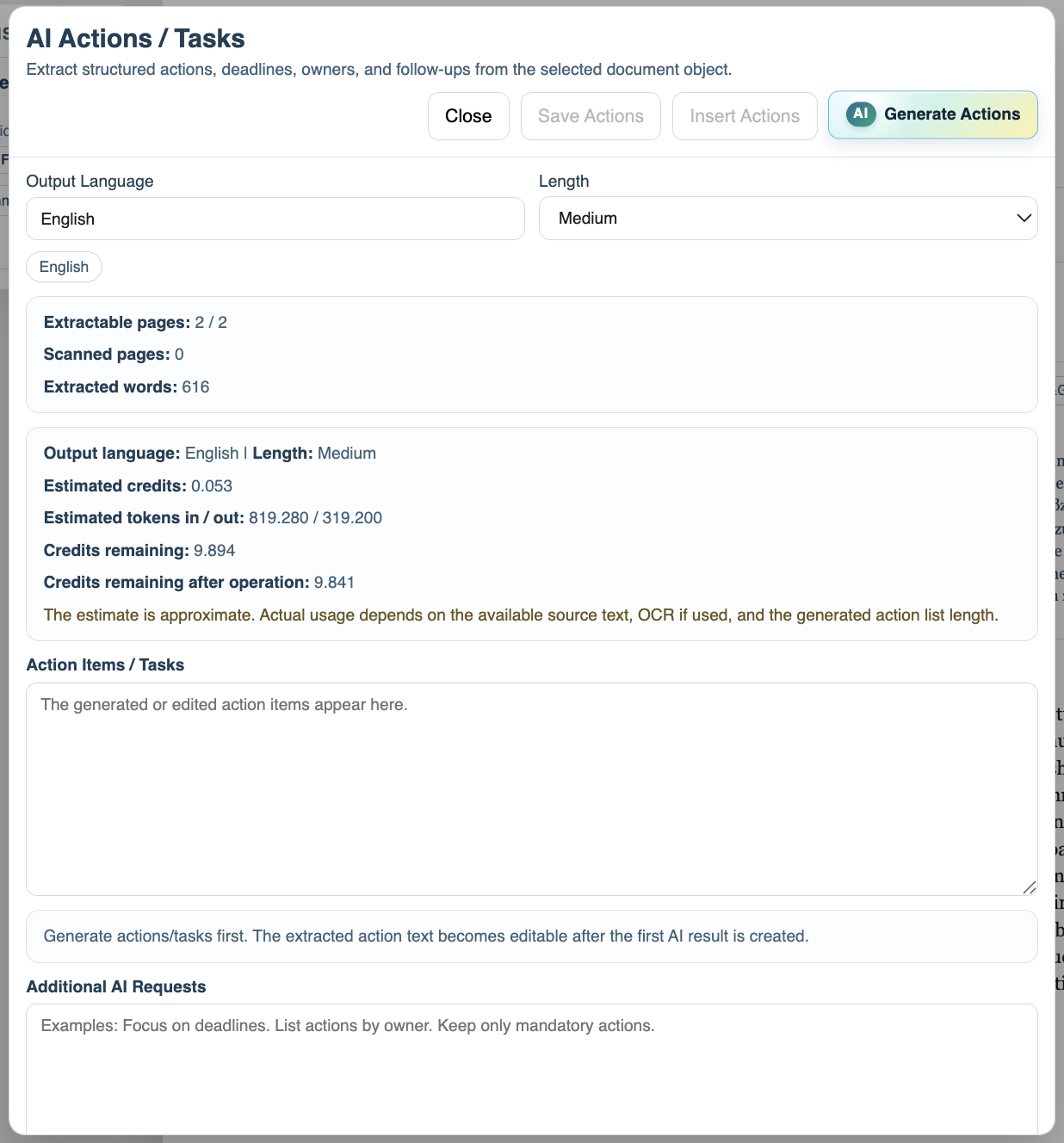
Open AI Actions / Tasks when you need obligations, deadlines, owners, or follow-ups instead of a narrative summary.
Insert the saved results
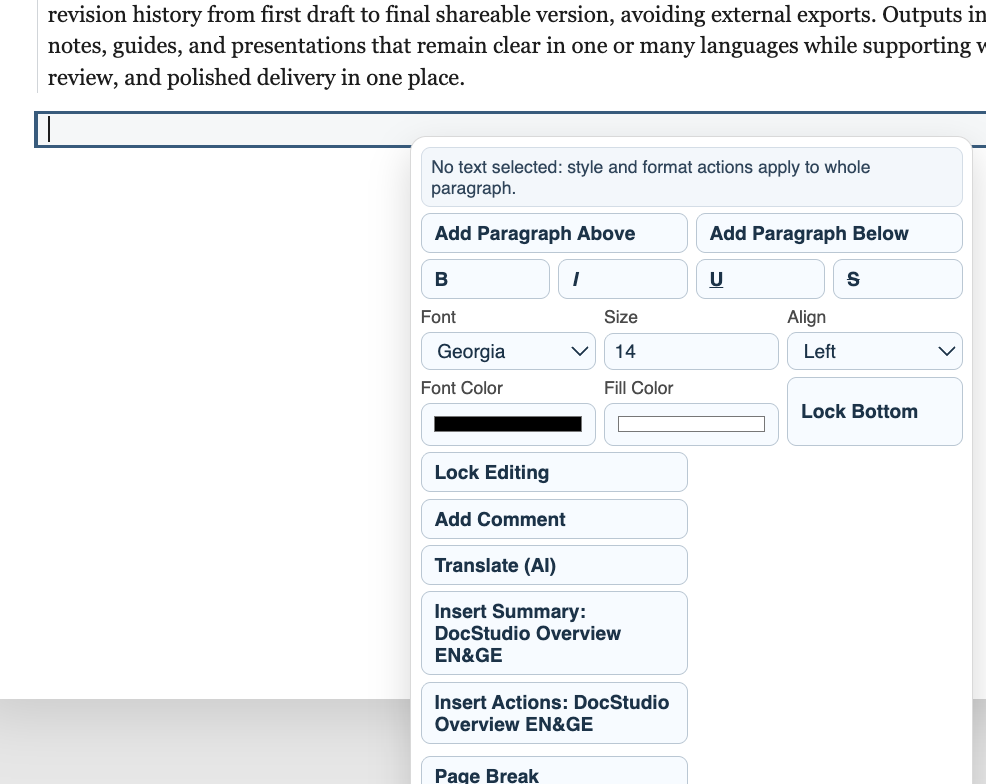
Use the modal buttons, context menu, or Documents In This File pane to insert the saved summary or action list into the document.
Enable JavaScript to use reading progress and usefulness ratings.