
Use OCR for Scanned PDFs
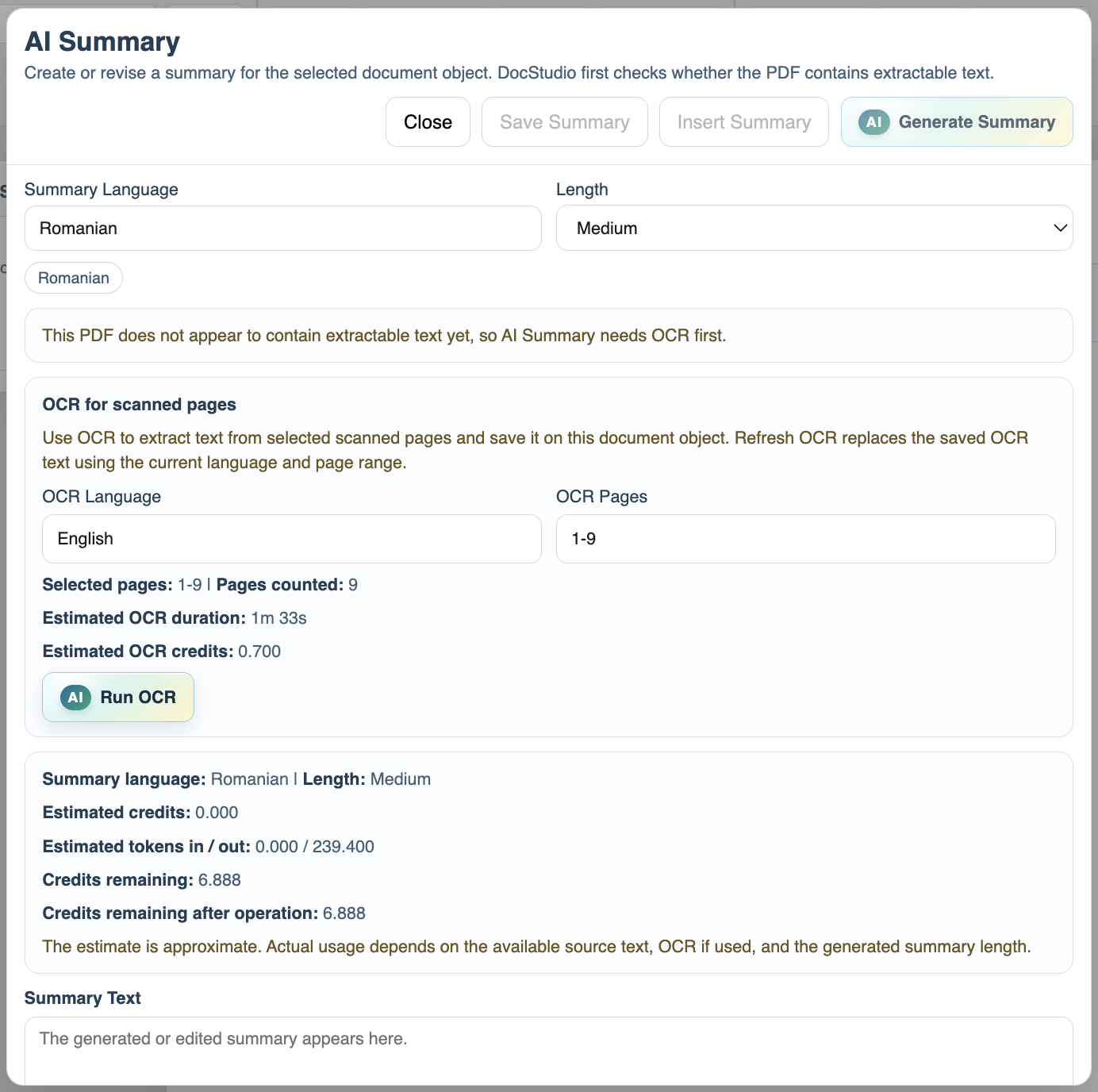
Run OCR on scanned PDF pages so DocStudio can summarize or extract actions from documents that do not contain selectable text.
Some PDFs already contain text. Others are scanned images.
DocStudio first checks whether text can be extracted directly. If the PDF looks scanned, the Summary and Actions / Tasks windows offer OCR.
The OCR flow is:
- Open
AI SummaryorAI Actions / Tasksfor the PDF document object.
- Choose
OCR Language.
- Choose
OCR Pages, such as1,1-3, or2,5-6.
- Review the estimated credits and estimated duration.
- Click
Run OCR.
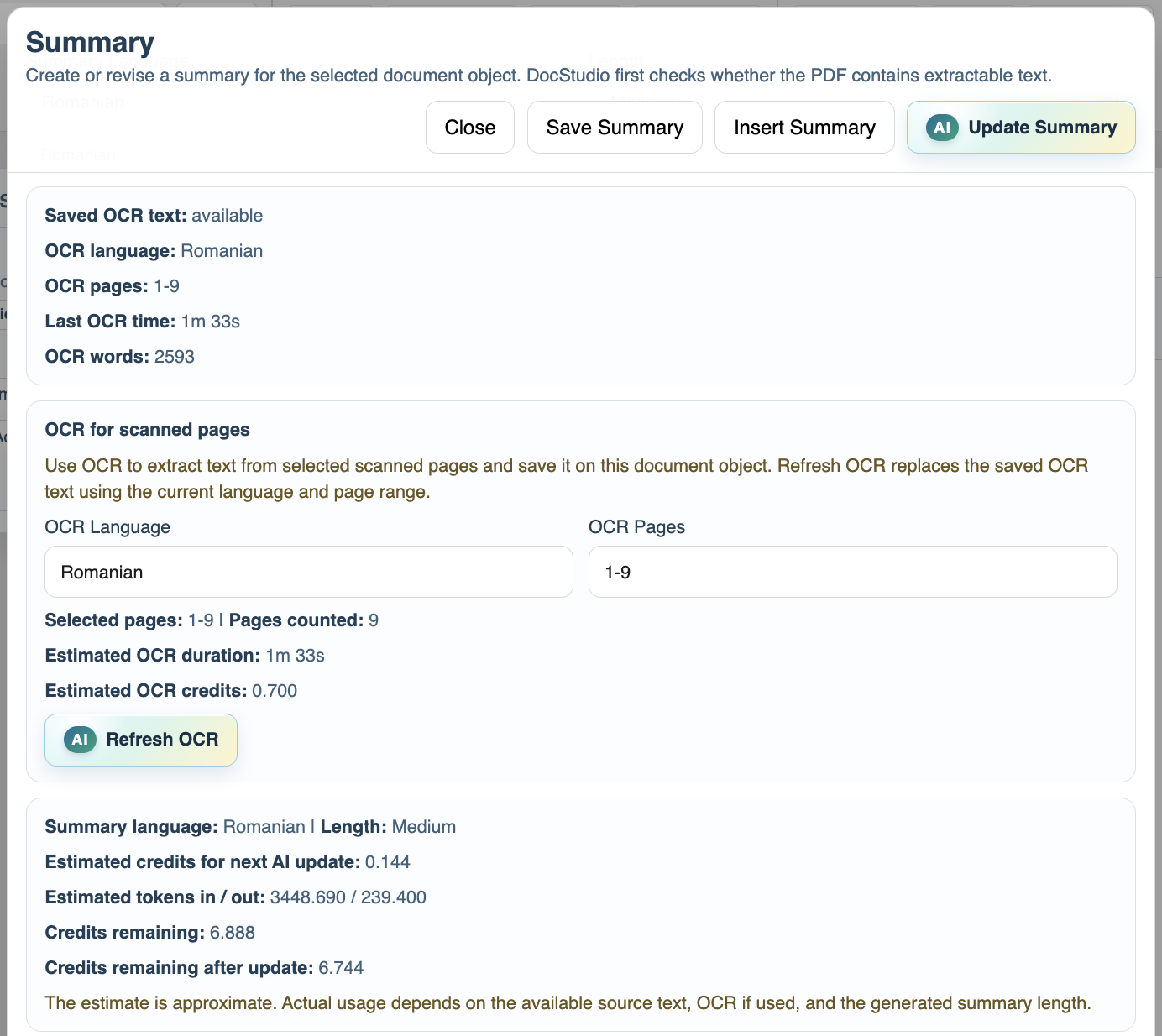
OCR text is saved on the document object. Summary and Actions / Tasks can reuse it later without extracting the PDF again.
Refresh OCR runs OCR again and replaces the saved OCR text. Use it when you change the OCR language, change the page range, replace the source document, or want to retry a poor OCR result.
OCR is a preparation step. After OCR finishes, run Summary or Actions / Tasks on the saved text.
Related: Summarize Attached Documents with AI, Extract Actions and Tasks from Documents, Attach Documents to a DocStudio File.
Run OCR
Choose OCR language, page range, review the estimate, and run OCR before generating AI Summary or Actions.
Refresh OCR
Use Refresh OCR when you change language, change pages, replace the source document, or want to retry a poor OCR result.
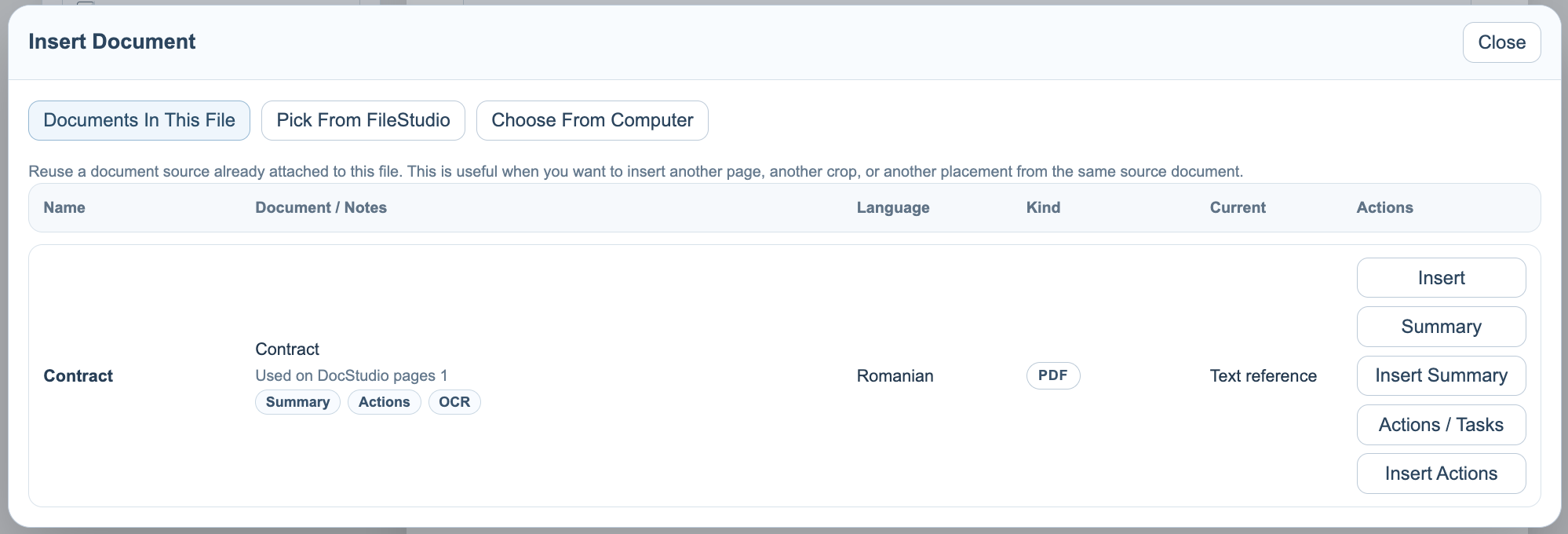
OCR result available
Once OCR is saved, the document source can show OCR, Summary, and Actions badges.
Enable JavaScript to use reading progress and usefulness ratings.