
Attach Documents to a DocStudio File
Add PDFs or other documents to a `.ds` file from FileStudio or from your computer, then reuse the same attached source inside the document.
DocStudio can keep supporting documents inside the same .ds file.
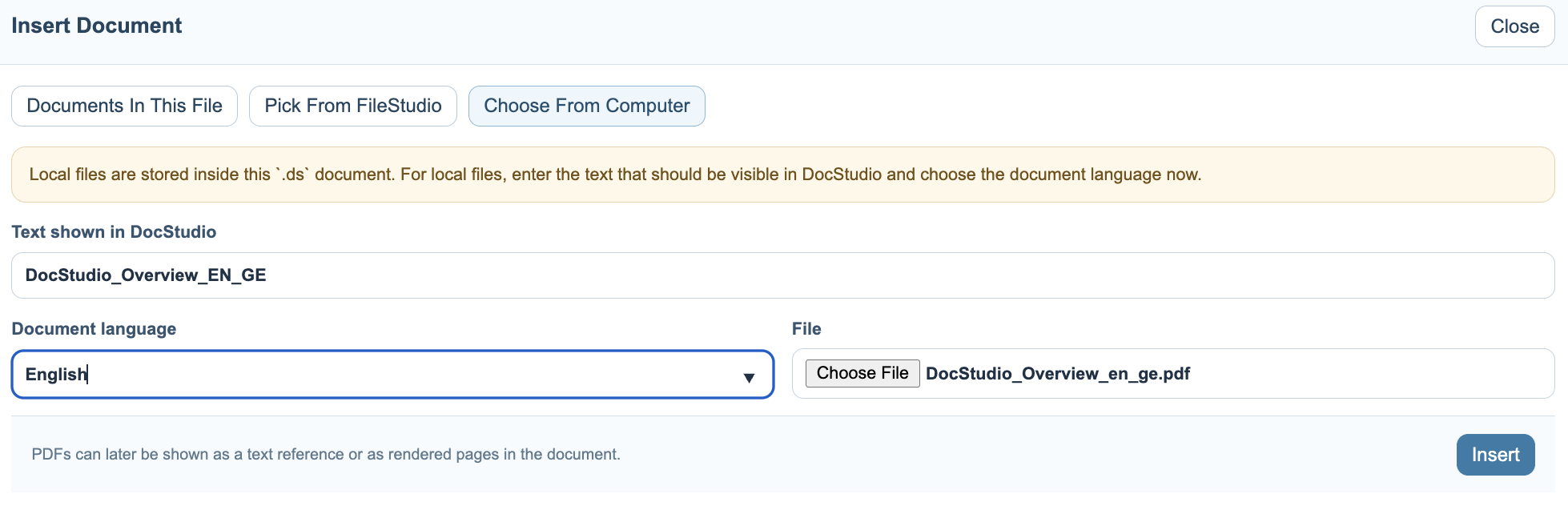
Use + Document when you want to attach a PDF, report, contract, scan, image-based document, or another file that supports the text you are writing.
The basic flow is:
- Click
+ Document.
- Choose
Pick From FileStudioorChoose From Computer.
- If the file comes from your computer, write the text that should appear inside DocStudio and choose the document language.
- Click
Insert.
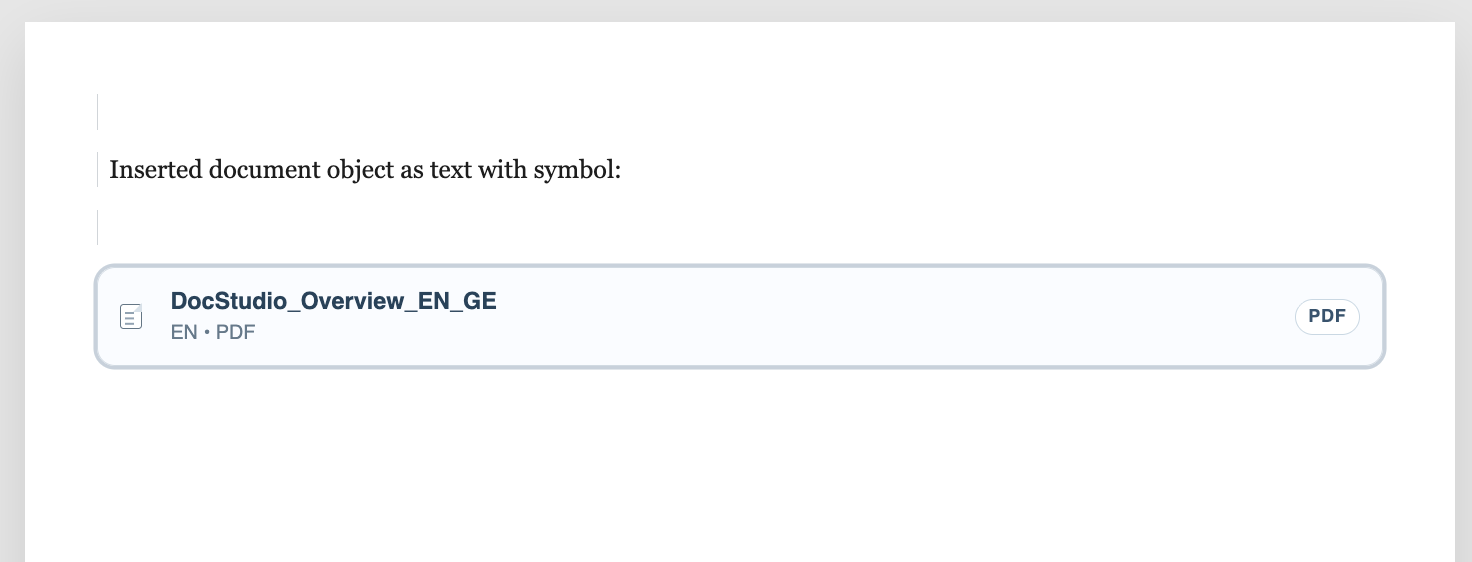
The inserted document appears as a document reference with its name and file-type badge. You can click it to preview the file, or right-click it to open Object Settings.
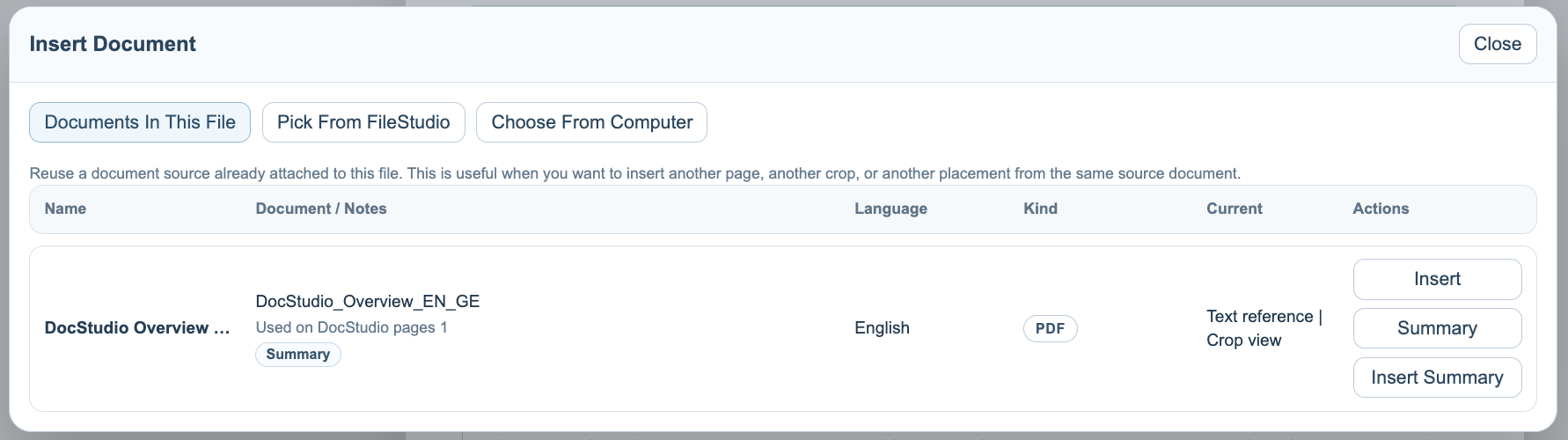
The first tab, Documents In This File, shows document sources that are already attached to the current .ds file. Use it when you want to insert the same PDF again on another page, render another page range, create a crop from a different page, or reuse saved AI results.
A document source is stored once and can be used several times. This matters when one PDF needs to appear as a reference in one place, page 1 in another place, and a cropped detail somewhere else.
Related: Display and Render PDF Documents, Crop and Reuse PDF Pages, Summarize Attached Documents with AI.
Insert Document
The Insert Document window can reuse existing attached sources, pick from FileStudio, or choose a file from your computer.
Inserted as a reference
A text reference keeps the document visible in the page without rendering the PDF pages.
Documents in this file
The attached document source can be reused later from the same Insert Document window.
Enable JavaScript to use reading progress and usefulness ratings.