
Crop and Reuse PDF Pages
Insert one PDF source several times, with different pages, placements, and crop areas.
Use crop mode when only part of a PDF page belongs inside the DocStudio document.
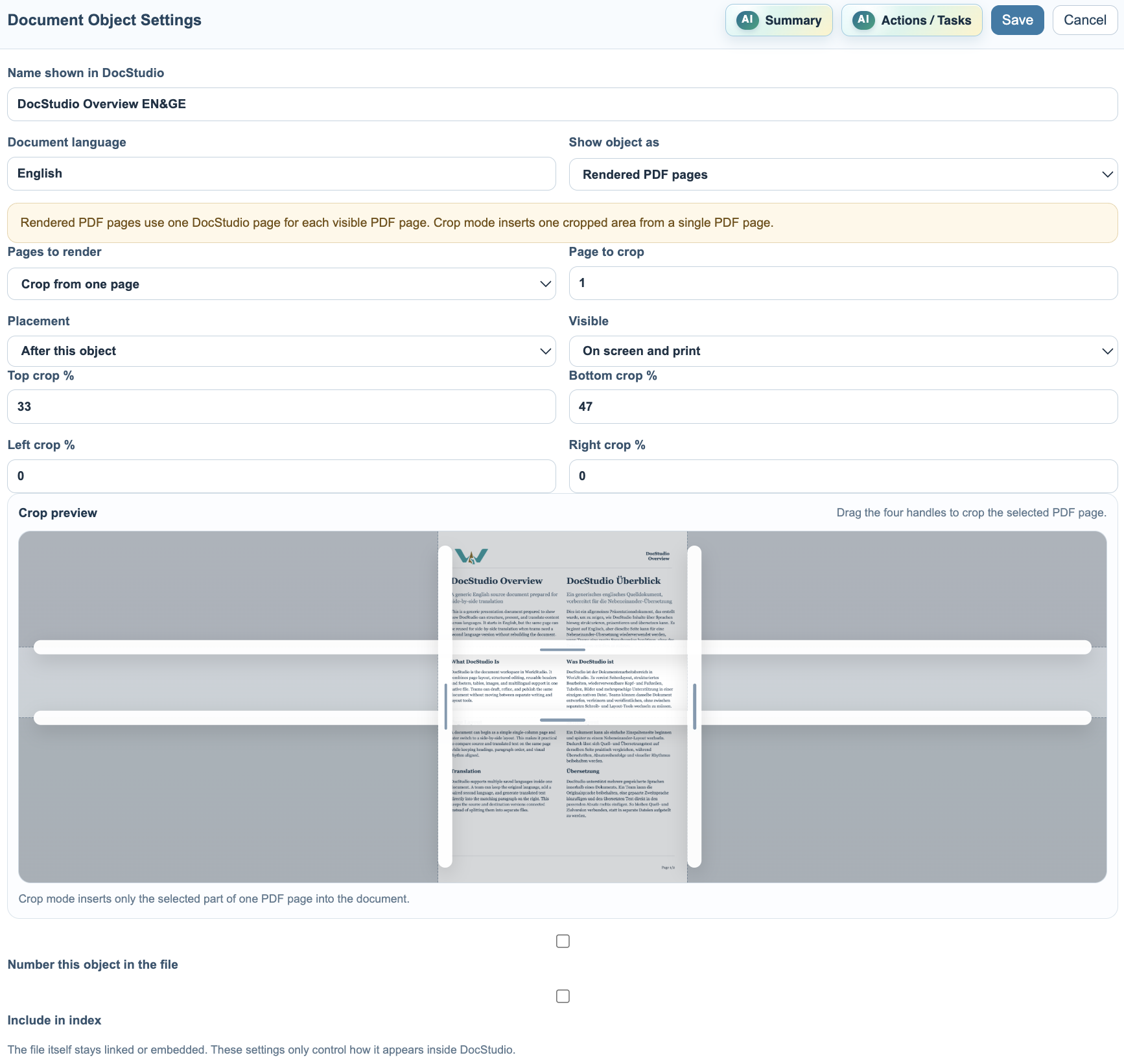
Open Object Settings, choose Rendered PDF pages, then set Pages to render to Crop from one page.
In crop mode:
- Choose one PDF page.
- Drag the crop handles around the preview.
- Apply the settings.
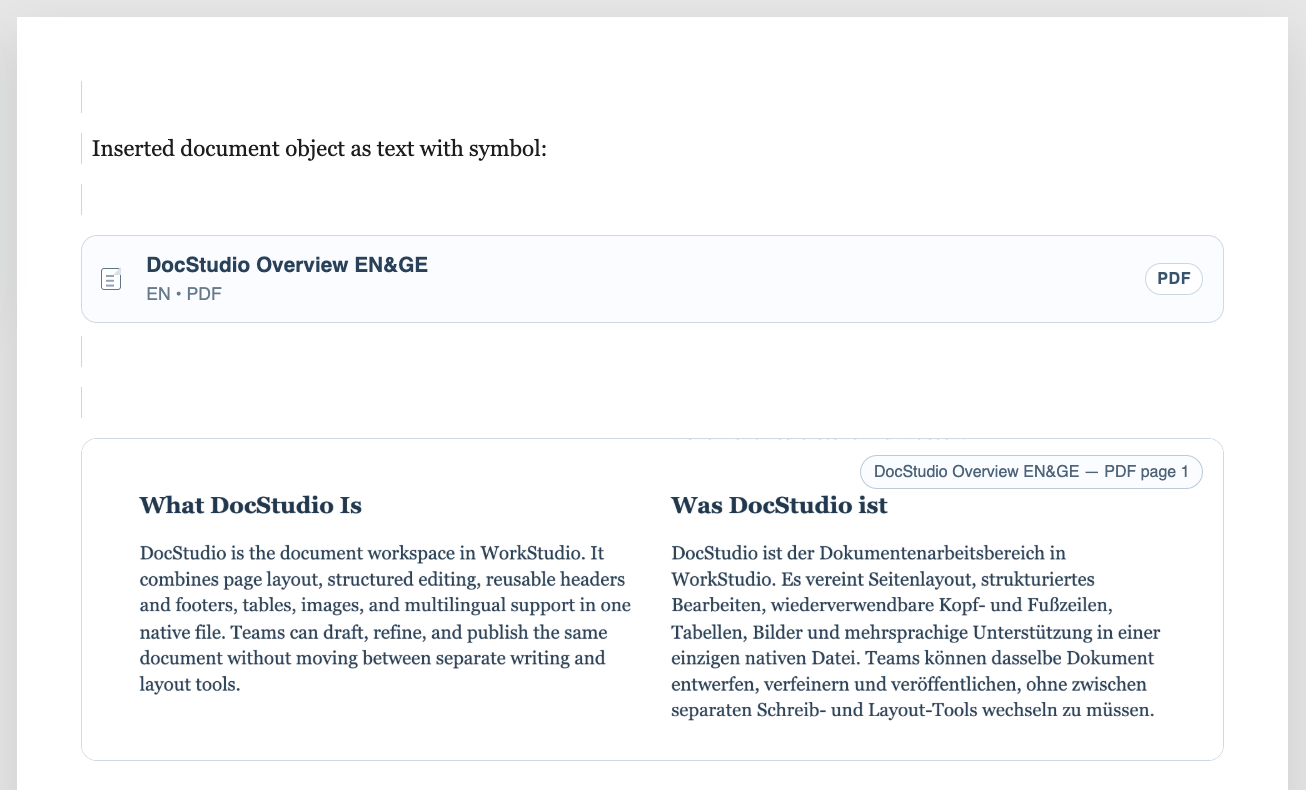
- DocStudio inserts only the selected area and keeps its natural proportions.
The same source document can be inserted more than once. This is useful when you need page 1 in one location, page 2 later, and a cropped detail from page 3 somewhere else.
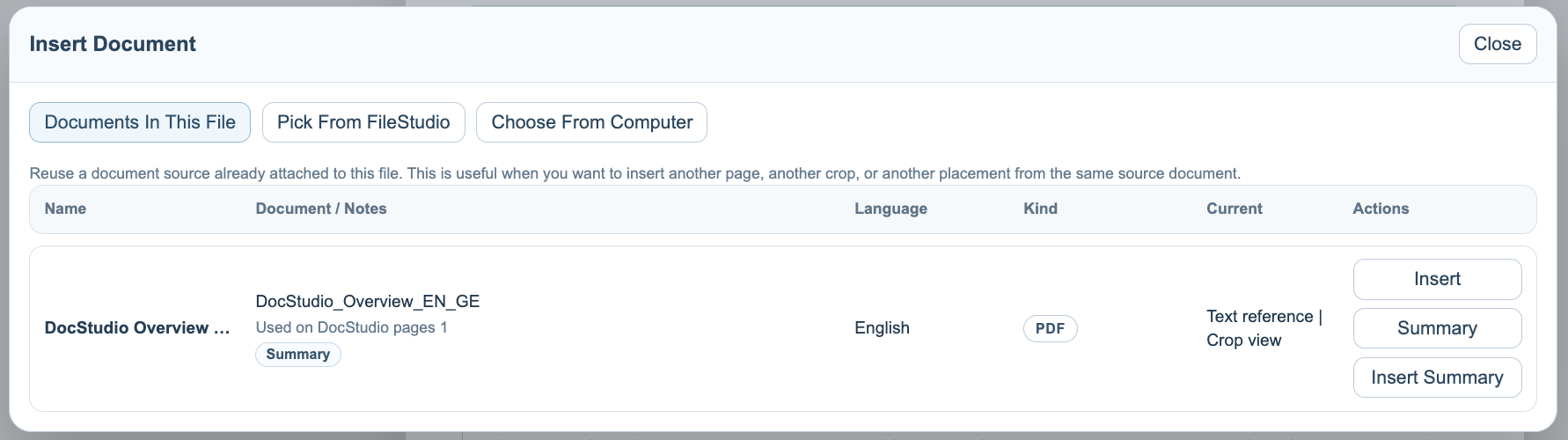
Use + Document > Documents In This File or the left Documents In This File pane to insert the same source again. DocStudio keeps one attached source and tracks where it is used.
Related: Attach Documents to a DocStudio File, Display and Render PDF Documents, Summarize Attached Documents with AI.
Crop settings
Crop mode shows one page preview with handles for the selected page area.
Inserted crop
The crop is inserted as its own object instead of stretching to a full DocStudio page.
Reuse the source
Documents In This File lets you insert the same attached source again without attaching it a second time.
Enable JavaScript to use reading progress and usefulness ratings.