
Summarize Attached Documents with AI
Create, save, edit, and insert an AI summary for an attached PDF document object.
AI Summary works on an attached PDF document object.
Open it from Object Settings, from the document object context menu, or from Documents In This File when a document is already attached.
The normal flow is:
- Open
AI Summary.
- Choose the summary language.
- Choose the length: short, medium, or long.
- If the PDF has extractable text, review the estimate and click
Generate Summary.
- If the PDF is scanned, run OCR first.
- Review the summary text.
- Insert it at the cursor, into a table cell, or as a new paragraph at the end when no cursor is active.
A saved summary stays on the document object. It appears in Documents In This File and can be inserted again later. If you update the summary, the saved result is replaced.
Use Additional AI Requests when you want to focus the summary, for example on obligations, pages, deadlines, or a writing style.
Related: Use OCR for Scanned PDFs, Extract Actions and Tasks from Documents, Insert Summaries and Actions into the Document.
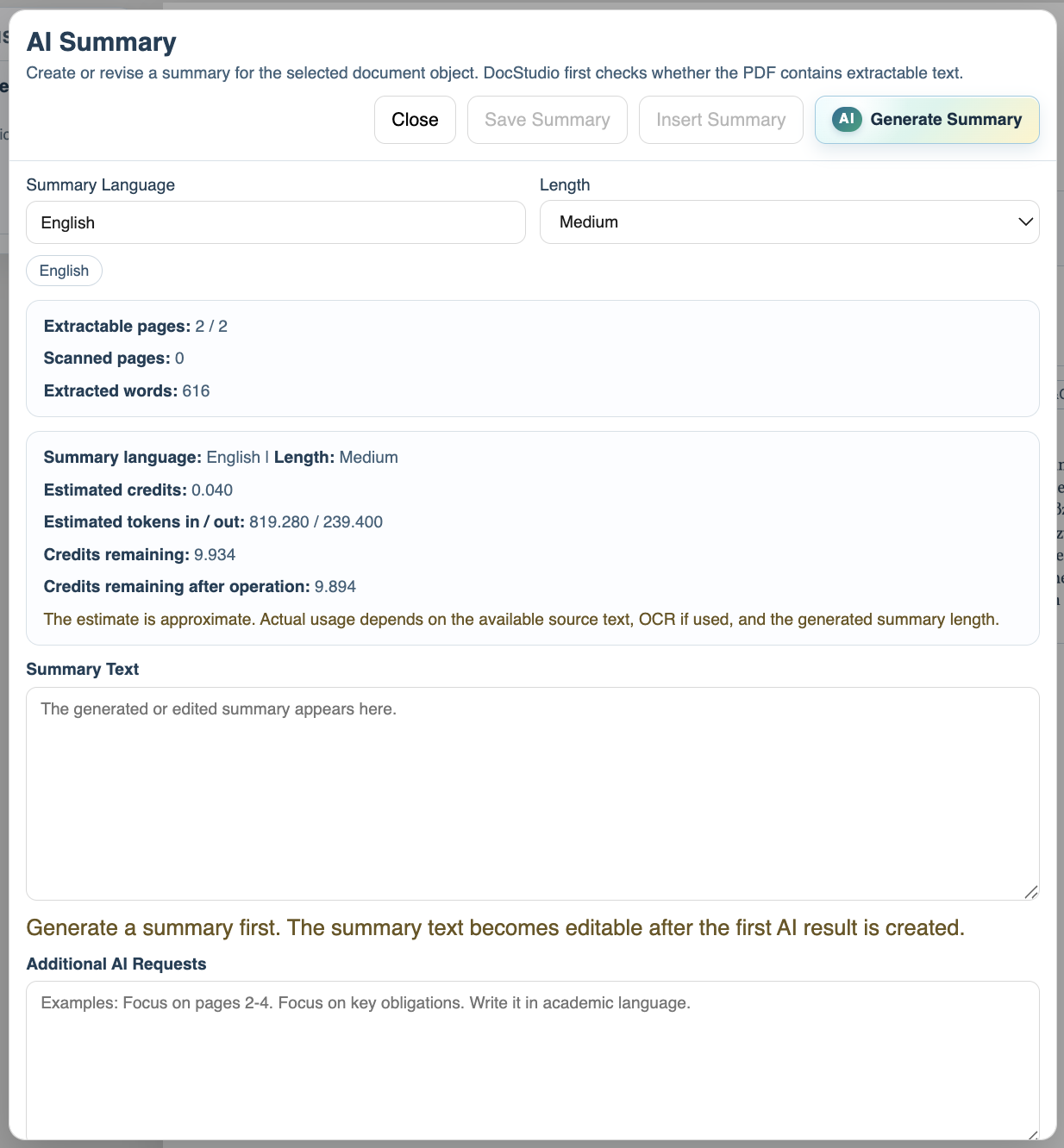
Before generation
DocStudio checks the PDF text, estimates credits, and keeps the summary text read-only until AI creates the first result.
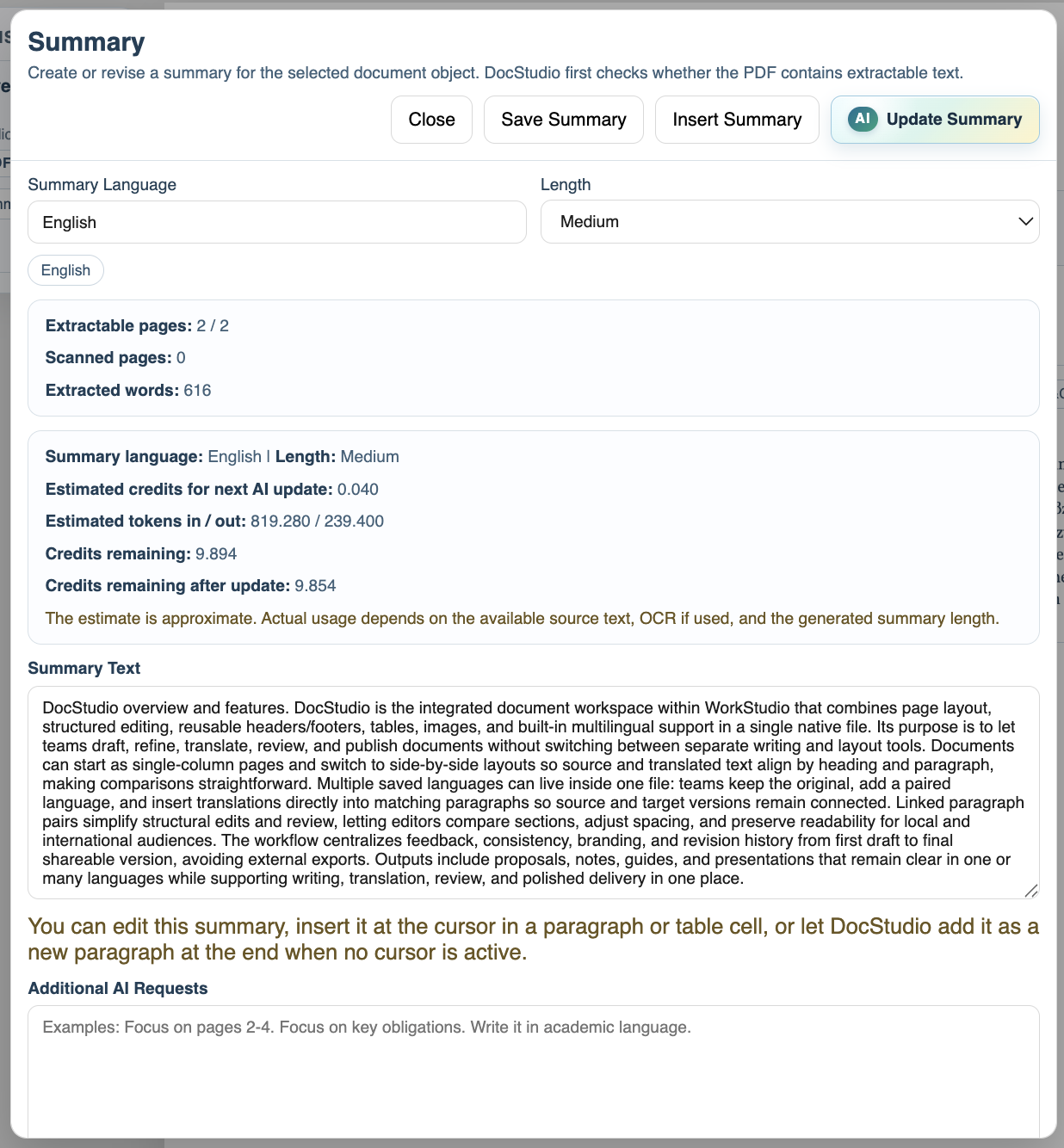
Saved summary
After generation, the summary can be edited, saved, inserted, or revised with another AI request.
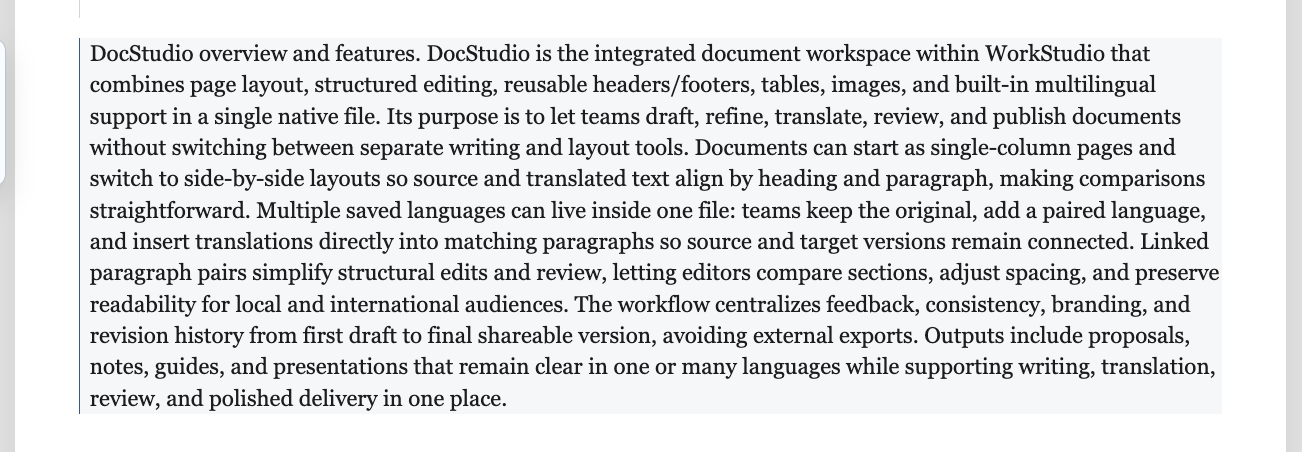
Summary in the document
A saved summary can be inserted into the DocStudio document body.
Enable JavaScript to use reading progress and usefulness ratings.