
Insert Summaries and Actions into the Document
Insert saved document summaries and action lists at the cursor, in table cells, or as new paragraphs.
Saved Summary and Actions / Tasks results are reusable text attached to the document object.
You can insert them from:
- the Summary or Actions modal
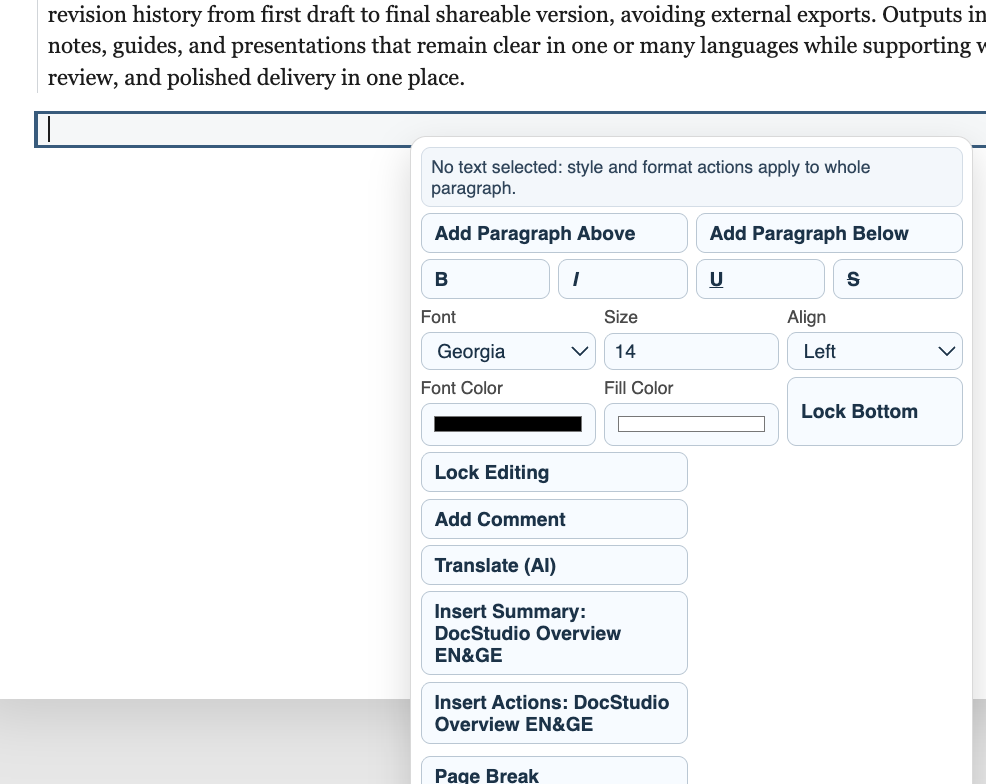
- the paragraph context menu
- the table-cell context menu
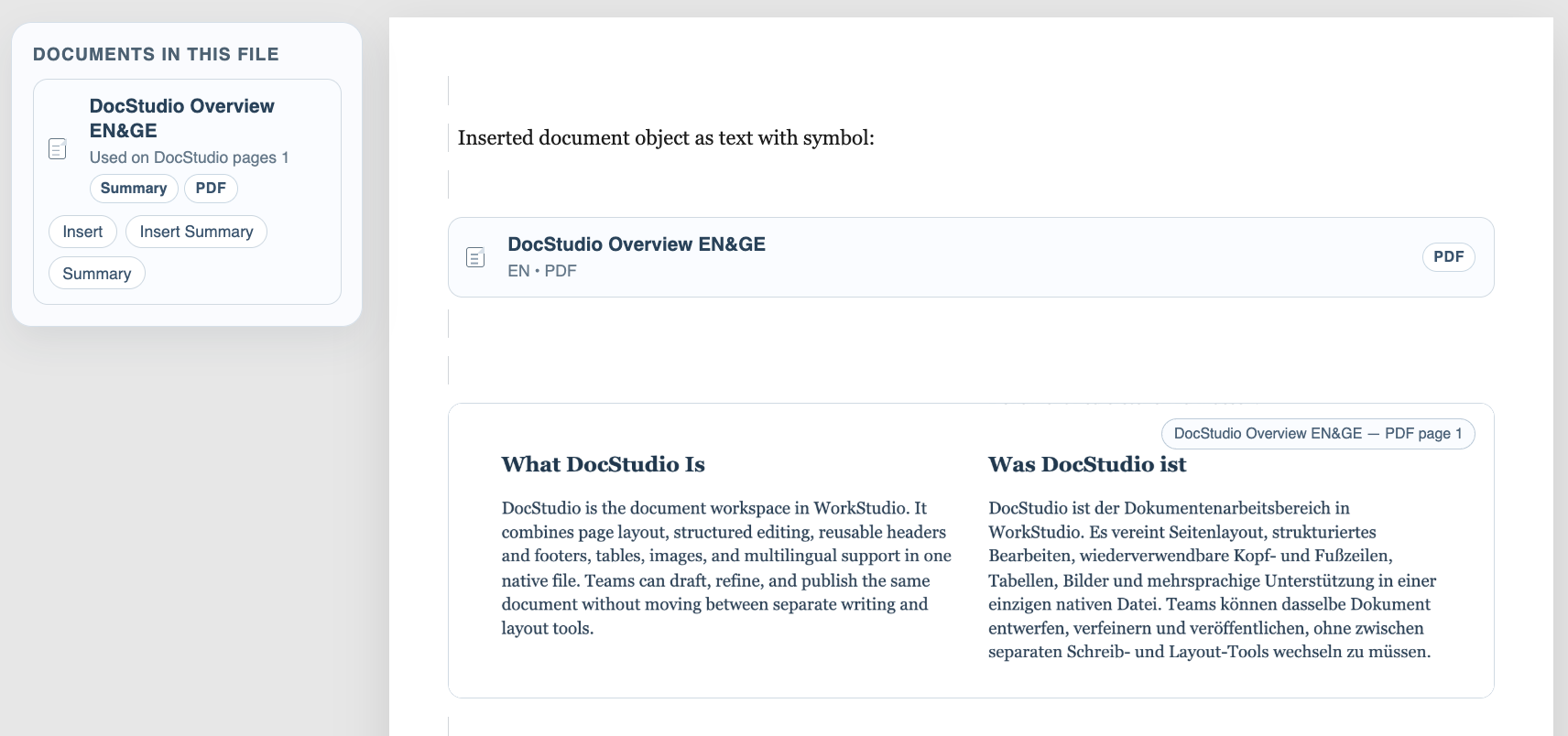
- the left
Documents In This Filepane
+ Document > Documents In This File
If the cursor is inside a paragraph or table cell, DocStudio inserts the text there. If no active cursor is available, DocStudio adds a new paragraph at the end of the file.
If more than one attached document has a saved summary or action list, DocStudio opens a chooser so you can select the correct source.
This makes attached PDFs useful inside the working document, not only as external references.
Related: Summarize Attached Documents with AI, Extract Actions and Tasks from Documents, Use OCR for Scanned PDFs.
Context menu
Context menus can insert saved summaries or actions at the active paragraph or table cell.
Left document pane
The left pane keeps attached document sources and their saved AI results within reach.
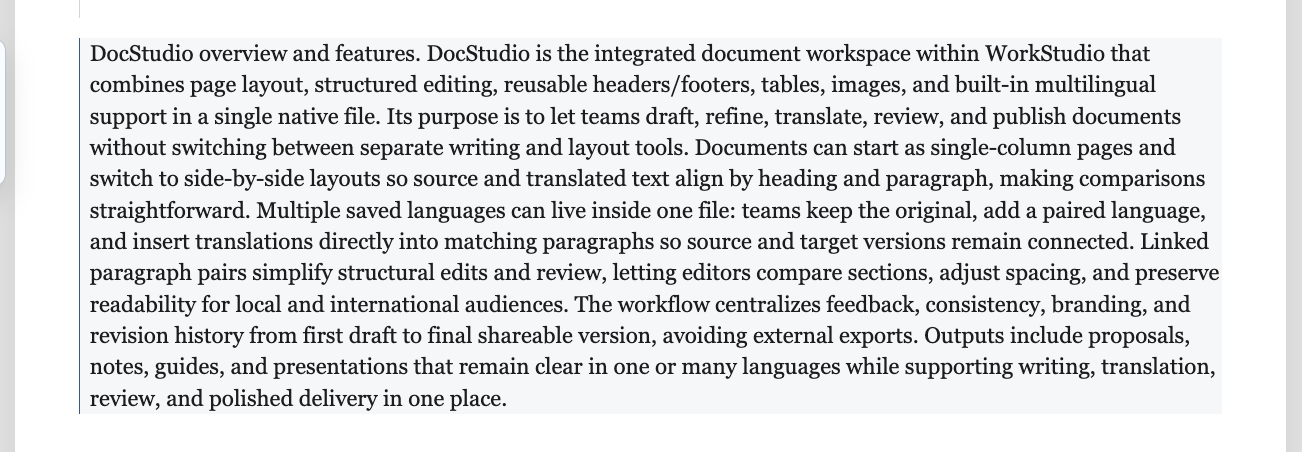
Inserted result
Inserted summaries and actions become normal DocStudio text that can still be edited.
Enable JavaScript to use reading progress and usefulness ratings.