
Extract Actions and Tasks from Documents
Use AI to turn an attached PDF into action items, deadlines, owners, and follow-ups.
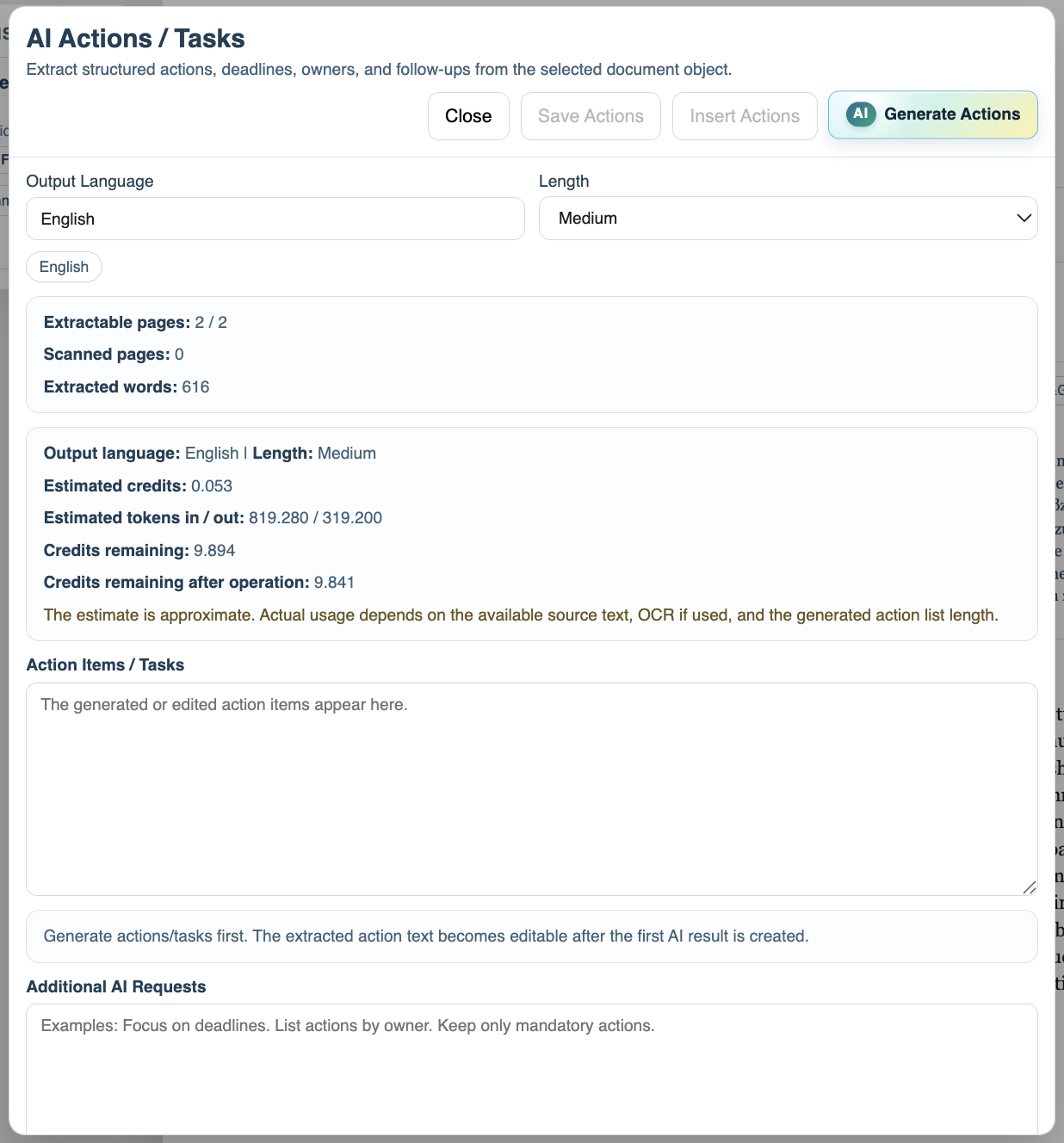
AI Actions / Tasks is separate from Summary because the output has a different purpose.
Summary explains what the document is about. Actions / Tasks extracts things that should be done, checked, approved, followed up, or delivered.
The normal flow is:
- Open
AI Actions / Tasksfrom the document object.
- Choose the output language.
- Choose the length.
- Add optional instructions, such as
focus on deadlinesorlist actions by owner.
- Generate the actions.
- Review and edit the action text.
- Insert it into a paragraph or table cell.
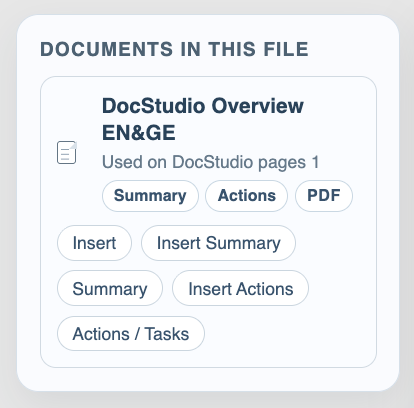
The result is saved on the document object, shown in Documents In This File, and can be inserted again later.
For scanned PDFs, run OCR first so DocStudio has text to analyze.
Related: Summarize Attached Documents with AI, Use OCR for Scanned PDFs, Insert Summaries and Actions into the Document.
Actions / Tasks modal
The Actions / Tasks modal uses the same document text or OCR text, but produces action-style output.
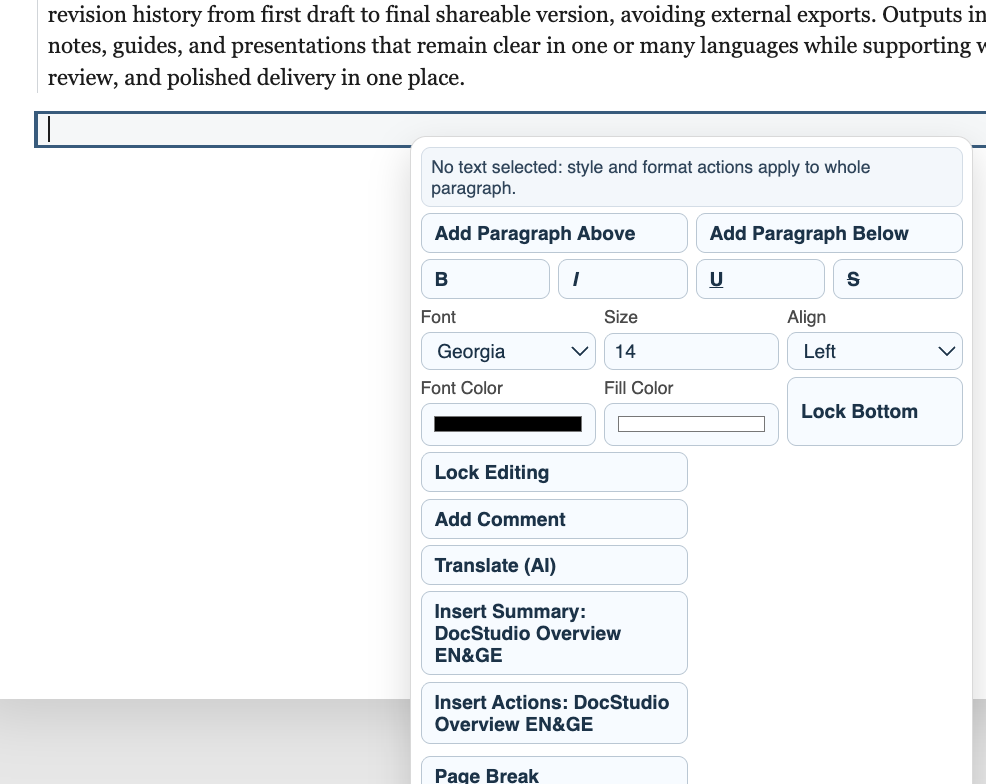
Context menu insertion
Saved summaries and actions can be inserted from paragraph or table-cell context menus.
Documents In This File
Saved summary and actions badges show which AI results are available on the attached document.
Enable JavaScript to use reading progress and usefulness ratings.