
Invoice Manager: Import, Register, and Filters
Explains valid import groups, import tags, Company IDs, duplicate checks, grouped totals, search, filters, sorting, and the main analysis views.
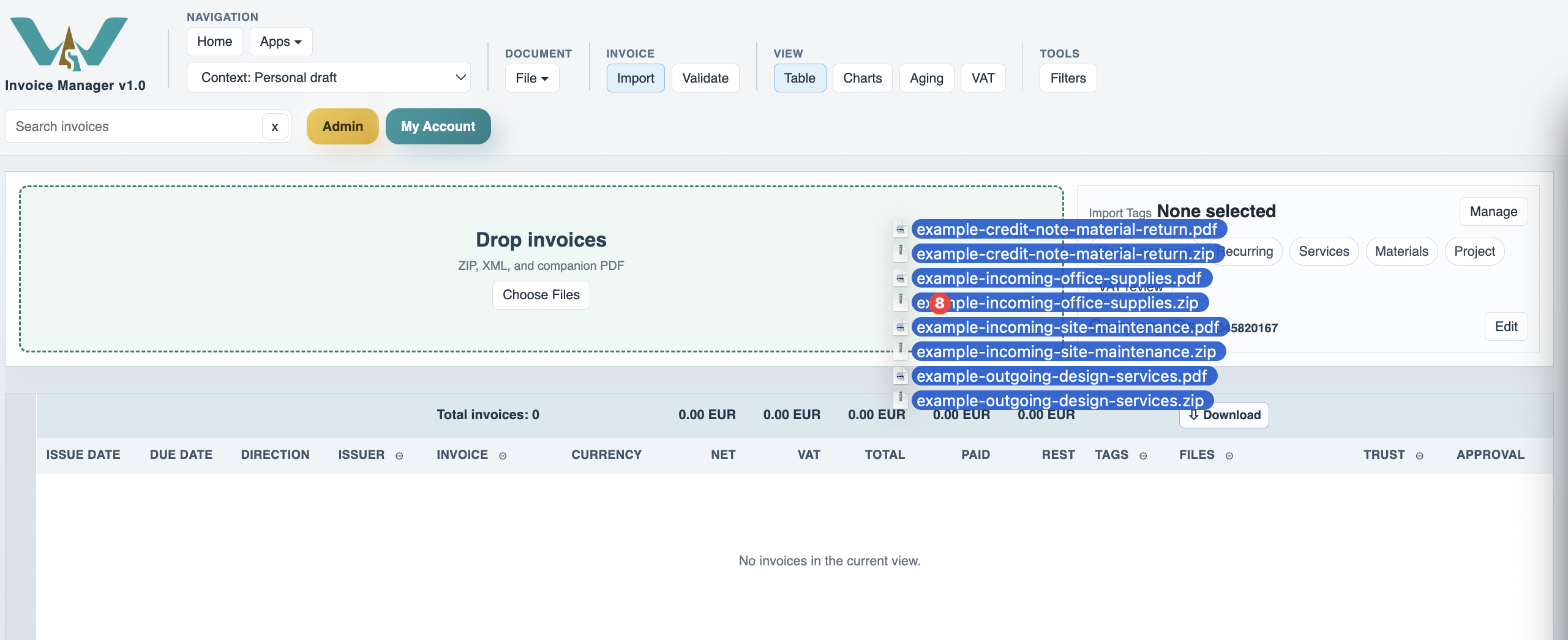
Use this article when you want to understand how invoices enter the register and how the register is read afterward.
Invoice Manager accepts ZIP, XML, and companion PDF files. For Romanian eFactura, a valid ZIP or XML is the main source. If a PDF with the same invoice also exists, it is linked to the same invoice package. Embedded documents and later support documents are tracked separately.
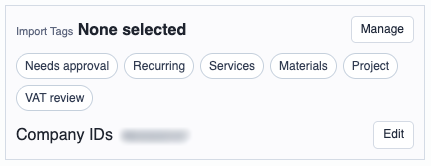
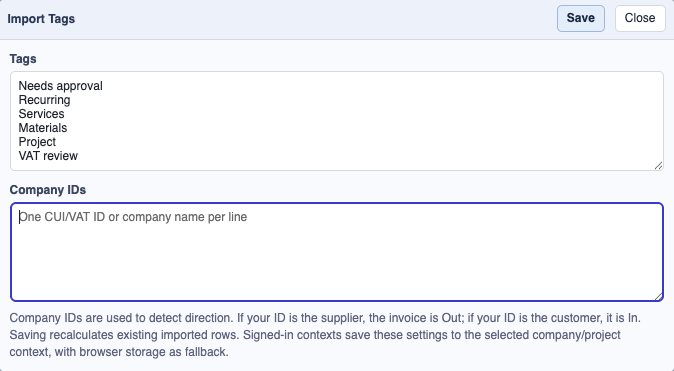
Import Tags are optional labels selected before upload. Selected tags are applied to the invoices imported in that batch, then remain available in filters and invoice details. Use Manage to define the tag list for the active context; the same settings window also contains Company IDs.
Company IDs identify your own legal entities in the active context. Add one CUI, VAT ID, or company name per line. If a new invoice matches one of those IDs as supplier, Invoice Manager marks it Out. If it matches as customer, it marks it In. If it cannot decide, it leaves the direction as Review so a user can choose it manually. This is also how one company or project context can recognize several firm names or fiscal IDs.
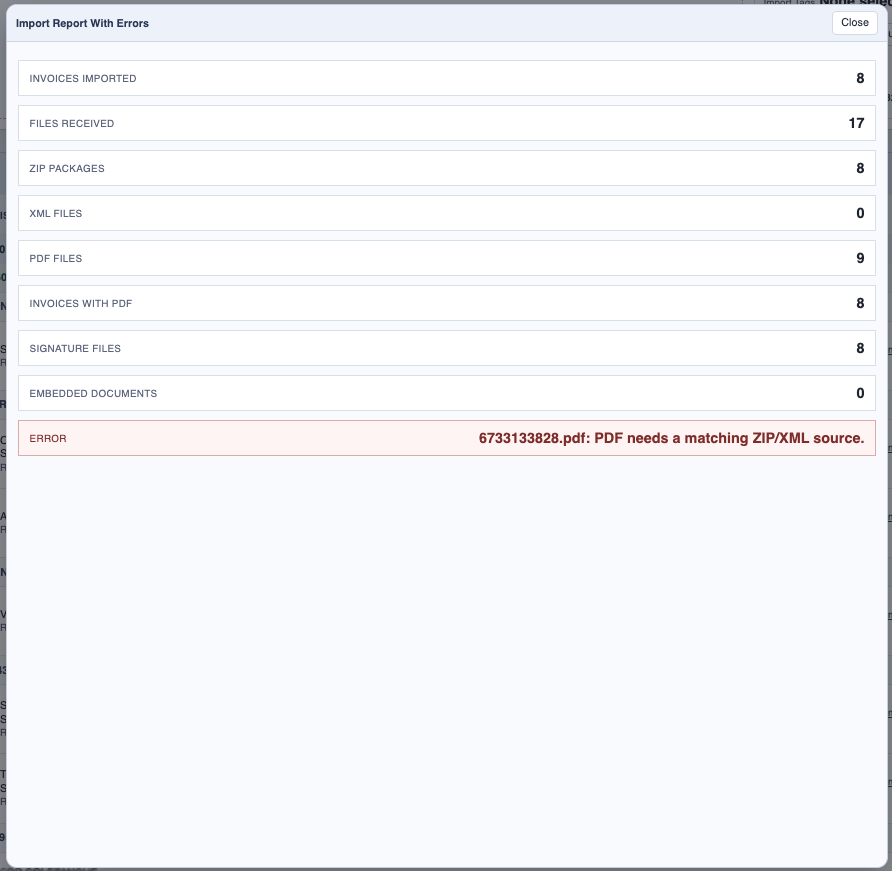
After import, the app shows an import report with counts for invoices, PDFs, and issues. The local Validate action checks required fields, extracted totals, duplicate state, XML hash, and company-ID based direction. Duplicate invoice means the app found another invoice with the same local business key; it is a warning for review, not an automatic rejection.
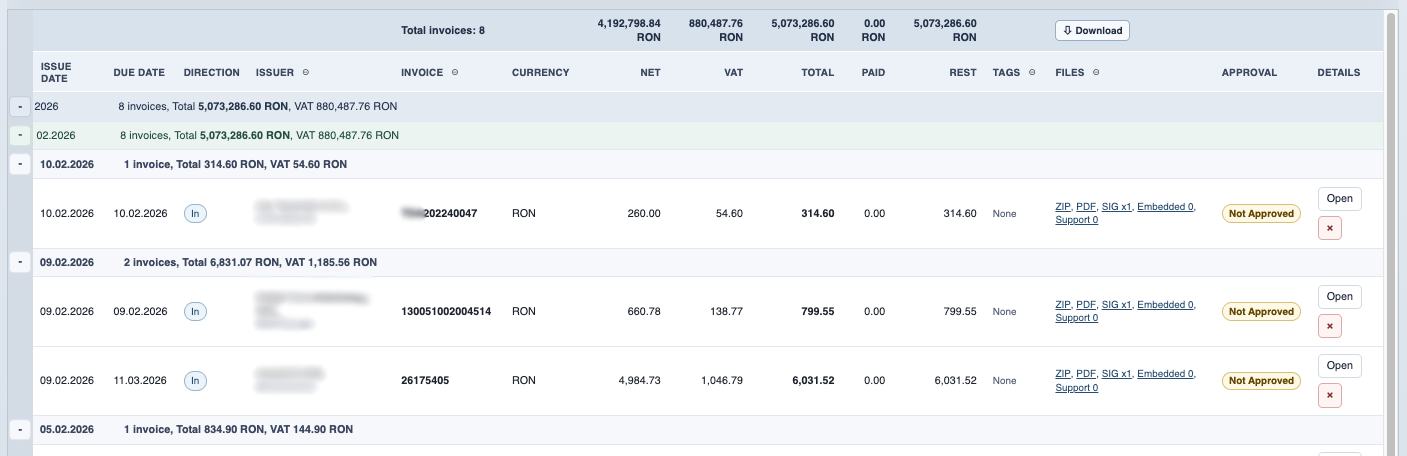
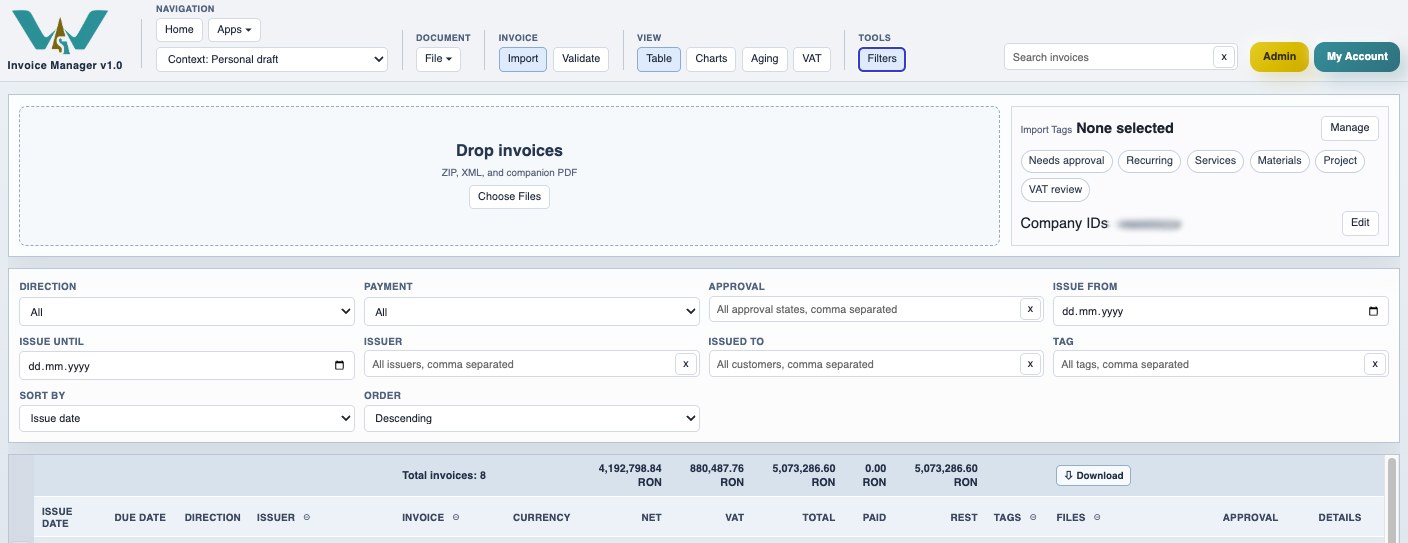
The register can be grouped by year, month, week, or day separators. Running totals are shown on the separators and in the top summary row. Search can match invoice number, credit-note wording, ZIP filename, and invoice-line details. Filters support multi-select issuer, issued-to, tags, approval state, and trust state.
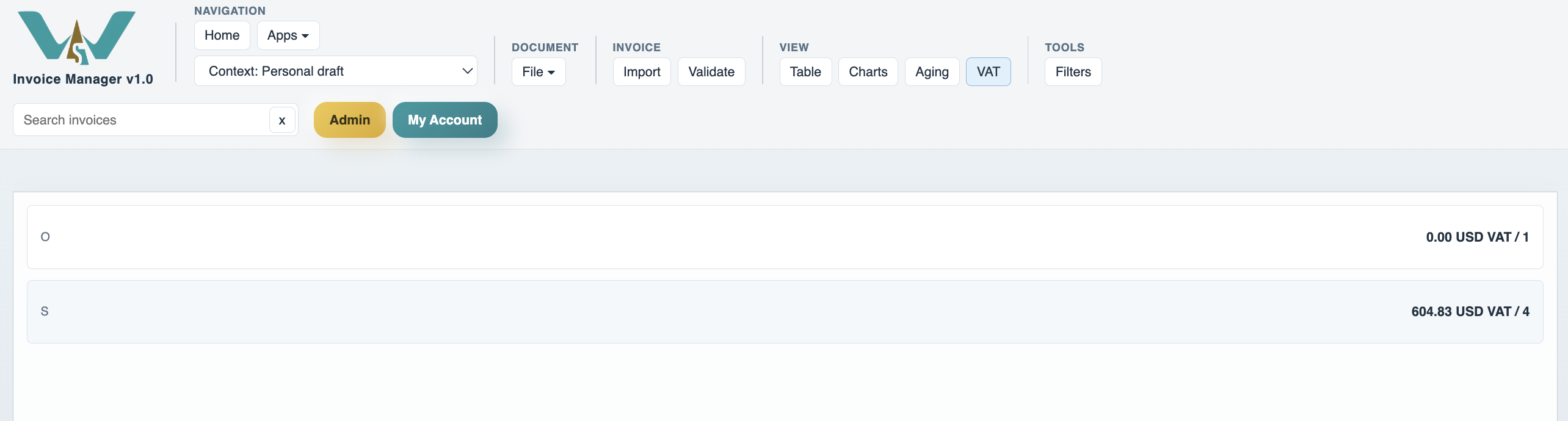
Aging, VAT, and Charts all reuse the current filtered dataset, so it is often best to filter the register first and then switch to the analysis view you need.
Current monthly upload limits are resolved from the shared plan source: Personal (Free) 5 / month, Personal 10 / month, Team / Family 100 / month, Coordination Team 50 / month, and Company or Project contexts unlimited.
The screenshots in this Help set mostly use Personal context, but the same import, register, filter, and view workflow works in Company or Project context after you switch the Context picker.
Related: Invoice Manager, Invoice Manager: Details, Payments, and Support Documents, Invoice Manager: Storage and Exports.
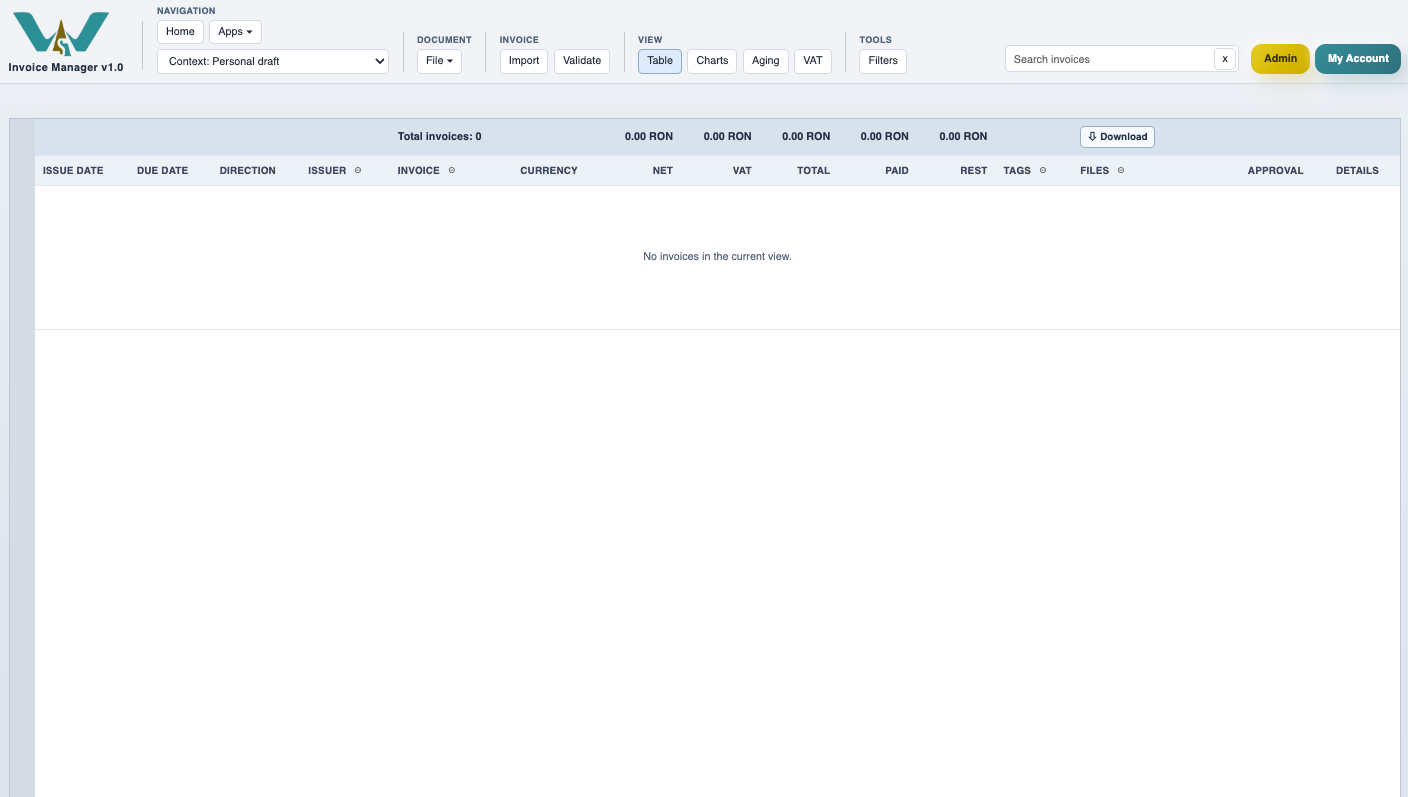
Start from an empty register
An empty register makes it clear when the current context has no imported invoices yet.
Import can start by drag and drop
Users can drag several invoice files in at once or choose files from disk.
Import tags and Company IDs sit beside the drop zone
The import side pane shows the available tag chips and the currently defined Company IDs before files are uploaded.
Manage defines tags and own company identities
Tags are entered one per line, and Company IDs use one CUI, VAT ID, or company name per line for direction detection.
Import report shows the result immediately
The report is the first place to review counts, detected invoices, and any import errors.
Grouping keeps totals readable
Year, month, and day separators can show totals without indenting invoice rows heavily.
Filters narrow the working set fast
Direction, issuer, issued-to, tags, approval state, trust state, and search text can all work together.
VAT and charts reuse the same filtered register
The main register can become VAT summaries or charts without rebuilding the dataset.
Enable JavaScript to use reading progress and usefulness ratings.