
Links and Flow Direction in WorkFlow
Explains how links connect nodes, show direction, and describe alternate paths in a process.
Links show how work moves.
Use a link when one step leads to another step. The arrow direction matters because it tells the reader where the process continues.
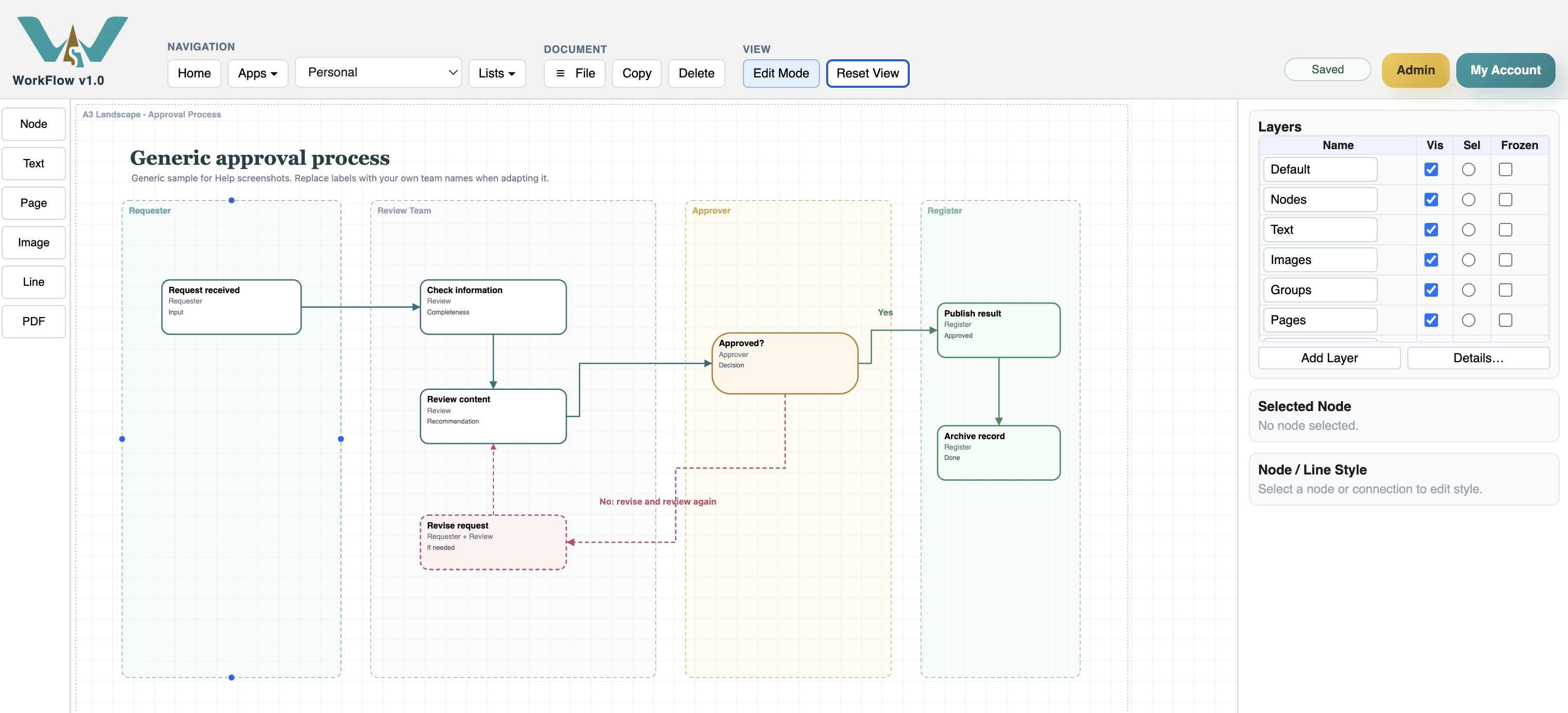
A link can represent a normal handoff, an approval result, a rejection path, a review loop, or any dependency between two nodes.
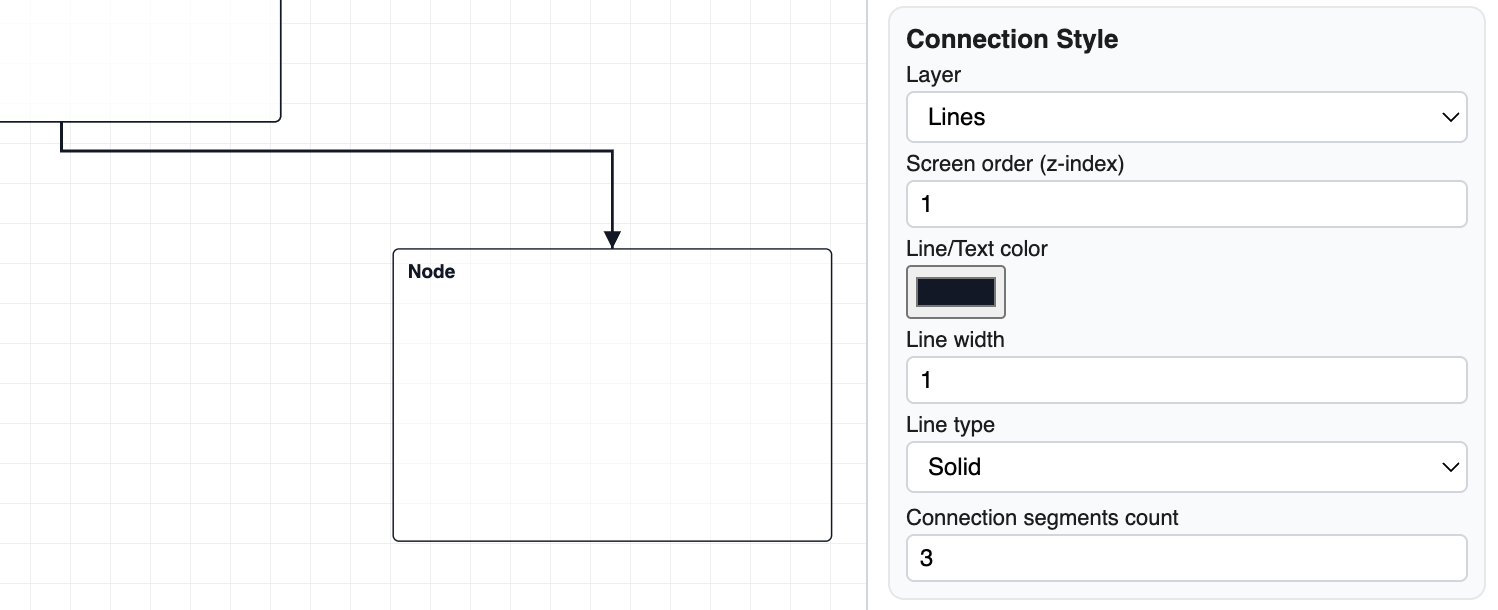
When a link or line is selected, the style panel can be used to change layer, screen order, line color, line width, line type, and connection segments.
Use short labels near decision links when the meaning is not obvious. For example, a decision node may branch to Approved, Needs changes, and Rejected.
Related: Nodes in WorkFlow, Text and Annotations, WorkFlow Patterns and Good Practice.
Link settings
Selected links use the style panel for line color, width, type, layer, screen order, and segment count.
Approval branches
The approval example shows how branches can separate review, approval, and rejection paths.
Enable JavaScript to use reading progress and usefulness ratings.