
Layers in WorkFlow
Explains how layers organize workflow objects, visibility, selection, frozen state, and default line style.
Layers help keep larger workflows manageable.
A layer can group related objects, such as nodes, text, images, pages, or lines. This makes the workflow easier to inspect and easier to edit in sections.
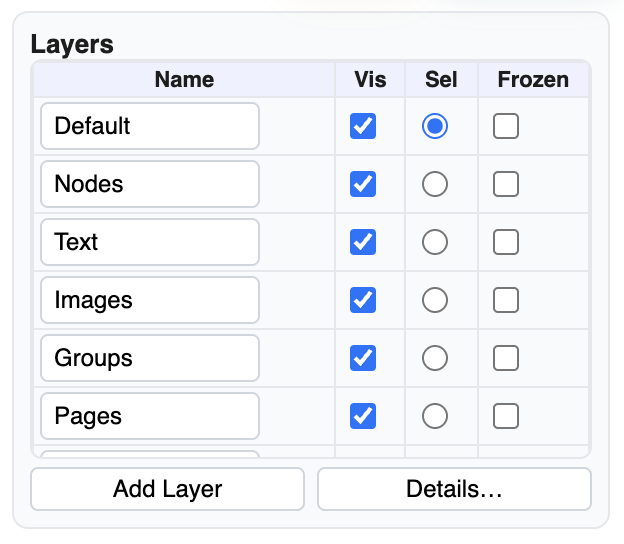
The layer list lets you rename layers, control visibility, choose the active layer, and freeze a layer. A frozen layer stays visible but is protected from accidental editing.
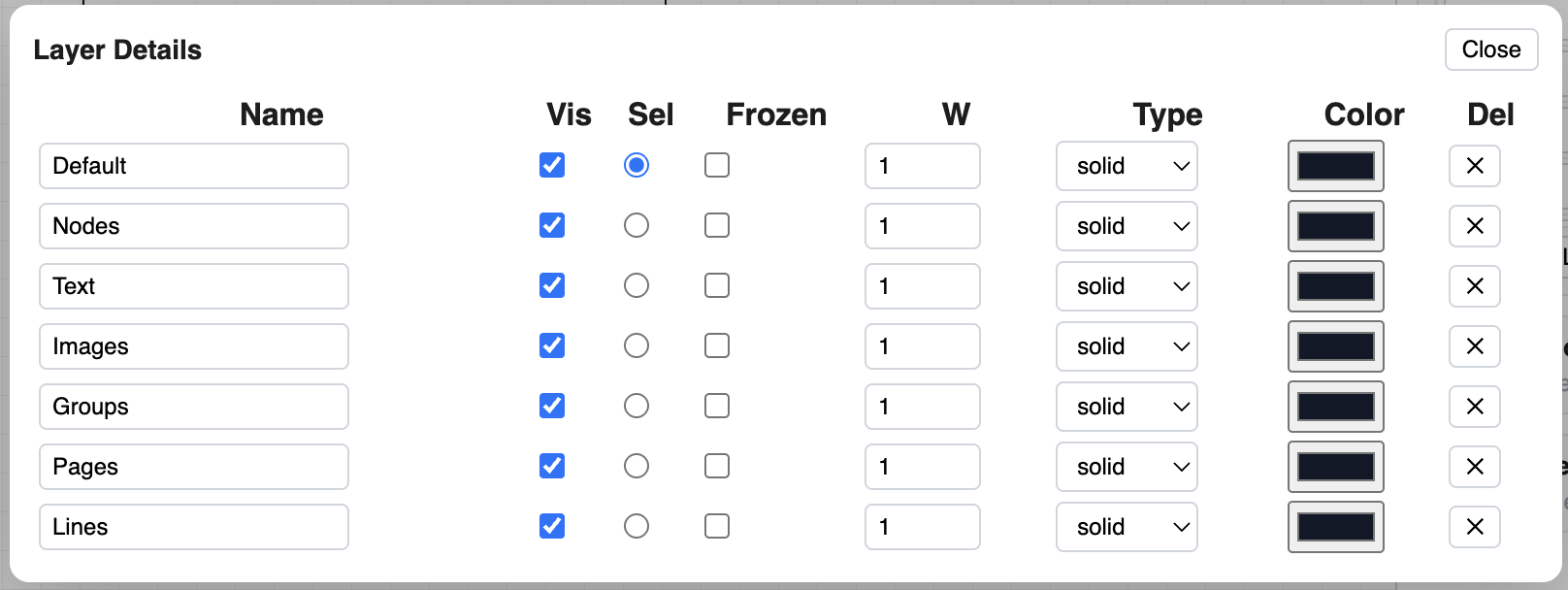
Layer details also define common visual rules, including line width, line type, and line color. Objects placed on that layer can use those settings so the workflow stays visually consistent.
Use layers when the workflow has many objects, when you want to separate comments from process steps, or when you are preparing a clean print version.
Related: WorkFlow Canvas and Tools, Text and Annotations, Print Setup in WorkFlow.
Layer list
The sidebar layer table controls layer name, visibility, active selection, and frozen state.
Layer details
Layer details add reusable visual settings such as line width, line type, and line color.
Layered workflow example
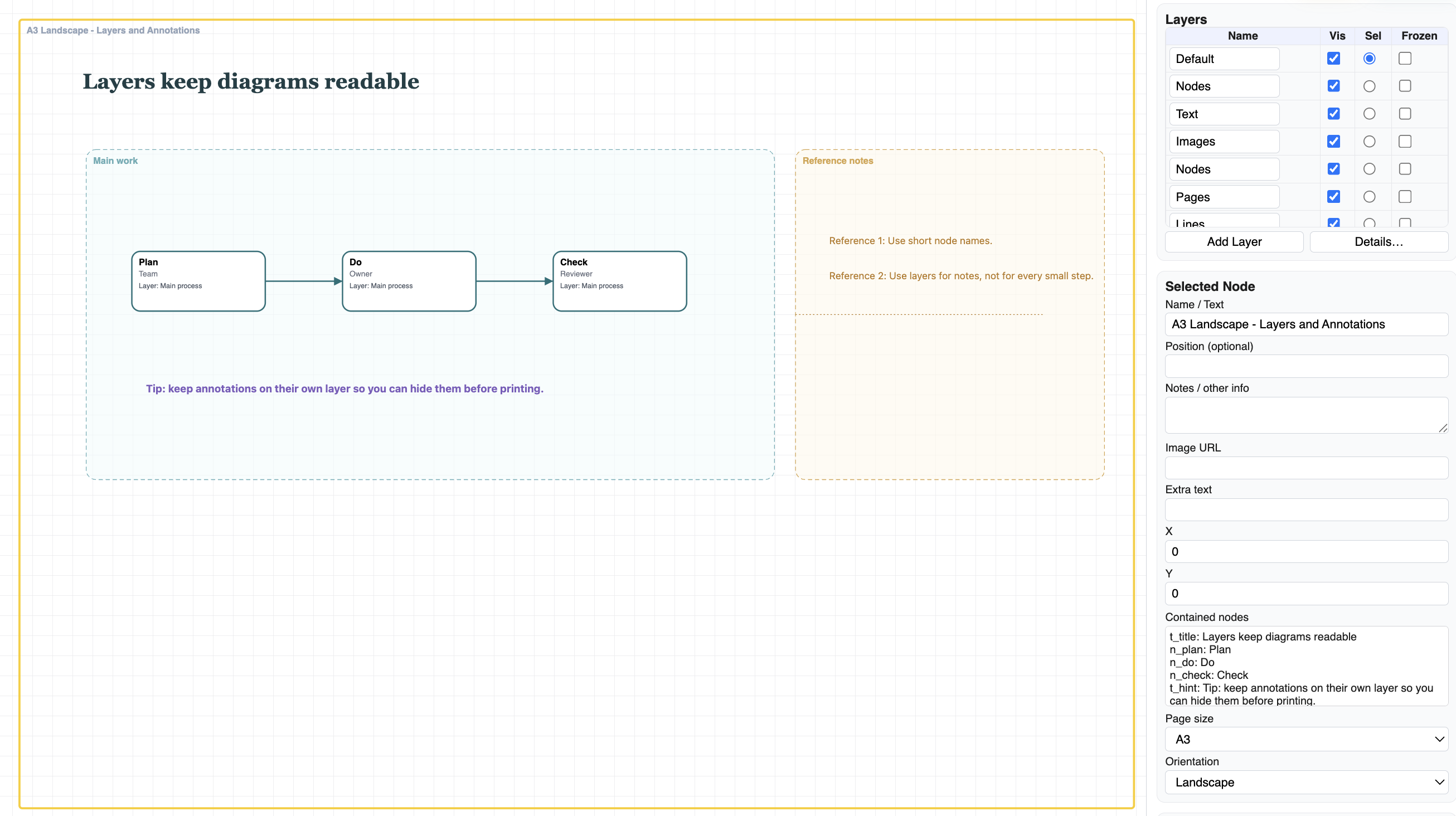
This sample file uses layers and annotations to keep the visual structure readable.
Enable JavaScript to use reading progress and usefulness ratings.