
WorkFlow Canvas and Tools
Explains the WorkFlow canvas, edit mode, reset view, the left toolbar, grid, zoom speed, and the right-side panels.
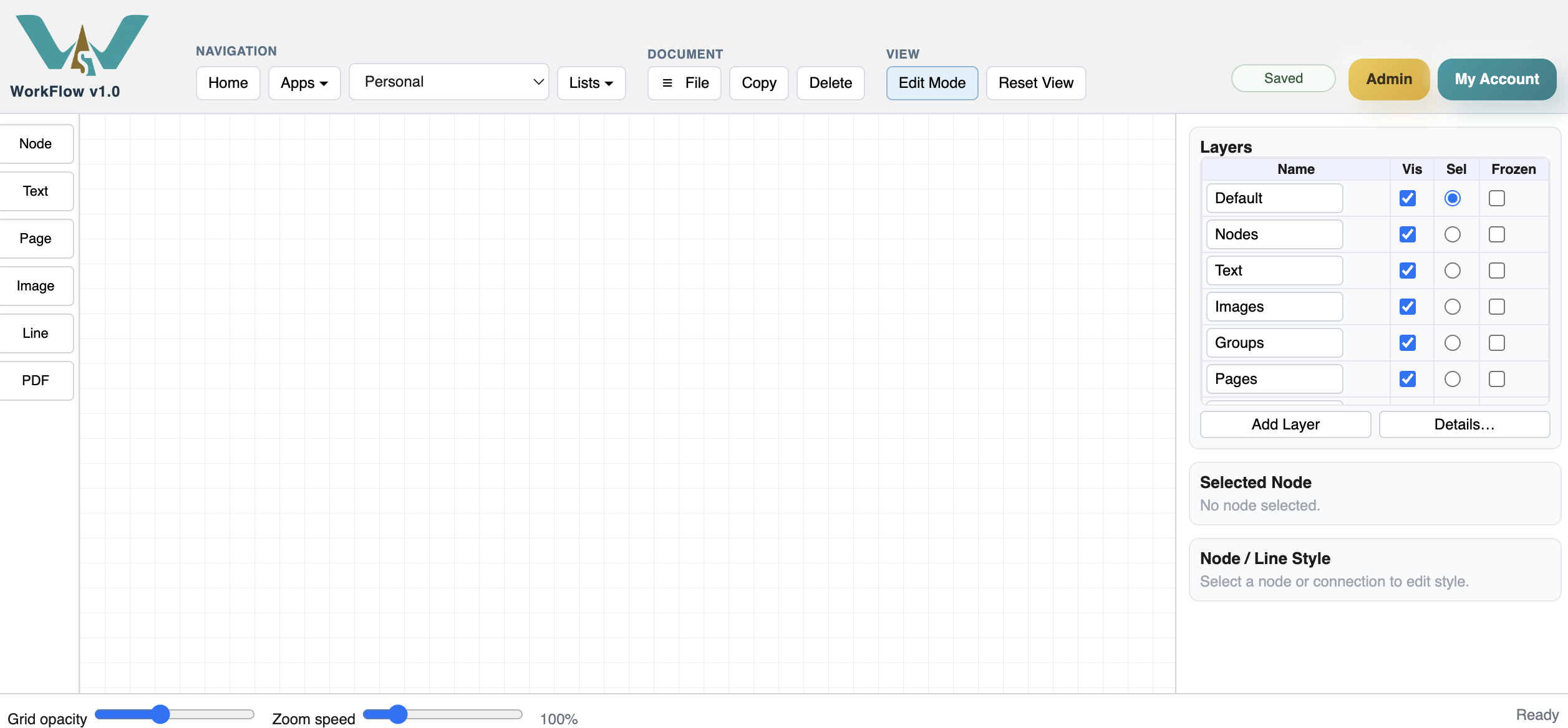
The WorkFlow canvas is the main working area.
In edit mode, you can place objects, move them, resize them, connect them, and update their style. In view mode, the workflow is easier to read because editing handles stay out of the way.
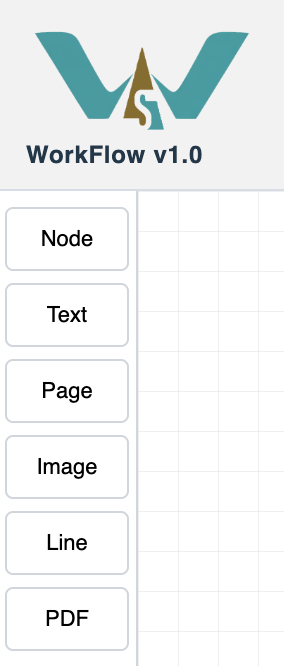
The left toolbar is for adding the main objects. Use Node for process steps and grouped boxes. Use Text for labels, notes, headings, and explanations.
The top toolbar includes file actions, edit/view mode, and reset view. The bottom bar controls grid opacity and zoom speed, so the canvas can feel comfortable for both small and large workflows.
The right sidebar shows layers, selected-node details, and style controls. This is where most object-specific editing happens after you click an item on the canvas.
Related: Nodes in WorkFlow, Text and Annotations, Layers in WorkFlow.
Empty canvas
A new workflow opens with a large grid canvas, a compact left toolbar, and editing panels on the right.
Left toolbar
The left toolbar keeps creation tools close to the canvas without covering the workflow.
Enable JavaScript to use reading progress and usefulness ratings.