
Link Display
Explains how TimeLine draws dependency links, row-based links, faded links, and mouse link previews.
TimeLine can draw dependency links directly on the Gantt chart.
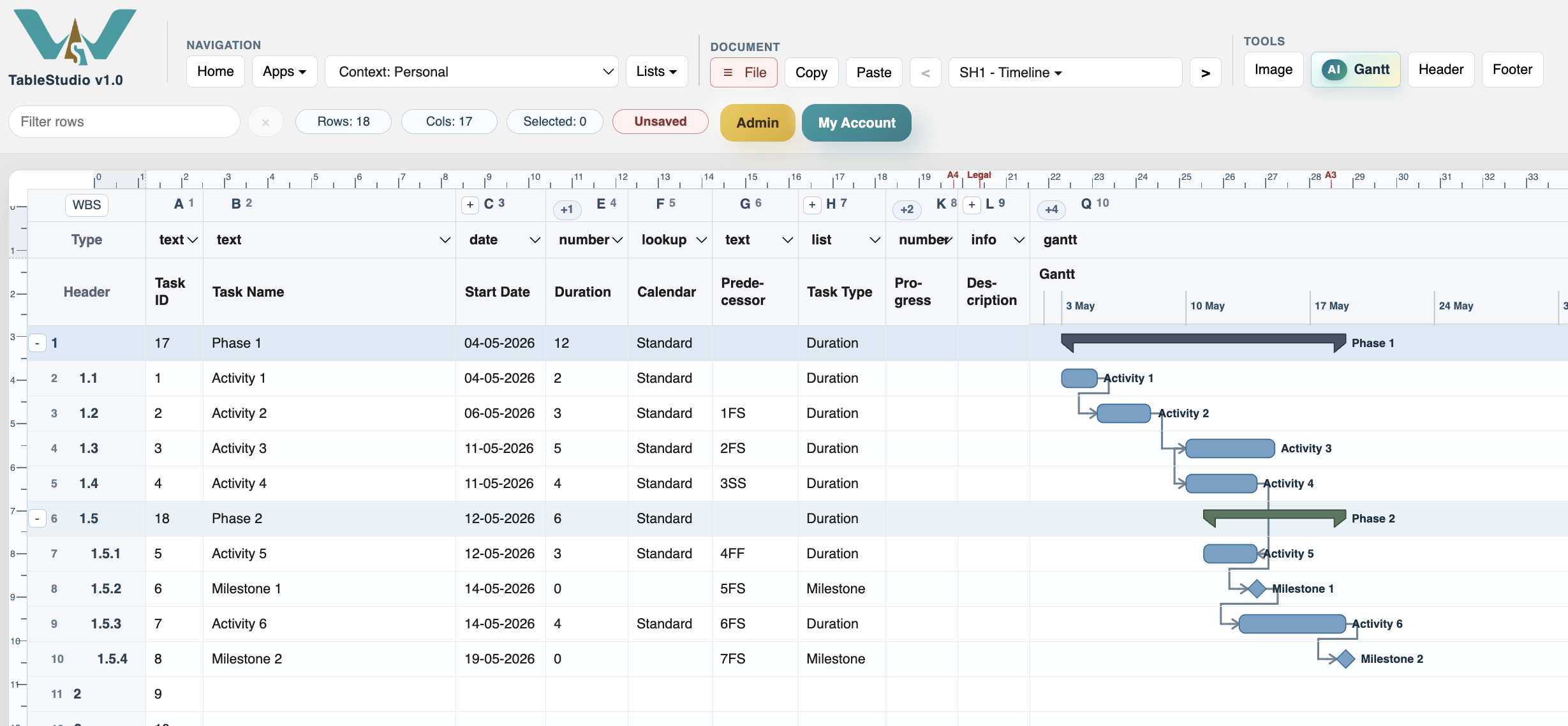
The current row-based link renderer draws each connection in relation to the task rows. This keeps links aligned with the activities and helps avoid the mismatch that can happen when one large overlay is stretched separately from the table.
Links are drawn behind task activities so the activities remain readable. Arrowheads use the same stroke style as the link line.
When Fade non-driving link lines is enabled, TimeLine can keep non-driving relationships visible but lighter, so the main driving path stays easier to read.
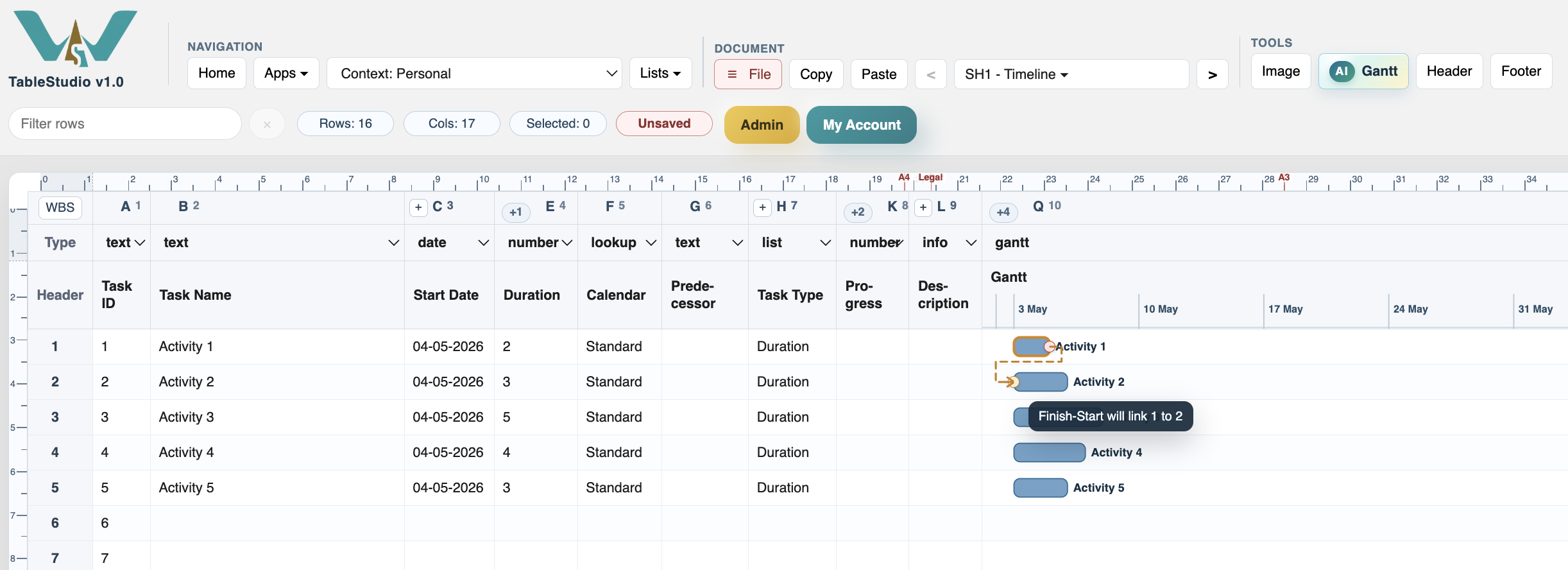
When you start a mouse link, TimeLine shows a dashed preview line. Hovering another task shows the relation that will be created. Press Esc, right click, or finish the link to remove the preview.
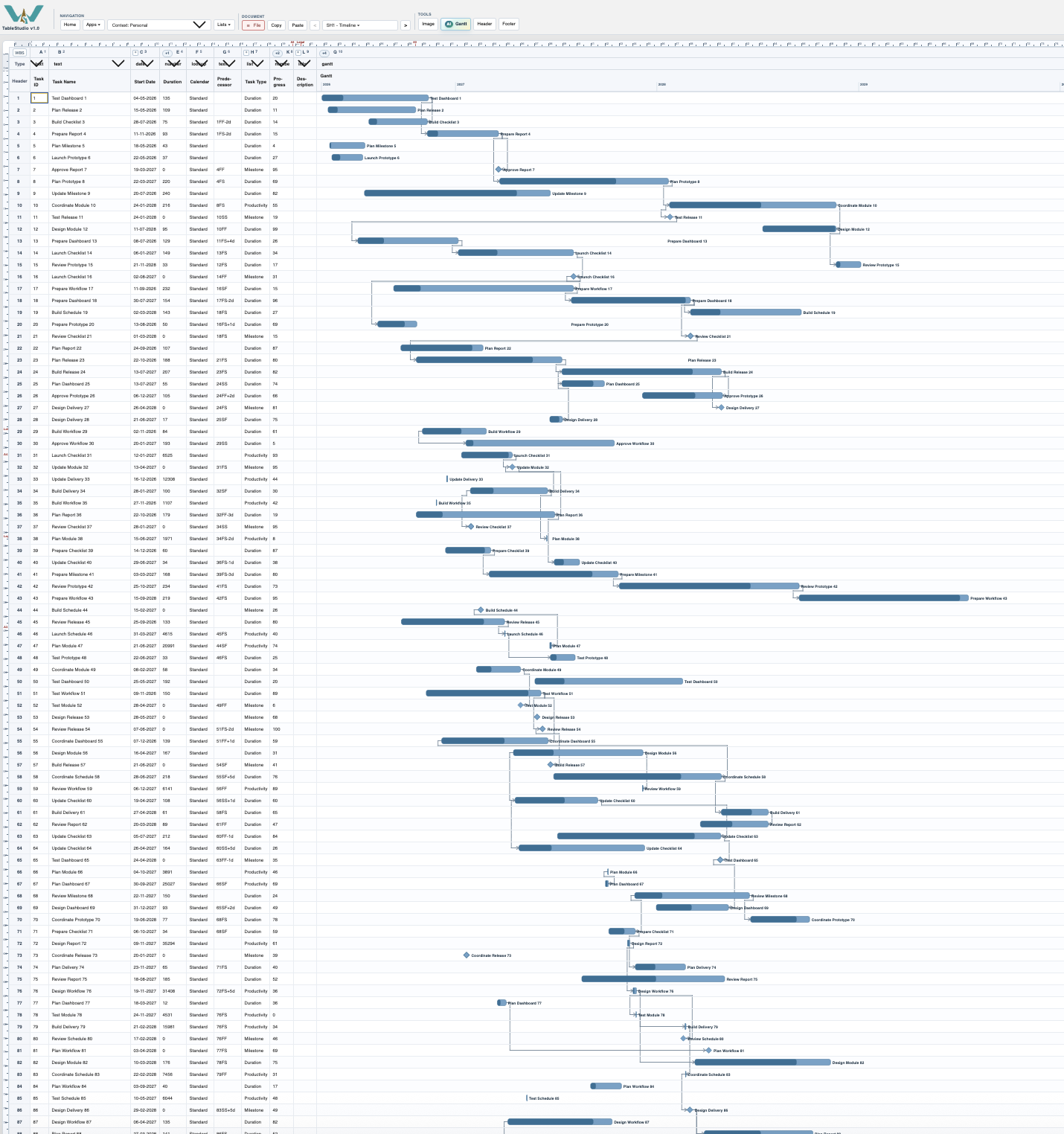
For very dense schedules, links can become visually heavy. In that case, reduce activity height, use faded non-driving links, zoom into the phase, or use Focus Phase view.
Related: Dependencies and Predecessors, Create Links with the Mouse in TimeLine, Focus Phase View.
Mouse link preview
When a link is being created, the chart shows the handles, a dashed preview, and a tooltip for the relation.
Finished row-based links
Finished links are routed between rows and stay behind the task activities.
Dense schedules need link discipline
Large schedules can contain many links, so faded links and phase focus help keep the chart readable.
Enable JavaScript to use reading progress and usefulness ratings.