
Focus Phase View
Explains how to focus on a WBS phase, add rows in that phase context, and return to the full Gantt.
Focus Phase view lets you work inside one WBS phase as if it were the current schedule view.
Use it when a large Gantt has too many rows to edit comfortably or when you want to review one phase without the rest of the programme around it.
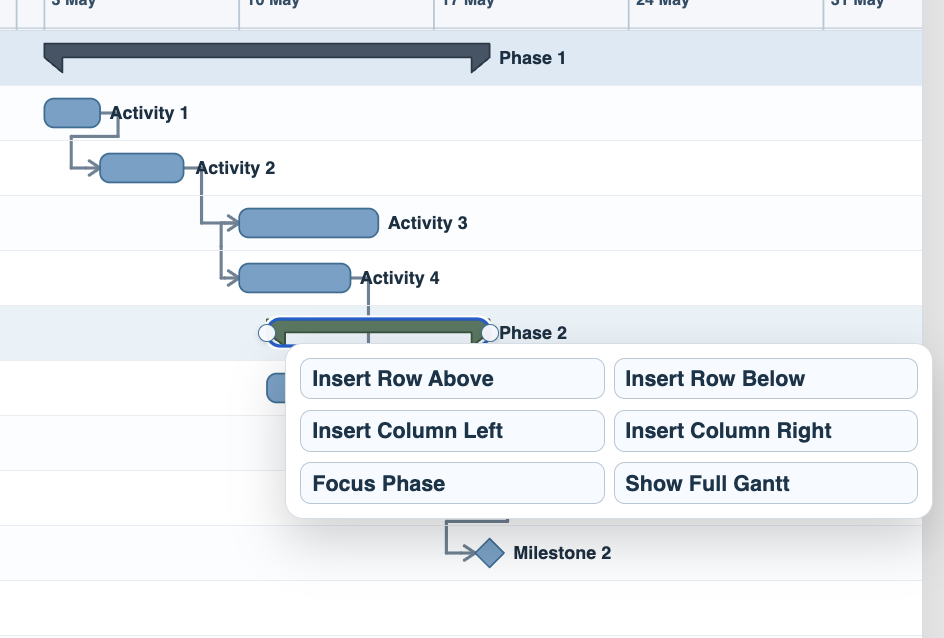
Open the context menu on a WBS phase or a task inside the phase and choose Focus Phase. TimeLine shows only the selected phase context and its child rows.
When you add a row while focused, the new row should be added inside the focused WBS context. For example, if you are focused on phase 6, a new child row should stay under that phase instead of appearing at the end of the full file.
Use Show Full Gantt to return to the complete schedule.
Related: WBS and Summary Rows, Link Display, Audit Large Schedules.
Open Focus Phase
The task context menu includes Focus Phase and Show Full Gantt for WBS-based editing.
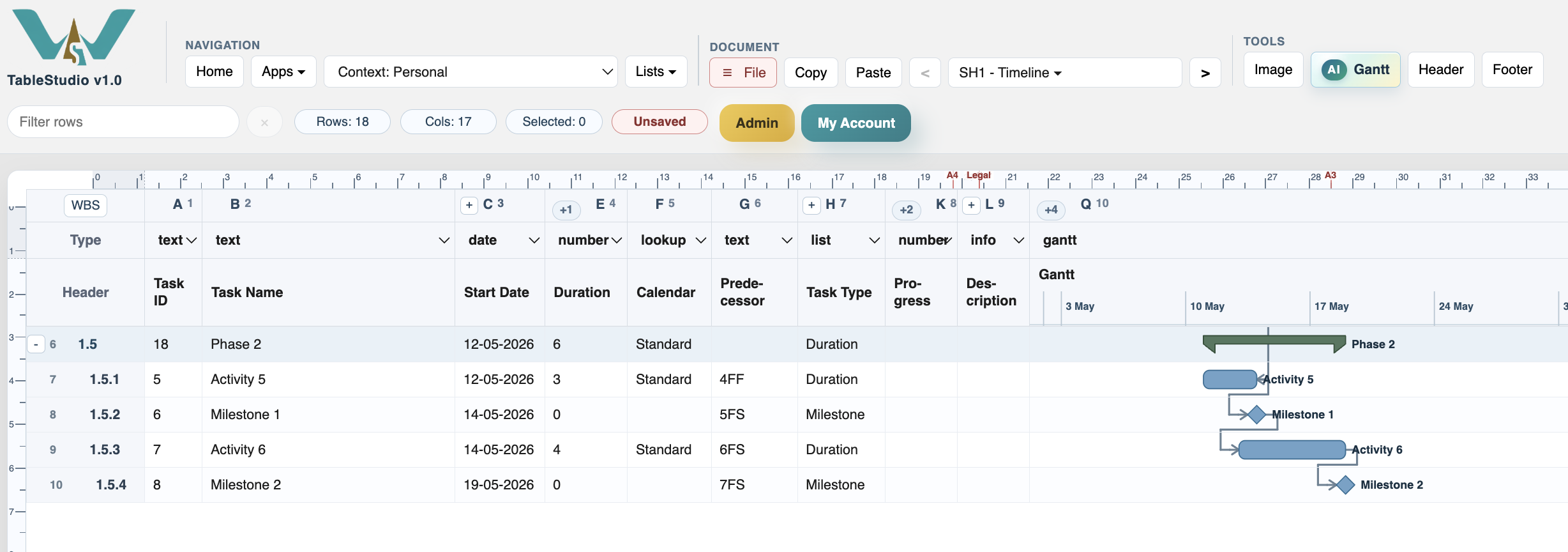
Focused phase
A focused phase keeps the relevant WBS branch visible while hiding unrelated schedule rows.
Enable JavaScript to use reading progress and usefulness ratings.