
Use Calendars and Exceptions in TimeLine
Compare three short tasks and see how calendars and the 1 May Labour Day exception change the finish date.
Use this tutorial when you want to understand how TimeLine combines working calendars with calendar exceptions.
The steps below follow the same three-day task starting on 29-04-2026, then move through the TimeLine, Calendars, and Calendar Exceptions sheets so you can compare the resulting finish dates.
This example uses 01-05-2026 as the Labour Day exception in the Public Holidays group.
Related: TimeLine, Create a Simple 5-Task Gantt in TimeLine, TableStudio.
Set the three tasks
Create Standard Crew, Extended Crew, and 24/7 Crew. Give each task the same Start Date 29-04-2026 and Duration 3 so the comparison stays consistent.

Pick the calendar
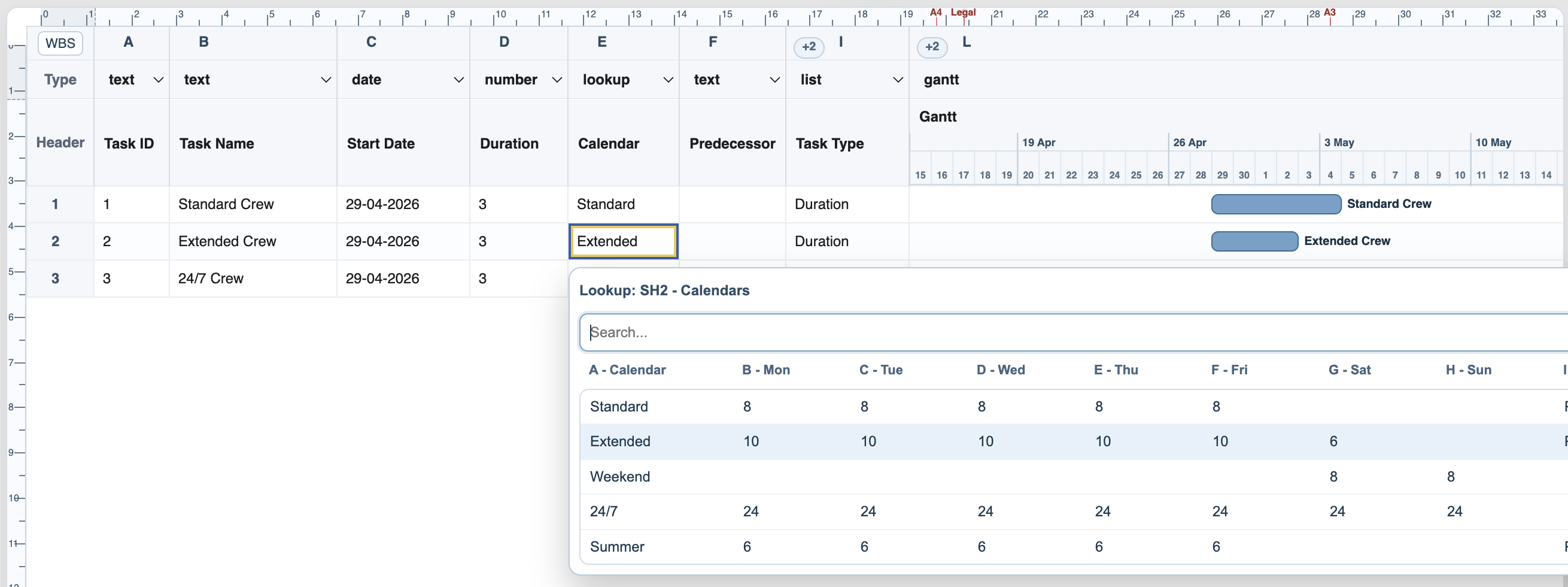
Use the Calendar column on each row. Open the lookup and assign Standard to the first task, Extended to the second, and 24/7 to the third.
Open the Calendars sheet
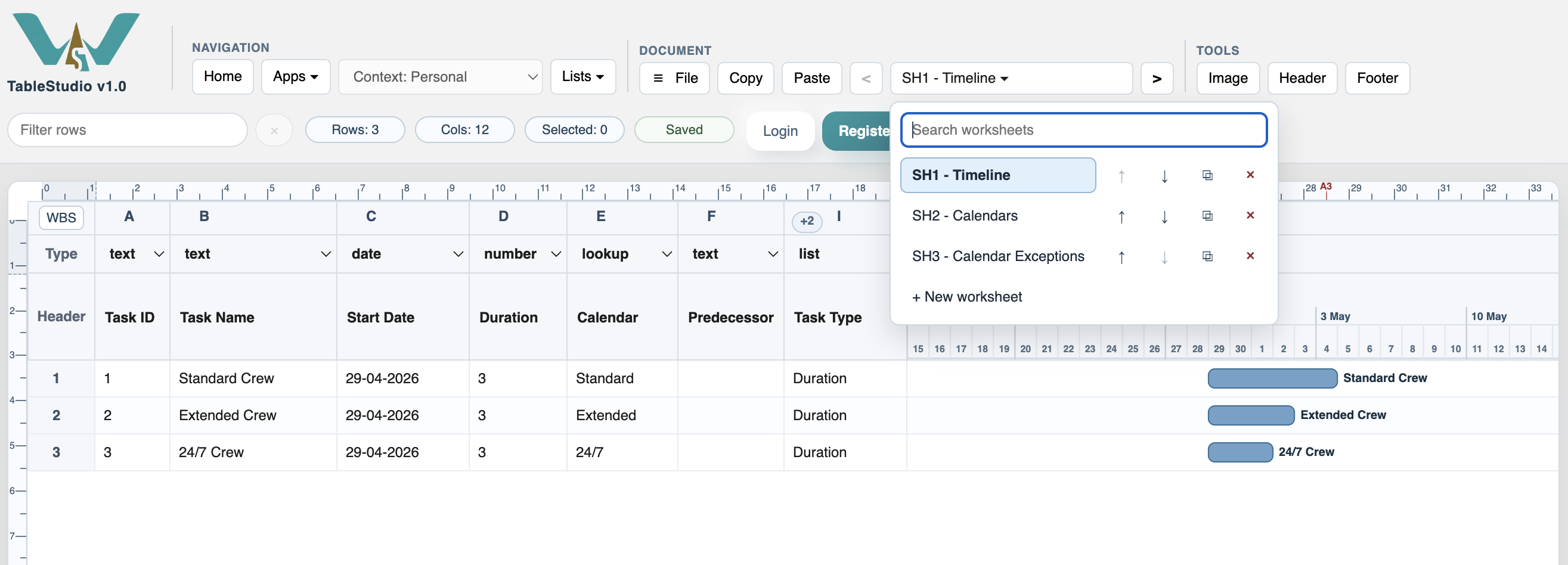
Use the worksheet switcher to move from SH1 - TimeLine to SH2 - Calendars.
Review the calendar rules
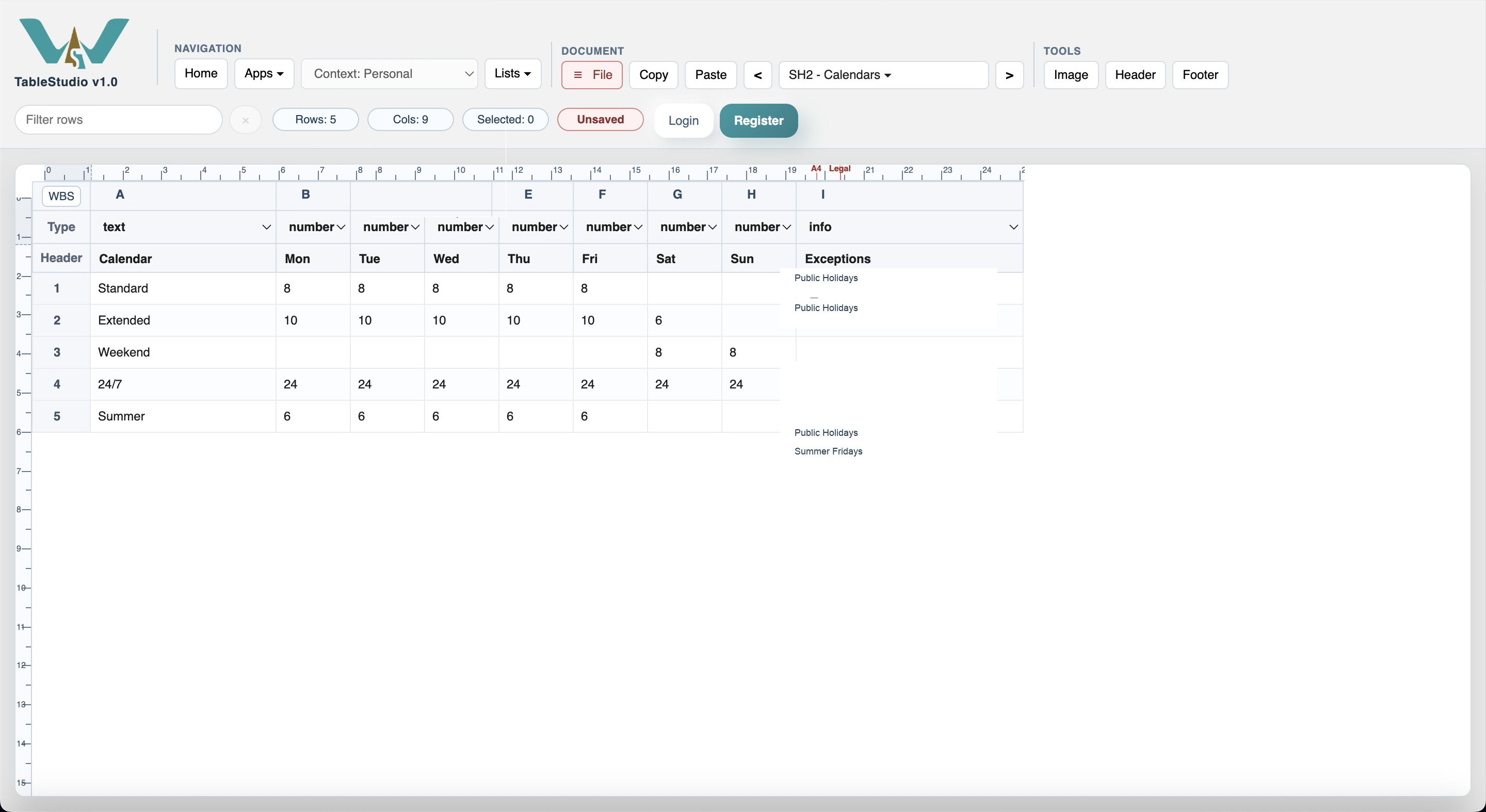
On Calendars, confirm that both Standard and Extended use Public Holidays in the Exceptions column, while 24/7 has no exception group.
Check the Labour Day exception
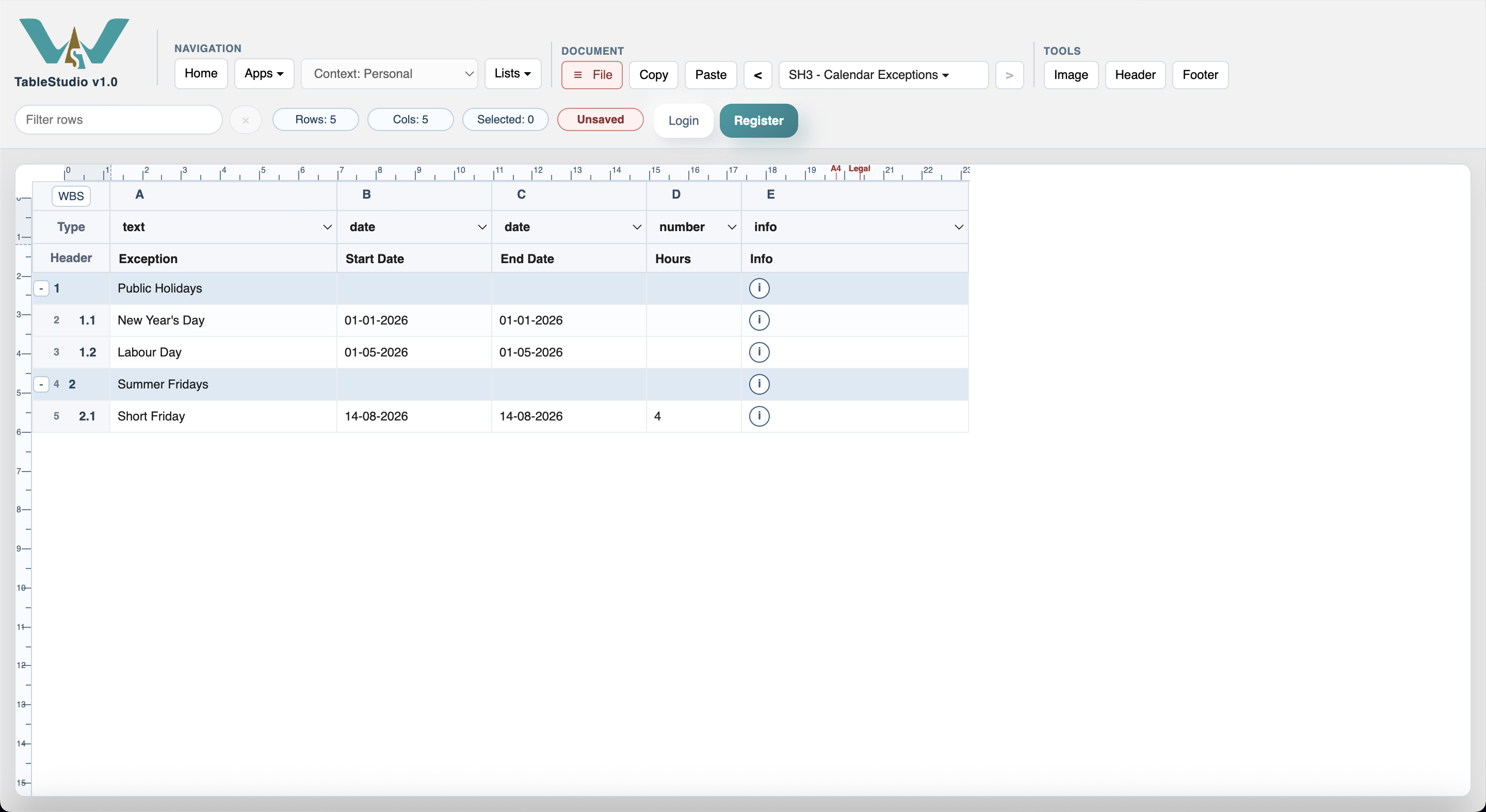
Open SH3 - Calendar Exceptions and confirm that Labour Day is set on 01-05-2026 inside the Public Holidays group.
Compare the finish dates
Return to TimeLine and compare the result. Standard Crew finishes on 04-05-2026, Extended Crew finishes on 02-05-2026, and 24/7 Crew finishes on 01-05-2026. The difference comes from the assigned calendar and the 01-05-2026 Labour Day exception.

Enable JavaScript to use reading progress and usefulness ratings.