
Create Gantt With AI
Explains how TimeLine can draft a first Gantt chart from text, what the current AI generator can do, and why the result must be reviewed.
Create Gantt With AI is an early TimeLine assistant that can draft a first schedule from written instructions.
Use it when you want a quick starting point, not when you need a final programme of works ready for contractual, construction, or delivery control.
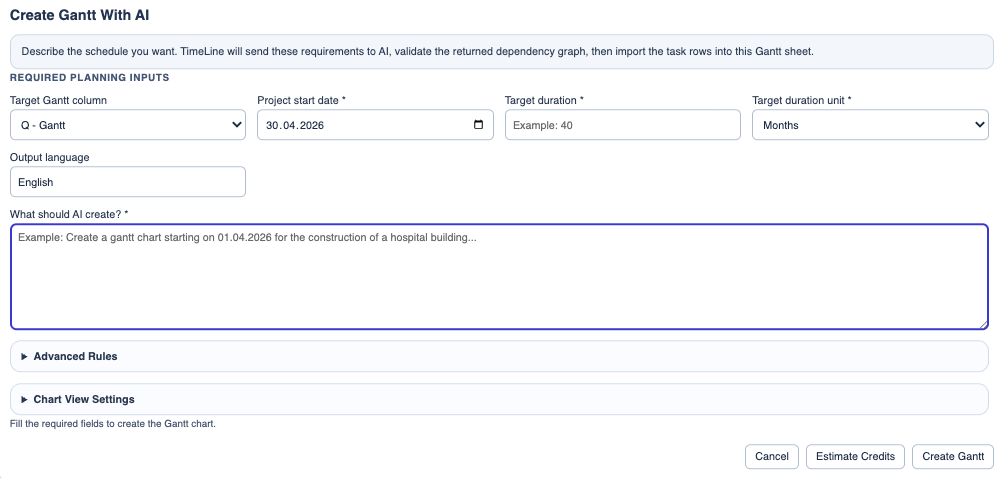
The feature asks for the minimum planning inputs first: target Gantt column, project start date, target duration, duration unit, output language, and the text describing what you want.
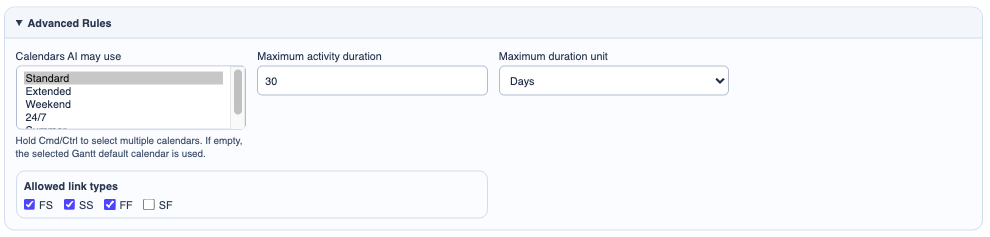
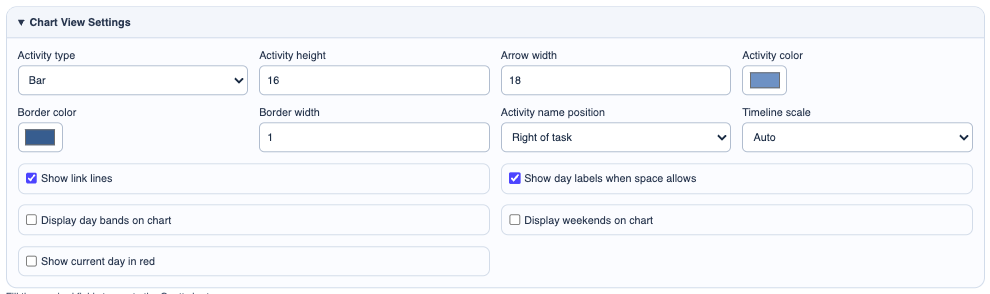
Advanced Rules let you choose calendars, maximum activity duration, duration units, and allowed link types. Chart View Settings let you choose the activity shape, bar height, colors, labels, timeline scale, day bands, weekends, and current-day display.
After you click Create Gantt, TimeLine sends the request to AI, waits for a structured draft, validates the returned task IDs and dependency graph, repairs some common draft issues, and imports the rows only if validation passes.
The original text used to create the schedule is saved inside the TimeLine file. After an AI-generated Gantt exists, clicking AI Gantt shows that saved source text instead of generating another schedule. This protects the generated chart from being overwritten. To create a different AI-generated Gantt, start a new TimeLine file.
Current limits are important:
- the AI can produce a plausible task list, but it does not yet understand project execution with the reliability of a planner or scheduler
- durations, WBS structure, sequencing, productivity assumptions, and calendars must be checked by a human
- large or specialised programmes may need several iterations and manual correction
- descriptions and tags are kept empty unless the prompt asks for them, to reduce unnecessary output
- this feature will be improved in future versions with stronger planning rules, reusable work libraries, and better validation
Recommended workflow:
- Use AI to create a rough first draft.
- Check the WBS and remove tasks that do not belong.
- Review every duration and calendar.
- Review all predecessors and make sure the logic is buildable.
- Add missing constraints, milestones, approvals, procurement, or external dependencies manually.
- Save the file only after you are comfortable with the schedule logic.
Related: TimeLine, Gantt Column in TimeLine, Create Links with the Mouse in TimeLine, Use Calendars and Exceptions in TimeLine.
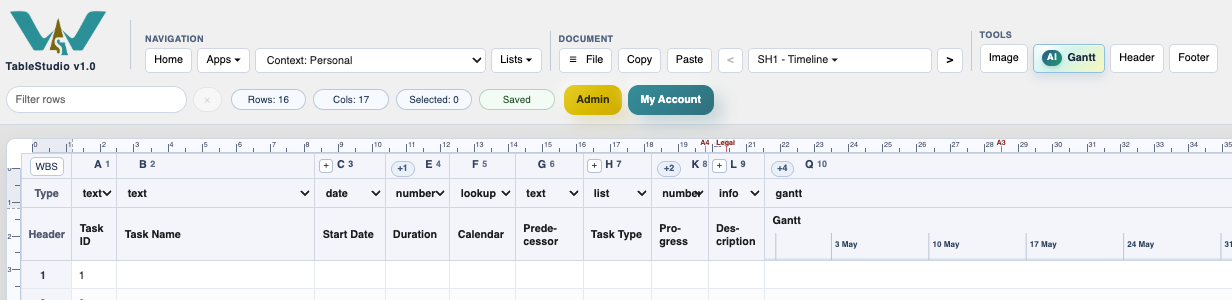
AI Gantt to draft a first schedule from text, then review the result carefully.Start with the required inputs
The first part of the modal collects the start date, target duration, output language, and source text.
Use advanced rules when the prompt is not enough
Calendars, maximum activity duration, and allowed link types help constrain the draft before it is generated.
Set chart appearance before import
Chart View Settings control how the generated tasks will appear after import.
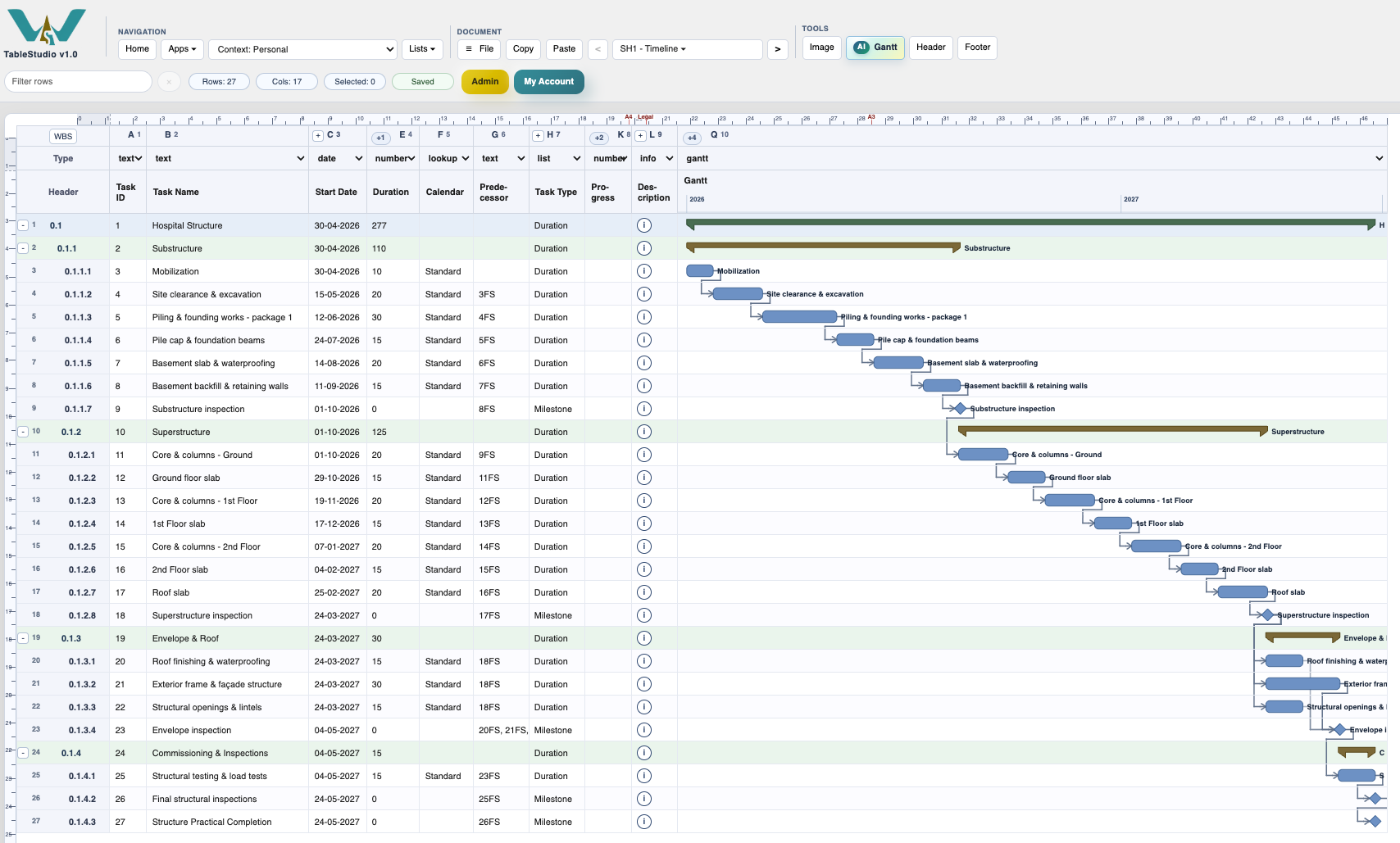
Review the generated chart
The generated Gantt is only a first draft. Check names, durations, calendars, links, and milestones before using it as a real schedule.
Enable JavaScript to use reading progress and usefulness ratings.