
Prepare a Print-Ready TableStudio Workbook
Set page size, header/footer, cover page, WBS colors, and print behavior before issuing a workbook.
Use this walkthrough when the workbook must print or export as a clean deliverable.
The same screenshots are used in the related articles so users can move between concept and step-by-step guidance.
Related: TableStudio File Settings, Print, Headers, and Footers in TableStudio, Export PDF from TableStudio.
Open File Settings
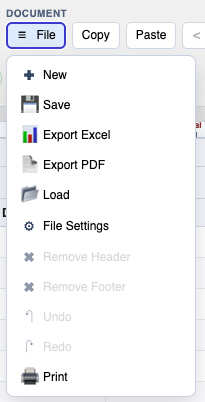
Use File > File Settings to configure the workbook and the active sheet.
Check workbook settings
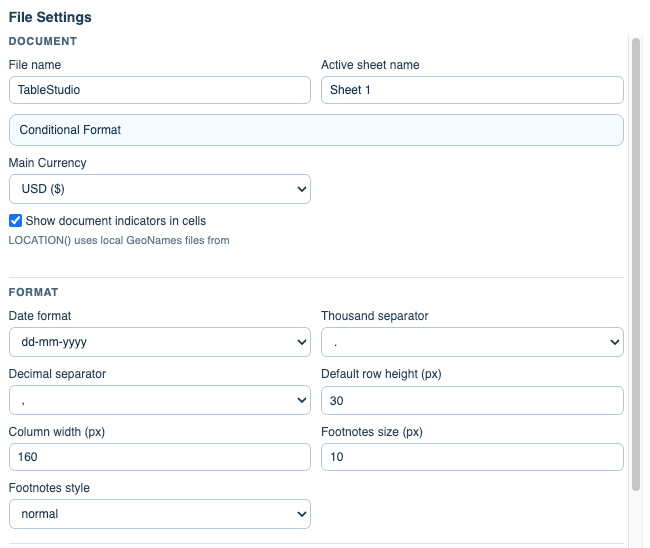
Review the file name, active sheet name, currency, and document indicator options.
Set print page behavior
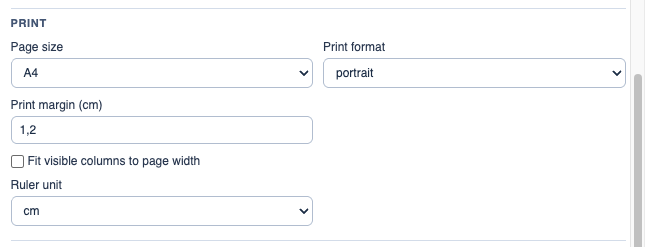
Choose page size, orientation, margins, header visibility, and fit-to-page behavior.
Design header or footer
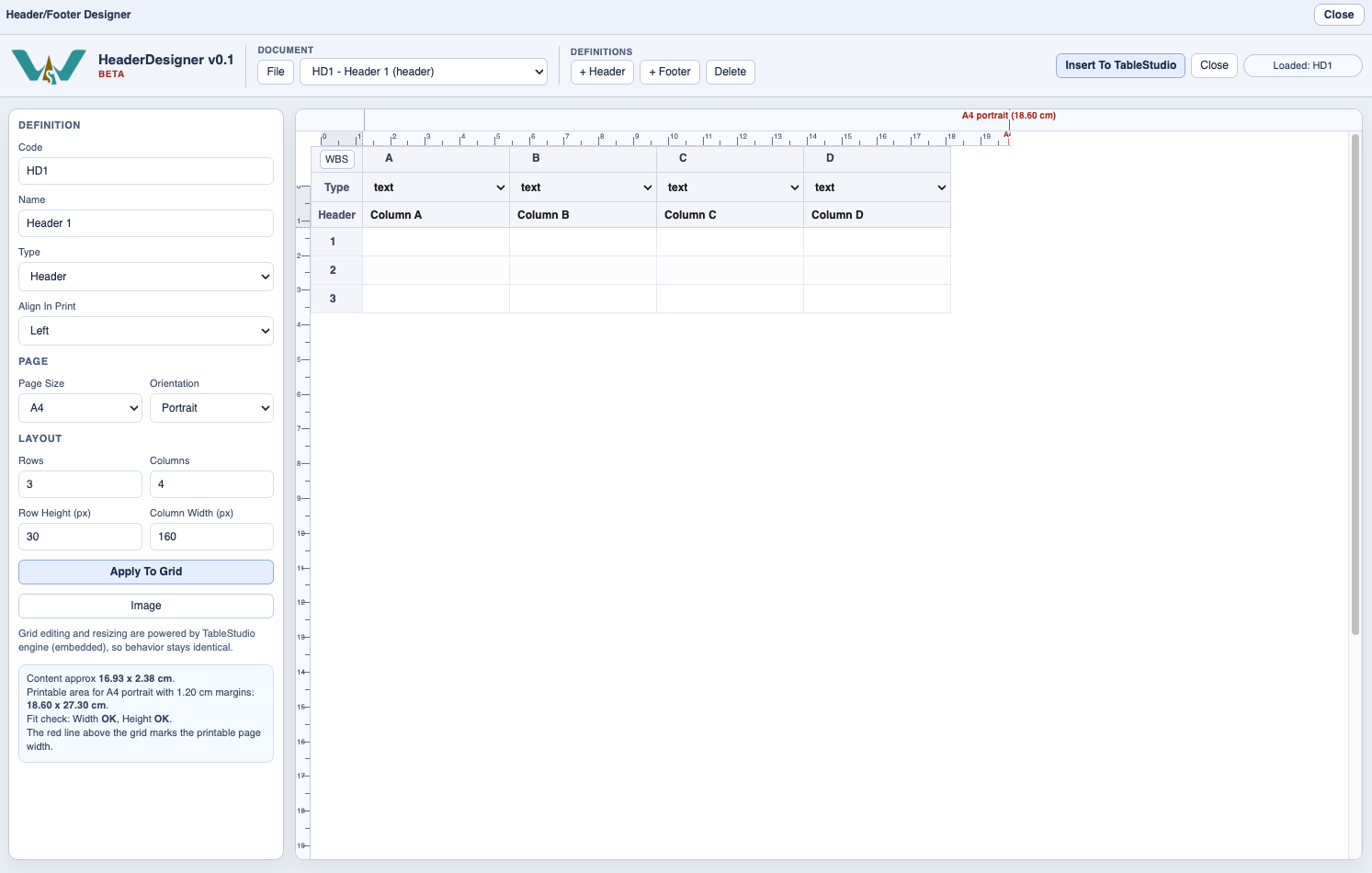
Open the header/footer designer when the printed sheet needs branding, titles, dates, or project metadata.
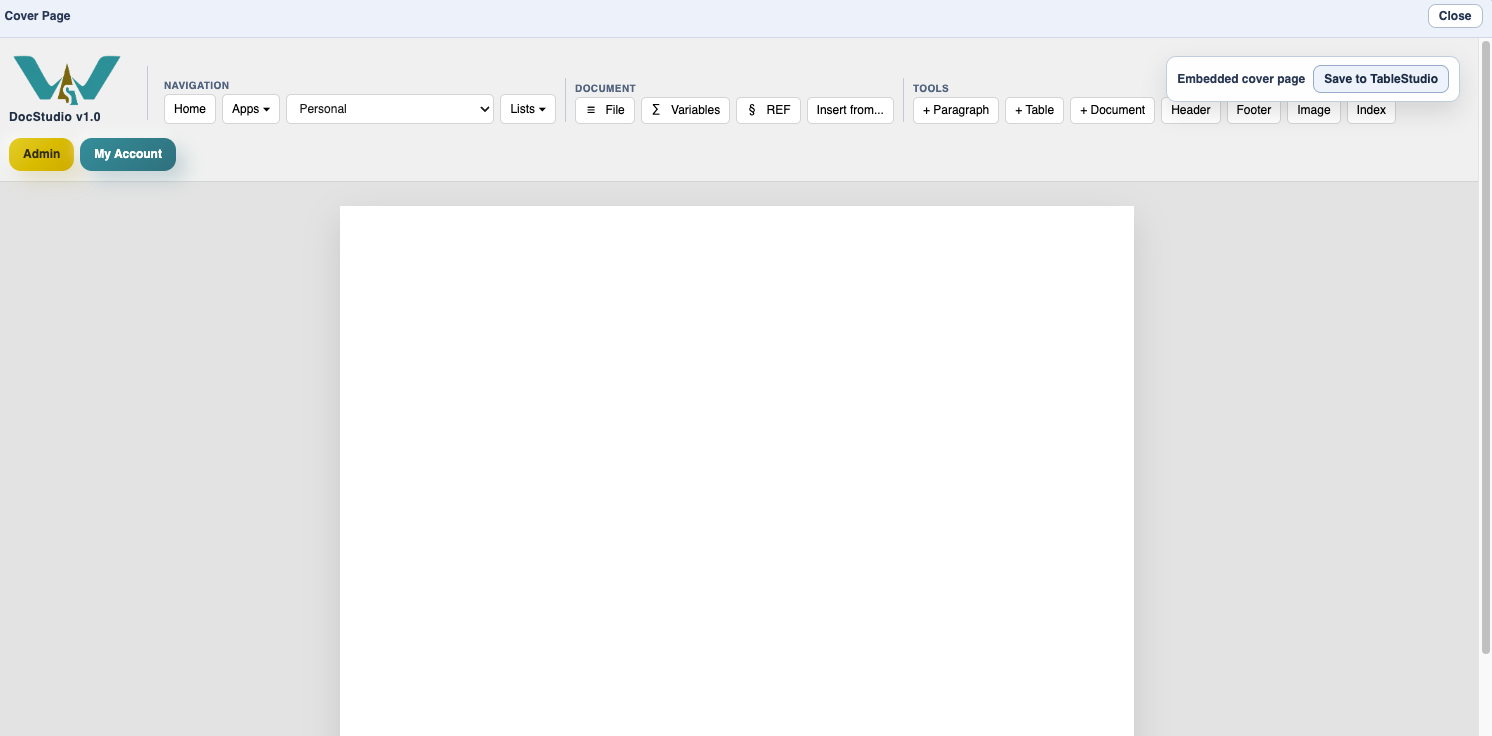
Add a cover if needed
Enable a file cover or sheet cover, then edit it in the embedded DocStudio cover editor.
Enable JavaScript to use reading progress and usefulness ratings.