
Print, Headers, and Footers in TableStudio
Explains page setup, fit visible columns, print headers, header/footer design, and cover-page interaction with printed sheets.
Use TableStudio print settings when the workbook must become a page-based deliverable.
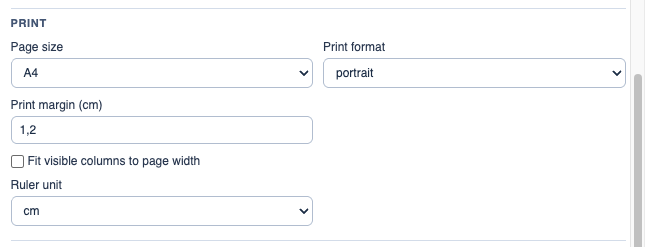
Start in File Settings > Print. Choose the page size, orientation, margin, and whether the printed sheet should include the header.
Fit visible columns to page width is intended for printed output. It takes the columns that are visible for print and scales their widths so the printed table fills the available page width.
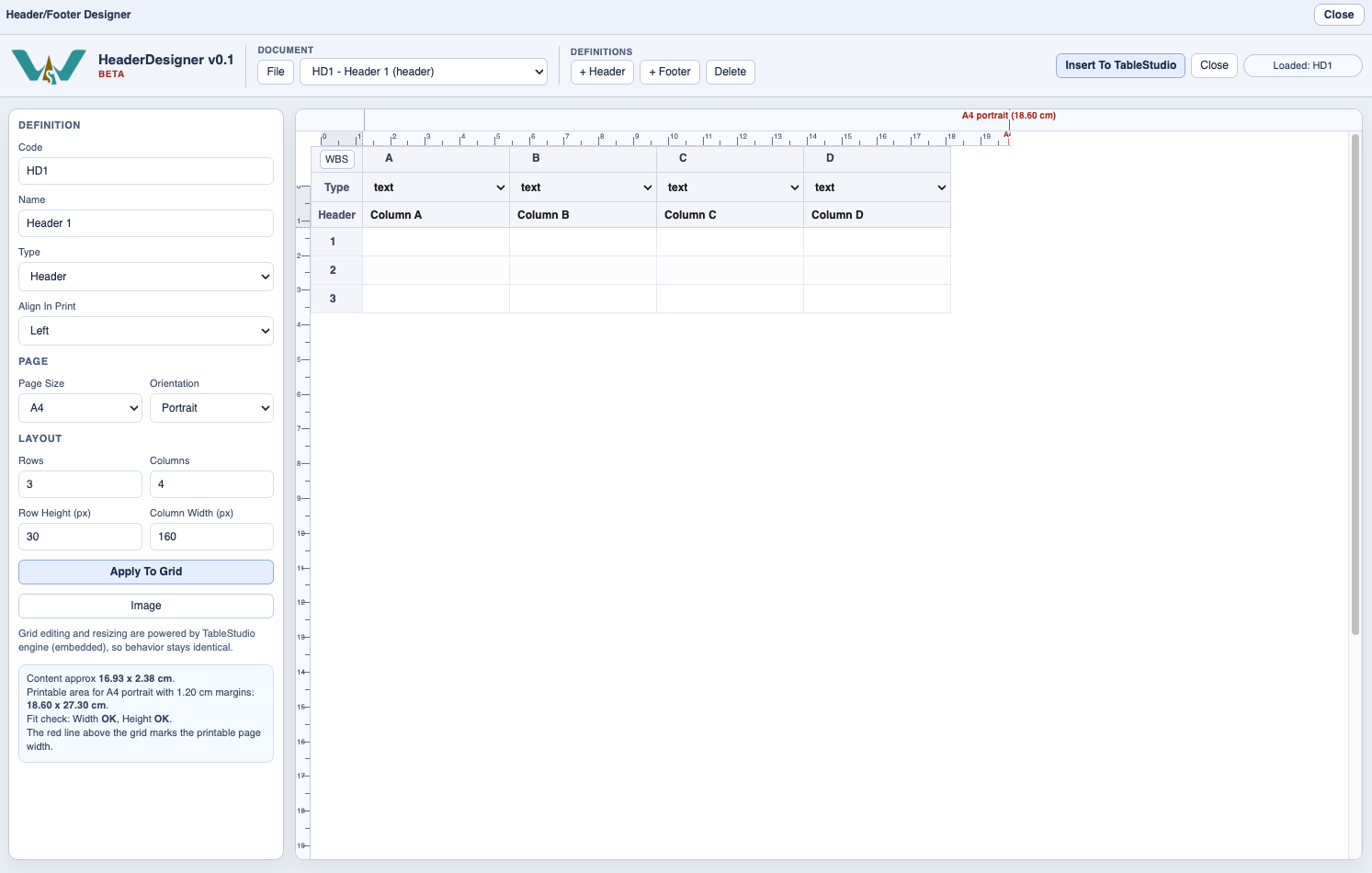
If a sheet uses a header, the header should match the printable page width. Use the header/footer designer to build reusable page branding, titles, logos, and metadata.
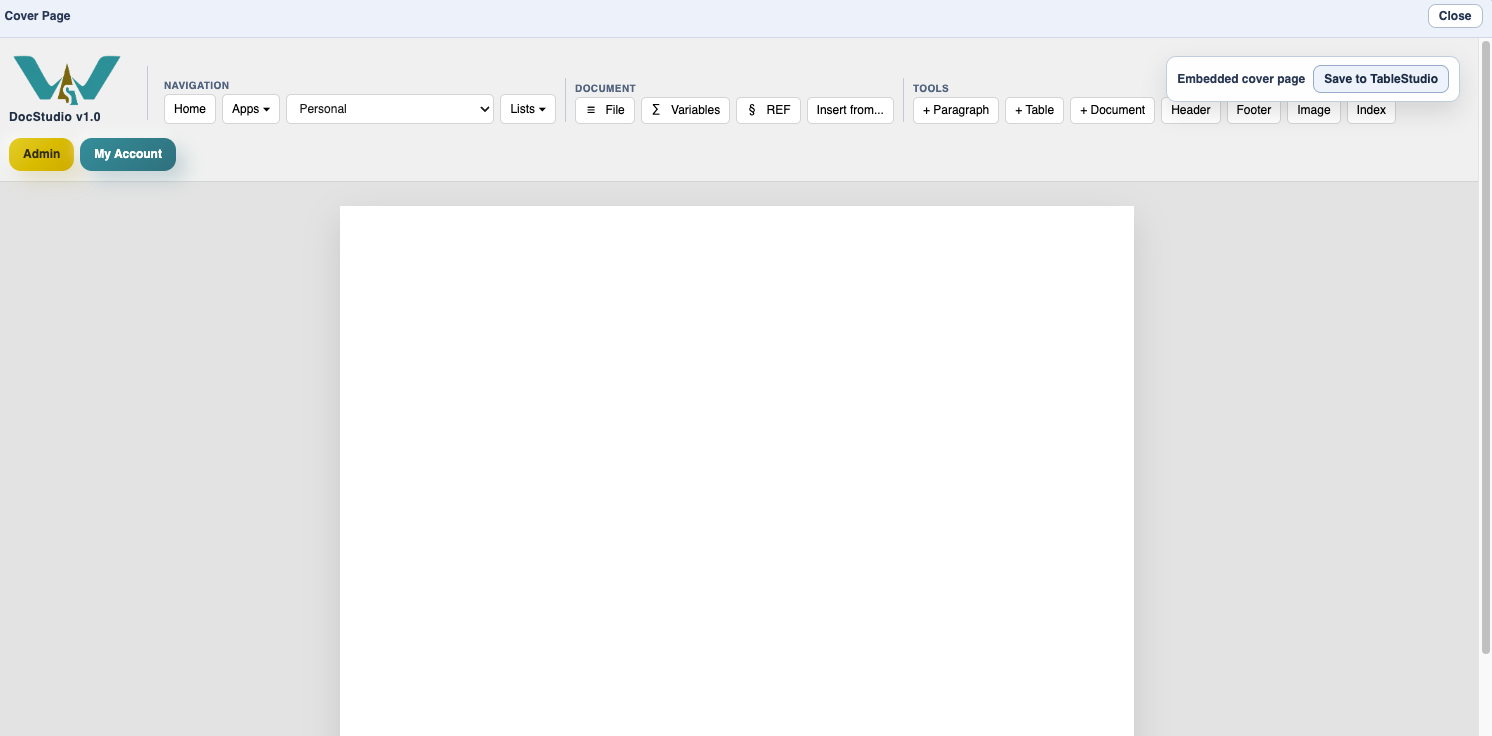
Cover pages are printed before the selected file or sheet content when they are enabled. Cover pages are edited with DocStudio and stored inside the TableStudio file.
For PDF output, use Export PDF instead of browser print when you need package-style output with selected sheets, cover pages, page numbers, index pages, or attached PDFs after sheets.
Related: TableStudio File Settings, Add and Manage Cover Pages in TableStudio, Export PDF from TableStudio.
Print setup in File Settings
Use this area before printing or exporting page-based output.
Cover page editor
Cover pages are DocStudio documents embedded inside the TableStudio file.
Enable JavaScript to use reading progress and usefulness ratings.