
Add and Manage Cover Pages in TableStudio
Explains how to create a cover page for the whole file or the current sheet, how the embedded DocStudio editor opens, and how to disable a cover without deleting it.
Open File Settings in TableStudio and go to the Cover Page section.
There you can turn on:
Use cover page for entire fileUse cover page before this sheet
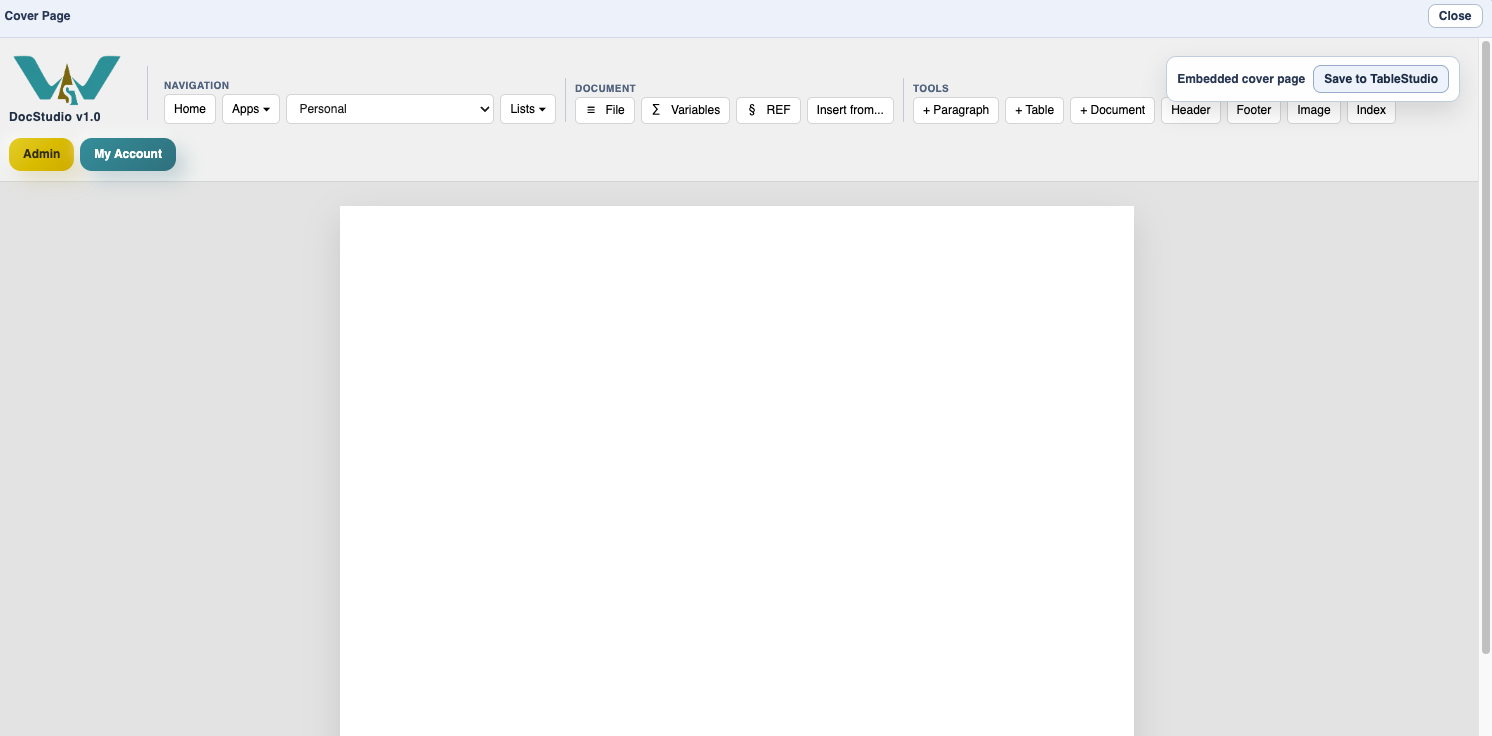
Create Cover Page or Edit Cover Page opens the embedded DocStudio cover editor for the whole workbook.
Create Sheet Cover Page or Edit Sheet Cover Page opens the embedded DocStudio cover editor for the current sheet only.
When no cover exists yet, TableStudio creates a new embedded DocStudio document with an A4, portrait, single page setup. That cover document is stored inside the .wstable file.
Turning a cover checkbox off disables that cover for print and PDF export, but it does not delete the stored embedded document. If you turn it back on later, the same cover can be used again.
The sheet cover belongs only to the current sheet. If you switch sheets and open File Settings again, you can enable or edit a different cover for that sheet.
The editor opens inside a popup hosted by TableStudio, but the editing surface itself is DocStudio. That means the cover uses DocStudio page layout and can include normal DocStudio content such as paragraphs, tables, images, headers, footers, variables, and links.
Related: Export PDF from TableStudio, Cover Pages in TableStudio PDF Export, Saving in DocStudio.
Enable JavaScript to use reading progress and usefulness ratings.