
Conditional Formatting in TableStudio
Create simple rules that style cells by value, text, number, or date across one or more ranges.
Conditional formatting applies styles automatically when a cell matches a rule.
Open it from File Settings > Conditional Format.
A rule can target one range or several ranges separated with commas. Examples include A1:A5, B2:C3, D:D, 1:1, and A1:D1.
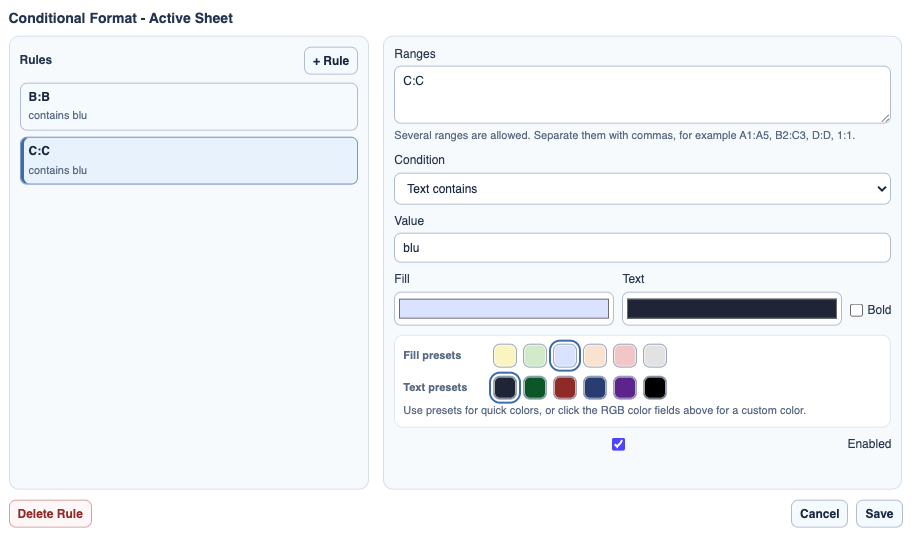
Use the rule editor to choose what to compare: text, number, or date. Then choose the operator, value, fill color, and text color.
Several rules can exist in the same workbook. Keep rules specific when possible, because broad ranges such as full columns can affect many cells.
Related: TableStudio File Settings, Cell Options, Column Type: Date, Column Type: Number.
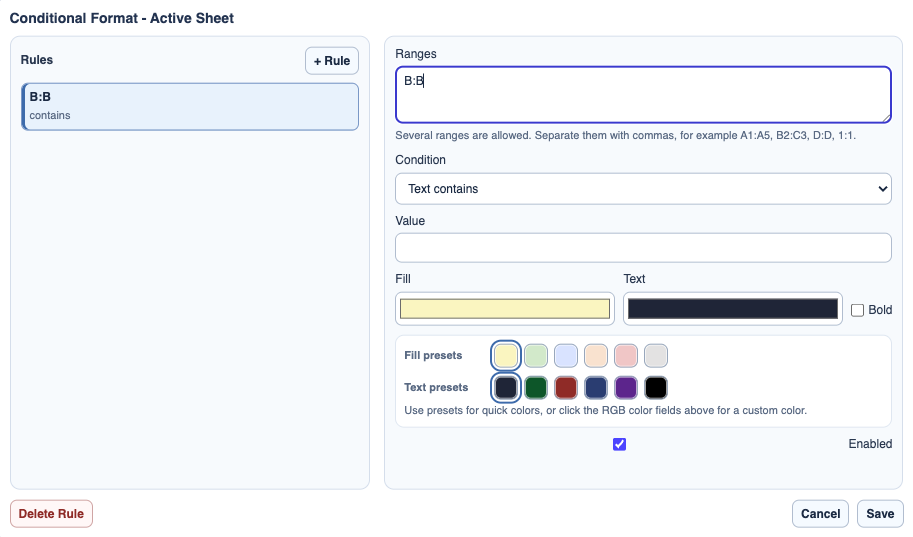
Choose rule colors
Use preset colors or enter a custom color.
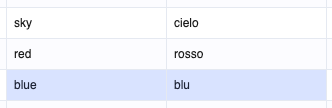
Result in the sheet
Matching cells are styled automatically in the grid.
Enable JavaScript to use reading progress and usefulness ratings.